How to Put a Keyboard in Pairing Mode for iPad: A Step-by-Step Guide
Learn how to pair a Bluetooth keyboard with your iPad, including how to enter pairing mode, navigate Settings, and troubleshoot common issues. Keyboard Gurus provides an expert, step-by-step approach for a seamless typing setup.


Want to connect a Bluetooth keyboard to your iPad? This quick answer shows how to put the keyboard in pairing mode and pair it with your tablet. You’ll learn common button sequences, how to access the iPad's Bluetooth settings, how to verify the connection, and quick checks to ensure typing works right away.
Why pairing mode matters for iPad keyboards
Pairing mode is the gateway to using a keyboard with iPad. The first step in how to put a keyboard in pairing mode for ipad is to get the keyboard into discovery mode so the iPad can see it. According to Keyboard Gurus, most issues stem from devices being out of range or stuck in a previous connection. When you enter pairing mode correctly, you create a clean, unique signal that the iPad can identify and pair with, reducing frustration in classrooms, dorms, and gaming setups where fast typing matters. In this section we cover common keyboard models, how Bluetooth works with iPadOS, and the nuances of different pairing sequences. You’ll also learn how LED indicators and button combinations signal readiness to pair, so you can proceed confidently.
We’ll also address the importance of keeping firmware up to date and ensuring your iPad is within a reasonable distance to avoid dropouts. With pairing mode understood, you’ll spend less time fiddling with settings and more time typing.
Keyboard compatibility and model variations
Not all keyboards use the same method to enter pairing mode. Some models rely on a dedicated Bluetooth button, while others use a key combination (such as Fn + a Bluetooth key) or a small pinhole reset. Compatibility with iPadOS is typically straightforward for modern keyboards, but there are edge cases to watch for:
- Older keyboards may only support Bluetooth Classic, not Bluetooth Low Energy (BLE), which iPadOS favors for low-latency connections.
- Some keyboards implement battery-saving sleep modes that delay pairing; ensuring a fresh battery or charging the keyboard helps.
- Certain keyboards require a firmware update to enable seamless HID Bluetooth pairing with newer iPad models.
If you’re unsure about your model, consult the manufacturer’s manual or product page. Keyboard Gurus notes that taking a minute to identify your keyboard’s exact model and pairing method saves frustration later.
Bluetooth basics for iPad users
Before you pair, it helps to understand a few Bluetooth basics. iPad uses Bluetooth Low Energy (BLE) for most keyboard pairing, which minimizes power use while maintaining responsiveness. When a keyboard enters pairing mode, it becomes discoverable for a short window—often just a few minutes—so you should initiate the connection promptly. Once paired, iPad stores the device profile, so you don’t need to repeat the setup unless you reset or forget the keyboard.
Two quick checks reduce issues: confirm that Bluetooth is enabled on the iPad, and verify that the keyboard’s LED indicator signals pairing mode. If there’s interference from other wireless devices, temporarily turning off unused Bluetooth gadgets nearby can help ensure a clean connection.
Troubleshooting common pairing issues
If you can’t see your keyboard in the list of available devices, try these steps in order:
- Put the keyboard back into pairing mode and keep it within a few feet of the iPad.
- Restart both devices and re-attempt pairing.
- Forget any old keyboard profiles on the iPad from Settings > Bluetooth, then re-pair.
- Check battery levels on both devices; a low battery can prevent a stable connection.
If the keyboard appears but won’t pair, you may be prompted to enter a code. Most devices don’t require a code, but if asked, type the code shown on-screen or referenced in the manual. Keyboard Gurus recommends validating the code by typing it promptly to confirm the correct device.
Tips for smoother daily use and device switching
To keep typing smooth across sessions, consider these practical tips:
- Keep both devices charged and within close range during initial pairing and whenever you switch to a new keyboard.
- If you have multiple Bluetooth devices, remember that iPadOS allows easy switching in Settings > Bluetooth; you can toggle between connected keyboards without re-pairing.
- Regularly check for firmware updates on the keyboard and iPadOS updates on the iPad to maintain compatibility and improved latency.
- Use a dedicated basket or organizer for charging cables and small adapters to reduce setup time.
These practices help maintain a reliable, fast wireless typing experience across work, study, and play.
Keyboard Gurus Verdict: pairing mode guidance that works
The Keyboard Gurus team recommends following a consistent pairing ritual: identify the model, enter pairing mode, verify discoverability, and complete the pairing through iPad Settings. This approach minimizes errors and speeds up setup, especially when you switch keyboards or work across different iPad models. By aligning the device states and confirming a working connection, you’ll maximize your typing efficiency and enjoyment on iPad.
Tools & Materials
- iPad with Bluetooth capability (iPadOS 17+ recommended)(Ensure Wi-Fi is on and Bluetooth is enabled)
- Bluetooth keyboard (battery charged)(Have a known model in pairing mode ready)
- Charging cable for keyboard (optional)(Keep devices powered during setup)
- Notepad or Notes app for quick codes or steps(Useful for jotting PINs or steps)
- Close-range testing environment(Reduce interference from other devices)
Steps
Estimated time: 10-20 minutes
- 1
Put keyboard into pairing mode
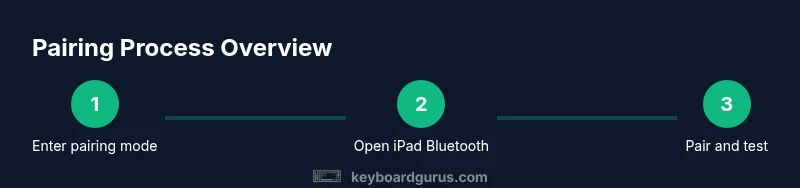
Consult your keyboard manual and locate the pairing sequence. Many keyboards require holding a dedicated Bluetooth button or pressing a specific key combination until an LED indicator blinks rapidly. Do this for 5–10 seconds or until the blink pattern confirms discovery mode.
Tip: If you’re unsure, try a standard Fn + Bluetooth key combo or refer to the model’s quick-start guide. - 2
Open iPad Settings and access Bluetooth
On the iPad, unlock and go to Settings, then tap Bluetooth to turn it on. Wait a moment for the list of nearby devices to populate. You should see the keyboard appear under Other Devices as a discoverable option.
Tip: If Bluetooth is off, toggle it on and refresh the list by pulling the screen down. - 3
Select the keyboard from the device list
In the Bluetooth menu, tap the keyboard’s name to start pairing. A pairing request or code may appear; if so, follow the on-screen prompts. Some keyboards automatically pair without a prompt, and you’ll see a connected status.
Tip: If it asks for a code, it’s typically a generic code like 0000 or 1234, or you can type the code shown on-screen if provided by the iPad. - 4
Confirm the pairing and test
Once connected, test typing in any text field (Notes, Messages, or a document). If the keyboard isn’t typing, go back to Settings > Bluetooth and reconnect, or forget the device and re-pair.
Tip: Keep the iPad screen awake during the first test to prevent the connection from timing out. - 5
Tidy up and prepare for future use
If you frequently switch keyboards, keep a short list of steps and model names handy. Revisit settings if latency or disconnects occur, and ensure the keyboard remains charged between uses.
Tip: Document any model-specific quirks for rapid future pairing sessions.
Got Questions?
Can I pair multiple keyboards to the same iPad?
Yes, you can pair several Bluetooth keyboards to one iPad, but only one keyboard is active at a time. To switch, forget the current keyboard in Settings or simply select a different keyboard from the Bluetooth list when needed.
You can pair several keyboards to one iPad, and switch between them in Bluetooth settings by selecting the one you want to use.
Why isn’t my keyboard appearing in the Bluetooth list?
Common causes include the keyboard not being in pairing mode, being out of range, or a low battery. Ensure pairing mode is active, bring the devices closer, and recharge if necessary.
If you don’t see the keyboard, check pairing mode, reduce distance, and confirm the keyboard has charge.
Do I need the latest iPadOS to pair my keyboard?
Most Bluetooth keyboards work with current iPadOS versions. Keeping iPadOS updated helps ensure compatibility and may improve latency and reliability.
A recent iPadOS version helps with compatibility and performance, but many keyboards work on older builds too.
What if the keyboard asks for a code?
Many keyboards pair without a code. If prompted, type the code shown on-screen or use the common defaults provided in your keyboard’s manual, then press Enter.
If a code appears, type it on the keyboard and press Enter to finish pairing.
How long should pairing take?
Pairing is usually quick, often under a minute once the devices are in pairing mode. If it takes longer, re-check modes and proximity.
обычно быстро; if it takes longer, verify modes and distance.
Can I use wired keyboards with iPad?
Yes, via adapters (USB-C or Lightning) if your iPad supports USB peripherals. Wireless keyboards remain the simplest option for most setups.
Yes, with the right adapter you can use a wired keyboard, but wireless is usually easier.
Watch Video
What to Remember
- Put the keyboard in discovery mode and keep it close to the iPad.
- Use Settings > Bluetooth to complete the pairing and confirm a successful connection.
- Test typing in a notes app to verify responsiveness and accuracy.
- If issues arise, reset the pairing and ensure firmware is up to date.