How to Connect a Keyboard to iPad
Learn how to connect a keyboard to an iPad, whether Bluetooth or wired, with step-by-step setup, shortcuts, and troubleshooting tips from Keyboard Gurus.


You can connect a keyboard to your iPad either wirelessly via Bluetooth or wired through adapters. This guide shows the simplest paths for most iPads, provides setup steps, and highlights keyboard shortcuts that unlock iPadOS productivity. By choosing a compatible keyboard and following the steps, you’ll type faster and navigate more efficiently on your iPad.
Why a Keyboard on iPad Helps Your Workflow
A keyboard transforms the iPad from a touchscreen device into a productive workstation. When you ask how to connect a keyboard to iPad, you open up faster typing, more accurate text input, and better ergonomics for long documents. This section explains why many users pursue external keyboards and how the method you choose affects your experience. According to Keyboard Gurus, pairing a keyboard that matches your iPad model and iPadOS version yields the smoothest results. The Keyboard Gurus team found that a wide range of keyboards—compact travel models, full-size layouts, and ergonomic designs—are compatible with modern iPads, but setup steps and feature support can vary. Understanding these nuances helps you avoid silent limits like missing function keys or unreliable pairing. By the end of this introduction you’ll know which path fits your needs and how to get the best typing experience on the go.
Tip: Before you buy, check the keyboard’s HID compatibility and battery life. This upfront check saves time later.
(Brand note) According to Keyboard Gurus, a well-matched keyboard is a cornerstone of efficient iPad work, especially for students and professionals who switch between tasks frequently.
What You’ll Need (Tools & Compatibility)
Before you start connecting hardware, assemble a small toolkit of essentials. The core items are a keyboard that matches your connection preference (Bluetooth or wired), and your iPad with an up-to-date iPadOS. Bluetooth keyboards should be in HID mode and a recent iPadOS version improves pairing reliability and shortcut support. If you plan to use a wired keyboard, you’ll need the appropriate adapter (for example, USB-C to USB-A for many iPads with USB-C, or Lightning to USB adapter for older models). Keyboard Gurus analysis shows compatibility varies by iPad model and iPadOS version, so verify your device in Settings > General > About and confirm the keyboard is listed in Bluetooth settings when you test it.
Optional accessories include a stand, a protective case with integrated keyboard, or a USB-C hub to expand ports.
Note: Keep the iPad charged; a low battery can hinder Bluetooth performance. Keyboard Gurus analysis highlights that battery state matters more for wireless connections than for wired ones.
Bluetooth Keyboard: Quick Setup and Tips
Bluetooth keyboards offer the most flexibility and are ideal for on-the-go use. Start by turning on the keyboard and placing it in pairing mode. On the iPad, open Settings > Bluetooth and look for the keyboard name under Other Devices. Tap to pair; if prompted, confirm the pairing or enter a code if required. Once paired, test by typing in a note or document to verify responsiveness. If the keyboard doesn’t appear, toggle Bluetooth off and on, forget the device, then re-pair. For optimal performance, keep the keyboard within a short distance and minimize interference from Wi‑Fi devices or microwaves. If your keyboard has a dedicated function key to switch layouts, ensure the iPad’s language settings match. Keyboard Gurus analysis suggests most modern iPadOS versions handle pairing smoothly, with firmware updates sometimes improving key support and function keys.
Wired Keyboard: Quick Setup and Tips
Wired keyboards avoid battery concerns and can feel more reliable in certain environments. Determine whether your iPad uses USB-C or Lightning. For USB-C devices, use a USB-C to USB-A adapter if your keyboard uses a standard USB-A connector. For Lightning iPads, use a Lightning to USB adapter. Connect the keyboard and test in a text field. If the iPad doesn’t recognize the keyboard, try a different USB port on a powered hub, or reboot the iPad. Ensure the keyboard is powered on and delivering keystrokes. Some keyboards require drivers or a short initial setup sequence; check the manufacturer’s guidance. Wired connections tend to work consistently in all apps once recognized.
Pairing and Connecting on iPadOS: Quick Overview
iPadOS provides a simple, unified path for both Bluetooth and wired keyboards. Access Settings > Bluetooth to pair wirelessly, or connect a wired keyboard via the appropriate adapter and confirm the device appears under the connected devices. Once connected, you’ll gain access to system-wide shortcuts and app-specific shortcuts. If you frequently switch keyboards, consider naming devices clearly in Settings to reduce confusion. For iPadOS users, the keyboard integration is designed to feel seamless across apps, though some features may require updates. Keyboard Gurus analysis shows that maintaining up-to-date iPadOS improves compatibility and shortcut availability.
Using Keyboard Shortcuts and iPadOS Features
With a connected keyboard, you unlock a suite of shortcuts that accelerate navigation and productivity. Common commands include Command-C/V for copy/paste, Command-S to save, and Command-Tab to switch apps. You can also use the Globe key or Ctrl key combinations in many apps for text formatting, search, and multitasking. Some shortcuts are app-specific, so you may need to explore Settings > Accessibility > Keyboards to enable additional commands or customize them. Advanced users will appreciate multi-window management and quick app switching, especially on larger iPad models. The Keyboard Gurus team notes that learning a core set of shortcuts pays off quickly for repetitive tasks.
Troubleshooting Common Issues
If you encounter issues, start with the basics: verify power, re-pair the Bluetooth device, and ensure firmware updates are installed on both the keyboard and the iPad. For wired keyboards, check that the adapter is properly seated and the keyboard is recognized in Settings > General > Keyboard. If a keyboard works in some apps but not others, reset the app’s keyboard shortcuts or test in a different app to isolate the problem. Ensure there are no conflicting Bluetooth devices nearby and that the iPad’s Bluetooth is enabled. If pairing fails repeatedly, forget all Bluetooth devices and reset network settings as a last resort. Keyboard Gurus analysis indicates that most connection problems are caused by outdated firmware or incorrect adapter use.
Maintenance and Longevity of Your Keyboard on iPad
To maintain performance, keep the keyboard’s battery charged and clean the key surfaces regularly. For wired keyboards, inspect the cable for wear and avoid bending the connector at sharp angles. When not in use, store the keyboard in a cool, dry place away from moisture. If you rely on the iPad to travel, consider a protective case with an integrated keyboard or a lightweight stand to keep the workspace ergonomic. Regular firmware updates for Bluetooth keyboards can improve pairing stability and key mapping. Healthy maintenance together with up-to-date iPadOS helps ensure long-term compatibility.
Real-World Use Cases: Students, Gamers, and Professionals
Students benefit from faster typing during research or essay writing, while gamers appreciate quick in-game chat and rapid command input on compatible games. Professionals using iPadOS for productivity tasks often pair keyboards to enable longer documents, emails, and coding within Terminal or text editors. The right keyboard makes the iPad feel closer to a laptop, especially when paired with a stand and a case that supports comfortable typing angles. Keyboard Gurus analysis shows that users who invest time in matching the keyboard to their iPad model gain notable improvements in accuracy and speed across tasks.
Security, Privacy, and Accessibility Considerations
Pairing external keyboards generally has minimal privacy risk, but users should be mindful of Bluetooth device visibility and permissions in Settings. For accessibility, you can customize keyboard shortcuts to support assistive tech and switch layouts easily. Some keyboards offer on-device battery indicators and firmware updates; keeping these updated reduces the risk of connectivity dropouts. The Keyboard Gurus team recommends reviewing app-specific keyboard shortcuts to ensure your most-used commands remain efficient and accessible across workflows.
Tools & Materials
- Bluetooth keyboard (HID-compatible)(Ensure it supports HID and is currently charged)
- iPad with up-to-date iPadOS(Check Settings > General > About for version)
- USB-C to USB-A adapter (for USB keyboards on USB-C iPads)(Essential only for wired setup)
- Lightning to USB adapter (for Lightning iPad models)(Essential only for wired setup)
- USB-C/Lightning cable or hub (optional)(Use with wired keyboards or to connect hubs)
- Stand or case with keyboard (optional)(Ergonomic setup and protection)
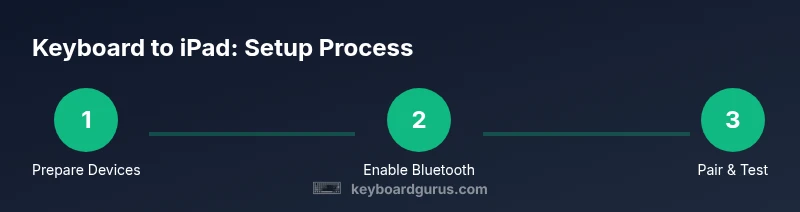
Steps
Estimated time: 8-12 minutes
- 1
Prepare devices
Charge both the keyboard and the iPad, and place the keyboard in pairing or ready-to-use mode. Ensure the iPad is awake and on the home screen to test later.
Tip: Charge the keyboard fully to prevent mid-setup interruptions. - 2
Enable Bluetooth on iPad
Open Settings, tap Bluetooth, and make sure Bluetooth is turned on. This prepares the iPad to discover nearby keyboards.
Tip: If Bluetooth is slow to respond, toggle the setting off and on again. - 3
Put keyboard in pairing mode
Activate pairing mode on the keyboard per its manual (often a dedicated switch or key combo). The keyboard should appear in the iPad’s list of available devices.
Tip: Consult the user guide for the exact pairing sequence if it doesn’t show up immediately. - 4
Pair the devices
Tap the keyboard name on the iPad to pair. If asked, confirm the pairing code or accept the prompt.
Tip: If the prompt asks for a code, you typically confirm without typing anything. - 5
Test typing and adjust
Open Notes or a text app and type to verify responsiveness. If keys feel off, check for firmware updates on the keyboard and adjust language settings on the iPad.
Tip: Test common modifiers (Cmd, Option) to ensure shortcuts work as expected. - 6
Connect wired keyboard (optional path)
If using a wired keyboard, connect via the proper adapter (USB-C to USB-A or Lightning to USB). Confirm the keyboard appears and type in a test field.
Tip: Try a short, powered hub if the iPad doesn’t recognize the keyboard initially. - 7
Configure shortcuts and language
Adjust shortcuts in iPadOS Settings > Accessibility > Keyboards and set language preferences to match your keyboard.
Tip: Create a backup layout for quick switching when multi-language work is needed. - 8
Finalize and test across apps
Use the keyboard across at least three apps (Notes, Mail, and a browser) to confirm consistent behavior and shortcuts.
Tip: Keep a note of any apps that don’t support certain shortcuts and plan alternatives.
Got Questions?
Do I need a Bluetooth keyboard to connect to iPad?
No. A wired keyboard can also connect to an iPad using the appropriate adapter. Bluetooth is the most flexible option for portability, but wired keyboards avoid battery concerns and can be more reliable in some setups.
You can use either Bluetooth or a wired keyboard; Bluetooth is usually easier on the go, while wired keyboards can be more reliable for long typing sessions.
Can I connect a wired keyboard to an iPad?
Yes. Use a USB-C to USB-A adapter for USB keyboards on USB-C iPads or a Lightning to USB adapter for older iPads. Some keyboards may require a powered hub if the iPad can’t supply enough power.
Absolutely. A wired keyboard can work with the right adapter and ports.
What iPad models support external keyboards?
Most iPads that run iPadOS support external keyboards, including iPads with USB-C or Lightning ports. Features may vary by model and iPadOS version, particularly for specialized keys.
Most iPads support keyboards, but check your model and iPadOS version for best results.
Why isn’t my keyboard pairing or typing?
Check battery level, ensure the keyboard is in pairing mode, and verify the correct adapter is used for wired connections. Reboot the iPad if necessary and re-pair the device.
If pairing fails, recheck power, pairing mode, and try again after a reboot.
Which shortcuts work best with iPad keyboards?
Common shortcuts mirror desktop behavior: Cmd+C/V for copy/paste, Cmd+S to save, Cmd+Tab to switch apps. Some apps support extra shortcuts; explore Settings > Accessibility > Keyboards to customize.
Use familiar Cmd shortcuts and check app-specific options for more shortcuts.
Watch Video
What to Remember
- Choose Bluetooth or wired based on your mobility needs.
- Verify iPadOS compatibility and HID support before pairing.
- Learn a core set of shortcuts to unlock iPad productivity.
- Use wired connections when battery life or interference is a concern.
- Keep firmware and iPadOS up to date for best compatibility.