How to Emoji on Keyboard: A Complete Guide
Learn how to emoji on keyboard across Windows, Mac, iOS, Android, and web apps with clear steps, shortcuts, and tips. A Keyboard Gurus guide to fast, readable emoji input.


You can emoji on your keyboard by using the built in emoji picker or keyboard shortcuts, and the method varies by device. This quick guide shows you how to access emoji panels and quick shortcuts on Windows, macOS, iOS, Android, and popular apps, so you can insert symbols fast in messages, documents, and games.
Emoji input basics
Emoji input relies on Unicode characters that render as pictographs across platforms. When you ask how to emoji on keyboard, the core idea is to use either the OS emoji panel or built in shortcuts to insert characters into text fields, documents, or chat apps. According to Keyboard Gurus, emoji input is a cross platform skill that enhances communication and can speed up conversations while keeping tone clear. This section explains what an emoji keyboard is, where to find it, and why the approach differs by device. On most devices, emoji appear as part of the system font, so the same glyph can look different on Windows, Mac,
Platform-specific methods
Windows
Open the emoji panel by pressing the Windows key and the period key (Win + .). In many apps, Win + ; also opens the panel. Once the panel is visible, you can type to search for emoji and use the arrow keys to navigate. Press Enter to insert the selected emoji into your text. Some apps may not support the OS panel, in which case you can copy from a webpage or use a clipboard shortcut. The Windows emoji input path is fast for typing and works across most text fields.
Android
On Android devices, emoji input usually starts from the on screen keyboard's emoji button. Tap the smiley icon to switch to the emoji panel, then browse or search for emoji. Some keyboards offer a three dot menu to enable the emoji panel in one step. If your keyboard lacks an emoji option, install a third party keyboard that includes an emoji set. This approach works well for chat apps and social networks.
Web apps and cross platform notes
In web based editors and chat apps, OS level emoji pickers often work, but some apps also provide their own emoji panels or shortcodes. On Windows and
Emoji categories and search tips
Folders and categories help you find emoji fast: people, objects, nature, symbols, and travel. Use the search function in the emoji picker to jump to a specific symbol (for example, search for “fire” or “thumbs up”). Remember that not all platforms render identical emoji; check how an emoji looks in your target environment. Keyboard Gurus analysis shows that prioritizing commonly understood symbols improves cross platform readability.
Shortcuts and productivity tricks
Create a personal emoji palette by adding your most used emoji to a favorites list or by using clipboard managers. Save time by learning two or three platform shortcuts (Windows,
Accessibility and etiquette
Emojis are great for tone, but they can be misread by screen readers. When accessibility is important, accompany emoji with descriptive text (alt text or trailing words) or use accessible UI labels. Avoid relying on emoji as the sole method of conveying critical information. Keep tone in mind: some emoji carry different meanings across cultures; test with diverse audiences.
Troubleshooting and rendering checks
If emojis don’t appear, ensure your OS and font support the Unicode version; update your apps and keyboard if needed. Some apps render emoji differently; check fallback fonts or try another emoji variant if available. If an emoji panel doesn’t open, verify that input methods are enabled in your settings. Finally, test rendering by sending messages to yourself in multiple apps to confirm consistency.
Real world workflow and conclusion
By now you should feel confident how to emoji on keyboard across platforms. Use OS emoji panels for speed, rely on app specific pickers when needed, and remember to consider accessibility and readability. The Keyboard Gurus team recommends practicing across devices, building a small personal emoji library, and documenting preferred sequences for frequent conversations. Mastery of emoji input will streamline communication and add expressiveness to work and play.
Tools & Materials
- Device with a keyboard (Windows, Mac, iOS, Android)(Any device; ensure OS supports an emoji picker)
- OS emoji picker or emoji supporting keyboard(Most modern systems include an emoji panel)
- Apps or text fields to test emoji insertion(Messages, documents, emails, or notes apps)
- Clipboard manager (optional)(Helpful for cross app emoji workflows)
- Favorite emoji list (optional)(Keep a small palette for speed)
Steps
Estimated time: 15-20 minutes
- 1
Identify your platform
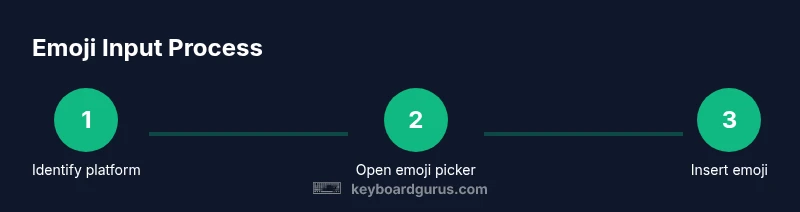
Determine whether you are on Windows, macOS, iOS, Android, or a web app. This decides which emoji input method you will use and helps you choose the most reliable shortcut for your workflow. Understanding your platform ensures consistent results across apps.
Tip: Note any apps where the OS picker does not appear and plan a fallback (copy paste). - 2
Open the Windows emoji panel
Press Win + . to open the Windows emoji panel in most text fields. If it does not appear in a specific app, try Win + ; or use the app's own emoji option. Navigate with arrow keys and press Enter to insert the selected emoji.
Tip: If you use Win + . frequently, pin the panel to make access faster. - 3
Open the macOS emoji picker
Press Command + Control + Space to open the macOS character viewer. Search by name or category and double click to insert. Some apps let you keep the viewer open for quick switching between emoji.
Tip: Use the search field to quickly locate emoji without scrolling. - 4
Open the iOS emoji keyboard
Tap the smiley face on the iPhone or iPad keyboard or use the globe to switch keyboards. Browse categories or use the search bar to find emoji and tap to insert. Long-press to access variation options where available.
Tip: Activate the emoji keyboard during messages for faster input. - 5
Open the Android emoji panel
Tap the emoji icon on the on screen keyboard to switch to the emoji panel. If your keyboard shows multiple layouts, choose the emoji panel from the menu. If needed, install a third party keyboard with enhanced emoji support.
Tip: Experiment with different keyboards to find a layout you enjoy. - 6
Insert emoji into text
Click or tap the emoji to insert it into your text field. Confirm placement in apps that require sending or inserting in a document. Use the emoji search to locate exact symbols quickly.
Tip: Prefer short tokens like :) or ❤️ when supported by the app, but avoid ambiguous symbols. - 7
Search and browse efficiently
Use the emoji picker search bar to jump to categories or specific symbols. Build a small personal library of 5–10 emoji you use most often for faster input. Some apps offer skin tone variants or sequence options.
Tip: Create a weekly routine to review and expand your emoji repertoire. - 8
Use shortcuts and replacements
Set up text replacements or macros for frequently used emoji sequences. In apps that support rich text, consider shortcodes that expand automatically. This boosts consistency in branding and messaging.
Tip: Test replacements in a few different apps before expanding. - 9
Test rendering across platforms
Send a sample emoji message to yourself on multiple devices to verify rendering. Some symbols render differently by platform, which can affect readability.
Tip: Keep a minimal, universally understood emoji set for cross platform use. - 10
Save favorites and create templates
Maintain a personal palette and save emoji into templates for common messages. This reduces repetition and speeds up content creation in chats and docs.
Tip: Review your palette quarterly to reflect changing usage.
Got Questions?
What is the quickest way to insert emoji on Windows?
The quickest method is to press Win + . to open the Windows emoji panel, then search and insert. In some apps Win + ; also opens the panel. If the panel does not appear, copy from a site or use a different shortcut.
Press Windows key plus period to open the emoji panel, choose your emoji, and insert it with Enter.
Can I type emoji on a Mac without an emoji picker?
On macOS you can use the built in emoji picker via Command + Control + Space. Some apps may offer their own emoji choices, but the OS picker works in most text fields.
Use the keyboard shortcut Command Control Space to access emoji on Mac.
Do emoji look the same across devices?
No, emoji renderings vary by platform and font. Always preview your message in the target environment if exact appearance matters.
Emoji can look different on different devices, so test the appearance where it will be seen.
What if an app blocks the OS emoji picker?
If an app blocks the OS picker, copy the emoji from a reliable emoji site or use the app's own insertion tools if available.
If the OS picker won't work, copy and paste the emoji or use the app's built in method.
Are there accessibility concerns with emoji?
Yes. Emoji should not replace essential information. Provide alt text or descriptive context to ensure understandability for screen readers.
Use descriptive text with emoji and avoid relying on emoji alone for important information.
What to Remember
- Master OS emoji panels for speed
- Test cross platform rendering before publishing
- Create a short emoji palette for daily use
- Use search and shortcuts to increase efficiency