How to Type the At Symbol on Any Keyboard
Learn reliable methods to input the @ symbol across Windows, macOS, and Linux. This guide from Keyboard Gurus covers shortcuts, Unicode input, on-screen tools, and remapping safely to help you type the at symbol on any keyboard.


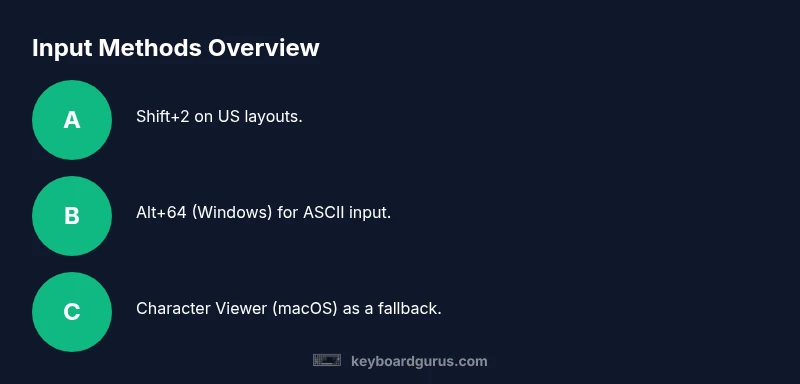
To type the at symbol, start with the most common shortcut on US keyboards: Shift+2. If your layout differs, try the Windows ASCII Alt code (Alt+64) or use macOS’s Character Viewer to insert '@'. For Linux, rely on Unicode input or a Compose key sequence. When all else fails, you can copy-paste '@' from another document or use the on-screen keyboard. This guide explains several practical approaches across Windows, macOS, and Linux.
Why input methods vary by layout and OS
Every keyboard layout and operating system has its own path to the at symbol, and this variation is why the question how to make at symbol on keyboard arises so often. If you want to know how to make at symbol on keyboard, this guide helps you navigate Windows, macOS, and Linux using multiple methods. According to Keyboard Gurus, input methods vary by layout and OS, so learning several options helps you type quickly in any situation. Whether you are a student, a gamer, or a professional, having a clear strategy for entering @ saves time and reduces frustration. This section explains why a single shortcut isn't enough: you may be using a different keyboard layout (US, UK, German, French, or others), you may have separate input sources turned on, and you might be using a physical keyboard or a touch keyboard. The main takeaway is simple: be prepared to switch methods, not rely on one shortcut. Keyboard Gurus analysis shows that cross-layout familiarity reduces typing friction dramatically over time.
Method 1: Start with the most common shortcut on US keyboards
On many desks, the quickest way to insert the at symbol is the classic shortcut you likely know: Shift plus the 2 key. This method is particularly reliable on US QWERTY layouts and is often the first option students and professionals try. If you’re on Windows, try Shift+2 in standard text fields, emails, and code editors. If you’re on macOS with a US-English keyboard, the same shortcut often works, but some regional keyboards map the @ symbol differently. If Shift+2 doesn’t produce @, the issue is most likely the active keyboard layout rather than your finger placement. In those cases, switching to a US layout or using a supplementary method is a quick fix. As a backup, keep a note or clipboard with '@' handy so you can paste it when needed.
Method 2: ASCII/Unicode entry on Windows
Windows users can type the at symbol using an ASCII Alt code. The Alt method involves holding the Alt key and typing the numeric code for '@' on the keypad (usually 64). This approach works independently of the current keyboard layout, making it a reliable fallback when Shift+2 fails. If you don’t see numbers on your keyboard, enable Num Lock and use the keypad area. Release Alt to insert the symbol. For laptops without a dedicated numpad, some laptops support an embedded numeric keypad via a function key; consult your device manual to learn the correct key combination. Alt codes are especially useful in fields like programming or data entry where consistency matters across layouts.
Method 3: macOS Unicode tools and the Character Viewer
Mac users aren’t left without options when the usual shortcut doesn’t work. macOS provides multiple paths to insert '@': the common shortcut on many layouts, plus the Character Viewer and Unicode input mechanisms. To access the Character Viewer, press Control+Command+Space to open the emoji and symbols panel. Search for the at symbol, select it, and insert it into your text. If your keyboard uses a different mapping, you can still insert '@' via the Character Viewer without memorizing a key sequence. For frequent use, adding the Character Viewer to your accessibility shortcuts can speed up typing in emails, documents, and code editors. This approach aligns with best practices for cross-platform keyboard use as noted by Keyboard Gurus.
Method 4: Linux Unicode input and the Compose key
Linux environments often offer powerful input methods for special characters. If your system supports Unicode entry, you can enable a mode where you type a code point to produce a character. A common path is to press a key sequence (often the Compose key or a Ctrl+Shift+U sequence) and then the code for '@'. The exact steps depend on your distribution and desktop environment. The Compose key is a user-configurable modifier that lets you build symbols by typing a short sequence. If Unicode entry is active, you can input '@' without thinking about a specific key combination tied to your physical keyboard. For Linux users who write a lot of code or prose across languages, this method provides a robust, layout-agnostic option.
Method 5: On-screen keyboard and quick copy-paste
If you’re unable to type the at symbol directly, the on-screen keyboard is a dependable fallback. Windows has an On-Screen Keyboard utility; macOS offers a similar Character Viewer workflow; many Linux environments provide an on-screen keyboard as well. Open the tool, click the at symbol, and paste it where needed. Copy-paste remains the simplest workaround when you’re dealing with unfamiliar layouts or hardware limitations (such as a laptop without a numeric keypad). This method also helps validate the exact character you need, reducing frustration during multi-language typing tasks.
Method 6: Handling international layouts and regional quirks
International keyboard layouts map keys differently, which is the core reason you might not see the familiar Shift+2 result. For example, some layouts place '@' on a separate key or require a modifier key such as AltGr. Checking your current input source in your OS settings is a critical first step. If you switch between languages or keyboard layouts often, consider keeping a quick-access reference that lists the most common methods for your setup. While there isn’t a universal single shortcut, combining layout-aware shortcuts with Unicode or on-screen tools gives you a resilient workflow. Keyboard Gurus emphasizes practicing a few reliable methods so you can type '@' in emails, chats, and code regardless of the keyboard you’re using.
Method 7: Troubleshooting common issues and quick fixes
When you can’t type the at symbol, start with a quick checklist: verify the active keyboard layout matches your expectation, confirm the correct input source is selected, and test the character input in a simple text editor. If your system uses a specialized input method, temporarily switch to a standard layout to see if the shortcut works. In some cases, software that remaps keys or runs in the background can interfere with typical shortcuts. Disable such utilities or adjust their configuration to restore standard typing behavior. If you still can’t type @, use the on-screen keyboard or copy-paste as a temporary solution while you diagnose the root cause.
Method 8: Safe remapping and long-term solutions for frequent users
For those who routinely need to type the at symbol, a controlled remapping can save time without compromising other shortcuts. Opt for a non-system-wide remapping tool that you can disable easily, ensuring you don’t break critical shortcuts in professional software. Document any changes you make and keep a revert plan handy. The goal is to balance efficiency with reliability across devices and layouts. If you’re unsure about remapping, start with a reversible, non-destructive approach and test it in multiple apps.
Practical tips for learners and power users
- Practice typing the at symbol in different contexts (emails, code, chats) to build muscle memory. - Keep a small reference card with the most reliable method for your setup. - When traveling or switching devices, pause to confirm you’re using the intended input source. - Always have a fallback like copy-paste for edge cases. Building a multi-method toolkit makes you faster and less frustrated when the layout changes.
Tools & Materials
- Computer or mobile device(Any OS (Windows/macOS/Linux) and keyboard connected)
- On-screen keyboard / Character Viewer(Windows On-Screen Keyboard, macOS Character Viewer, or Linux equivalent)
- Clipboard manager or simple editor(For quick copy-paste of '@' when needed)
- Internet access for quick lookup(Useful if you need locale-specific tips or references)
Steps
Estimated time: 15-30 minutes
- 1
Identify your platform and layout
Determine whether you are on Windows, macOS, or Linux, and note the active keyboard layout (US, UK, German, etc.). This step ensures you pick the most effective method for your setup. If you aren’t sure, open the OS settings to confirm the layout and input sources. Knowing this upfront reduces trial-and-error and speeds up subsequent steps.
Tip: Use a quick open of your keyboard settings to quickly confirm the active layout before typing. - 2
Try the most common shortcut on your layout
Test the likely shortcut for your current layout (often Shift+2 on many US keyboards). If it works, you’ve found your primary method. If it does not produce '@', proceed to the next steps rather than forcing a shortcut that doesn’t apply to your keyboard.
Tip: Do a quick in-document test to confirm the result before writing an important email. - 3
Use an ASCII/Unicode approach when needed
If the shortcut fails, rely on ASCII/Unicode methods: Windows Alt+64 on numeric keypad remains a robust fallback. For Linux, explore Unicode entry or a Compose key if configured. These approaches bypass layout quirks and give you a reliable alternative.
Tip: Ensure Num Lock is enabled on Windows laptops with a hidden keypad before using Alt codes. - 4
Leverage macOS tools for quick insertion
macOS provides the Character Viewer for inserting '@' without memorized shortcuts. Open it with Control+Command+Space, locate the at symbol, and insert it. If you frequently need '@', consider keeping the viewer accessible from the menu bar.
Tip: Search for '@' directly in the Character Viewer to speed up insertion. - 5
Explore Linux options (Compose/Unicode)
If you use Linux, enable a Compose key or Unicode entry. This lets you build the '@' symbol with a short sequence you define. Check your distribution’s keyboard settings to configure the Compose key and test it in a text editor.
Tip: Choose a memorable Compose key (like Right Alt or Right Ctrl) to avoid interfering with common shortcuts. - 6
Use on-screen keyboard or copy-paste as a fallback
When hardware limitations or unfamiliar layouts block direct entry, open the on-screen keyboard or a simple text editor to copy '@' and paste it into your target application. This method is universally reliable and helps confirm the exact character you need.
Tip: Keep a ready-to-paste '@' snippet in your clipboard for quick insertion. - 7
Consider a safe remapping for frequent use
If you type '@' often, a controlled remapping can save time. Use a tool that is easy to disable, and document the change. Always test across apps to ensure you haven’t broken other shortcuts.
Tip: Choose a non-system-wide tool that can be toggled off quickly if problems arise.
Got Questions?
Why does the at symbol sometimes type a different character?
Different keyboard layouts map the @ symbol to different keys or require different modifiers. Check your active input source and switch layouts if necessary to align with your typing habits.
Different layouts map the at symbol to different keys. Check your input source and switch layouts if needed.
What if Shift+2 doesn’t produce @ on my keyboard?
Try the ASCII Alt code (Alt+64) on Windows, or use the macOS Character Viewer to insert the symbol. If you’re on Linux, explore Unicode input or a Compose key sequence. Verify the active layout first.
If Shift+2 doesn’t work, use Alt+64 on Windows or macOS's Character Viewer. Linux users can try Unicode input or a Compose key.
Can I remap a key to always produce @?
Yes, you can remap a key or create a shortcut, but do so carefully and ensure you can revert the change. Prefer non-system-wide tools and test across applications to avoid breaking other shortcuts.
Yes, you can remap a key, but be careful and test across apps to avoid breaking other shortcuts.
How do I type @ on a non-Latin keyboard?
Non-Latin layouts vary widely. Use the Character Viewer or copy-paste from a source, and consult your OS’s input source options to locate the correct method for your layout.
On non-Latin keyboards, use the Character Viewer or copy-paste, and check your layout options.
Is there a single universal method for all operating systems?
No single universal shortcut exists due to layout differences. A multi-method approach—shortcuts, ASCII/Unicode, and on-screen tools—offers the most reliable results across Windows, macOS, and Linux.
There isn’t one universal method; use multiple methods to cover all systems.
What’s a quick trick for laptops without a numeric keypad?
Use a laptop’s built-in on-screen keyboard or enable an alternative Unicode entry method, then copy-paste the result if needed. Alt codes are often not available without a keypad, so Unicode or on-screen tools are practical substitutes.
Without a keypad, use Unicode input or the on-screen keyboard, then copy-paste.
Watch Video
What to Remember
- Identify your OS and keyboard layout before typing @.
- Leverage multiple methods: shortcut, ASCII/Unicode, and on-screen tools.
- Mac and Linux offer additional avenues like Character Viewer and Compose key.
- Keyboard Gurus recommends safe, reversible remapping if needed.