Why is my keyboard putting instead of @? Urgent Troubleshooting Guide
Urgent guide to fix the '@' symbol printing wrong on keyboards. Learn layout, language, and remapping fixes with steps, diagnostics, and safety tips from Keyboard Gurus.


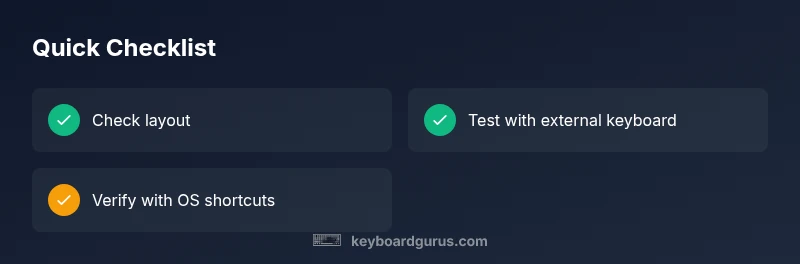
According to Keyboard Gurus, the most common reason you’re getting the wrong symbol is a layout or input language mismatch. A quick fix is to switch input methods and verify the active keyboard layout: Windows users can press Win+Space, macOS users can press Cmd+Space to cycle layouts, and Linux users can switch via the system tray language icon. If the symbol remains incorrect, check for remapping software or keyboard shortcuts that override the @ key. Keyboard Gurus emphasizes starting with layout checks before diving into deeper fixes.
Why 'why is my keyboard putting instead of @' matters
The symbol you see when you press the key labeled @ on your keyboard is a surprisingly common source of frustration, especially after a system update or a language pack change. The root cause is frequently a mismatch between the physical keyboard and the active logical layout, which dictates which symbols your browser or editor renders. Keyboard Gurus analysis shows that layou t mismatches account for the majority of cases where the @ symbol prints as something else. This issue can arise on any operating system and across hardware vendors, so a methodical check is essential. Start by identifying what you expect to appear when you press the key tied to @ and compare it with what actually appears in a text field. If the mismatch persists in multiple programs, you’re likely dealing with a system-wide setting rather than a single app problem.
Check your input language and keyboard layout
Your first step is to confirm the active input language and keyboard layout. Many users accidentally switch layouts when they use a different language keyboard or after system changes. On Windows, open Settings > Time & Language > Language & Region, then review the Preferred languages and Proofing language. On macOS, go to System Settings > Keyboard > Input Sources and ensure the correct source is selected. Linux distributions vary, but you’ll typically find layout options in Settings > Region & Language or your desktop environment’s keyboard settings. After adjusting, test in a neutral text field and compare to the expected character. If the issue occurs only in one app, the culprit may be an app-specific shortcut or remap rather than the global layout.
Explore OS-level keyboard settings (Windows/macOS/Linux)
Beyond the language switch, many operating systems offer specialized features that affect how keys map to symbols. In Windows, ensure “Use Unicode UTF-8 for worldwide language support” is set appropriately and disable any experimental keyboard settings that alter dead keys or compose sequences. On macOS, verify the Input Menu and “Press and hold a key to show accents” behavior, and consider disabling any accessibility features that modify input behavior. Linux users should check XKB or Wayland keyboard layouts and ensure the layout matches the physical keys. After applying changes, reboot or log out to ensure the new mappings take effect, then perform a fresh test in multiple applications.
Inspect software remapping and keyboard shortcuts
Sometimes third-party tools override keyboard mappings. Common culprits include remapping tools, macro utilities, or accessibility programs. Audit installed software for any scripts or profiles that reassign the @ key or the Shift combination, and temporarily disable or uninstall them. If you rely on a remapping utility for productivity, map the @ symbol to a different, intentionally chosen key combination and test the result. Keyboard Gurus notes that disabling these tools is often enough to restore correct symbol output, but remember to re-enable safe features one by one to isolate the source.
Test with alternative hardware and safe fixes
If software checks don’t resolve the problem, rule out a hardware fault by trying a different keyboard on the same machine. An external USB keyboard can quickly determine whether the issue is rooted in the laptop’s built-in keyboard. You should also try the on-screen keyboard to see if the symbol outputs correctly there. If the external keyboard works fine, the original keyboard may have a faulty key matrix or a physical issue. In that case, consider professional servicing or a replacement keyboard.
When to escalate to professional help
If you’ve exhausted layout, language, and software checks and the problem persists across multiple keyboards, you likely have a hardware problem. A faulty key switch, warped membrane, or PCB damage could cause unreliable symbol output. Seek professional diagnosis, especially if the device is under warranty. Document the symptoms with screenshots and a short video to aid technicians. Safety note: avoid attempting internal repairs beyond basic user-accessible steps.
Steps
Estimated time: 25-40 minutes
- 1
Identify current layout in use
Open your language and input settings and note the active keyboard layout. Type in a text editor to verify whether @ maps to the expected key combination. If it doesn't, you’re likely dealing with a layout mismatch or a non-default input source.
Tip: Take a screenshot of the active layout settings for reference. - 2
Switch to the correct layout using OS shortcuts
Use OS shortcuts to cycle through layouts: Windows: Win+Space, macOS: Cmd+Space (or Ctrl+Space on some builds). Keep switching until the @ key behaves as expected. Reopen a text field to re-test.
Tip: Avoid making multiple changes simultaneously; confirm one change at a time. - 3
Check for language packs and regional settings
Ensure the preferred language matches your hardware. In Windows, remove any unnecessary language packs; in macOS, adjust Input Sources; in Linux, adjust XKB layouts. Reboot and retest after changes.
Tip: Only remove language packs you don’t use to avoid unintended side effects. - 4
Disable conflicting remapping software
Identify any AutoHotkey scripts, PowerToys remaps, or third-party tools that may override the @ key. Disable them and test. If the issue disappears, reintroduce tools one by one to find the culprit.
Tip: Back up profiles before removal. - 5
Test with an external keyboard
Connect an external USB keyboard and test several keys, including the one that prints @. If the external keyboard works, the laptop keyboard may be faulty.
Tip: Clean the keyboard gently with proper technique before concluding hardware fault. - 6
Reset drivers and reconfigure layout
Uninstall keyboard drivers, restart, and let the system reinstall them. Reapply your preferred layout and perform a final test. If problems persist, contact support.
Tip: Avoid aggressive driver cleaning that might remove essential system files.
Diagnosis: Pressing the @ key prints a different symbol or nothing at all
Possible Causes
- highKeyboard layout or input language mismatch (US vs UK vs other locales)
- mediumActive keyboard remapping or macro software intercepting the key
- lowHardware issue with the key switch or keyboard matrix
- lowApplication-specific keyboard settings or shortcuts
Fixes
- easySwitch to the correct layout in OS and test in a text editor
- easyDisable or remove conflicting remapping software
- easyTest with an external keyboard to isolate hardware fault
- mediumUpdate or reinstall keyboard drivers and reset layout defaults
- hardIf needed, consult a professional for hardware repair
Got Questions?
Why does the @ symbol print as a different character on my keyboard?
The most common cause is a layout or input language mismatch. Other possibilities include remapping software or hardware issues. Verify your active layout and test across apps to confirm.
The wrong symbol usually means your layout is off or a program is remapping keys. Check your layout, then test in a few apps.
How do I switch keyboard layouts on Windows 11/10?
Open Settings > Time & Language > Language & Region. Add or select the correct input source, then use the Win+Space shortcut to cycle through layouts and test the @ key.
Use Windows language settings and the Win+Space shortcut to switch layouts.
What if a remapping app causes the issue?
Disable the remapping tool temporarily to confirm. If the problem disappears, modify or remove the offending script or profile.
Turn off the remap tool to see if the symbol prints correctly.
Can hardware problems cause this?
Yes, a faulty key switch or PCB can alter output. Test with an external keyboard to confirm, and seek professional service if needed.
Hardware could be to blame—try an external keyboard to check.
When should I seek professional help?
If multiple keyboards still misbehave after all software checks, a hardware diagnosis is warranted. Contact support or a technician.
If it persists across keyboards, get a professional check.
Watch Video
What to Remember
- Identify the active layout and align it with your hardware.
- Test with multiple keyboards to isolate hardware faults.
- Disable conflicting remapping tools before reinstalling drivers.
- Keyboard Gurus’ verdict: fix layout first, then tackle hardware if needed.