How to Type for Laptop: Master Your Keyboard Skills
Learn practical, laptop-friendly typing techniques to boost accuracy and comfort. This complete guide covers posture, home-row technique, keyboard variations, drills, and ergonomic setups for desktop-like productivity on a laptop.


This guide helps you type efficiently on a laptop by optimizing posture, finger placement, and practice routines. According to Keyboard Gurus, you’ll learn home-row positioning, targeted drills, adapting to chiclet keyboards, and when to use external keyboards for comfort. Follow the step-by-step approach for measurable improvements in comfort and accuracy.
Ergonomics and posture for laptop typing
Proper ergonomic setup is the foundation of sustainable laptop typing. Keep your back straight and supported, shoulders relaxed, and elbows close to your sides. The keyboard should be at a height that allows your wrists to stay neutral, not bent up or down. If your chair or desk forces you into awkward angles, consider adjustments: a laptop stand to raise the screen to eye level, a separate keyboard, or a cushioned wrist rest to reduce contact stress. Short breaks every 20-30 minutes help prevent fatigue and repetitive strain injuries. Keyboard Gurus analysis shows that ergonomic posture paired with deliberate practice reduces fatigue and improves long-term comfort. Practice with a calm pace first, and only speed up once you maintain comfortable, accurate keystrokes.
Understanding the home row and finger placement
The home row is your typing compass. Place your left-hand fingers on A-S-D-F and right-hand fingers on J-K-L-;. The F and J keys have tactile bumps to help you locate them without looking. Your thumbs should hover over the spacebar. Return to the home row after each keystroke. To build accuracy, relax your wrists and keep your hands low and level; avoid towering fingers or pressing keys with excessive force. With consistent practice, you’ll develop muscle memory that reduces the need to look at the keyboard. Keyboard Gurus emphasizes training the sense of touch to improve consistency across different keyboards.
Navigating different laptop keyboards: chiclet vs island vs scissor switches
Laptop keyboards vary in key spacing, travel distance, and feedback. Chiclet/island keyboards have short travel and a raised profile, which can feel different from desktop keyboards. Scissor-switch designs aim for stable, quiet keystrokes. If your laptop uses a nonstandard layout (for example, a compact bottom row), memorize the altered positions and adapt your speed gradually. When possible, try a full-size external keyboard for longer typing sessions to minimize fatigue. Keyboard Gurus notes that adapting your technique to the actual keyboard you use daily yields the best long-term improvements.
Common mistakes and how to fix them
Many beginners rely on peck typing, glare at the screen, or press keys with excessive force. Start by aligning to the home row and using all fingers evenly, not just the index and middle fingers. Wrist posture matters: keep wrists straight and avoid resting them on hard edges. Looking at the keyboard is a common habit that slows progress—practice touch typing until the pattern becomes automatic. Slouching or leaning forward also increases fatigue; set your chair height so your spine remains upright and your feet are flat on the floor. Keyboard Gurus stresses that consistency beats bursts of speed; establish a sustainable tempo you can maintain for 20–30 minutes per session.
Drills to build speed and accuracy
Structured drills train both accuracy and speed without sacrificing form. Start with short, focused tasks: repeat common words, practice letter pairs, and type simple sentences from memory to reinforce muscle memory. Gradually introduce longer passages and real-world tasks like drafting emails or notes. Time-bound drills can help measure progress, but avoid rushing; accuracy comes first. Mix in rhythm-based drills (typing a sentence with a steady pace) to build flow while maintaining control. Keyboard Gurus encourages daily short sessions over occasional long marathons for lasting gains.
Tools and aids: keyboards, software, and apps
A reliable typing routine can benefit from aids like an ergonomic desk setup, an optional external keyboard for long sessions, and typing software or online tutors. Popular tools offer guided lessons, real-time feedback, and personalized drills. If you can, practice on the exact keyboard you use daily to minimize adaptation overhead. Keyboard Gurus notes that smart practice—combining guided lessons with real-world typing tasks—yields better retention and comfort than generic drills alone.
Practice schedule and realistic goals
Consistency is more important than intensity. Plan 3–4 short practice sessions per week, each 20–40 minutes, focusing on form, accuracy, and gradually increasing duration. Set tangible milestones like completing a 10-minute drill without errors or typing a page with minimal errors. Keep a simple log of your sessions to watch for trends in improvement. Keyboard Gurus recommends reassessing goals every 2–4 weeks and adjusting drills to challenge your current level without sacrificing technique.
When to use external keyboards and ergonomic setups
If your laptop’s built-in keyboard feels cramped or if you experience discomfort after long sessions, an external keyboard can make a big difference. Pair it with a proper desk height and a supportive chair to replicate a comfortable desktop typing posture. Consider a palm-supported wrist rest and a keyboard tray to maintain neutral wrists. Keyboard Gurus suggests trying different switch types and key layouts during extended practice to identify what minimizes fatigue while maximizing accuracy for you.
Common troubleshooting and maintenance
If keys stick, feel mushy, or you notice erroneous keystrokes, start with a quick clean: power off, remove keycaps if possible, and use compressed air to clear dust. Update any firmware for specialized keyboards and ensure your drivers are current. A repetitive strain issue may benefit from micro-breaks and posture checks; if pain persists, seek professional advice. Regular cleaning and careful use extend the life of your keyboard and support consistent progress.
Tools & Materials
- Laptop with working built-in keyboard(Ensure keyboard responds reliably before practicing)
- External USB-C/USB keyboard (optional)(Helpful for long sessions or ergonomic setups)
- Desk or lap desk for stable typing surface(Keeps wrists neutral and screen at comfortable height)
- Ergonomic chair with lumbar support(Improves posture during longer sessions)
- Timer or stopwatch(Track practice duration and pace)
- Notebook or digital notes for drills(Record goals and progress)
- Typing software or online tutors (optional)(Guided lessons and feedback)
Steps
Estimated time: 60-90 minutes
- 1
Set up your posture
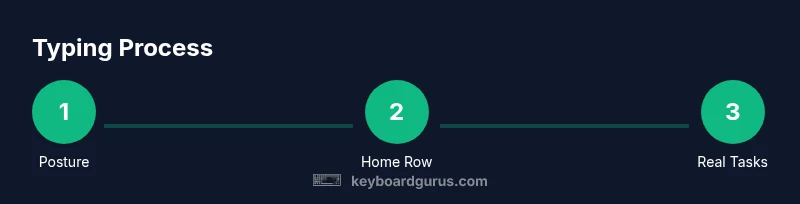
Sit with a straight back, feet flat, and elbows at a comfortable angle. Position the laptop screen at eye level to avoid neck strain, and place your keyboard at a height where your wrists remain neutral. Use a chair with lumbar support if possible.
Tip: A 90-degree elbow angle and neutral wrists are the foundation of comfortable typing. - 2
Position your hands on the home row
Place your left-hand fingers on A-S-D-F and your right-hand fingers on J-K-L-;. Let your thumbs rest on or near the spacebar. Return to the home row after each keystroke to reinforce muscle memory and reduce looking down.
Tip: Feel the bump on F and J to locate home row without glancing. - 3
Lower your gaze and type by feel
Aim to keep eyes on the screen as you type. Start with simple words, gradually increasing complexity. Use touch typing drills to train accuracy before speed.
Tip: Consistency beats speed; accuracy first builds a solid foundation. - 4
Warm up with short drills
Begin with 5-minute warm-ups focusing on common words and letter pairs. Progress to longer sentences as accuracy improves. Log results to observe improvements over time.
Tip: Begin slowly and maintain a steady rhythm to avoid ingraining errors. - 5
Incrementally increase speed
When drills feel comfortable, slowly raise the pace while preserving accuracy. Stop if you start making frequent mistakes and revert to a slower tempo until precision returns.
Tip: Speed comes from consistent accuracy, not frantic keystrokes. - 6
Practice real-world tasks
Type emails, notes, or short articles to simulate daily work. This helps adapt technique to practical content and varied word patterns.
Tip: Real-world typing reveals weaknesses that drills alone won’t show. - 7
Assess and adjust your setup
Periodically review posture, desk height, and keyboard preference. Try an external keyboard or a different tilt to discover what minimizes fatigue.
Tip: Small adjustments can yield big comfort gains. - 8
Maintain a sustainable routine
Stick to a regular practice schedule and track progress over weeks. Reassess goals and drills every few weeks to keep improving.
Tip: Consistency over brilliance creates lasting skill.
Got Questions?
What is the best posture for laptop typing?
Maintain a straight back, relaxed shoulders, and neutral wrists. Screen height should align with eye level to prevent neck strain. Start each session with a quick posture check and adjust as needed.
Keep your back straight, shoulders relaxed, and wrists neutral. Check your screen height and adjust before you begin typing.
Should I use an external keyboard for laptop typing?
An external keyboard can improve ergonomics and comfort during long sessions. It allows you to position the keyboard for a neutral wrist posture while keeping the laptop screen at eye level.
Yes—an external keyboard often helps with comfort during longer typing tasks.
How long does it take to improve typing speed on a laptop?
Improvement comes with consistent practice. Set regular short sessions and gradually increase challenge. Track progress over weeks to see steady gains in accuracy and rhythm.
With steady practice, you’ll see gradual gains over weeks.
Do I need typing software to learn typing on a laptop?
Typing software provides structured lessons and feedback, which can accelerate learning. Use it alongside real-world tasks for best results.
Software helps structure practice and gives feedback, which speeds up learning.
Is it okay to look at the keyboard while learning?
Looking at the keyboard slows you down and makes you reliant on sight. Practice touch typing to develop muscle memory, even if it slows you at first.
No—try to type by feel and only glance occasionally when learning.
What are common mistakes beginners make when typing on a laptop?
Common mistakes include peck typing, wrist strain, looking at the keyboard, and slouching. Address each by practicing home-row technique, maintaining posture, and using breaks to reset.
Peck typing, poor posture, and looking at the keyboard are the main hurdles to fix.
Watch Video
What to Remember
- Adopt proper posture and neutral wrists
- Master the home row for accuracy
- Prioritize accuracy before speed
- Use drills and real-world tasks for balanced practice
- Consider external keyboards for comfort