What to Type on Keyboard: A Practical Typing Guide
Discover practical guidance on typing with proper finger placement, posture, and structured drills to boost speed and accuracy on any keyboard.


In this guide, you will learn what to type on keyboard for efficient, accurate input. We cover core finger placement, neutral wrist posture, and steady practice routines you can start today. You’ll also get a practical checklist to structure sessions, track progress, and avoid common errors that slow typing speed.
Foundations of typing on keyboard
Typing on a keyboard is more than mashing keys; it's a coordinated skill that blends finger mapping, posture, and practice. Before you worry about speed, establish a stable baseline: wrists neutral, shoulders relaxed, and a seated height that allows your forearms to be parallel to the desk. Start with the home row—the ASDF row for the left hand and the JKL; row for the right—and train the muscles to return to those keys after every stroke. This foundation remains constant across devices, from compact laptops to full-size mechanical keyboards. When you practice, aim for accuracy first, speed second. The keyboard layout you use influences which keys you reach, but consistent technique makes the biggest difference. In this guide we focus on what to type on keyboard in a way that you can apply whether you’re coding, writing, gaming, or taking notes in lectures. The emphasis is sustainable habits over quick hacks.
Hand positioning and finger mapping
Effective typing starts with correct finger placement. Place your left fingers on A S D F and your right fingers on J K L ;. Your thumbs rest lightly on the spacebar. Keep wrists elevated just enough to avoid contact with the desk, then relax them as you type. Each finger has a designated set of keys; for example, left pinky handles Q, A, Z, and certain punctuation, while the right ring finger covers the period and semicolon near the home row. Move between rows by lifting only necessary fingers rather than swinging your entire hand. Avoid looking down; your eyes should stay on the screen, and the keyboard should become a mental map. Practice simple home-row drills, then add letters gradually, ensuring each keystroke lands correctly before increasing tempo. Consistency is more important than speed in early stages. Keyboard Gurus analysis shows that deliberate repetition beats rushed, unfocused practice.
Setting up an ergonomic workspace
Your posture influences typing comfort and endurance. Sit with feet flat, knees at roughly hip height, and your chair supporting your lower back. The keyboard should be at elbow height or slightly lower, so your forearms can remain parallel to the floor. A relaxed shoulder posture reduces tension and helps you type longer without fatigue. If you use a wrist rest, ensure it supports rather than elevates your wrists; use it only to maintain neutral alignment. The monitor should be top-aligned with your gaze to prevent neck strain. When you type, avoid gripping the keyboard with your palms. Instead, let your hands hover above the keys, ready to press with light touch. For laptop users, consider an external keyboard to achieve a more comfortable angle. Ergonomic setup correlates with fewer injuries and better long-term accuracy according to Keyboard Gurus analysis.
Typing drills and practice routines
Regular, structured drills accelerate progress. Start with home-row precision drills to build muscle memory, then progressively add top-row and bottom-row keys. Include random-word drills to test recall, and sentence drills to simulate real-work typing. Alternate between silent, accuracy-focused sessions and timed sessions to balance control with speed. Keep sessions short and frequent, such as 20–30 minutes daily, and gradually extend as comfort grows. Use a timer or software to track consistency rather than chasing lofty speed milestones early on. The goal is steady improvement, not perfection from day one.
Common mistakes and fixes
Many typists fall into predictable traps: looking down at the keyboard, getting wrist angles wrong, or forcing keystrokes with excessive finger pressure. Correct posture by aligning wrists with the forearm, and ensure elbows stay close to the body. Reassess finger assignments if you notice repeated mis-keys; consistency matters more than memorized speed. If you catch yourself peeking at the keys, reset to a practice mode that reduces visual feedback and forces muscle memory to guide the stroke. Build a habit of pausing when you notice tension or fatigue, then resume with lighter, deliberate taps. Keyboard Gurus analysis highlights that pain-free practice leads to longer sessions and better retention.
Task-specific typing tips
Different tasks demand different typing approaches. For coding, learn to type symbols and brackets without breaking rhythm, using a consistent finger for each symbol. When writing, emphasize accurate punctuation and capitalization; use sentence-level drills to improve flow. In gaming, precision matters more than raw speed, so practice quick finger taps in short bursts and maintain a relaxed posture to minimize strain. For data entry, create templates and reuse common phrases to reduce keystrokes while maintaining accuracy. By tailoring drills to your daily tasks, you convert general typing skill into practical productivity.
Choosing the right keyboard for typing
The keyboard you choose can influence comfort and speed as much as technique. Mechanical keyboards offer tactile feedback and consistent key travel, which many typists prefer for long sessions, while membrane keyboards tend to be quieter and lighter. Consider key travel distance, actuation force, and layout (full-size, tenkeyless, or compact) to fit your desk space and workflow. If you frequently switch between devices, look for compatibility with multiple layouts and Bluetooth or USB connectivity. Ergonomics matter: a split or tented layout may reduce wrist pronation for some users. Keyboard Gurus analysis suggests testing two or three options before committing, ensuring your choice supports a neutral posture and sustainable practice.
Structured practice plan (7-day template)
A week-long framework helps solidify habits and track progress. Day 1 focuses on the home row with precise taps, Day 2 adds upper and lower rows, Day 3 introduces simple words, Day 4 emphasizes accuracy over speed, Day 5 swaps to mixed words, Day 6 alternates between drills and timed sessions, and Day 7 reviews progress and adjusts goals. Each session should begin with a 5-minute warm-up and end with a quick reflection on any pain or tension. Use a consistent set of drills across days to measure improvement, then rotate into new patterns to challenge muscle memory.
Authority sources
- NIOSH Ergonomics: https://www.cdc.gov/niosh/topics/ergonomics/default.html
- OSHA Ergonomics: https://www.osha.gov/ergonomics
- Harvard Health on Posture and Ergonomics: https://www.health.harvard.edu
Progress tracking and adjustments
Regularly log what you practice, noting what felt easier and where you still struggle. Track consistency, not only speed or accuracy. Review your notes weekly to identify recurring issues, then adjust your drills to address them. If a particular hand or key continues to be troublesome, consider temporary micro-drills targeting that area and revise your technique accordingly. Over time, improvements in accuracy will naturally yield a steadier pace and greater confidence.
Tools & Materials
- External keyboard (any layout)(Full-size preferred for neutral wrist angle)
- Stable desk and chair(Ergonomic setup with elbows at 90 degrees)
- Wrist rest (optional)(Use only if it maintains neutral wrists)
- Typing tutor software or online drills(Guided practice and progress tracking)
- Notepad or digital document(Log sessions, notes, and goals)
Steps
Estimated time: 60-90 minutes
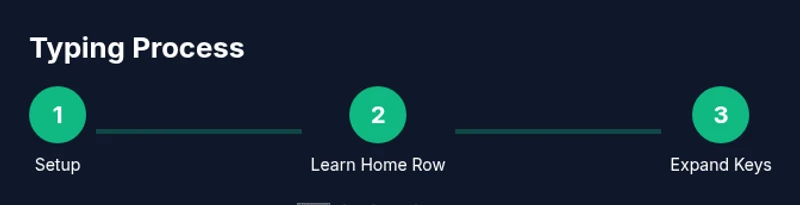
- 1
Set up your workspace
Adjust chair height and monitor level so your eyes look slightly downward when viewing the screen. Position the keyboard at elbow height with forearms parallel to the floor. This creates a neutral, comfortable base for all subsequent steps.
Tip: Take 2 minutes to test alternate chair heights and choose the position that minimizes shoulder tension. - 2
Confirm hand placement
Place left fingers on ASDF and right fingers on JKL;. Rest thumbs on the spacebar. Ensure wrists hover above the desk, not resting on the surface.
Tip: Practice keeping wrists level while returning to the home row after every keystroke. - 3
Learn the home row first
Practice tapping the five home-row keys with each corresponding finger. Focus on accuracy, not speed, and keep your eyes on the screen.
Tip: Perform 3 rounds of 60 keystrokes per home-row key to build consistent muscle memory. - 4
Add surrounding rows gradually
Introduce top-row and bottom-row keys in small groups. Maintain the same finger assignments and a light touch.
Tip: Only increase distance when you can land each key accurately at a comfortable pace. - 5
Incorporate drills and words
Move from isolated keys to simple words, then short sentences. Alternate between accuracy-focused and speed-focused drills.
Tip: Use a timer to measure consistency rather than raw speed. - 6
Review and adjust
End each session with a quick reflection on pain, posture, and key accuracy. Adjust technique or equipment if needed.
Tip: If you feel strain, pause and re-check posture before continuing.
Got Questions?
What is the first thing to learn when starting to type?
Start with proper hand placement on the home row and maintain neutral wrists. Build accuracy before speed to form reliable habits.
Begin with proper hand placement on the home row and keep your wrists neutral. Focus on accuracy before speed.
Should I use a wrist rest during practice?
A wrist rest can help in the early stages if it maintains neutral wrists. Use it sparingly and avoid letting it lift the wrists.
A wrist rest can help if it keeps your wrists neutral. Don’t rely on it too much and avoid lifting your wrists.
How long should a practice session last?
Aim for short, frequent sessions—about 20 to 30 minutes daily. Consistency beats long, infrequent sessions.
Keep sessions to 20 to 30 minutes daily for best progress. Consistency matters more than length.
What’s the best way to increase speed safely?
Increase speed gradually after achieving consistent accuracy. Use timed drills to push pace without sacrificing form.
Increase pace slowly once accuracy stabilizes, and use timed drills to stay controlled.
Do I need an expensive keyboard to learn typing?
No. Start with a comfortable, well-positioned keyboard. You can upgrade later if you want a different feel or layout.
You don’t need an expensive keyboard to start. Choose comfort and neutral alignment first.
How do I measure progress beyond speed?
Track accuracy, consistency, and endurance across sessions. Clear notes help identify which drills to adjust.
Track accuracy and consistency, and note how long you can type before fatigue to gauge progress.
Watch Video
What to Remember
- Master the home row before expanding.
- Ergonomics influence long-term typing health.
- Practice accuracy first, speed second.
- Tailor drills to your daily tasks for real-world gains.