How to Type on a Keyboard: The Complete Guide
A practical, step-by-step guide to touch typing, ergonomic setup, drills, and shortcuts that improve speed and accuracy on any keyboard.


Learn to type efficiently on a keyboard by mastering the home row, posture, basic drills, and everyday shortcuts. This guide explains setup, finger placement, repetition, and progression strategies to improve speed and accuracy across desks, laptops, and external keyboards.
Why typing well matters
According to Keyboard Gurus, proper typing technique reduces fatigue, prevents repetitive strain injuries, and improves overall productivity. If you're here to learn how to type a keyboard effectively, this guide starts with a clear foundation: posture, home-row finger placement, and deliberate practice. Mastering these basics sets you up for faster speed, better accuracy, and less tension during long sessions.
The home row and finger placement
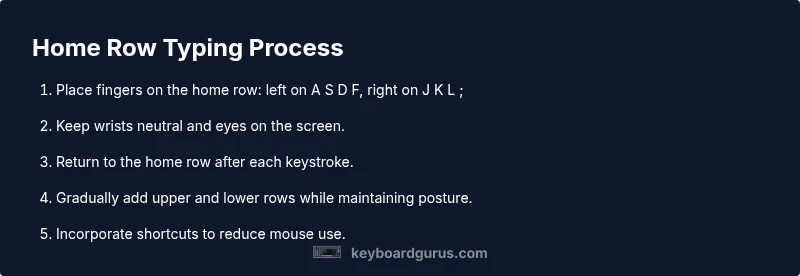
The home row is your central reference point. Place your left-hand fingers on A S D F and your right-hand fingers on J K L ; with your thumbs resting on the spacebar. From this neutral position, each finger reaches its assigned keys in a consistent pattern, minimizing travel time and helping you build durable muscle memory. Practice returning to the home row after every keystroke to reinforce the correct routing.
Posture, desk setup, and ergonomics
A healthy typing setup starts with posture. Sit with your feet flat, elbows at about 90 degrees, and the monitor at eye level to avoid neck strain. The keyboard should be at or slightly below elbow height, with wrists straight and hover-ready rather than resting on a hard surface. An adjustable chair and a desk that matches your body height can dramatically reduce fatigue during daily typing tasks.
Basic typing drills for beginners
Begin with simple, repeatable drills that isolate the home row, top row, and punctuation. For each drill, aim for accuracy first, then gradually increase your speed. Use a timer for short blocks (5 minutes) and repeat the sequence several times per session to build consistent motor memory.
Increasing speed and accuracy: practice strategies
Speed comes from accuracy and consistency. Set modest daily goals and measure progress, not perfection. Incorporate real-world typing tasks like emails or notes, and alternate between 5-minute timed drills and longer, 15-minute sessions. Integrate keyboard shortcuts into practice to reduce dependence on the mouse and keep hands on the keyboard.
Common mistakes and how to fix them
Common errors include looking at the keyboard, overreaching for keys, and letting shoulders slump. To fix these, keep eyes on the screen, use the home-row anchors, and maintain a relaxed posture. If you catch yourself peeking, cover the keys or practice with a soft keyboard cover that blocks direct visibility.
Keyboard layouts and shortcuts
Most learners start with the standard QWERTY layout, though alternative layouts exist. If you feel limited, you can experiment with DVORAK or Colemak after you’re comfortable with QWERTY. Learn essential shortcuts (copy, paste, undo, save, and window navigation) to minimize hand movement and boost efficiency.
Accessibility and alternative input methods
For users with mobility or visual impairments, there are accessible options like on-screen keyboards, speech-to-text, or switch devices. Combine these with keyboard practice to build confidence and independence. Adjust software settings (repeat rate, delay, key sensitivity) to match your needs and reduce strain during long sessions.
How to measure progress and set milestones
Progress can be tracked with simple metrics: daily practice time, accuracy, and consistency over weekly intervals. Establish milestones such as completing a certain number of days per week or maintaining accuracy above a baseline. Regular review helps you spot stagnation early and keeps motivation high.
Tools & Materials
- Ergonomic chair(Adjust lumbar support and height to align wrists with keyboard)
- Adjustable desk or height-adjust desk(Keeps elbows at ~90 degrees and wrists neutral)
- Full-size keyboard (or preferred compact keyboard)(Prefer mechanical or scissor-switch; ensure key travel comfortable)
- Mouse(Position opposite side of keyboard; maintain neutral wrist)
- Wrist rest or keyboard tray (optional)(Can reduce pressure on wrists during long sessions)
- Typing software or online drills access (optional)(Helps structure practice with guided lessons)
- Timer or metronome (optional)(Pace practice sessions)
Steps
Estimated time: 4-6 weeks of daily practice (15-30 minutes per day)
- 1
Assess and adjust your workspace
Evaluate chair height, desk height, and monitor position. Adjust so wrists hover above keyboard with neutral alignment. This reduces strain and primes you for accurate typing.
Tip: Use a mirror or camera to check your posture and adjust as needed. - 2
Position your hands on the home row
Place fingers on A S D F (left) and J K L ; (right), with thumbs on the spacebar. This is your anchor and reference for all keystrokes.
Tip: Feel for the little bumps on F and J to locate without looking. - 3
Learn touch typing without looking at the keyboard
Keep eyes on the screen and rely on muscle memory to reach keys from the home row. Start slowly to ensure accuracy before speed.
Tip: Slow, accurate practice builds a solid foundation. - 4
Add the other keys gradually
Extend your reach to the upper and lower rows while maintaining the home-row position. Practice with single-key drills before combining them into simple words.
Tip: Return to the home row after every keystroke to reinforce routing. - 5
Incorporate shortcuts into practice
Begin using common shortcuts (copy, paste, save, undo) to reduce mouse use and increase fluency.
Tip: Focus on one or two shortcuts per week to avoid overload. - 6
Practice with real text
Type short paragraphs or emails to simulate real tasks. Prioritize accuracy over speed and gradually increase length.
Tip: Use varied material to build familiarity with punctuation and capitalization. - 7
Track progress and adjust goals
Record daily practice time and accuracy, then set weekly targets for improvement.
Tip: Review trends to identify plateaus and adjust training accordingly.
Got Questions?
What is the most important skill for typing effectively?
The most important skill is touch typing: keeping eyes on the screen and using the home row anchors to reach keys without looking.
Touch typing with the home row and screen focus is the foundation for speed and accuracy.
Do I need a high-end keyboard to improve typing speed?
No. Technique matters more than hardware; a comfortable keyboard helps, but speed increases with consistent practice.
You don’t need an expensive keyboard—practice technique first, then optimize your setup.
How long should I practice each day as a beginner?
Short, consistent daily sessions—about 15 to 30 minutes—are effective for building skill without overwhelming you.
Aim for 15 to 30 minutes every day; consistency matters more than session length.
Which drills should beginners start with?
Start with home-row drills, then top-row and punctuation practices to build accuracy before speed.
Begin with home-row drills to establish finger anchors.
Is it okay to switch from a laptop keyboard to a desktop keyboard later?
Yes—switching is fine as you grow more comfortable; just maintain the same technique and posture.
You can switch keyboards as you gain comfort; focus on keeping your typing habit consistent.
Should I look at the keyboard while typing?
No. Training to type by feel improves speed and accuracy over time.
Tilt your focus to the screen and train by feel for better results.
Watch Video
What to Remember
- Establish proper posture and neutral wrist alignment
- Master the home row as the foundation
- Practice daily with focused drills
- Incorporate shortcuts to boost efficiency
- Monitor progress with simple, repeatable benchmarks