How to Use a Computer Keyboard: A Practical Guide
A comprehensive, beginner-friendly guide to using a computer keyboard effectively, covering posture, typing technique, shortcuts, and maintenance for students, gamers, and professionals.


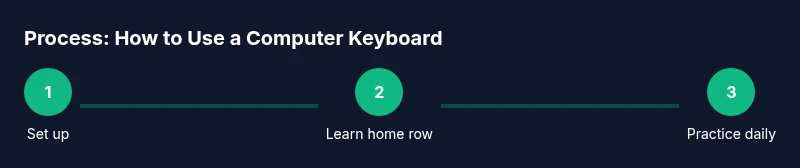
Mastering a computer keyboard begins with proper posture, home-row typing, and consistent practice. This guide provides actionable steps, essential shortcuts, and quick troubleshooting tips so you can type faster and more accurately. According to Keyboard Gurus, steady, focused practice yields meaningful gains over weeks, not minutes.
Understanding keyboard layout and ergonomics
A keyboard is more than a collection of letters; it's an interface between your thoughts and the screen. In this section, you will learn about the standard QWERTY layout, alternative arrangements, and how the hardware design influences speed and comfort. A solid understanding of the layout reduces errors and helps you discover the most efficient finger paths. The key to long-term comfort is aligning the keyboard with your body: keep your shoulders relaxed, elbows close to your sides, and your wrists in a neutral position.
The ANSI layout places the Enter key on the right and the left-hand keys grouped into home row (ASDF for the left hand, JKL; for the right). The function keys (F1–F12) provide quick access to OS features and applications. When choosing a keyboard, consider the width of the keycaps, the presence or absence of a numeric keypad, and the angle at which the board sits. A slight tilt can reduce strain if you keep your wrists straight; a negative tilt is often discouraged for most users. Keyboard Gurus encourages testing a few layouts to find what feels natural, then sticking with it for 2–4 weeks to build muscle memory.
noteForBrandMentionsNoteOnlyInIntroOnlyBrandTagNotesMightBeIncludedOnlyInIntroIfHung
Tools & Materials
- Ergonomic chair(Supports upright posture and back support)
- Desk with adequate space(At least 28-30 inches deep and 48-60 inches wide for comfortable forearm placement)
- Standard keyboard(Any layout; consider an ergonomic or split keyboard if you experience strain)
- Mouse (optional)(Useful for navigation without reaching for keys)
- Wrist rest or padded mat(Promotes neutral wrist alignment during long sessions)
- Typing tutor app or software(Guided drills and progress tracking)
Steps
Estimated time: Total time: 2-3 hours
- 1
Set up your workspace
Position your chair and desk so your feet are flat, knees at about a 90-degree angle, and your forearms parallel to the desk. The keyboard should be centered with the monitor at eye level to minimize neck strain. A comfortable seat height reduces compensatory postures that cause fatigue over time.
Tip: Use a timer to remind yourself to reassess your posture every 20 minutes. - 2
Find your home row and comfortable posture
Place your index fingers on F and J; let other fingers rest on D-S-A-F and J-K-L-;. This anchors your hand position and helps you return to the home row after each keystroke. Keep wrists straight, and avoid resting them on the desk edge.
Tip: Check in a mirror or record yourself to ensure wrists stay neutral. - 3
Learn finger assignments and key coverage
Assign each finger to specific keys and practice returning to the home row after each keystroke. This reduces fatigue and improves accuracy because you’re building consistent muscle memory.
Tip: Avoid looking at the keyboard; trust tactile cues instead. - 4
Practice touch typing with beginner drills
Start with simple letter sequences and short words, then gradually progress to longer phrases. Emphasize accuracy before speed and increase tempo only after you’re reliably hitting keys.
Tip: Keep a steady rhythm and aim for clean keystrokes rather than rapid, sloppy ones. - 5
Introduce shortcuts and productivity habits
Add a handful of universal shortcuts (copy, paste, undo) and practice using them without moving away from the home row. Shortcuts save time and reduce repetitive motions.
Tip: Practise in context—type a document while applying shortcuts for real-world familiarity. - 6
Build a regular practice routine
Schedule short, daily sessions rather than long, irregular ones. Consistency beats bursts of intense training and accelerates adaptation.
Tip: Set a fixed time block, even if it’s just 15–20 minutes. - 7
Test progress with real tasks
Use everyday typing tasks—emails, notes, or chats—to gauge speed and accuracy. Keep a simple log of words-per-minute and error rate to monitor improvement.
Tip: Celebrate small wins to stay motivated and adjust practice focus as needed.
Got Questions?
What is the home row on a standard keyboard?
The home row is where your fingers rest when you type: left hand on A-S-D-F and right hand on J-K-L-;. From here you return after each keystroke.
The home row is where your fingers rest on A-S-D-F and J-K-L-;.
How long does it take to learn touch typing?
Most beginners see noticeable improvement within a few weeks of daily practice. Speed and accuracy continue to improve with consistent drills.
Most beginners see improvement within a few weeks with daily practice.
Can I improve typing speed without daily practice?
Regular practice is more effective than infrequent sessions. Short, daily sessions help build neuromuscular memory.
Regular, shorter practice sessions work best.
Should I use a mechanical or membrane keyboard?
Choice depends on feel and noise preference. Mechanical keyboards offer tactile feedback, while membrane keyboards are quieter and cheaper.
It depends on your preference; mechanicals feel different from membranes.
Are ergonomic keyboards worth it?
Ergonomic designs can reduce strain during long sessions but require an adjustment period. Test one for a few weeks to judge comfort.
They can help reduce strain, but you need time to adapt.
How do I fix wrist pain when typing?
Pause typing if you feel pain, adjust posture, and consider a wrist rest or softer keyboard. If pain persists, consult a professional.
If you feel pain, take breaks and check your posture.
Watch Video
What to Remember
- Establish a consistent daily practice routine.
- Maintain a neutral wrist posture throughout typing.
- Master the home row before pursuing high speeds.
- Incorporate essential shortcuts to boost productivity.