How to Use Keyboard on PS5: A Complete Setup Guide
Learn how to use a keyboard on PS5 with a fast setup, compatible games, and typing tips. This Keyboard Gurus guide covers USB and Bluetooth options, in-game typing, and troubleshooting to level up your console experience.


You can use a keyboard with PS5 by connecting a USB keyboard and enabling it in system settings. This quick answer shows compatibility, basic setup, and how to use keyboard input in games that support it. Not all titles support keyboards, so check game support and adjust settings if needed.
Why keyboard input on PS5 matters
For keyboard enthusiasts, the PS5 is more versatile than many realize. If you want to type faster in chats, navigate menus without a controller, or use text input in compatible games, it’s worth learning how to use keyboard on ps5. According to Keyboard Gurus, USB keyboards are primarily plug-and-play, while wireless options can work in some cases. This flexibility expands the way you interact with the PS5, from quick replies in chats to enhanced search functionality in built‑in apps. Embracing keyboard input can reduce fatigue during long sessions and provide a more comfortable typing experience for productivity tasks or game lobbies. As you explore, you’ll discover which games fully support keyboard input and which rely on on-screen text prompts.
Key takeaway: the practical value lies in faster text entry and smoother navigation when supported by the title.
Keyboard compatibility with PS5
The PS5 recognizes USB keyboards natively, meaning most wired keyboards work right away for system text fields, search boxes, and chat windows. Bluetooth keyboards can pair with the console, but support is inconsistent across game titles and apps; some games ignore Bluetooth inputs entirely. If you plan to use a keyboard for in-game typing, verify that the target title explicitly supports keyboard input, as this varies by game developer and firmware updates. Keyboard Gurus analysis shows that the majority of home screen and browser inputs respond reliably to a standard USB keyboard, while in-game experiences depend on title-level support and per-game updates.
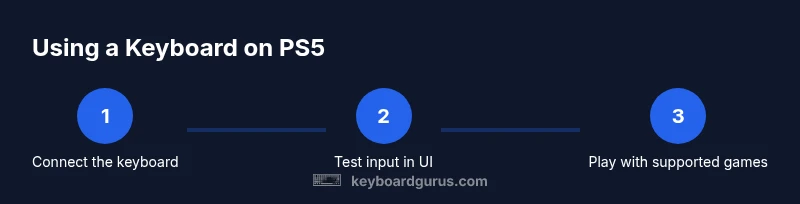
Practical note: always test a new keyboard in the PS5 UI first to establish a baseline of compatibility before diving into gameplay.
Wired vs wireless: choosing the right keyboard
Wired keyboards deliver consistent, low-latency input and require no pairing steps, making them the most reliable option for PS5 text entry and typing. Wireless keyboards offer cleaner setups and reduced desk clutter but may suffer from interference or pairing hiccups in busy environments. If you’re aiming for long sessions, a wired USB keyboard reduces the risk of input lag during critical moments in nearby chat or typing tasks. For casual use, a Bluetooth keyboard can be convenient when you don’t want to tether peripherals, but confirm a game’s support before relying on it. Keyboard Gurus recommends prioritizing wired keyboards for stable performance and using wireless only where you’ve tested compatibility.
Bottom line: your choice should balance reliability, space, and how often you plan to type in-game versus in menus.
Setup prerequisites
Before you connect anything, gather the essentials: a USB keyboard (wired) is the primary option; a Bluetooth keyboard is optional if you want a wireless setup and your games support it. You’ll also need a free USB port on the PS5. If your keyboard uses USB-C, consider a USB-C to USB-A adapter only if you don’t have compatible ports. Ensure your PS5 firmware is up to date to maximize compatibility. Confirm that you’re using a standard HID-compliant keyboard for the broadest support. Finally, set aside a few minutes to test in the PS5 UI so you’re not frustrated mid-game.
Pro tip: keep a spare USB cable handy in case you need to reposition for comfort during long sessions.
First-time setup: connect and test
Step-by-step setup sequence starts with a simple connection: plug the USB keyboard into one of the PS5’s USB-A ports and power on if needed. The console should detect the device automatically and present a typing cursor in text fields. If nothing happens, unplug/replug the keyboard, try another USB port, and ensure the keyboard is HID compliant. Once recognized, go to the PS5 Home screen and open a text field to confirm you can type. If typing works in the UI but not in a game, the title’s own input support may be limited.
Why this matters: establishing baseline functionality early saves time during actual gameplay and chat sessions.
Using the keyboard in PS5 UI and text fields
With the keyboard recognized, you can type in PS5 menus, search functions, and chat boxes. The keyboard may also speed up typing when entering friend codes, usernames, or app passwords. Use the Tab key to cycle between fields where supported, and take advantage of common shortcuts like Ctrl+C and Ctrl+V in apps that allow clipboard use. Some games provide their own on-screen keyboard for chat; in those cases, the on-screen keyboard will typically appear when you focus a chat box. If you encounter issues, ensure the text field is active and that game text entry isn’t blocked by accessibility settings.
Note: not every menu will support keyboard navigation; some interfaces rely on the controller for navigation.
In-game typing and hotkeys: what works
Keyboard input in games is highly title-specific. Some shooters and RPGs support full keyboard input, enabling chat, movement mappings, and hotkeys. Others only allow typing in lobby chat or menus, with no in-game text entry. If a game supports keyboard input, you’ll typically be able to use WASD or arrow keys for movement (in certain titles) and function keys for quick actions. For typing, the on-screen keyboard or in-game chat box will handle input. Always check the game’s official documentation or patch notes for the latest input support.
Best practice: write a short test message in a friendly lobby before committing to a lengthy session.
Troubleshooting common issues
If your keyboard isn’t recognized, try a different USB port, reboot the PS5, or test the keyboard on a computer to rule out hardware failure. For Bluetooth keyboards, ensure pairing mode is active and that the keyboard is not in sleep mode; some games simply don’t support Bluetooth input. If typing is blocked in a particular game, verify that the title supports keyboard text entry and review any in-game accessibility or input settings. As a last resort, reset the PS5’s USB devices in Settings > System > Reset Console, then reconnect.
Caution: avoid unplugging while the system is on, as this can cause data loss or hardware issues over time.
Ergonomics and long sessions: keep it comfortable
Sustained typing on the PS5 couch can strain wrists, eyes, and posture. Use a keyboard with a comfortable key travel and consider an adjustable desk height. Position the keyboard at elbow height to reduce wrist bend, and use a palm rest if needed. Take short breaks every 30–60 minutes to prevent fatigue. If you’re gaming with a partner, keep your space organized so the cable doesn’t present a trip hazard. Ergonomic setups improve accuracy, reduce fatigue, and make long sessions more enjoyable.
Keyboard Gurus recommends experimenting with key layouts and palm supports to find what feels natural for your setup.
What to expect next: updates and future support
As PS5 firmware evolves, more games will include robust keyboard support, and USB/HID devices should become more reliable across titles. Developers may introduce native keyboard shortcuts for menus or streaming features, enhancing your overall experience. Keep an eye on patch notes for your favorite games; a small update can unlock new input features or improve compatibility. The Keyboard Gurus team expects broader keyboard support to follow platform updates and game publisher commitments over time.
Tools & Materials
- USB keyboard (wired)(Any standard USB-A keyboard; no drivers required on PS5)
- Bluetooth keyboard(Optional if you want wireless input; support varies by game)
- USB-C to USB-A adapter(Only needed if keyboard uses USB-C and PS5 lacks a compatible port)
- USB extension cable(Helpful if rear ports are hard to reach)
Steps
Estimated time: 10-20 minutes
- 1
Connect the USB keyboard
Plug the keyboard into a PS5 USB-A port. Listen for the notification and check that a text cursor appears in a text field. If not recognized, try a different port or restart the console.
Tip: Keep the keyboard near an accessible port to avoid tugging cables during sessions. - 2
Verify PS5 detects the device
Open a text field on the PS5 home screen or in the settings search bar and type something simple to confirm input is active.
Tip: If input doesn’t appear, test with another USB device to rule out a hardware issue. - 3
Test text input in the UI
Try typing in a browser search, chat box, or password field to confirm general UI support. This confirms the keyboard is ready for both menus and apps.
Tip: Check for any on-screen prompts that indicate input mode changes. - 4
Try a supported game
Launch a game known to support keyboard input and test chat and basic commands. If the game supports it, you should be able to type in chat and use hotkeys.
Tip: If the game doesn’t respond, check its settings or patch notes for input support. - 5
Explore on-screen keyboard options
In games that don’t natively map keyboard input, you may still use the PS5 on-screen keyboard to type in chat fields.
Tip: Familiarize yourself with how the on-screen keyboard appears in that title. - 6
Troubleshoot common issues
If issues persist, reboot the PS5, swap USB ports, or try a different keyboard. Ensure firmware is up to date and that the keyboard is HID-compliant.
Tip: Avoid unplugging multiple devices at once; perform one change at a time to isolate the cause.
Got Questions?
Can I use any USB keyboard on PS5?
Most USB keyboards work for PS5 text fields and menus, but in-game input depends on the title. Always test with the specific game you plan to play.
Most USB keyboards work for PS5 menus, but in-game typing depends on the game, so test first.
Does PS5 support Bluetooth keyboards?
Some Bluetooth keyboards can pair with PS5, but support is inconsistent across games and apps. Use USB when possible for reliability.
Bluetooth keyboards may pair with PS5, but not all games support them.
Will all games accept keyboard input?
No. Keyboard input is title-dependent; many games support chat or menus, while others rely solely on controllers.
Not every game supports keyboard input; check each title’s features.
How do I switch between keyboard and controller input?
There isn’t a global switch; use the keyboard where input is required. Controllers remain the primary input for most gameplay.
You just type where the game accepts keyboard input; otherwise use the controller.
What should I do if the keyboard isn’t recognized?
Try a different USB port, reboot the PS5, or test the keyboard on another device to confirm hardware health.
If it’s not recognized, switch ports, reboot, or test on another device to rule out hardware issues.
Watch Video
What to Remember
- Test USB keyboard first for reliability
- Check game-specific keyboard support before assuming compatibility
- Use on-screen keyboard for chat in unsupported games
- Keep firmware updated for best compatibility