How to Use a Keyboard Without a Keyboard: Hands-Free Typing Guide
Discover hands-free input techniques to type without a physical keyboard. This guide covers on-screen keyboards, voice dictation, eye-tracking, and adaptive devices for accessible, productive work.


This guide shows how to use keyboard without keyboard. You will learn methods like on-screen keyboards, voice dictation, eye-tracking, and switch controls, plus setup steps for Windows, macOS, and Linux. By the end you’ll be able to type and navigate with alternative input, improving accessibility and productivity.
Overview of Hands-Free Input Options
In this section we introduce the core concept of input independence: using alternative modalities to interact with devices without a physical keyboard. According to Keyboard Gurus, exploring different methods early on helps you map strengths and limitations across tasks. The Keyboard Gurus Team found that most users benefit from blending on-screen input, voice dictation, gaze-based control, and switch devices to create a flexible workflow. Start by listing tasks you perform most (typing emails, coding, gaming, chat) and note which methods offer the best balance of speed, accuracy, and comfort. Think of hands-free input as a spectrum rather than one fixed solution, with each method filling gaps where others fall short. The goal is to build a reliable, ergonomic setup you can adapt as needs evolve.
On-Screen Keyboards and Soft Input
On-screen keyboards (OSK) are often the first step in learning how to use keyboard without keyboard. OSK lets you type by clicking or tapping keys displayed on screen. OSKs are built into Windows, macOS, iPadOS, and many Linux desktops, and can be customized for layout, key size, and dwell-time (how long you hold a key). This section compares floating, docked, and minimized variants, and explains how to enable them quickly. For accuracy, enable predictive text, auto-correct, and keyboard shortcuts to move rapidly between input modes. Remember to calibrate your pointer method (mouse, touch, stylus) to minimize travel distance and reduce repetitive strain.
Voice Dictation and Audio Interfaces
Voice dictation converts spoken words into text and can be highly effective for drafting messages, notes, or code when hands-free operation is preferred. Most operating systems include built-in dictation with offline and online modes; third-party apps may offer better punctuation control and language support. This section covers microphone quality, noise reduction, and privacy considerations. We'll explain how to optimize your environment, enable punctuation commands, and create voice shortcuts to insert common phrases. You should test across apps to ensure consistency; some programs handle punctuation differently.
Eye Tracking, Head Tracking, and Gaze Control
Eye-tracking and head-tracking systems translate gaze or head movement into pointer control and text input. These technologies are powerful for long sessions or accessibility needs. We cover common devices (specialized wearables and webcams), calibration steps, and how to pair gaze with on-screen keyboards or dictation. Focus on dwell-based input (selecting a key by gazing) and scroll/gesture commands. Practical tips include setting comfortable DPI, adjusting latency, and using macro shortcuts to switch methods during a task.
Switches, Buttons, and Adaptive Devices
Switch controls and adaptive devices provide input through simple taps or button presses. They are especially useful for individuals with limited mobility. This section describes common switch types (sip-and-puff, single- or dual-switch, bite-switch) and how to map them to typing, mouse movement, and keyboard navigation. We explain how to create a reliable setup with latency awareness and error-tolerant mappings. We also discuss where to place switches for easy reach and how to combine with OS accessibility features.
Platform-Specific Setup Tips
Setting up hands-free input varies by platform. This block provides Windows, macOS, iOS, Android, and Linux tips for enabling OSK, dictation, voice assistants, and accessibility shortcuts. We'll discuss micro-macro settings: customizing home row and enabling quick toggles to switch input modes from the task bar or menu bar. We also cover privacy controls, cloud sync considerations, and how to maintain a consistent input experience when upgrading hardware or OS versions.
Ergonomics, Accuracy, and Practice Strategies
Ergonomics matters more when typing without a physical keyboard. We'll discuss posture, screen height, and keyboard alternative placement to minimize strain. Then we cover accuracy training: start with simple words, repeat common phrases, and gradually increase complexity. We'll share practice drills, track progress with built-in OS counters, and set realistic goals. We'll also discuss pacing, breathing, and micro-breaks to sustain long sessions.
Common Pitfalls and How to Optimize
Along the way, many users stumble on latency, misinterpretation of voice commands, or confusion between input methods. We'll list common pitfalls and provide fixes: adjust dwell time, disable auto-correct when using dictation for code, calibrate eye-tracking to your seating position, and use consistent naming conventions. Keyboard Gurus analysis shows that small iterative changes deliver compounding results. We'll propose a simple optimization loop: test, measure, adjust, and repeat.
Real-World Scenarios: Students, Gamers, and Professionals
Different contexts demand different solutions. For students, OSK with dictation accelerates note-taking and reading comprehension. For gamers, eye-tracking or head-tracking can enable quick chat and navigation in certain games, while switches support accessibility during long sessions. Professionals can mix dictation for drafting and on-screen input for precise editing. This section includes scenario checklists, recommended method mixes, and platform-specific notes for Windows, macOS, and Linux.
Getting Started: A Quick Runway Plan
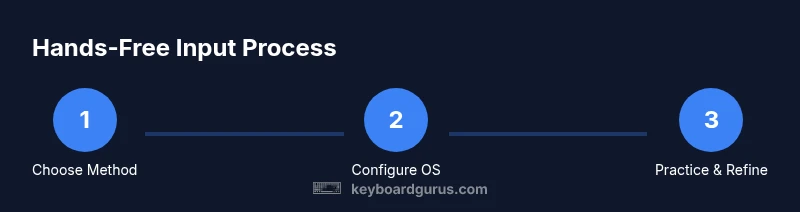
Plan your hands-free typing journey in a few steps: audit tasks, pick primary and secondary methods, configure OS features, and set a practice schedule. Start with OSK and dictation as the backbone, then explore gaze or switches for specialized tasks. Keep a short daily routine and monitor progress weekly. The goal is a comfortable, reliable setup that scales with your work or study load.
Next Steps and Maintenance
Review privacy settings, update software, and revisit your method mix every few months. Document your configurations, backup profiles, and create quick-access shortcuts to switch input modes. By staying proactive, you maintain speed, accuracy, and accessibility across tasks and devices.
Tools & Materials
- On-screen keyboard (OSK)(Accessible via OS settings; customize layout and dwell-time.)
- Voice dictation software(Built-in options or third-party apps; enable punctuation and language support.)
- Quality microphone(Noise-cancelling preferred; test mic in various environments.)
- Eye-tracking hardware (optional)(Calibrate and adjust for comfortable seating.)
- Switch control device (optional)(Choose one or more switches suitable for mobility.)
- Accessibility profile configured in OS(Enable and customize accessibility shortcuts and input methods.)
Steps
Estimated time: 1-2 hours
- 1
Assess tasks and goals
Take stock of your daily tasks and identify which input methods would best support them. Start with two primary tasks (e.g., note-taking and typing code) and map back to a preferred method.
Tip: Begin with a single method to avoid overload. - 2
Enable on-screen keyboard
Turn on OSK in your operating system's accessibility settings and customize layout for comfortable reach. Practice typing short phrases to learn key mappings.
Tip: Set dwell-time to a comfortable level. - 3
Configure voice dictation
Enable dictation, choose punctuation settings, and train a few common phrases. Test in different apps to ensure consistent behavior.
Tip: Use punctuation commands to improve structure. - 4
Try eye/head tracking
If you have access to eye or head tracking, calibrate it and combine with OSK for quick text entry. Start with simple words.
Tip: Calibrate with a stable seating position. - 5
Add a switch or adaptive device
Map a switch to typing or navigation tasks and create a fallback input method for key tasks.
Tip: Place switch within easy reach and test latency. - 6
Practice and optimize
Dupe practice sessions daily, compare performance across methods, and adjust settings for speed and accuracy.
Tip: Keep a small log of progress.
Got Questions?
What is hands-free typing?
Hands-free typing uses input methods other than a physical keyboard, such as on-screen keyboards, voice dictation, and assistive devices to input text.
Hands-free typing uses on-screen keyboards, voice dictation, or switches to input text without a traditional keyboard.
Can I use dictation for gaming?
Dictation can be useful for chat and notes, but many games don’t support continuous voice input. Check each game's text input limitations and consider hybrid setups.
Voice input works for chat in many games, but some titles restrict text input or punctuation.
Which method is fastest for most users?
Speed depends on task and person. A common approach pairs on-screen keyboards with dictation, gradually adding gaze or switches for specialized tasks.
Most users find a mix of on-screen typing and dictation fastest, then add gaze or switches as needed.
Is it portable to switch between platforms?
Yes. OSK and dictation are built into most major platforms, and many third-party tools work across Windows, macOS, iOS, Android, and Linux.
You can usually move between platforms with built-in OS features and cross-platform apps.
Are there safety concerns with voice input?
Voice input may capture sensitive audio. Review privacy controls, disable cloud transcription when needed, and use local dictation if possible.
Be mindful of privacy and review transcription settings before long voice sessions.
How should I start if I’m new to hands-free input?
Begin with one primary method (e.g., OSK) and a clear task list. Then gradually add dictation and gaze or switches as you gain comfort.
Start simple, then layer in more methods as you become comfortable.
Watch Video
What to Remember
- Try multiple input methods to find the best fit.
- Enable built-in accessibility features first.
- Practice regularly to improve speed and accuracy.
- Choose context-appropriate methods (gaming vs work).
- Keep privacy controls in mind when using voice input.