How to Use On-Screen Keyboard: A Practical Guide
Learn how to use the on-screen keyboard across Windows, macOS, Android, and iOS with step-by-step instructions, accessibility tips, and best practices for efficiency and privacy.


An on-screen keyboard provides a software keyboard you can type with a mouse, trackpad, or touch, on devices lacking a physical keyboard. This guide covers enabling and using it across Windows, macOS, Android, and iOS, including layout choices, accessibility options, and practical tips to improve speed and accuracy.
What is the on-screen keyboard and why use it?
An on-screen keyboard is a software keyboard displayed on your screen, enabling input with a mouse, trackpad, or finger on touch devices. It's particularly useful on devices without a physical keyboard or when you need to type from a couch, in workshop environments, or during accessibility-focused work. According to Keyboard Gurus, using an on-screen keyboard can improve accessibility and expand input options for people with motor challenges or those operating in situations where a hardware keyboard isn't convenient. This section explains when to use it, common layouts, and what to expect regarding speed and accuracy. You’ll learn about docked versus floating layouts, how to switch input methods, and the basics of navigation so you can start typing quickly without a physical keyboard. Remember to consider privacy: on-screen input is transmitted to the active application, so avoid typing highly sensitive data on shared devices. Most modern platforms support multiple languages and layouts, and the on-screen keyboard often adapts automatically, helping you work across apps and contexts. As familiarity grows, you’ll find it a reliable fallback for travel, fieldwork, or accessibility-focused workflows.
Platforms and access: where and how to enable it
Across Windows, macOS, Android, and iOS, you can typically enable the on-screen keyboard from Settings or Accessibility sections. On Windows, look for On-Screen Keyboard under Settings → Ease of Access → Keyboard, or use a quick shortcut (Windows key + Ctrl + O). On macOS, enable the Keyboard Viewer from System Preferences → Keyboard, or press Command + Control + Space to access the emoji panel and switch to the keyboard viewer. Android devices often reveal the on-screen keyboard automatically when you tap a text field; additional keyboards can be added via Settings → System → Languages & Input. iOS devices expose the on-screen keyboard as soon as you tap a text field; you can add languages and layouts under Settings → General → Keyboard. If you prefer a dedicated accessibility keyboard, many devices offer a persistent option that stays visible while you work in other apps. Always set your input language and layout to match your task to maximize speed. Keyboard Gurus analysis notes the growing adoption of accessibility features like the on-screen keyboard across platforms.
Docked vs floating: choosing the best layout for your workflow
Most on-screen keyboards can be docked at the bottom of the screen or floated as a smaller panel. Docked keyboards stay in a fixed position, which helps when you type with a physical mouse and want predictable reach. Floating keyboards can be moved closer to your primary working area, beneficial for small screens or long-form input where you need to see more of the document. Personal preference and task type drive the choice: drafting a long email might favor a docked layout for stability, while brief chat messages from a tablet might benefit from a floating, resizable panel. Some platforms also let you resize keys or adjust key spacing for accuracy. Try both modes in a short test session to determine which minimizes reach and improves typing comfort.
Basic navigation: typing with a mouse or touch input
Typing on an on-screen keyboard with a mouse or finger requires deliberate, deliberate taps or clicks rather than rapid keystrokes. Start by focusing a text field, then click or tap keys to input characters. Use the backspace key to edit as you go, and rely on predictive text and autocorrect features to speed up input and reduce errors. If your device supports it, enable a compact or split layout to reduce finger travel on large screens. For accessibility, many keyboards offer cursor control or function keys that let you move the caret without returning to the text field, which can dramatically improve editing speed and precision.
Tools and modes: dictation, handwriting, and gestures
Beyond standard typing, on-screen keyboards often support dictation, handwriting, and gesture input. Dictation converts spoken words to text using built-in speech engines—great for drafting longer passages without typing. Handwriting input, available on many platforms, lets you write characters with a stylus or finger and have them converted to typed text. Gesture features like swipe-to-delete or glide typing can further boost speed once you get used to the rhythm. When using dictation, speak clearly and punctuation prompts to improve accuracy. Handwriting accuracy benefits from a calm surface and the right screen protection to avoid stray marks. Gestures may vary by platform, so check your device’s help guide to maximize their effectiveness.
Accessibility options and customization
Accessibility options include multiple input languages, keyboard layouts (QWERTY, AZERTY, etc.), large keys, high-contrast themes, larger text, and adjustable key spacing. You can customize the keyboard’s appearance to reduce eye strain or increase accuracy in low-light conditions. Some platforms also offer braille or tactile input options via compatible hardware. For multilingual users, enable language switching shortcuts or automatic language detection to reduce interruptions while typing. Keyboard Gurus emphasizes tailoring the keyboard to your workflow, not the other way around: start with a single layout and language, then expand as you gain confidence.
Common tasks: typing, editing, and shortcuts
Typical workflows include composing text, correcting mistakes, and performing basic editing with the on-screen keyboard. Use the mouse or touch to type, then leverage copy, paste, cut, and undo/redo commands to manage content efficiently. In many apps, you can select text with a drag gesture or by using caret navigation keys, then apply formatting or shortcuts like Ctrl/Cmd+C to copy and Ctrl/Cmd+V to paste. If supported, use predictive text to reduce keystrokes and speed up drafting. Practice makes accuracy: start with short sentences and gradually increase length as you adjust to key spacing and the screen’s touch targets.
Security, privacy, and data considerations
Typing sensitive data on any on-screen keyboard on a shared device may expose it to onlookers or malicious software. Always verify that you are in a trusted app and consider using a password manager with autofill capabilities rather than typing passwords directly. Some devices offer a privacy shield or screen dimming mode to obscure input on pubic or semi-public environments. When possible, disable dictation or handwriting modes in public spaces to minimize accidental data capture. Finally, keep your device updated to ensure the keyboard software and input-handling are protected against known vulnerabilities. Keyboard Gurus recommends reviewing app permissions and only enabling features you actively use in your chosen environment.
Troubleshooting common issues
If the on-screen keyboard fails to appear, check that it is enabled in the system settings and that accessibility features are active. If keys do not register, try switching to a different language or layout, calibrate the screen if your device offers a sensitivity option, or restart the device and re-enable the keyboard. For persistent problems, update the operating system, reset keyboard settings to defaults, or try a different keyboard app. If you depend on cloud-based spelling or predictive text, verify that the device’s internet connection is stable. In case of privacy concerns, review permissions and ensure you restrict keyboard access to trusted apps.
Best practices for performance and ergonomics
To maximize speed and reduce strain, customize key size and spacing to fit your finger width and the device’s screen size. Keep your hands close to the keyboard area to minimize reach, and take short typing bursts with micro-breaks to avoid fatigue. Enable auto-correct and auto-capitalization if they help but monitor for miscorrections. Use language switching shortcuts to avoid interrupting your workflow, and tailor the layout for the tasks you perform most (e.g., coding, writing, or data entry). Finally, practice regularly with short sessions to build muscle memory and perceptual familiarity with key locations. The Keyboard Gurus team encourages consistent practice and gradual personalization for long-term gains.
Tools & Materials
- Device with on-screen keyboard support(Ensure the device is powered on and you can access system settings)
- Pointer input method (mouse/trackpad) or touch screen(Essential for typing when a physical keyboard is unavailable)
- Stable screen orientation and adequate screen size(Helpful for readability and tap accuracy)
- Optional: stylus for handwriting input(Useful if your device supports handwriting input)
Steps
Estimated time: 15-25 minutes
- 1
Open the on-screen keyboard
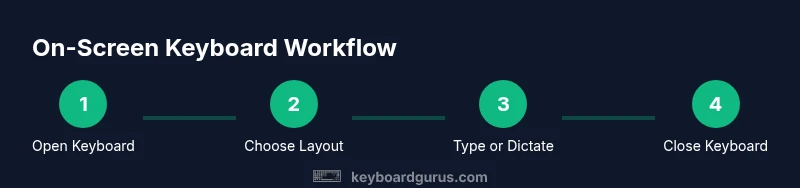
Navigate to your device's accessibility or input settings and enable the on-screen keyboard. On Windows, you might turn it on via Ease of Access; on macOS, use Keyboard Viewer; on mobile devices, tapping a text field usually reveals the keyboard. This step establishes the input method you'll use.
Tip: If you forget the path, use the device search to locate 'on-screen keyboard' quickly. - 2
Choose layout and mode
Select a layout (full, compact, split) and decide whether to dock or float the keyboard. The choice affects reach, visibility, and comfort depending on screen size and task.
Tip: Experiment with both docked and floating layouts in a short test to see which suits you better. - 3
Start typing with mouse or touch
Click or tap keys to input text. Use backspace for corrections and rely on any built-in auto-correct or predictive text to speed up the draft.
Tip: Keep your hand steady and tap keys with deliberate rhythm to improve accuracy. - 4
Try dictation or handwriting input
Switch to dictation to speak text or use handwriting input if your device supports it. Both can be faster for longer passages or when typing with a keyboard is inconvenient.
Tip: Speak clearly and pause between phrases to improve transcription accuracy. - 5
Customize languages and themes
Add necessary languages, switch layouts as needed, and adjust themes or key sizes for readability. A personalized setup reduces mistakes and improves comfort.
Tip: Set a primary language for daily work and secondary languages for occasional tasks. - 6
Edit and manage text
Use on-screen shortcuts or touch gestures to copy, cut, paste, and undo. Learn caret movement for precise editing when working with long passages.
Tip: Practice common editing sequences to speed up manuscript refining. - 7
Close or hide the keyboard when finished
Return to typing with a physical keyboard or close the on-screen keyboard via the OS control. This prevents accidental input and frees screen space.
Tip: Keep the keyboard accessible for quick reactivation if you switch tasks often.
Got Questions?
How do I enable the on-screen keyboard on Windows?
Open Settings, search for On-Screen Keyboard, and toggle it on. You can also use Windows key + Ctrl + O to quickly show or hide it.
Open Settings and enable On-Screen Keyboard, or press Windows key plus Ctrl plus O to toggle.
Can I customize the layout or language of the on-screen keyboard?
Yes. Add languages and switch layouts in your device’s keyboard settings. Many keyboards offer larger keys or split layouts for comfort.
You can customize language and layout in the keyboard settings, including larger keys if needed.
Is on-screen keyboard accessibility compatible with screen readers?
Most on-screen keyboards work with screen readers. Enable accessibility features and verify compatibility in your OS’s accessibility settings.
Yes, most work with screen readers; check accessibility settings to configure.
How can I type faster with the on-screen keyboard?
Practice common words, use predictive text, and enable autocorrect. Keep hand posture relaxed and avoid excessive finger movement.
Practice regularly, use predictive text, and keep your hands relaxed for speed.
Can I use the on-screen keyboard alongside a hardware keyboard?
Yes. In most apps, input goes to the active field from whichever keyboard you are using. You can switch between inputs as needed.
Yes, you can use both; the active field accepts input from the keyboard you’re using.
How do I disable the on-screen keyboard after use?
Turn off the feature from the accessibility/input settings or close the keyboard panel from the OS control.
Turn off from settings or simply close the keyboard panel.
Watch Video
What to Remember
- Enable the on-screen keyboard on your device
- Choose docked vs floating layout based on your space
- Leverage dictation or handwriting to boost productivity
- Customize language and theme to reduce errors
- Practice regularly for faster, more accurate input