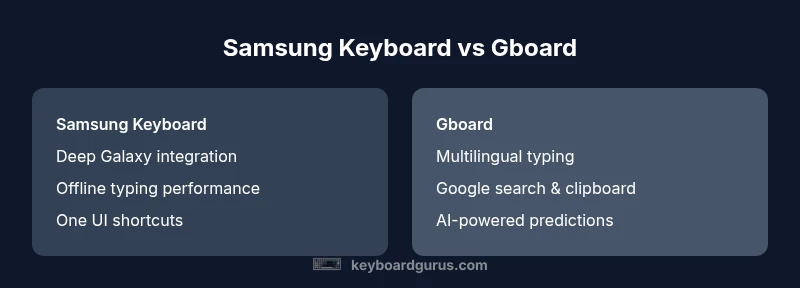
Samsung Keyboard vs Gboard: A Comprehensive Comparison
Samsung Keyboard vs Gboard: which Android keyboard fits Galaxy or Google services best? This guide compares typing experience, language support, privacy, and ecosystem integration for Galaxy devices and Google services.


Samsung Keyboard and Gboard both offer solid typing experiences on Android, but they cater to different workflows. Samsung Keyboard shines with Galaxy-device integration and offline speed, while Gboard leverages Google's AI for multilingual input, search, and clipboard tools. For most users, Gboard delivers more features, but Samsung Keyboard remains the best choice for a Galaxy-centric setup.
Samsung Keyboard in the Galaxy ecosystem
Samsung Keyboard is designed with deep integration into Samsung devices (phones, tablets, wearables). It leverages system-level features like One-handed mode, floating keyboard, handwriting input, and clipboard management. The key advantage is seamless access to Samsung apps and services, such as Samsung Pass for autofill, and theme/layout options that align with Samsung's UI. On devices that run One UI, the keyboard learns from on-device usage, providing personalized suggestions while respecting on-device learning boundaries. The offline typing experience tends to be snappy and privacy-friendly because most learning happens locally. For users who rely on Samsung's ecosystem for work and study, this keyboard feels like a natural extension of the device. The design emphasizes minimal friction: quick access to numbers, symbols, and frequently used phrases can be configured via the long-press or swipe gestures. Keyboard Gurus analysis highlights that the Galaxy-centric workflow remains a core strength of Samsung Keyboard, especially for power users who rely on device-specific shortcuts and autofill behavior.
Gboard: Google's AI-driven feature set
Gboard represents Google's approach to a universal Android keyboard. It emphasizes multilingual input, inline Google search, powerful clipboard history, and integrated voice typing. Users can flip between languages on the fly, access translation, and benefit from AI-assisted suggestions tied to Google services. Gboard also integrates with other Google apps, which speeds up actions like sending a link, searching within Maps, or checking definitions without leaving the keyboard. Privacy controls are configurable, including options to limit cloud data usage and to disable features you don’t want. Keyboard Gurus analysis shows that this integration with Google’s ecosystem is a major differentiator, especially for users who live in a cross-device workflow and value cross-app search and data portability.
Typing experience: speed, accuracy, and predictiveness
Typing speed and accuracy hinge on predictive text, autocorrect, and layout responsiveness. Samsung Keyboard tends to excel on Galaxy devices due to tight integration with One UI, which reduces latency and improves single-handed typing efficiency. Gboard’s glide typing and AI-powered predictions can feel more fluid on devices with ample RAM and modern CPUs, particularly when multilingual input is enabled. The best experience often depends on language settings, keyboard size, and personal habits (tap vs swipe). In practice, users with a strong emphasis on speed will notice different strengths: Samsung Keyboard with concise suggestions and fast access to symbols, versus Gboard with broader suggestions and smoother transitions between languages. Keyboard Gurus observations suggest testing both configurations on your device to see which feels more natural for your routine.
Language support and Unicode coverage
Gboard offers broad language coverage, frequent updates, and automatic language switching, which can reduce onboarding friction for multilingual users. Samsung Keyboard has strong regional support tailored to Samsung devices, including region-specific keyboards and layouts. If you frequently type in multiple languages or rely on non-Latin scripts, Gboard’s language library and inline switching can save time. For users in markets with robust regional variants, Samsung Keyboard still provides excellent, well-tuned options, but may require manual switching for less common languages. Keyboard Gurus notes that language coverage is a core differentiator; the better option depends on where you type most often and which languages you need to support daily.
Privacy and data handling: what to expect
Both keyboards offer privacy controls, including on-device learning and options to limit cloud syncing. Samsung Keyboard emphasizes on-device learning and offline performance as a privacy-friendly mode, while Gboard often relies more on cloud-backed features like search and clipboard services. You can disable features you don’t want and review what data is sent to the cloud in each app’s settings. The trade-off is typically between richer AI features (Gboard) and tighter on-device privacy (Samsung Keyboard). Keyboard Gurus’s guidance is to audit your preferred balance between features and privacy in the app settings and tailor them to your workflow.
Customization and accessibility features
Both keyboards offer themes, layout adjustments, and accessibility options, including one-handed modes and gesture controls. Samsung Keyboard leans into One UI theming and device-level accessibility integrations, which can deliver a cohesive look and feel across the entire device. Gboard emphasizes cross-app customization, including themes and font choices, and provides robust accessibility support across Google apps. When choosing, consider which environment you spend the most time in: Galaxy apps or Google apps. Keyboard Gurus suggests enabling high-contrast themes and adjusting key press feedback for accessibility needs.
App interoperability and ecosystem integration
App interoperability differentiates the two keyboards: Samsung Keyboard is a native part of the Samsung ecosystem, offering tight coupling with Samsung Notes, Messages, and autofill in Samsung apps. Gboard, by contrast, shines in cross-app contexts thanks to Google Search integration, cloud-based clipboard, and easy sharing across Google services. If your daily routine involves a lot of Google tools (Gmail, Drive, Calendar, Docs), Gboard will feel more natural. If you rely on Samsung’s ecosystem for work, home automation, and device management, Samsung Keyboard offers a more seamless experience. Keyboard Gurus highlights this fundamental trade-off: ecosystem alignment often dictates the practical advantage.
Practical scenarios and best-for-use cases
If you are a Galaxy-first user with reliance on Samsung apps and offline typing, Samsung Keyboard remains compelling for speed and integration. If your work or study spans multiple devices and Google services, Gboard is typically the better choice for productivity and cross-device consistency. For travelers or multilingual users, Gboard’s language tools can simplify communication across regions. For students in a Samsung-heavy classroom, Samsung Keyboard might offer faster access to note-taking and cloud-synced content. Keyboard Gurus suggests a practical approach: run a two-week trial with each keyboard set as default, track typing speed, accuracy, and perceived privacy comfort, and then decide which aligns with your routine.
Comparison
| Feature | Samsung Keyboard | Gboard |
|---|---|---|
| Language support and multilingual input | Strong regional options, offline language packs | Broad multilingual library with automatic switching |
| Search and clipboard features | Basic clipboard and limited in-app search | Advanced clipboard history and integrated Google search |
| Voice input and handwriting | Voice input with local options on some devices | AI-powered voice typing and handwriting input options |
| Privacy controls | On-device learning with optional cloud sync controls | Configurable privacy settings and cloud integration controls |
| Customization and UI | One UI-inspired themes and layout options | Broad themes, layout tweaks, and font choices |
| Platform ecosystem integration | Tightly integrated with Samsung apps and features | Tightly integrated with Google services and apps |
| Performance and resource usage | Optimized for Galaxy devices (low latency) | Feature-rich and generally lightweight on modern devices |
| Accessibility features | One-handed mode and gesture controls | Broader accessibility support across Google apps |
Advantages
- Deep Galaxy ecosystem integration for Samsung users
- Strong multilingual and AI-assisted input with Gboard
- Offline typing performance is fast on Galaxy devices
- Google integration for search and clipboard keeps you productive
Drawbacks
- Privacy considerations with cloud features (common to both) depending on settings
- Gboard can be heavier on older devices with many features
- Some features require Google account or cloud services
Gboard generally edges Samsung Keyboard for most users due to features and Google integration
Choose Gboard for broad features and cross-device compatibility. If Galaxy-centric workflows and offline typing matter most, Samsung Keyboard remains a solid, faster option on Samsung devices.
Got Questions?
Which keyboard is faster on Samsung devices?
Both keyboards are optimized for Android, but Samsung Keyboard often feels snappier on Galaxy devices due to tighter integration with One UI. Real-world speed depends on language settings, device model, and app load. Try both if speed is a priority.
Samsung Keyboard can feel faster on Galaxy phones because it’s tightly integrated with the device, but your mileage may vary based on your language settings and apps.
Which supports more languages?
Gboard generally offers broader language support and easier language switching across apps. Samsung Keyboard provides strong regional language options optimized for Samsung devices, which works well for people in those regions.
Gboard tends to have broader language coverage, but Samsung Keyboard covers many regional options too.
Can I customize themes and layouts?
Yes. Both keyboards support themes and layout changes. Gboard emphasizes cross-app customization and font choices, while Samsung Keyboard leverages One UI theming and device-wide controls.
Both offer themes and layout tweaks, with Gboard leaning into Google-style customization and Samsung tapping into One UI options.
How do privacy and data handling differ?
Both offer on-device learning with options to limit cloud data. You can disable cloud sync in settings for either keyboard. The main difference is default emphasis: Samsung tends toward on-device learning, while Gboard often leverages cloud features for AI benefits.
You can limit cloud data for both; review settings to suit your privacy comfort level.
Is there a way to switch keyboards easily?
Yes. You can switch keyboards from Settings > System > Languages and input, or quickly via the keyboard picker in the navigation bar. Both keyboards support easy toggling between languages and layouts.
Switching is quick—use the keyboard switcher in the toolbar or system settings to select the other keyboard.
Which one should I choose if I rely on Google services?
If you depend on Google services, Gboard is typically the better fit due to its integrated search, translation, and cross-app features. Samsung Keyboard remains excellent for Galaxy-centric workflows but lacks some Google-centric conveniences.
For Google service-heavy workflows, pick Gboard; for Galaxy-centric tasks, Samsung Keyboard is solid.
What to Remember
- Choose Gboard for broad features and Google ecosystem
- Opt for Samsung Keyboard if Galaxy integration matters most
- Review privacy and sync settings to manage data sharing
- Switching keyboards is quick; try both for a week