Which Keyboard Input Method: A Practical Guide
Learn how to pick and configure the best keyboard input method for your language, workflow, and devices across Windows, macOS, Android, and iOS with setup tips.


You can optimize typing by selecting the right keyboard input method for language, layout, and tasks. Start with a primary physical layout for speed, then add an Input Method Editor (IME) for non-Latin scripts or niche symbols. Consider on-screen keyboards for touch devices and ergonomic options for comfort. This guide helps you decide, switch methods, and configure for daily use.
Why Your Input Method Matters
According to Keyboard Gurus, choosing the right keyboard input method can dramatically affect typing speed, accuracy, and comfort across languages and tasks. The method you pick determines how easily you can write in your everyday language, switch to a second language, or capture specialized characters. A good setup reduces cognitive load, minimizes repetitive strain, and helps you maintain focus during long sessions. Whether you’re coding, drafting reports, gaming chat, or data entry, the total time saved from a well-chosen input method compounds across a workday. A practical approach is to establish a clear hierarchy: a fast physical layout as the base, plus an Input Method Editor (IME) or alternative input for multilingual scripts or symbols. By organizing methods this way, you’ll experience fewer switches and more consistent typing rhythm across apps and devices.
Key takeaway: start with a reliable base layout, then layer language-specific input methods to cover your writing needs.
Core Keyboard Input Methods
There are several core categories, and understanding them helps you design a flexible setup that works in practice. First, the physical keyboard layout is the backbone of speed and accuracy. Popular options include QWERTY, DVORAK, Colemak, and Workman. Each layout reshapes key positions to optimize finger travel and reduce strain. Second, Input Method Editors (IMEs) enable language-specific input on top of your base layout. IMEs support non-Latin scripts like Chinese, Japanese, and Korean, as well as phonetic or stroke-based entry, which can drastically simplify typing for those languages. Third, on-screen keyboards provide a touch-optimized alternative that can be customized for accessibility, predictiveness, or unique layouts. While not as fast as a physical keyboard for most tasks, on-screen keyboards are invaluable for multilingual writing on tablets or smartphones. Finally, you can incorporate alternative input concepts like voice input, gesture typing, or macro-enabled keyboards when appropriate. Keyboard Gurus suggests evaluating each method by throughput, ergonomics, and fault tolerance rather than novelty alone.
How IMEs Work Across Platforms
Input Method Editors function as language layers atop your chosen base layout. They translate keystrokes into characters, syllables, or logograms according to a language model and dictionaries. Across Windows, macOS, Android, and iOS, IMEs are designed to be switchable with a few keystrokes or taps, often via a dedicated shortcut or menu. A robust IME can adapt to context (e.g., formal vs. colloquial language), learn from your typing, and provide predictive suggestions. When combining IMEs with your primary layout, you’ll type fast in multiple languages without changing hardware. Keyboard Gurus notes that the most effective setups feature a well-chosen IME for each non-Latin script you use and a tuned autocorrect or prediction system to minimize keystrokes. This synergy is what makes multilingual workflows feasible on everyday devices.
How to Choose Your Primary Layout and Language Method
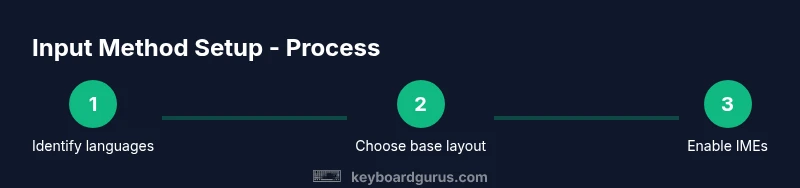
Start by listing the languages and scripts you write most often. If one language dominates, pick a fast base layout that aligns with your most frequent tasks (e.g., QWERTY for English-dominant work). Add an IME for any additional language that uses a non-Latin script. Consider your devices: Windows and Android often offer broader IME ecosystems, while macOS provides tight integration with system preferences. Evaluate your typical work: programming might benefit from a layout with stable key positions; content creation might favor an ergonomic or alternative layout. Test a few combinations for a week each to compare comfort and speed. Keyboard Gurus emphasizes avoiding method fatigue—don’t overcomplicate your setup with too many simultaneous methods.
Multilingual Typing: Phonetic and Stroke-based Input
Phonetic input methods map sounds to characters, making it intuitive for learners or users new to a script. Stroke-based methods, on the other hand, require you to assemble characters through defined components or radicals. Each approach has strengths: phonetic input is typically faster for languages with a large number of characters, while stroke-based input can offer precision and control for expert users. For languages like Chinese or Japanese, combining phonetic input with character-level edits or a secondary IME for logographic input can yield high accuracy. The key is to align the method with your daily tasks and typing comfort, then gradually phase into the approach that reduces keystrokes without sacrificing accuracy.
Accessibility and Ergonomics: Alternate Input Methods
Accessibility considerations matter when selecting input methods. On-screen keyboards can be tuned for larger keys, high-contrast layouts, or alternative key mappings to reduce strain. For some users, voice input or ergonomic keyboards with split designs can be a better fit than traditional layouts. Ergonomic optimization includes proper seating, wrist posture, and keyboard tilt. Keyboard Gurus encourages testing a range of options to identify the most natural fit, especially if you spend long hours typing. Remember that comfort today prevents long-term issues tomorrow.
Tip: Combine an ergonomic base layout with a language-specific IME to minimize awkward finger movements and repetitive strain.
Setup Guides: Windows, macOS, Android, iOS
Configuring input methods varies by platform but follows a common pattern: enable the language pack or IME, set a preferred shortcut to switch between methods, and customize auto-correct or predictive features. Windows users often add multiple languages via Settings > Time & Language > Language, then assign keyboard layouts and IMEs per language. macOS offers Input Sources in System Preferences, with simple toggles for switching. Android and iOS provide language and keyboard options within Settings, with app-level keyboard customization available for more fluid typing. A practical approach is to configure a minimal, stable set of methods first, then add new ones only when you frequently need them. Keyboard Gurus recommends documenting your shortcuts for quick reference across devices.
Common Pitfalls and How to Avoid Them
Avoid overloading your setup with too many input methods. Complexity increases cognitive load and can slow you down during critical tasks. Don’t neglect the basics: ensure your base layout is comfortable, the IME dictionaries are tuned to your vocabulary, and autocorrect rules don’t introduce errors in your work. Regularly review shortcuts—what works on a phone may not translate to a desktop or laptop. Finally, test across top apps you use for writing, code, and messaging to confirm a consistent experience. A well-balanced setup feels invisible; you should hardly notice it while typing.
Practical Scenarios for Different Users
Gamers, students, and professionals all benefit from tailored input methods. A gamer might lean toward a stable physical layout with minimal reliance on on-screen keyboards during play, plus macro support for common commands. A student writing essays may prioritize a phonetic IME with strong predictive text and a long learning period to increase accuracy. A professional writer or coder could combine a fast base layout with multiple IMEs, using auto-complete and language-aware corrections to keep pace. The best approach is to assess your daily tasks, trial a few configurations, then lock in a setup that minimizes friction and maximizes focus.
Tools & Materials
- Device with keyboard (PC, Mac, or tablet)(Ensure OS supports multiple input methods and IMEs.)
- List of target languages(Helps select appropriate IMEs and layouts.)
- Optional ergonomic keyboard(If you type long sessions, consider a split or curved layout.)
- Internet connection(Helpful for downloading IMEs and updates.)
Steps
Estimated time: 60-90 minutes for initial setup and testing; ongoing practice 15-20 minutes daily
- 1
Identify your languages and scripts
List the languages and scripts you write daily. This determines which IMEs or phonetic inputs you need. If you only write in one language, you may skip non-Latin options at first and revisit later.
Tip: Write down your top 3 languages to keep the evaluation focused. - 2
Assess your devices and OS ecosystem
Check which platforms you use most (Windows, macOS, Android, iOS) and ensure the chosen IMEs are well-supported on those platforms.
Tip: Prioritize methods with consistent cross-platform shortcuts. - 3
Select a base layout for speed
Choose a physical layout that matches your typing goals: QWERTY for broad compatibility, DVORAK/Colemak for reduced finger travel, or a layout you can sustain long-term.
Tip: Limit to one primary layout to start; add alternatives later. - 4
Add language-specific IMEs
Enable an IME for each non-Latin language you use. Test phonetic and stroke-based options to find which matches your muscle memory.
Tip: Keep a single preferred IME per language for consistency. - 5
Configure shortcuts and predictions
Set quick-switch shortcuts and calibrate autocorrect or predictive text to your vocabulary. Disable conflicting suggestions.
Tip: Document a few core shortcuts for fast access. - 6
Practice and measure progress
Spend 15–20 minutes daily on targeted typing practice. Track speed and accuracy changes over a week to verify improvements.
Tip: Use a consistent practice routine across devices. - 7
Test across apps and environments
Open docs, code editors, and messaging apps to ensure the method works well everywhere. Adjust as needed.
Tip: Simulate real tasks (coding, note-taking, chat) during testing.
Got Questions?
What is the difference between a keyboard layout and an input method?
A keyboard layout defines where keys are physically mapped to letters, while an input method editor (IME) translates keystrokes into characters for non-Latin scripts or phonetic input. You can combine a fast base layout with one or more IMEs to type in multiple languages efficiently.
A keyboard layout maps keys to letters; an IME converts keystrokes into characters for other languages. You often use both together.
How do I switch input methods on Windows, macOS, Android, and iOS?
On Windows, use the language bar or shortcut to switch layouts and IMEs. macOS uses Input Sources in System Preferences. Android and iOS let you add keyboards in Settings and switch via a globe icon or quick shortcuts. Practice the exact steps on your devices to speed up the process.
Use the OS-provided shortcuts or on-screen toggles to move between keyboards and IMEs quickly.
Which keyboard layout should a beginner start with?
A beginner often starts with a widely supported layout like QWERTY for broad compatibility and practice resources. If comfort and speed are the priority, consider an ergonomic layout like Colemak or DVORAK after foundational skills are established.
Begin with QWERTY for ease, then explore ergonomic layouts as you gain confidence.
Are phonetic input methods suitable for all languages?
Phonetic IMEs map sounds to characters and are very helpful for languages with large character sets. They may require adjustment to vocabulary and may not capture edge cases perfectly, so always verify accuracy in your typical documents.
Phonetic IMEs are great for easy learning, but double-check for accuracy in important text.
Can I rely on voice input instead of typing?
Voice input can complement typing, especially for drafting or hands-free situations. It’s not a universal substitute, as accuracy depends on environment, accents, and vocabulary. Always proofread critical content.
Voice typing helps in many situations, but you’ll want to proofread for accuracy.
What is the best way to improve typing speed across languages?
Focus on a stable base layout for your primary language, paired with a reliable IME for others. Regular practice, measurable goals, and consistent shortcuts across devices are the most reliable path to improvement.
Practice consistently with a stable setup and track your progress over time.
Watch Video
What to Remember
- Define your primary language and script first.
- Layer an IME for non-Latin languages onto a fast base layout.
- Enable quick-switch shortcuts and tailor predictions.
- Practice regularly and test across apps.
- Balance ergonomics with functionality for long-term comfort.