Can You Connect a Keyboard to Xbox: A Complete How-To Guide
Learn how to connect a keyboard to Xbox consoles, including wired USB basics, compatibility considerations, setup steps, troubleshooting tips, and optimization ideas from Keyboard Gurus.


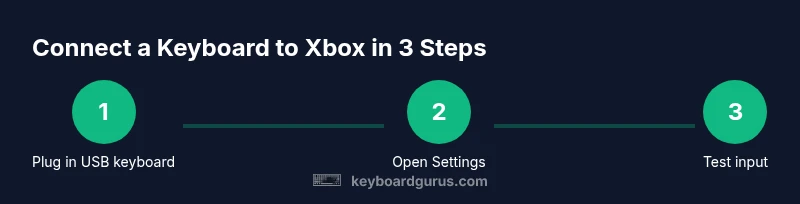
Yes. You can connect a keyboard to Xbox with a wired USB keyboard or a supported wireless option. Steps: 1) plug in the USB keyboard, 2) navigate to Settings > Devices to verify input, 3) open a text field and test typing, 4) if available, pair a Bluetooth keyboard according to model. If it isn’t recognized, check compatibility and firmware.
Understanding Xbox keyboard support
According to Keyboard Gurus, USB keyboards are the most reliable input method for Xbox consoles, enabling navigation, chat, and typing in many apps and menus. The level of support has evolved across generations, with official guidance emphasizing USB host input rather than generic Bluetooth pairing. This means you’ll typically have the best results using a wired USB keyboard plugged directly into the console’s USB port. For players who ask can you connect a keyboard to an xbox, the short answer is yes in most common scenarios, but always verify model compatibility and current firmware. This section lays the groundwork for selecting devices, understanding limitations, and planning your setup around your preferred use case.
Keyboard compatibility: what works on Xbox
Not all keyboards operate identically on Xbox. Most USB keyboards that use a standard USB-A or USB-C interface with a USB host controller should be recognized for typing in menus, search fields, and chat boxes. Some keyboards with built-in hubs or extra macro keys may require simple re-mapping rather than full support. Bluetooth keyboards, while popular on PCs, have variable support on Xbox depending on the console generation and software updates. Keyboard Gurus analysis shows USB remains the safest bet for consistency, while Bluetooth keyboards can work in limited circumstances on newer firmware. When selecting a model, prioritize a clean layout (full-size or compact with a standard key matrix) to reduce layout confusion in games and apps.
Wired vs wireless: latency, compatibility, and practicality
Wired USB keyboards generally provide the lowest latency and the most predictable behavior on Xbox. Wireless keyboards can work, especially newer models with reliable dongles or built-in 2.4GHz receivers, but you may encounter input lag or occasional disconnects during extended play sessions. Some gamers prefer wired keyboards to avoid re-pairing during long gaming sessions. If you’re considering a wireless option, verify that the keyboard’s wireless protocol is compatible with the console and that the dongle is plugged directly into the Xbox rather than behind a TV stand or entertainment unit.
How to physically connect a USB keyboard to Xbox Series X|S and Xbox One
To connect a USB keyboard, locate the console’s USB port (front or back, depending on your model). Plug the keyboard in firmly and wait a few seconds for the console to recognize it. If the keyboard isn’t recognized immediately, try a different USB port, restart the console, or disconnect other USB peripherals that may cause a bus conflict. Ensure the keyboard uses a standard USB interface (USB-A or USB-C with an appropriate adapter) and that the device is powered, especially for backlit keyboards that require more current.
Using a keyboard for typing in menus, chat, and apps on Xbox
Typing performance on Xbox is most evident in text fields, message chats, search boxes, and in some applications like streaming apps. For example, typing in the guide, search bar, or store pages tends to be straightforward with a keyboard. Some games and apps may support entering in-game chat or text-based inputs; however, many titles rely on gamepad text input, on-screen keyboards, or voice-to-text. If you need to type a lot, a keyboard can speed up communications, but be aware that in-game navigation and control schemes may still rely on a gamepad.
Gaming with a keyboard on Xbox: what works and what doesn’t
Several games support keyboard input for simple commands, shortcuts, and chat. While some titles allow full keyboard control, others limit input to menus or specific text fields. Monitor game compatibility lists and official support pages for the most accurate information per title. Keyboard-driven macros or complex remapping in games is typically not supported in console gameplay, so plan you inputs around standard key bindings. Keyboard Gurus suggests testing one title at a time to calibrate your expectations.
Remapping and accessibility: tailoring your keyboard to your setup
Xbox supports some level of key remapping and accessibility options to improve usability, particularly for players who rely on specific shortcuts. Use the console’s Settings > Accessibility or Settings > Devices options to adjust input behavior. Remappings can be particularly helpful for switching between typing and navigation tasks, or for players who use ergonomic layouts. If you’re using a macro or special function key, confirm that the game or platform recognizes it consistently across sessions.
Mice, controllers, and hybrid inputs: what to know when pairing with a keyboard
Some Xbox experiences benefit from combining a keyboard with a mouse, especially for navigation or strategy games. However, mouse support on consoles varies by title and may require specific settings or adapters. If you plan a mixed input setup, verify that your games support mouse input and that your keyboard and mouse share a reliable connection with the console. Keyboard Gurus notes that some users pair a compact mouse with a keyboard for on-screen navigation while gaming, but always check the game’s official input options.
Troubleshooting common issues: quick diagnostics and fixes
If your keyboard isn’t recognized, start with the simplest checks: try a different USB port, disconnect other USB devices, and confirm the keyboard is powered. Update the console firmware if an update is pending, and verify the keyboard’s compatibility with the console model. For Bluetooth keyboards, ensure the keyboard is in pairing mode and that the console supports Bluetooth pairing for your model; if not supported, use a wired option. If input lag or missed keystrokes occur, test the keyboard with a different game or app to determine if the issue is title-specific or system-wide.
Privacy, safety, and best practices for keyboard use on Xbox
Always disconnect a keyboard when sharing a device with others to protect personal data from on-screen prompts or cached sessions. Use strong passwords and enable any available privacy features in apps that require login. For younger players, enable family safety settings and monitor chat inputs to ensure a safe and respectful gaming environment. Maintain your keyboard’s firmware and driver updates through the console’s system updates to preserve compatibility and security.
Recommended setups by user type: students, gamers, streamers, and professionals
For students and professionals who mainly need typing, a compact wired keyboard with a clean layout can speed up text entry and document tasks. Gamers may prefer a larger layout with dedicated function keys and reliable USB connectivity, while streamers benefit from backlit keyboards and easy-to-reach macro keys for chat commands. Different scenarios call for different keyboards, but USB wired connections remain the most dependable baseline for Xbox input.
What to expect in the future: updates, compatibility shifts, and official guidance
As Xbox hardware and software evolve, Microsoft may expand input options and improve keyboard support across generations. Keeping an eye on official Xbox support pages and Keyboard Gurus recommendations will help you stay ahead of changes, ensure compatibility with new titles, and adapt your setup to evolving gaming and productivity needs. Expect occasional firmware and OS updates that refine input handling and expansion of keyboard shortcuts.
Tools & Materials
- USB keyboard (wired, USB-A or USB-C with adapter)(Standard keyboard with USB interface; full-size or compact is fine.)
- Bluetooth keyboard (optional)(Only use if your model supports Bluetooth pairing for keyboards; not guaranteed across all consoles.)
- USB-C hub or adapter (if needed)(Useful if your keyboard uses USB-C and your console lacks a compatible port.)
- Extra USB extension cable (optional)(Helps position the keyboard for comfortable typing in front of the TV/monitor.)
- Access to Xbox Settings page(Navigate to Settings > Devices and connections > External peripherals to verify input.)
Steps
Estimated time: 10-20 minutes
- 1
Connect the USB keyboard
Plug the keyboard into a USB port on the Xbox and wait a few seconds for recognition. If it doesn’t appear, try another USB port and inspect the keyboard’s power indicator. Confirmation typically appears as a brief notification or a focus in the text field.
Tip: If you’re using a USB hub, connect the keyboard directly to the console to avoid bus contention. - 2
Open the Settings menu
From the home screen, press the Xbox button to open the guide, then navigate to Settings. This step ensures the system registers a new input device and prepares it for testing.
Tip: Use the guide button to quickly reach Settings without tilting your hand between keyboard and controller. - 3
Test typing in a text field
Open a text field in any app or menu and type to verify basic input. If keys register, the keyboard is functioning correctly for typing tasks. If not, proceed to troubleshooting steps.
Tip: Test in multiple apps to confirm consistent behavior across the system. - 4
Pair a Bluetooth keyboard (if supported)
If your console model supports Bluetooth input and you want wireless typing, place the keyboard in pairing mode and select it in Settings > Devices. Complete the pairing process and re-test typing.
Tip: If pairing fails, ensure the keyboard is in discoverable mode and that Bluetooth settings permit new connections. - 5
Remap keys (if desired)
In Settings > Accessibility or a compatible app, remap frequently used keys to suit your workflow. This can streamline typing tasks or gaming shortcuts.
Tip: Keep a simple layout for reliability; avoid complex macros that may not be recognized consistently by all games. - 6
Test input in gaming scenarios
Launch a game with on-screen text entry or chat to confirm keyboard usability in real play. Some titles will support chat or menus; others may rely primarily on a controller.
Tip: If you struggle to type while in a game, switch back to the main menu and practice in a chat window first. - 7
Check for firmware updates
Ensure your Xbox and any connected peripherals have the latest firmware or OS updates. Updates can improve compatibility and input response.
Tip: Enable automatic updates when possible to minimize manual maintenance. - 8
Evaluate the necessity of a mouse
If your game benefits from precise navigation, test a compatible mouse with the keyboard. Mouse support on Xbox varies by title, so verify per game.
Tip: Only pair a mouse if the game explicitly supports it; otherwise it may not function as expected. - 9
Review privacy and safety settings
As you enable peripherals, review privacy and safety settings to protect your data. Ensure you log out when sharing a device with others if needed.
Tip: Regularly review active devices in Settings > Security & privacy.
Got Questions?
Can I use any USB keyboard on Xbox, or are there limitations?
Most USB keyboards with a standard USB interface work for typing and navigation in Xbox menus. Keyboard owners should verify that their model is recognized in Settings and test in a text field. Some features may vary by title, so always confirm per-game compatibility.
Most USB keyboards work for typing and menu navigation on Xbox. Check in Settings and test in a text field for each game.
Will a Bluetooth keyboard work with all Xbox models?
Bluetooth keyboards may work on some Xbox models with limited support, but wired USB keyboards are the most reliable option. Always check your specific console’s Bluetooth capabilities and the keyboard’s compatibility notes.
Bluetooth keyboards can work on some Xbox models, but wired USB keyboards are typically more reliable.
Is typing available in all games, or only in menus?
Typing is primarily available in menus, chats, and some apps. Many games depend on controller input and on-screen keyboards rather than keyboard typing. Always test in the game’s chat or text fields to confirm.
Typing is mainly for menus and chats; many games don’t support full keyboard input.
How do I remap keys on Xbox for keyboard use?
You can remap certain keys through Settings > Accessibility or via compatible apps. Remapping helps personalize shortcuts, but not all games will honor custom mappings universally.
Remap keys in Settings to fit your workflow, but beware not all games support it equally.
What should I do if my keyboard isn’t recognized after an update?
First, try a different USB port and reboot the console. Update the console firmware if available and re-test. If issues persist, test with a second keyboard to determine if the problem is device-specific.
Reboot, check ports, update firmware, and test with another keyboard to isolate the issue.
Watch Video
What to Remember
- Use a wired USB keyboard for best reliability on Xbox.
- Bluetooth keyboards may work in limited cases and can cause lag.
- Test typing in menus first before gaming to confirm compatibility.
- Remap keys only if necessary and confirm cross-title consistency.