How to Unlock a Keyboard: A Comprehensive Troubleshooting Guide
Learn to unlock a keyboard across Windows and macOS, diagnose software vs hardware causes, and follow a safe step-by-step process with expert guidance from Keyboard Gurus.


If you’re asking how keyboard unlock, this guide covers practical methods to regain typing access across common platforms. You’ll learn to distinguish software vs. hardware causes, identify Fn-lock or Filter Keys, and follow a safe, step-by-step path to re-enable your keyboard. By the end, you’ll know which steps to take first and how to avoid common mistakes.
What unlocking a keyboard means in practice
Unlocking a keyboard means restoring typing input when the device stops responding due to a lock condition, whether caused by software settings, driver issues, or hardware faults. A keyboard may appear “locked” if keystrokes are ignored, but LEDs still indicate power. Understanding the scope of the lock—system-wide versus app-specific—helps you choose the right approach. According to Keyboard Gurus, most unlock scenarios begin with a quick settings check rather than a hardware replacement. By framing the problem this way, you save time and reduce unnecessary costs. The goal is to re-establish reliable input without compromising other devices or data. This section primes you to think in terms of software state, driver health, and hardware integrity as you proceed.
Common causes of keyboard lock
Locked keyboards fall into several categories: simple toggle states (Caps Lock, Num Lock, Scroll Lock), Fn-Lock on laptops, and accessibility features like Filter Keys or Sticky Keys. Drivers or firmware can degrade, especially after OS updates or third-party software installations. A wireless keyboard may disconnect due to batteries or pairing issues, while USB keyboards can fail from port faults or power surges. Infrequent but frustrating hardware faults—damaged cables, bent pins, or moisture exposure—occasionally mimic software lock symptoms. Distinguishing these causes early prevents wasted effort and guides you toward the right fix. Keyboard Gurus analysis shows that most problems stem from misconfigured settings or stale drivers rather than intrinsic keyboard failure, which keeps your repair options affordable and fast.
Quick checks to perform before deeper steps
Before diving into deep fixes, run through a short checklist: verify the keyboard is powered (LEDs on wireless models), confirm you’re not in a game/app that locks input, and ensure no Fn-Lock is engaged. Test Caps/Num/Scroll Lock LEDs to see if they respond. Try pressing a few keys while the keyboard is connected to another computer to determine if the issue follows the device or the original host. Check for Filter Keys or other accessibility settings that might block normal keystrokes. If the issue persists, you’ll be ready to move to OS-specific solutions with confidence and a clear path forward.
Windows-specific unlock methods
On Windows, unlocks usually begin with a settings audit. Open Settings > Accessibility > Keyboard and disable Filter Keys, Sticky Keys, and any keyboard shortcuts that might block input. Reinstall or update keyboard drivers via Device Manager: expand Keyboards, right-click your device, choose Update driver, then restart. If the problem remains, try a clean boot to identify software conflicts, or connect a USB keyboard to see if the issue is port-specific. For gaming laptops, verify BIOS-level keyboard options are not disabled and consider performing a BIOS/UEFI reset if only the internal keyboard is affected, as a last resort. These steps address common software and driver faults that block typing on Windows without hardware replacement.
macOS-specific unlock methods
macOS users should start with System Settings > Keyboard and ensure shortcuts aren’t remapped in ways that block standard typing. Reset NVRAM/PRAM if keyboard behavior is inconsistent, and update macOS to the latest version to fix known input issues. If using Bluetooth keyboards, remove the device and re-pair it, or test with a wired USB keyboard to isolate Bluetooth problems. Check accessibility features like Slow Keys or Key Repeat, which can alter input behavior. In most cases, software adjustments and driver updates restore normal typing on Macs, with hardware failure being a rarer cause.
BIOS and hardware-level considerations
Some laptops offer a hardware or BIOS-based keyboard lock. Access the BIOS/UEFI during boot (often by pressing F2, Del, or Esc) and look for Keyboard/Mouse settings. If the BIOS seems to ignore input, reset to default settings. A non-responsive keyboard in BIOS usually signals a hardware fault requiring service or a replacement keyboard module. Additionally, inspect physical connections if you’re comfortable opening the chassis; a loose cable can mimic a no-input condition. When hardware faults are suspected, professional inspection helps prevent further damage and ensures correct part replacement.
External keyboards and testing strategies
Using an external USB keyboard helps isolate the problem. If it works on your PC or Mac, the issue likely lies with the built-in keyboard, not the system. If the external keyboard also fails, focus on drivers, USB ports, or the operating system. For wireless keyboards, swap batteries, re-pair, or test with a wired alternative. Document the steps you take so you don’t circle back to the same solution. This testing approach accelerates diagnosis and is a best practice endorsed by Keyboard Gurus when distinguishing hardware from software faults.
Preventive practices to avoid future lockouts
Keep drivers updated, back up important settings, and maintain stable OS versions to avoid compatibility issues. Regularly test input devices after major updates and hardware changes. Create a small recovery routine that includes an external keyboard as a quick tester and a method to reset filters or accessibility features. By establishing routines, you reduce downtime and keep typing fluid across devices. Keyboard Gurus emphasizes that proactive maintenance is cheaper and faster than repeated, reactive fixes.
Troubleshooting flowchart and decision tree
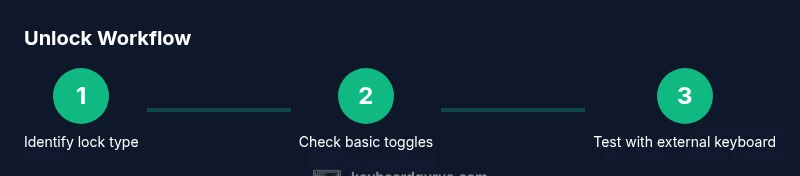
A structured flow helps you choose your path: Is the keyboard responsive on another device? If yes, focus on host OS settings and drivers; if no, inspect hardware, cables, or BIOS. From there, follow the appropriate Windows or macOS steps, test with an external keyboard, and consider firmware or BIOS resets only after software routes fail. A disciplined approach minimizes guesswork and yields reliable outcomes when solving unlock issues.
Tools & Materials
- Working computer (Windows or macOS)(Used to test the keyboard in a normal operating environment.)
- External USB keyboard(Test to isolate hardware faults from the built-in keyboard.)
- Stable internet connection(For driver downloads and OS updates.)
- Battery or charging supply (for wireless keyboards)(Provide uninterrupted testing if the keyboard is wireless.)
- Basic screwdriver kit (optional)(Only if you plan to inspect internal cables on a laptop and you are confident.)
Steps
Estimated time: 30-60 minutes
- 1
Identify the type of lock
Begin by determining whether the issue is OS-based, driver-related, or hardware. Check keyboard LEDs and test basic typing behavior in a new document. Understanding whether input is blocked system-wide or only in certain apps helps you choose the right path. If you see no response on every app, concentrate on software and drivers first; otherwise, hardware becomes the priority.
Tip: Document observed symptoms (LEDs on/off, specific keys affected) to guide your next steps. - 2
Check basic toggles and locks
Verify that Caps Lock, Num Lock, and Scroll Lock are not unintentionally engaged. On laptops, confirm Fn-Lock isn’t holding the function keys in a locked state. Review accessibility features such as Filter Keys or Sticky Keys that could block standard input. These checks catch simple mistakes that masquerade as hardware faults.
Tip: Try toggling each lock key several times to observe LED responses and keystroke changes. - 3
Test with another keyboard
If a USB keyboard works while the built-in keyboard does not, the fault is likely hardware or port-related. If both fail, focus on drivers, OS settings, or a BIOS-level issue. This test helps you quickly triage hardware vs. software problems.
Tip: Use a different USB port or cable when testing to rule out port issues. - 4
Update or reinstall keyboard drivers
In Device Manager (Windows) or System Information (macOS), update or reinstall the keyboard drivers. Restart the system after installation to ensure changes take effect. This step resolves many driver-related lockups caused by OS updates or software conflicts.
Tip: Prefer the latest driver from the device manufacturer’s site rather than generic Windows updates. - 5
Inspect hardware and firmware
Check for visible damage to the keyboard or its cable, loose connectors, and any signs of wear. For laptops, reseating keyboard connectors or updating firmware can resolve intermittent lock conditions. If physical damage is suspected, avoid further experimentation to prevent data loss or injury.
Tip: Handle components gently and power down the device before touching internal parts. - 6
If all else fails, consider BIOS reset or service
As a last resort, reset BIOS/UEFI to defaults and test the keyboard again at boot. If the keyboard remains non-responsive in BIOS, it is likely a hardware fault requiring professional service or replacement. Always consult manufacturer guidance before attempting a motherboard-level repair.
Tip: Back up important data and document serial numbers before service.
Got Questions?
What does it mean when a keyboard is locked or unresponsive?
A keyboard is considered locked when keystrokes are ignored or input is blocked by software settings, drivers, or hardware faults. The condition may be global or app-specific. Start by ruling out simple toggles and accessibility features.
A keyboard being locked means it isn’t registering keystrokes. Start by checking locks, accessibility settings, and then move to driver or hardware checks.
How do I unlock a keyboard on Windows 10/11?
Begin with basic toggles (Caps, Num, Scroll), Fn-Lock, and Filter Keys. Then update or reinstall drivers via Device Manager and consider a clean boot to identify software conflicts. If needed, test with a USB keyboard to isolate hardware faults.
On Windows, check toggles and filters, then update drivers. If that fails, test with a USB keyboard to isolate hardware issues.
How do I unlock a keyboard on macOS?
Check System Settings for Keyboard shortcuts, reset NVRAM/PRAM if behavior is erratic, and reinstall or update macOS to resolve known input issues. Re-pair Bluetooth keyboards or test with a wired keyboard to determine Bluetooth-related causes.
On Mac, look at keyboard shortcuts, reset NVRAM, and test with a wired keyboard to rule out Bluetooth problems.
What is Fn-Lock and how do I disable it?
Fn-Lock is a function-key behavior toggle on many laptops. Disable it by pressing Fn + Esc or another dual-key combo shown in your device manual. If your keyboard remains locked, revisit accessibility settings and drivers.
Fn-Lock locks or unlocks the function keys. Try Fn plus the relevant key like Esc to toggle, then test input again.
Why does my keyboard work on another computer but not mine?
If it works on another device, the fault is likely with your computer’s OS settings, drivers, or ports. Focus on updating drivers, checking USB ports, and scanning for software conflicts.
If it works elsewhere but not on your PC, check drivers and USB ports on your computer.
Is it safe to reset keyboard firmware or BIOS settings?
Resetting firmware or BIOS should be done according to the manufacturer’s instructions and generally reserved for persistent hardware faults or post-update issues. Always back up settings and understand the risks before proceeding.
Reset BIOS only if advised by the support docs, and follow steps exactly to avoid bricking the device.
Watch Video
What to Remember
- Identify software vs hardware as the first step
- Test with an external keyboard to isolate faults
- Update drivers and firmware to restore function
- Follow Keyboard Gurus verdict: adopt a structured approach