How to Adjust Keyboard Size on Android
Learn how to adjust keyboard size on Android with practical steps, including system settings, Gboard options, accessibility features, and tips for comfortable typing across apps.


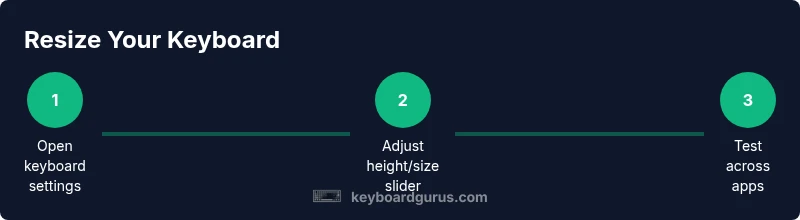
By following this guide, you will learn how to adjust keyboard size on Android across popular keyboards like Gboard and Samsung Keyboard. The steps cover locating height or size controls, using per-app or system options, and testing the results for comfortable typing. Whether you prefer a compact layout or a larger, easier-to-hit keyboard, you'll find practical, device-agnostic tips.
Why Adjusting Keyboard Size Matters
If you spend long hours typing on an Android phone or tablet, the size of the keyboard can significantly affect accuracy and comfort. A keyboard that's too small forces your fingers to stretch and increases misses; one that's too large can obscure the screen and force you to scroll more often. According to Keyboard Gurus, the right keyboard size balances hit-area efficiency with onscreen visibility, reduces strain during long sessions, and supports better posture. The Keyboard Gurus team found that most users underestimate how much a few millimeters of height or width can improve typing speed and reduce fatigue over a typical workday. In practice, adjusting keyboard size is not one-size-fits-all: it depends on your hand size, the apps you use most, and whether you prefer a compact layout for mobility or a larger, easier-to-hit arrangement for extended typing. This guide will walk you through how to adjust keyboard size on android across popular keyboards, what settings to look for, and how to verify that changes improve your typing experience.
How Android Handles Keyboard Sizing Across Apps
Android supports both system-wide controls and per-app keyboard adjustments, but the availability of size options varies by keyboard app. Gboard typically offers a height adjustment through its own settings, while Samsung Keyboard provides a dedicated distance/height slider. Some third-party keyboards expose size controls only when a feature flag or a premium option is enabled. The practical takeaway is to check both the OS-level keyboard option and the individual keyboard’s settings. Keyboard sizing often behaves differently across apps because apps render keyboards within their own UI frames. In practice, you may need to tweak the size in a couple of locations to achieve consistent comfort across messaging, email, and browser apps.
Gboard: Adjusting Keyboard Height and Layout
Gboard makes size adjustments accessible through its settings. Start by opening the Gboard app (or via Settings > System > Languages & input > On-screen keyboard > Gboard). Look for Preferences and locate the Keyboard height option. Use the height slider to switch between compact, medium, or tall layouts depending on your hand size and screen real estate. Be mindful that very tall layouts can reduce visible typing area in narrow screens. After adjusting, test by typing a few sentences in a messaging app and a note app. If you don’t see height controls, ensure Gboard is updated, or try enabling the floating keyboard for a temporary larger hit area. The key is to find a height that improves accuracy without obstructing essential screen content.
Samsung Keyboard and Other Keyboards: Where to Find Size Settings
Samsung Keyboard often includes a dedicated Keyboard height setting, usually under its own settings menu (Settings > General management > Language & input > On-screen keyboard > Samsung Keyboard). Drag the height slider to increase or decrease the key size and observe the impact in chat windows and web forms. Other keyboards like SwiftKey or Fleksy may place size controls under Preferences or Layout options. If a keyboard doesn’t expose a height slider, consider using a floating keyboard mode or switching to a different keyboard that supports adjustable size. Remember to test across multiple apps to ensure consistency.
Accessibility and Display Settings That Influence Keyboard Size
Beyond keyboard-specific options, Android accessibility features affect perceived keyboard size. Increasing Display size or Font size can scale UI elements, including the keyboard, so you might achieve a larger hit area without changing the keyboard app. Magnification gestures or One-handed mode can further improve reach and visibility on smaller devices. If you’re using a pill-shaped or compact Android device, these settings can make the keyboard feel more comfortable. Combine system display tweaks with app-specific height adjustments for the most consistent typing experience across contexts.
Testing and Fine-Tuning for Comfort
After initial adjustments, verify comfort with a small 5–10 minute typing session across at least three apps: messaging, email, and a browser. Check for issues like accidental taps due to close key spacing or reduced screen visibility of essential UI elements. If you notice fatigue or awkward finger angles, recalibrate by reducing height a notch or enabling floating mode for a mid-stance keyboard. Keep notes of which combinations work best in which apps and adjust if you frequently switch between work and personal devices. Regular re-evaluation helps maintain optimal typing comfort as screen sizes and OS updates evolve.
Troubleshooting Common Issues and Quick Fixes
If the size change doesn’t apply everywhere, try these quick fixes: 1) Restart the keyboard app or the device to reset UI rendering. 2) Clear cache for the keyboard app in Settings > Apps > [Keyboard] > Storage. 3) Check for firmware or OS updates that impact per-app UI scaling. 4) If a particular app stubbornly ignores size changes, use a floating keyboard in that app for a temporary enhanced hit area, and leave default sizing elsewhere. The goal is consistent comfort, not perfection in every app.
Practical Scenarios: When to Increase, Decrease, or Revert Size
Work on the go may benefit from a compact keyboard to save screen space and speed when quick replies matter. In long-form writing or coding tasks, a taller keyboard improves accuracy and reduces mis-taps. If you often type in dim lighting, a slightly larger key hit area reduces errors. If you experience eye fatigue or cramped thumbs, revert to standard sizing and complement with display size adjustments. A good practice is to keep a “normal” baseline size and a “reading/typing” size that you switch to via quick settings or accessibility shortcuts.
Tools & Materials
- Android device(Any modern Android device with an active keyboard app)
- Gboard, Samsung Keyboard, or alternative keyboard(To access height/size controls)
- Updated OS and keyboard apps(Ensure features exist and are stable)
- Notebook or screenshots(Reference paths if you switch keyboards)
Steps
Estimated time: 10-15 minutes
- 1
Identify keyboard app
Open Settings > System > Languages & input > On-screen keyboard and confirm which keyboard you are using (Gboard, Samsung Keyboard, or others). This matters because size controls live in different places.
Tip: Knowing the exact keyboard app guides you to the right settings path. - 2
Open keyboard app settings
Launch the keyboard’s own settings from Settings or its app icon. Look for a section labeled Preferences, Layout, or Height/Size.
Tip: Some keyboards hide size controls behind advanced settings; expand all sections. - 3
Find the height/size control
Navigate to Height or Keyboard size options. If you see a slider or a few preset layouts, choose the one that best fits your hand and screen.
Tip: Preset Tall or Large is usually a good starting point for big screens or long sessions. - 4
Adjust the slider to your preference
Move the height slider gradually, test in a text field, and judge visibility versus hit area. Avoid jumping to extreme values—small increments tend to feel more natural.
Tip: Test in both portrait and landscape if you rotate your device often. - 5
Test across multiple apps
Open messaging, email, and a web browser to verify consistent behavior. If one app renders oddly, try a different keyboard or enable floating mode for that app.
Tip: Floating keyboard lets you resize without sacrificing other screen space. - 6
Save, revert if needed, and document
If the new size feels right, keep it and note down your preferred setting. If not, revert to default via the keyboard’s reset option or OS accessibility controls.
Tip: Keep your baseline size documented for quick future changes.
Got Questions?
Can I resize the Android keyboard globally, or does it vary by app?
Size changes can vary by keyboard app; some offer system-wide height controls, while others apply per-app or only with a floating keyboard. Check both paths to confirm.
Keyboard size changes depend on the keyboard app; some support global height while others are per-app.
What should I do if I can't find a height option?
Update the keyboard app, check for beta features, or switch to another keyboard that supports size controls.
Update the keyboard or try another one with size controls.
Will resizing affect emoji layout or other panels?
Most size changes affect the main keyboard layout; emoji panels are usually separate but may resize with the main height in some keyboards.
Emoji panels generally follow the main keyboard height, but it can vary by app.
Does changing display size affect keyboard size?
Display size scales UI elements, including the keyboard. You may need to adjust both display size and keyboard height for the best fit.
Yes, display size can influence keyboard size; adjust both for best comfort.
Is there a quick way to revert to default keyboard size?
Yes. Use the keyboard app’s reset option or disable the custom size to return to the original default.
Yes—reset in the keyboard’s settings to default.
Are there accessibility options that help typing comfort besides size?
Yes. Use larger display or font sizes, magnification, and high-contrast themes to improve overall readability and reduce strain while typing.
Accessibility features like larger text and magnification can help with typing comfort.
Watch Video
What to Remember
- Adjust keyboard size via keyboard app or system display size
- Test across multiple apps for consistency
- Floating keyboard enables on-the-fly resizing
- Display size and font size influence perceived keyboard height
- Revert to default if the new size is uncomfortable