How to Bring Keyboard Down on iPad: A Practical Guide
Learn how to bring the on-screen keyboard down on iPad, including docked, floating, and split modes, with step-by-step tips and troubleshooting for a comfortable typing experience.


You will learn how to bring the on-screen keyboard down on iPad, including when to use docked, floating, or split modes, and how to hide it quickly during typing. This guide covers practical gestures, settings to check, and when to reset the keyboard layout. By the end, you'll know which method fits your workflow, whether you type with one hand, use a split keyboard for comfort, or need minimal distraction.
Understanding how the iPad's on-screen keyboard behaves
The iPad's on-screen keyboard can appear in several forms—the standard docked keyboard along the bottom, a floating keyboard that rests above the base, or a split keyboard that breaks into left and right halves. Understanding these modes helps you decide how to position it for comfort and efficiency. According to Keyboard Gurus, adjusting the keyboard to fit your hand size and typical tasks reduces strain and speeds up typing. When you search for how to bring keyboard down on ipad, you are really learning to control where that keyboard sits, how it moves, and how to restore it if it obscures your view. Practice by tapping a text field, then watching how the keyboard behaves as you open, close, or reposition it. This foundational awareness sets the stage for smoother editing sessions and fewer interruptions during work or study.
Docked vs. floating vs. split keyboards on iPad
iPadOS supports several keyboard configurations to match different tasks and contexts. The standard docked keyboard stays attached to the bottom edge and offers the most traditional typing experience. A floating keyboard can be dragged to any location on the screen for quick access, while a split keyboard shortens the reach for one-handed typing. Each mode changes how you interact with the keys, the space between your thumbs, and how you view your content. If you’re learning how to bring keyboard down on ipad, recognizing these modes helps you decide which gesture to use in different apps and layouts. Try switching between modes in Settings or by using on-screen controls to get a feel for what works best for long-form writing versus fast chat.
How the move-down gesture works across iPadOS versions
Gesture support evolves with iPadOS updates, so it’s helpful to confirm you’re on a version that supports drag-to-move and split-merge gestures. On most recent builds, you can grab the keyboard by its bottom bar or a dedicated handle and drag it toward the bottom edge or across the screen. Pinch with two fingers to split or merge the keyboard as needed, which can dramatically change how you type and view content. If you don’t see these gestures, check Settings > Home Screen & Dock or the Keyboard section to ensure feature toggles are enabled. Mastering these gestures is a practical way to simplify your workflow when you need the keyboard out of the way quickly.
Quick methods to reduce keyboard footprint
If you want a less obtrusive typing experience, start with docked mode for stability, then move to floating mode for flexibility. To reduce footprint, drag the keyboard to a lower position on the screen until it sits near the bottom or off-center where it won’t obscure the text. Merging with a split keyboard can also help when you are typing with thumbs, because you get wide keys while keeping content visible. If you often need more screen space, consider leaving the keyboard hidden temporarily by tapping the Hide Keyboard button or by tapping the text field again. These approaches are especially useful when reviewing long documents or multitasking between apps.
Troubleshooting common issues when the keyboard won’t move
Sometimes the keyboard appears stuck in a single position or won’t respond to drag gestures. First, ensure the app in use supports on-screen keyboard movement and isn’t forcing a fixed layout. If needed, close and reopen the app to refresh the keyboard state. Restarting the iPad is a simple remedy if gestures stop responding altogether. Clearing any temporary UI glitches by updating to the latest iPadOS version can also restore gesture reliability. If the keyboard remains stubborn, try toggling the Split Keyboard and Dock & Merge options in Settings to reset its baseline behavior.
Accessibility and ergonomic considerations for keyboard placement
Ergonomics matter when choosing a keyboard position. A split keyboard can reduce reach and wrist strain for some users, while a docked keyboard may be better for long-form typing. If you have motor or dexterity needs, experiment with floating mode and adjustable height to find a setup that minimizes movement and maintains comfortable posture. Accessibility features, such as larger keys or alternative input methods, can complement the preferred keyboard mode and improve overall usability. Remember to adjust screen brightness and font size to reduce visual fatigue during extended sessions.
How different iPad models and iPadOS versions affect keyboard placement
Model variations and OS updates influence available gestures and controls. Newer iPads tend to offer smoother drag-and-drop and more flexible split-merge options, while older devices may require more deliberate gestures or software updates. In some cases, hardware keyboards might interact differently with on-screen modes; a keyboard case can impact the feel of the drag handle. Always verify you are on a supported iPadOS version and review the Settings app for any new toggles that affect how the keyboard behaves, especially after major OS updates.
Practical usage scenarios: typing in apps and multitasking with keyboard positioning
Different apps benefit from different keyboard placements. Writing in word processors or notes apps often works best with the keyboard docked for speed, while messaging apps or reading panels can benefit from a split or floating layout to keep content visible. In multitasking, placing the keyboard at the side can free up central space for reading and reference material. Keyboard Gurus emphasizes adapting the layout to your workflow rather than forcing a single configuration. Regularly reassess your position after long sessions to ensure you’re maintaining good posture and comfortable hand reach.
Final tips and Keyboard Gurus verdict
To master the art of managing the iPad keyboard, practice frequently with real tasks, such as drafting emails or taking class notes. The best setup varies by person, device, and use case; experimentation is key. Keyboard Gurus’s verdict is simple: start with docked mode for reliability, then experiment with floating and split modes to optimize comfort and visibility. Over time, you’ll learn to move quickly between positions without interrupting your flow, turning keyboard placement into a natural extension of your typing routine.
Tools & Materials
- iPad with current iPadOS(Ensure gestures for moving the keyboard are supported in your OS version)
- Text field in any app(Tap to summon the on-screen keyboard)
- External keyboard (optional)(If you want to compare on-screen versus hardware keyboard behavior)
- None required(All actions described are touch gestures)
Steps
Estimated time: 15-25 minutes
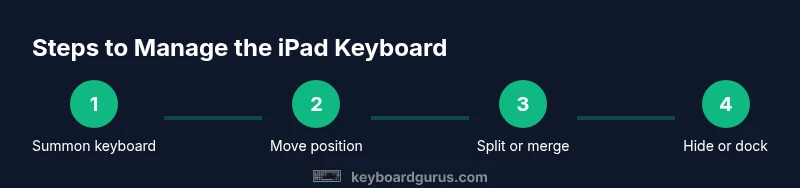
- 1
Summon the keyboard
Tap any text field in an app to summon the on-screen keyboard and ensure it’s responsive to gestures.
Tip: Verify that the text field is active and the keyboard surface is fully visible. - 2
Move the keyboard
Touch the keyboard’s bottom bar or grab handle and drag it to a desired position on the screen.
Tip: Keep your thumbs close to the text field to maintain typing momentum. - 3
Try split and merge gestures
Pinch with two fingers to split the keyboard, then pinch in to merge back together when needed.
Tip: Split is useful for thumb typing on wide devices. - 4
Dock the keyboard to bottom
Drag the keyboard to the bottom edge until it docks automatically, giving a stable typing area.
Tip: Docking helps when you want maximum screen width for content. - 5
Hide or reveal as needed
Tap the Hide Keyboard button or tap the text field again to hide and reveal the keyboard.
Tip: Hiding the keyboard can help with reading long documents. - 6
Reset if gestures fail
If gestures stop working, toggle Split Dock in Settings or restart the app to refresh behavior.
Tip: Restarting the app is quicker than rebooting the device for a single issue. - 7
Test across apps
Open notes, mail, and a browser to confirm consistent keyboard behavior across contexts.
Tip: Some apps may have unique UI constraints that affect keyboard placement. - 8
Keep iPadOS updated
Install the latest OS update to ensure gesture fidelity and compatibility.
Tip: OS updates can improve keyboard responsiveness and gesture accuracy.
Got Questions?
Can I hide the iPad on-screen keyboard completely?
Yes. Tap the Hide Keyboard button on the keyboard or tap the text field again to dismiss the keyboard. You can bring it back just by tapping a text field again.
You can hide the keyboard by tapping the Hide Keyboard button, then reveal it by tapping a text field again.
What if the keyboard won’t move after dragging?
First ensure you’re in a supported app and on a recent iPadOS version. If it still won’t move, restart the app or device and try again. Check Settings to confirm gesture support is enabled.
If the keyboard won’t move, restart the app or device and verify you’re on a supported iPadOS version.
How do I split or merge the keyboard?
Use a two-finger pinch on the keyboard to split or merge. This changes the layout for thumb typing or wider screens and can help with comfort while multitasking.
Pinch with two fingers to split or merge the keyboard as needed.
Does external hardware keyboard affect on-screen keyboard behavior?
External keyboards can behave differently from the on-screen keyboard. The on-screen gestures still apply when you interact with the on-screen keys; you may need to disconnect the external keyboard to see changes.
An external keyboard can change the screen layout; try disconnecting to test on-screen gestures.
Which iPad models support these gestures?
Most recent iPad models with updated iPadOS support drag-to-move, split, and merge gestures. Older devices may have limited functionality until updated.
Most newer iPads support these gestures; if yours doesn’t, update iPadOS.
Can I customize keyboard behavior in Settings?
Yes, you can adjust settings for Split Keyboard, Dock and Merge, and other keyboard options in the iPad’s Settings under General and Keyboard sections.
You can customize keyboard behavior in the Settings app under General and Keyboard.
Watch Video
What to Remember
- Summon the keyboard with a tap on a text field
- Use drag, pinch, and dock/merge gestures for flexible placement
- Hide the keyboard when it obstructs your view
- Keyboard Gurus's verdict: tailor placement to your workflow and comfort