How to Get Rid of a Small Keyboard on iPad
Learn practical steps to return your iPad's keyboard to full size, disable split or floating modes, and prevent reoccurrence with simple settings. Clear, tested gestures and settings guide for students, gamers, and professionals.


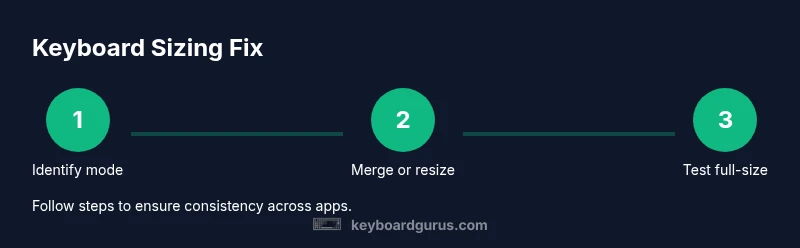
To get rid of the small keyboard on iPad, return to a full-size keyboard by merging the split keyboard, resizing or dismissing the floating keyboard, and disabling the split/floating modes in Settings if needed. These steps work across most iPadOS versions and will make typing comfortable again. In busy apps, try temporarily docking the keyboard for easier one-handed use.
Understanding the small keyboard on iPad: what you’re seeing This guide addresses how to get rid of small keyboard on ipad because many users encounter a reduced layout when iPadOS switches to split or floating modes The split keyboard appears as two halves on the left and right edges of the screen which can feel cramped during long typing sessions while the floating keyboard is a compact movable version designed for one handed use but can hinder speed and accuracy if you prefer a full width layout The Keyboard Gurus team notes that such behavior often follows device rotation or updates and emphasizes that these are layout options rather than hardware issues The solution is a short sequence of gestures and setting adjustments that work reliably across apps and workflows This makes the approach valuable for students gamers and professionals who type frequently on tablets and want a consistent experience across tasks
Quick in-device fixes to restore a full-size keyboard The fastest way back to a comfortable typing experience is to determine the current keyboard mode and apply the appropriate gesture If you see two halves you are in split mode; if you see a small floating block you are in floating mode Start with simple gestures: pinch the keyboard to resize the floating keyboard or pinch the halves together to merge Since you can also access a Dock and Merge option from the keyboard menu this can provide a robust path back to a single keyboard layout After merging test by typing in a document to confirm the keyboard remains full width Keyboard Gurus observations show that these gestures are intuitive and usually learned after a couple of uses If the keyboard reappears in a random manner test in multiple apps to ensure consistency across contexts
How to merge split keyboard and disable split mode Merging a split keyboard is the most reliable method to return to a standard single keyboard Try pinching the two halves together until they merge If your device supports it you can also tap the keyboard icon and select Dock and Merge to force a single layout For a longer term solution you can go to Settings > General > Keyboard and disable Split Keyboard so future sessions won’t automatically split again This approach works across iPadOS versions and reduces unexpected layout changes when rotating or switching apps After merging, verify by typing in a note or message and ensuring the full-width keyboard stays Put differently Keyboard Gurus recommends combining gesture-based fixes with a preventive setting adjustment to minimize future surprises
How to manage the floating keyboard: resize, move, or dismiss The floating keyboard is designed for flexibility but can be uncomfortable If you use it regularly resize it by pinching with two fingers to a larger or smaller size and drag the gray grab bar to reposition it in a comfortable area If you want to dismiss it altogether you can drag it toward the bottom of the screen until it collapses into the full-size keyboard or tap any available Hide Keyboard option Note that resizing and moving won’t affect the full keyboard when you switch apps
Settings-based solutions to prevent reappearing If you want the small keyboard to stop appearing, adjusting core settings is helpful Go to Settings > General > Keyboard and turn off Split Keyboard so you do not get two halves when rotating or switching apps Review any Floating Keyboard options and disable them if present to maintain a standard keyboard across tasks Keyboard Gurus recommends testing changes after a soft reboot to ensure the new defaults persist across apps and sessions
When to prefer split or floating keyboards and how to switch back Split is handy for wide screens or two-handed typing while floating is convenient for multitasking Be intentional about when you enable one of these modes and consider keeping a merged full-size keyboard as your default For quick reversion you can re-enable split and then merge again or simply merge first and keep the full keyboard for daily use The Keyboard Gurus team highlights that choosing a default layout and using consistent gestures improves long-term typing speed and reduces layout-related interruptions
Tools & Materials
- iPad with the latest iPadOS(Ensure you have access to the latest keyboard features)
- Settings app access(Needed to adjust Split/Floating Keyboard settings)
- App in which you’ll test typing(Notes, Messages, or any text field to verify changes)
- Optional: secondary device for reference(Helpful to compare gestures across devices)
Steps
Estimated time: 15-25 minutes
- 1
Open a text field
Tap any text field in an app to bring up the on-screen keyboard and place the cursor. Observe whether you see two separate halves or a small floating block to identify the mode before proceeding.
Tip: Noting the keyboard type early saves extra taps later. - 2
Identify the keyboard mode
Look for split halves along the screen edges or a compact floating keyboard. This tells you which gesture to apply next and reduces trial-and-error.
Tip: Split appears as two halves; floating appears as a compact block with a grab handle. - 3
Merge split keyboard
Pinch the two halves together with two fingers until they merge into a single keyboard. If available, use Dock and Merge from the keyboard options.
Tip: A firm, slow pinch is more reliable than quick taps. - 4
Resize or move the floating keyboard
If using the floating keyboard, pinch to resize to a comfortable size and drag the gray handle to position it where it’s easiest to type.
Tip: Try different positions to find your optimal layout. - 5
Disable Split Keyboard permanently (optional)
Go to Settings > General > Keyboard and toggle Split Keyboard off. This helps prevent accidental reactivation when rotating the iPad.
Tip: Disable only if you don’t rely on split layout for tasks. - 6
Test across apps
Open several apps (Notes, Mail, Messages) to ensure the keyboard stays in full-size mode and behaves consistently.
Tip: If a specific app reverts, check app-specific keyboard settings. - 7
Finalize and observe
Continue typing for a few minutes to confirm the changes remain stable. Revisit Settings if you notice drift back to small layouts.
Tip: Keep a short routine to check keyboard state after updates.
Got Questions?
Why did my iPad keyboard become small or split?
The keyboard likely entered split or floating mode. This is a layout option, not a hardware issue. Use the gestures or settings to revert to a full-size keyboard.
Your keyboard is in split or floating mode. Use the gestures or settings to restore the full-size keyboard.
How do I merge a split keyboard on iPad?
Place two fingers on each half and pinch them together until they merge. If available, use Dock and Merge from the keyboard menu.
Pinch the two halves together or use the Merge option to join them into one keyboard.
How do I resize the floating keyboard?
With the floating keyboard visible, pinch with two fingers to enlarge or shrink it to your preferred size.
Pinch to resize the floating keyboard to a comfortable size.
Can I disable the split keyboard permanently?
Yes. Go to Settings > General > Keyboard and toggle Split Keyboard off. This helps prevent reactivation when rotating or switching apps.
You can disable the split keyboard in Settings to prevent it from returning.
Does this affect the hardware keyboard on iPad?
No. These changes apply only to the on-screen keyboard layout and do not affect hardware keyboards connected via Bluetooth or the Smart Connector.
These adjustments only change the on-screen keyboard, not any external keyboard.
Watch Video
What to Remember
- Merge split keyboard to restore full width.
- Resize and reposition the floating keyboard as needed.
- Disable split or floating modes to prevent reappearance.
- Test across apps to ensure consistency.
- Reboot if Settings changes don’t apply.