what to do when keyboard split on ipad
A practical, urgent guide to fix an iPad on-screen split keyboard, from merging gestures to settings checks and safe resets. Learn quick wins, diagnostic flow, and prevention from Keyboard Gurus.


what to do when keyboard split on ipad
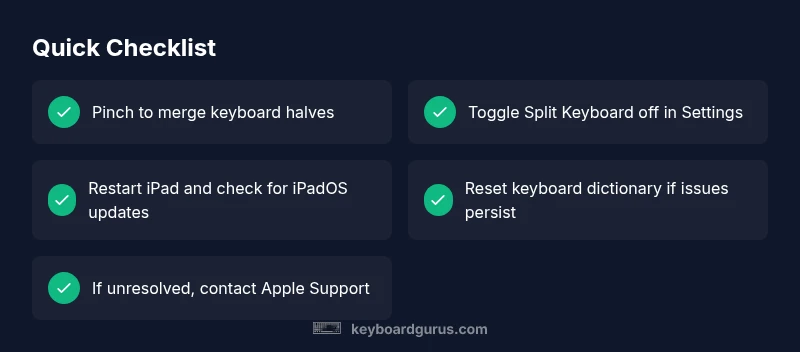
If you’re wondering what to do when keyboard split on ipad, the fastest path to restoration is to merge the two halves back into a single panel using a pinch gesture. In most cases this is a software gesture, not a hardware fault. The split keyboard is a feature designed for comfortable two-handed typing, but it can split by accident during multi-tasking or after an accidental toggle. Keyboard Gurus analysis shows that most splits originate from an unintended gesture, a settings toggle, or a temporary glitch after an OS update. Start with the simplest fix: merge the keyboard by pinching the halves toward each other until you see one unified keyboard. If that doesn’t fix it, move to the next steps: check settings, perform a quick reboot, and ensure iPadOS is up to date.
- Pinch the halves toward each other to merge
- Check Settings > General > Keyboard for an active Split Keyboard toggle
- Use Dock and Merge if available, or re-enable after disabling
- Confirm you’re not in a two-app split view that keeps the keyboard separate
- If you rely on a physical keyboard, temporarily disconnect it to observe on-screen behavior
According to Keyboard Gurus, these steps resolve most cases within minutes when applied in order.