Check If Your Keyboard Has a Keylogger: A Practical Guide
Learn how to check if your keyboard has a keylogger, with hardware and software checks, safe testing steps, and guidance from Keyboard Gurus. Protect your privacy across Windows, macOS, and Linux.


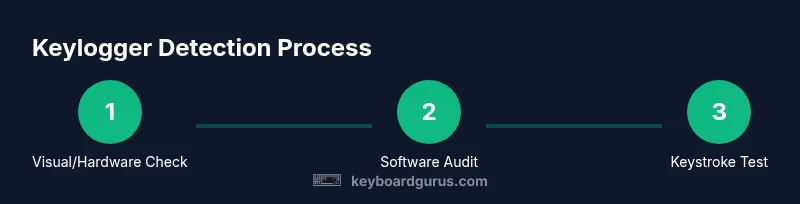
To verify a keyboard isn't secretly logging keystrokes, perform a safe, combined check: visually inspect the keyboard, scan for unusual software activity, and test keystroke behavior. This guide covers hardware and firmware vectors, following best practices from Keyboard Gurus. Proceeding with caution reduces false alarms and preserves your privacy. The plan works across Windows, macOS, and Linux, and it does not require permanent hardware changes.
What is a keylogger and why it matters
Keyloggers are tools that secretly record keystrokes and other input data. They can be implemented as software running on a computer, embedded in the firmware of a keyboard, or hidden in a USB gadget between the host and the keyboard. The goal is to capture sensitive information such as passwords, messages, and credit card numbers. For Keyboard Gurus readers, the risk isn't just about malware on your PC; hardware compromises can be subtler and harder to detect. According to Keyboard Gurus, effective detection requires thinking in terms of vectors: hardware, firmware, and software. The reason this matters is simple: a single, well-placed keylogger can work silently, even on a well-secured system. The best approach blends hardware inspection with software auditing, and it should be part of a broader privacy hygiene routine. In this section you’ll learn how to distinguish hardware from software keyloggers and why dual verification matters. As you proceed, keep in mind that many legitimate devices (for example, keyboards with built-in firmware features) may resemble suspicious hardware; the aim is to verify behavior, not to panic.
Hardware vs software keyloggers
Hardware keyloggers sit between the keyboard and the computer and can record keystrokes without any software on the host system running. Software keyloggers are programs that run on the computer, often disguised as legitimate utilities. Firmware keyloggers live in the keyboard's own firmware, making detection especially challenging. Each type has different signs and requires different checks. Keyboard Gurus emphasizes the importance of verifying both hardware interfaces and software behaviors to catch the widest range of threats.
Indicators of hardware keyloggers on a keyboard
Look for signs of tampering around the keyboard body and cable, such as unusual lumps in the USB cable, extra connectors, or a tiny board hidden near the plug. Inspect the connector for unfamiliar chips or serial numbers, and check for changes in cable routing that could house a microcontroller. If you can disassemble safely, inspect the PCB for unfamiliar chips or adapters between the keyboard and cable. Be mindful of warranty terms; do not force components if you’re unsure. Physical evidence is strong when you see something that doesn’t belong, but absence of evidence does not prove safety. This requires a careful, methodical approach and patience.
Safety first: prepare your environment
Before you start, power everything down and unplug the keyboard. Work in a clean, static-safe area and use an anti-static mat or wrist strap. Avoid high-voltage devices nearby, and never touch exposed circuitry with bare hands. If you’re unsure about disassembly or warranty implications, seek professional help. This step protects you from accidental damage and ensures you don’t misinterpret a normal wear mark as tampering. Keyboard Gurus stresses that safe preparation is as important as the inspections themselves.
Physical checks you can perform
Start with exterior inspection: examine the USB connector, cable seams, and the area where the cable meets the keyboard. Use a bright light and magnification to spot tiny chips or added cables. If you’re comfortable and the device is out of warranty, consider opening the case to check the internal wiring and PCB for unfamiliar components. Do not force parts apart; refer to manufacturer guides if available. Document any anomalies with photos for later reference. These physical checks are the first line of defense against hidden hardware threats.
Software checks you can run on your computer
Run a clean malware scan with trusted software, review startup items, and inspect running processes for anything unfamiliar. Check installed drivers and recent firmware updates from the keyboard’s manufacturer. Look for unusual network activity originating from the system that isn’t explained by your current tasks. While software alone can’t rule out hardware keyloggers, it helps identify suspicious behavior that warrants closer hardware inspection. Keyboard Gurus notes that a layered approach yields the best confidence.
How to test for keylogging with keystroke timing
Create a controlled typing test using a known text block in a trusted editor. Compare the text you type with what appears on the screen and note any odd delays or missing characters. Reproduce with multiple apps (editor, browser, terminal) to see if timing is consistent. If you observe anomalies, that may indicate interception or delay introduced by a hidden device. Use a consistent environment to minimize false positives.
Interpreting results and next steps
If you trail a clear hardware anomaly or software misbehavior, stop using the device for sensitive data and consult the keyboard vendor or a professional technician. Preserve evidence, including photos and logs, and seek guidance on warranty options or firmware advisories. If no conclusive signs appear but suspicion remains, consider replacing the keyboard or isolating critical devices from the suspected setup. The goal is to reduce risk while preserving privacy. Keyboard Gurus emphasizes documented checks and careful decision-making as key habits for keyboard safety.
When to replace or safeguard your keyboard
When uncertainty persists after thorough checks, replacement is a prudent route, especially for work devices with sensitive data. If you must continue using the keyboard, isolate it in a non-critical environment and monitor for anomalous activity. Maintain up-to-date firmware from trusted sources and adopt a routine privacy hygiene plan. The Keyboard Gurus team recommends securing devices with regular scans, firmware updates, and clear documentation of any hardware changes. Keeping a baseline configuration for future comparisons helps detect drift over time.
Tools & Materials
- Anti-static wrist strap(Ground yourself before opening a keyboard; prevents static damage to components.)
- Small Phillips screwdriver (precision set)(Only if you plan to disassemble; check warranty first.)
- Bright flashlight or loupe(Inspect connectors, cables, and inner components for signs of tampering.)
- Magnifying glass(Magnify small chips or unusual wiring without removing components.)
- Baseline spare keyboard or USB test device(Use for comparison to establish normal behavior.)
- Microfiber cloth(Gently clean surfaces to spot imperfections; do not press on circuitry.)
Steps
Estimated time: 60-90 minutes
- 1
Power down and unplug
Power off all devices and unplug the keyboard from the computer. This prevents accidental data capture or damage during inspection and ensures your safety while handling hardware. Take a photo of the setup before disassembly if you plan to open the case later.
Tip: Always unplug before touching any internal components to avoid electric shock or short circuits. - 2
Prepare your workspace
Set up in a static-safe area with an anti-static mat or wrist strap. Have adequate lighting and a clean surface to lay out components. This reduces the risk of losing tiny screws or damaging sensitive parts.
Tip: Ground yourself every time you handle the keyboard’s internals. - 3
Inspect exterior wiring and connector
Carefully examine the USB cable, plug, and the back of the keyboard for signs of tampering or added hardware. Look for nonstandard chips, extra cable sections, or unusual glue. Note any anomalies with photos for reference.
Tip: Don’t confuse legitimate aftermarket accessories with tampering; verify with the manufacturer if in doubt. - 4
Open only if safe and warranted
If you decide to open the chassis, follow manufacturer guidelines and ensure warranty terms allow this. Remove screws carefully and avoid flexing the PCB. Keep track of screws and place them in labeled containers.
Tip: If you’re unsure about warranty implications, stop and seek professional help. - 5
Scan the internal PCB for unfamiliar hardware
Look for unfamiliar chips or extra jump wires between the PCB and the USB connector. A trained eye can spot odd components that don’t belong to the original design. Photograph any suspicious areas for later evaluation.
Tip: Disassemble slowly; forceful prying can damage traces and void warranties. - 6
Compare firmware versions
Check the keyboard’s firmware version against the official release notes on the manufacturer’s site. Unauthorized firmware can indicate a firmware-based keylogger. If your device lacks a clear vendor source for firmware, avoid updates from unknown sources.
Tip: Only use official firmware from the manufacturer or authorized partners. - 7
Run a software audit in parallel
While hardware inspection proceeds, run trusted malware scans and review startup items, drivers, and recent network activity. This helps determine if software-side keylogging is present and complements hardware checks.
Tip: Create a clean baseline by temporarily disabling nonessential software. - 8
Test keystroke behavior safely
Type representative text in a trusted editor and observe for delays, missing characters, or altered output. Repeat across multiple apps to confirm consistency. Unexplained inconsistencies merit deeper hardware checks.
Tip: Document timing observations with timestamps if possible. - 9
Decide on next steps
If you find trouble signs, isolate sensitive workflows, contact the vendor, or replace the keyboard. If nothing concrete is found, maintain regular privacy hygiene and monitor for future anomalies.
Tip: Keep receipts and logs in case you need warranty support. - 10
Document and back up baseline
Create a concise report outlining checks performed, findings, and actions taken. Save photos, firmware notes, and software scans for future reference or audits.
Tip: Regular documentation helps detect drift or new threats over time. - 11
Restore or replace with care
If replacement is chosen, securely wipe sensitive data from affected devices and reconfigure your workstation with updated security settings. Reintroduce devices one at a time to monitor for new issues.
Tip: Ensure proper disposal of old hardware according to local regulations. - 12
Review privacy practices
Update your security routines: enable disk encryption, enable firmware updates from trusted sources, and implement a routine check for peripherals. Privacy hygiene is a continuous process, not a one-off task.
Tip: Schedule periodic checks to maintain vigilance.
Got Questions?
Can a keyboard have a keylogger without any software installed on the computer?
Yes. Hardware or firmware keyloggers can operate independently of software on the host computer, making detection more challenging. A thorough check should include both physical inspection and firmware verification.
Yes. Hardware or firmware keyloggers can work without any software on the computer, so you should inspect the keyboard and firmware as well as run software checks.
How do I differentiate legitimate keyboard features from a keylogger?
Differentiate by verifying with the manufacturer and checking for unusual data streams, extra hardware, or unexpected network activity. Built-in features should be documented by the vendor; anything unexplained warrants caution.
Differentiate by cross-checking with the vendor’s docs and looking for unexplained data activity.
What should I do if I can’t find a keylogger but still suspect activity?
Continue with comprehensive checks, monitor for patterns, and consider professional hardware diagnostics. Sometimes persistence of anomalies despite checks is a sign to replace the device.
If suspicions persist, get a professional opinion and consider replacement to protect sensitive data.
Are there legitimate enterprise uses of keyloggers in keyboards?
Some organizations use monitoring in controlled environments, but this requires clear policy, consent, and robust security controls. In consumer devices, expect no legitimate keylogging unauthorized.
In consumer gear, look for unauthorized keylogging; enterprise use requires strict governance and consent.
Can firmware updates remove a keylogger from a keyboard?
Firmware updates can fix vulnerabilities and remove malicious firmware if provided by the vendor, but never flash firmware from untrusted sources. Always back up data before updates.
Firmware updates from trusted sources can help fix issues; avoid unknown sources.
Should I contact the manufacturer if I find something suspicious?
Yes. Reach out with documented findings, firmware versions, and photos. Manufacturers can provide official guidance, warranty options, or replacements.
Yes—contact the manufacturer with your findings for official guidance and possible replacements.
Watch Video
What to Remember
- Inspect both hardware and software vectors for compromise
- Document findings clearly for future reference
- Decide on replacement if risks persist or cannot be resolved
- Follow manufacturer guidance to avoid voided warranties
- Regular privacy hygiene strengthens long-term keyboard security