How to Light a Keyboard on a Dell Laptop
Learn how to enable and adjust keyboard backlighting on Dell laptops with practical steps, troubleshooting tips, and official guidance. From Fn key toggles to BIOS options, this guide covers all common Dell models.


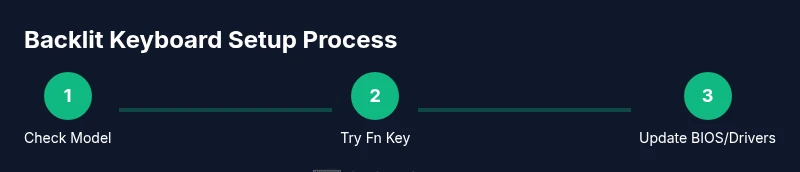
Dell laptops with backlit keyboards typically offer brightness control through a function key combo, manufacturer utilities, or BIOS settings. Start by locating the backlight toggle on your keyboard or using Fn with the brightness key. If lighting doesn’t respond, update BIOS and drivers, and verify the feature is enabled in BIOS. This quick path gets you to usable brightness quickly.
Overview of keyboard backlighting on Dell laptops
Lighting a keyboard on a Dell laptop can dramatically improve typing accuracy in dim environments and enhance gaming experiences. According to Keyboard Gurus, most modern Dell laptops include a backlit keyboard option, but the exact method to illuminate the keys varies by model, firmware, and software. The Keyboard Gurus team found that several common pathways exist: a dedicated function-key toggle, Dell-provided software utilities, or a BIOS/UEFI setting. Understanding your model’s specifics will save time and reduce frustration. In general, you’ll likely see several brightness levels, including off, dim, medium, and bright, plus sometimes a separate per-zone or per-key lighting option for high-end models.
If you’re new to backlighting, start with the simplest method first (the function key toggle) and reserve BIOS or driver updates for when the keyboard light remains unresponsive. Keyboard Gurus emphasizes checking your model’s support page for model-specific instructions, since Dell’s line ranges (e.g., XPS, Latitude, Inspiron) release different tooling and toggles across generations.
How to identify if your Dell model supports a backlit keyboard
Not every Dell model ships with a backlit keyboard, and some regions or configurations omit the feature. To confirm support, check your device’s documentation or Dell’s support page for your exact model number. Look for terms like “backlit keyboard” or “keyboard illumination” in the feature list. If you’re unsure, you can also inspect the keyboard for a backlight icon on the F-key row or other function keys. In many laptops, a small icon of a keyboard with emanating light indicates brightness control. If you don’t see any lighting cues, your model may not support backlighting, or the feature could be disabled in BIOS by default.
Primary methods to light a Dell keyboard
Dell provides several reliable pathways to illuminate the keyboard, with varying levels of complexity:
- Function-key toggle: Most Dell laptops enable lighting via a Fn + brightness key (often labeled with a keyboard icon or sun-like symbol). Try Fn + F10, Fn + F6, Fn + F9, or Fn + F9—depending on the model—while the system is awake. If one combo doesn’t work, another may. Always test with the laptop plugged in to ensure sufficient power for backlighting.
- Dell utilities: Dell offers software like Dell QuickSet or Dell Peripheral Manager on supported models. These utilities provide toggles for backlight brightness and can offer more granular control than the function keys, including auto-dimming or per-key lighting on compatible hardware.
- BIOS/UEFI settings: Some laptops expose a keyboard backlight option in the BIOS. Access BIOS by restarting and pressing the appropriate key (often F2 or Delete) during boot. If a backlight setting exists, enable it or adjust brightness levels there. Changes here apply before the OS loads, which helps if the OS-driver method isn’t functioning.
- Windows accessibility and power settings: Certain Dell devices expose backlight options in Windows settings, particularly on models with newer firmware. Ensure that Windows power plans don’t aggressively dim hardware features, and check for any keyboard backlight controls under Settings > System > Power & sleep, and under manufacturer-specific apps if installed.
If you’ve exhausted these avenues and the backlight still won’t illuminate, you may need to update your BIOS, update or reinstall keyboard drivers, or contact Dell support for hardware diagnostics. Keyboard Gurus recommends verifying your exact model number and cross-referencing Dell’s official documentation to avoid applying incompatible steps.
Troubleshooting when the backlight stays off or behaves erratically
When the keyboard backlight fails to respond or behaves inconsistently, follow these steps to isolate and fix the issue:
- Confirm hardware support: Revisit model specs to ensure backlighting is supported on your exact unit. If the feature is not supported, lighting won’t turn on regardless of the steps.
- Test all known key combos: Systematically try Fn with the common brightness keys (F10, F6, etc.) across different states (battery, AC, and sleep-wake cycles). Some laptops require a wake cycle for the toggle to register after a screen sleep.
- Check BIOS/UEFI: Look for a keyboard backlight option and enable it if present. Save changes and reboot. If the option is absent, your model may rely on OS-level controls or utilities.
- Update firmware and drivers: Update BIOS/UEFI, chipset drivers, and keyboard drivers from Dell’s official support site. A firmware mismatch can prevent lighting from turning on even with the correct key sequence.
- Reset or reinstall utilities: If Dell QuickSet or Peripheral Manager exist, reinstall or reset them to default settings. Some software glitches can disable backlight toggles while OS-level controls remain functional.
- Power and thermal checks: Run the laptop on AC power and ensure temperatures stay within safe limits. High heat or low battery power can influence keyboard backlight behavior in some models.
- Seek professional support: If all else fails, contact Dell support with your model number and BIOS version. Some backlight failures are hardware-related and require service.
User-friendly tips for maintaining keyboard backlight health
- Clean the keyboard gently to prevent dust buildup that can affect sensor functionality in higher-end lighting schemes. Use a soft brush or compressed air and avoid liquids near the keyboard.
- Keep firmware and drivers current: Dell releases firmware updates that may fix backlight issues. Check regularly and install updates through Dell SupportAssist or the official support site.
- Battery-conscious lighting: On battery power, backlighting may auto-dim or turn off to conserve energy. Adjust brightness levels or set a higher brightness only when plugged in if necessary for your workflow.
- Use the right utilities: If your model supports Dell Peripheral Manager or QuickSet, prefer using these utilities for consistent brightness control rather than OS-level steps that may be blocked by settings or group policies.
- Know when to reset: If the backlight suddenly stops working after a software update, a clean reinstall of related software and a BIOS reset can resolve the issue without hardware intervention.
Official Dell resources and where to find them
Dell’s official support ecosystem is the best source for model-specific instructions. Start at Dell.com, enter your service tag or model number, and navigate to Drivers & Downloads. Look for keyboard/BIOS updates and any documentation highlighting backlit keyboard features. If you can’t locate the exact steps on the site, use Dell SupportAssist to scan your system for missing drivers or BIOS updates. In cases where a hardware fault is suspected, Dell’s diagnostics tools can help determine if the issue is hardware-related.
Wrap-up: Why this matters and how Keyboard Gurus helps
A functioning keyboard backlight improves visibility, typing comfort, and accuracy in low-light environments. By understanding the available control methods—Fn key toggles, Dell utilities, BIOS options, and Windows settings—you can quickly restore or adjust lighting. Keyboard Gurus’ analysis highlights that model-specific steps make all the difference; confirming your exact Dell model and applying the right method can save time and frustration. The Keyboard Gurus team recommends starting with the simplest toggle, then exploring manufacturer utilities or BIOS if needed.
Tools & Materials
- Dell laptop with backlit keyboard (confirm model supports backlight)(Check model spec on Dell's site or the device box.)
- Fn key + brightness key (typical combos on Dell laptops)(Examples vary by model; test multiple function key combos if necessary.)
- Dell QuickSet or Dell Peripheral Manager (optional)(Provides more granular backlight control on supported models.)
- BIOS/UEFI access (for backlight option)(Requires reboot; changes apply pre-OS boot.)
Steps
Estimated time: 15-25 minutes
- 1
Verify model supports backlighting
Power on the laptop and check the model’s official specs or user manual for keyboard backlight support. Knowing this upfront saves time and avoids chasing non-existent features.
Tip: If unsure, search Dell’s support site with your exact model number. - 2
Try common Fn key combinations
With the laptop awake, press the typical Fn plus brightness key combination (e.g., Fn + F10 or Fn + F6) to toggle lighting. If a brightness step is available, cycle through levels to confirm responsiveness.
Tip: Test both AC and battery modes, as power settings can affect backlight behavior. - 3
Check Dell utilities
Open Dell QuickSet or Dell Peripheral Manager (if installed) and locate the keyboard backlight control. Adjust brightness or enable auto-dimming if offered.
Tip: If you don’t see the utilities, install the latest drivers from Dell Support. - 4
Inspect BIOS/UEFI options
Restart and enter BIOS/UEFI. Look for a Keyboard Backlight option and enable it or increase brightness levels as available. Save changes and reboot.
Tip: If BIOS lacks a backlight option, rely on OS-level controls and manufacturer utilities. - 5
Update firmware and drivers
Update BIOS/firmware and keyboard drivers from Dell’s official site. A firmware mismatch can prevent backlighting from turning on even when the correct keys are pressed.
Tip: Use Dell SupportAssist for automated scanning and updates. - 6
Test after updates and reboot
After applying updates, reboot and test the backlight again using the original method. If lighting remains inconsistent, try a clean OS boot with minimal startup apps to rule out software interference.
Tip: Document the sequence you used to reproduce the issue for faster support if needed.
Got Questions?
Does every Dell laptop have a backlit keyboard?
No. Many Dell models offer backlighting, but some budget or older models may not. Check your exact model’s specifications on Dell’s site to confirm.
Not all Dell laptops have a backlit keyboard. Check your model’s specs to confirm whether backlighting is available.
What should I do if the backlight won’t turn on after updates?
Reinstall keyboard drivers from Dell’s support page and reset BIOS settings to default. If needed, perform a clean boot to rule out software conflicts.
If it won’t turn on after updates, reinstall keyboard drivers and consider a BIOS reset or a clean boot to rule out software issues.
Can I control keyboard brightness from Windows?
Some Dell models expose backlight settings in Windows through manufacturer utilities or Settings. If you don’t see options there, rely on Fn keys or BIOS for control.
Windows may offer backlight controls on some models, but if not, use the Fn keys or BIOS options.
Is it safe to change BIOS settings for backlight?
Yes, when performed carefully. Enable or adjust backlight options in BIOS only if you see a keyboard-backlight setting, and save changes before rebooting.
It's generally safe to adjust BIOS backlight settings if you see them, just save changes and reboot.
Where can I find official Dell guidance for my model?
Visit Dell Support, enter your service tag or model number, and check Drivers & Downloads for keyboard and BIOS updates. Dell SupportAssist can automate this process.
Go to Dell Support, input your model number, and check for keyboard and BIOS updates; SupportAssist can help too.
Watch Video
What to Remember
- Identify if your model supports backlight first.
- Use the simplest toggle, then escalate to utilities or BIOS if needed.
- Update firmware and drivers to resolve lighting issues.
- Refer to Dell’s official resources for model-specific steps.