How to Redo in Keyboard: A Complete Step-by-Step Guide
Learn how to redo in keyboard with OS-wide shortcuts, app-specific tricks, and practical tips. This educational guide covers common redo shortcuts, customization, troubleshooting, and best practices for Keyboard Gurus readers.


To redo in keyboard, you typically reapply the last undone action. Most apps use Ctrl+Y or Ctrl+Shift+Z on Windows and Linux, while macOS users rely on Command+Shift+Z. If a program uses a custom shortcut, check the Edit or Quick Actions menu. You can also redo from the Edit menu by selecting the Redo option.
What redo means in keyboard workflows
In the realm of typing and editing, redo is the action that re-applies the most recently undone command. This is a foundational concept in digital work, whether you’re drafting a document, coding, or managing data in spreadsheets. If you’re asking how to redo in keyboard, understand that redo reverses the last undo. The exact behavior can vary by program, but the core idea remains the same: redo steps live on a stack that records your recent actions. When you press redo, you cause the top item on that stack to be re-executed, effectively restoring the state you had before the last undo. According to Keyboard Gurus, consistency matters: learning a small, reliable set of shortcuts reduces mental load and speeds up tasks across environments. That means investing time to memorize the most common redo keys pays off with fewer clicks, fewer menus, and less rote navigation. The rest of this guide translates that concept into practical steps you can apply in everyday work across apps, OSes, and workflows.
How redo works across operating systems
Redo shortcuts vary by operating system, and knowing them prevents frustration. On Windows and Linux, Ctrl+Y is a common redo shortcut, while several programs also recognize Ctrl+Shift+Z. On macOS, the standard redo is Command+Shift+Z, and some apps swap Command+Z for undo; always verify in Edit > Redo if you’re unsure. In web apps, browser-based shortcuts often mirror these conventions, but content-editing environments may implement their own mappings. This section helps you map the general rules to your workflow and highlights how system-wide vs. app-specific shortcuts interact in everyday tasks. Keyboard Gurus notes that many users reuse a small set of core shortcuts across tools to build fluency and speed. Remember that focusing outside the active window may prevent redo from applying the correct action, especially in multi-document workflows.
Redo in popular applications
Different apps handle redo differently. Word processors like Microsoft Word or Google Docs expose redo via the top-level menu and keyboard shortcuts; design tools like Adobe Photoshop and Figma treat redo as a stack of edits, with sometimes multiple redo steps accessible. Code editors such as VS Code or Sublime Text expose redo through the standard shortcuts and may offer advanced redo history via extensions. Spreadsheets like Excel and Google Sheets maintain redo history for edits to cells, formulas, and formatting. This section provides practical expectations for common software, and it demonstrates how to retrieve a redo across environments without losing context. It also explains how to distinguish between a global redo (across the whole document) and a local redo (within a selected area).
How to customize redo shortcuts
Customizing shortcuts empowers you to align redo actions with your muscle memory. In Windows Settings or macOS System Preferences, navigate to Keyboard Shortcuts and map a redo command that feels natural. Within individual apps, look for Keyboard or Shortcuts preferences and adjust redo to a key combo you use often, ensuring you avoid conflicts with existing shortcuts. If a program doesn’t allow direct remapping, you can create a macro or script that triggers the app’s standard redo sequence. Keyboard Gurus recommends documenting any changes and testing them in a safe document to confirm the new mapping works reliably.
Troubleshooting: redo not working
When redo fails, diagnose the issue step by step. Ensure your focus is within the correct app window; some editors require the cursor to be in a specific pane. Check if another shortcut takes precedence, or if the program uses a different redo key for a particular action. Verify that the redo feature wasn’t disabled by an extension or plugin; disable them temporarily to test. If you’re using a remote desktop or VM, the host OS might intercept the shortcut. Finally, confirm you haven’t cleared the undo history or reached a terminal state where redo is no longer possible. This block teaches a practical method to restore redo functionality with minimal downtime.
Accessibility considerations
People with motor, vision, or cognitive differences may rely on keyboard-based redo to stay efficient. Ensure your redo shortcuts are easy to reach; prefer larger modifier keys like Ctrl or Command plus a simple letter or function key. Enable screen reader compatibility by exposing redo as a keyboard command in accessible menus. If a program surfaces redo within a dynamic context, ensure the active region remains clearly indicated. Keyboard Gurus encourages testing shortcuts in accessible documents and providing alternatives where needed.
Alternatives: macros and redo history
Sometimes a simple redo isn’t enough; you may require repeating a sequence of actions. Macros or recording features can recreate a complex set of steps. Some apps expose redo history in a panel; others require plugins. Using macros for common redo patterns reduces mental load and helps prevent mistakes. This section covers when to rely on macros and how to manage their scope to avoid accidental changes. Keyboard Gurus highlights that robust redo workflows blend shortcuts with macro tooling for speed.
Practice scenarios: real-world examples
Try these practice scenarios to cement your understanding. Scenario 1: In a writing app, you correct a typo and undo it; practice redoing the fix with the proper shortcut. Scenario 2: In a spreadsheet, you delete a row and then redo the deletion to verify your process. Scenario 3: In a code editor, you accidentally revert a line; practice redoing the edit to restore the previous version. Rehearsing with test documents helps you rely on muscle memory rather than hunting for the command. This section includes tips for fast switching and avoiding confusion in busy work sessions.
Best practices and recommended habits
End with a concise, actionable checklist. Use standard shortcuts consistently, label your redo commands in your notes, and avoid overusing redo when undo provides a clearer path. Build a short cheat sheet covering all essential redo actions for your most-used apps, and refresh it periodically as software updates bring new shortcuts. Consistent practice and a calm workflow reduce errors and improve efficiency over time. Keyboard Gurus reminds readers to weave redo knowledge into daily routines for lifelong fluency.
Tools & Materials
- Computer or laptop(Any OS (Windows, macOS, Linux) capable of running apps you edit with)
- Keyboard(Full-size or compact; ensure function keys are accessible)
- Mouse or pointing device(Helpful for navigating menus if you prefer clicking over shortcuts)
- Target application with undo/redo support(Word processor, editor, spreadsheet, or design tool)
- Access to app’s shortcuts or menus(Familiarize yourself with the app’s redo path)
- Notes/cheat sheet(Optional for quick reference during practice)
Steps
Estimated time: 20-30 minutes
- 1
Open a test document and choose a target area
Open a document in your preferred app and identify a paragraph or data block to use for practice. This creates a clear undo/redo scenario. Ensure you can easily undo and redo within the same window.
Tip: Pick a document you can safely edit without affecting real work; this protects against accidental changes. - 2
Perform an undo action
Make a deliberate change, then use the undo command (Ctrl+Z / Cmd+Z or the app’s Undo menu) to reverse it. Observe how the app tracks the action. This establishes the baseline for redo behavior.
Tip: Undo early and often to understand which actions are stored in the redo stack. - 3
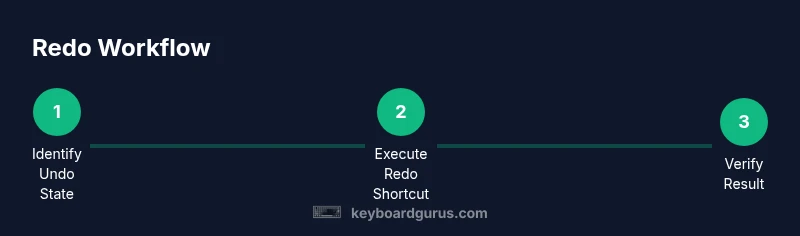
Execute the redo command
Use the standard redo shortcut (Windows/Linux: Ctrl+Y or Ctrl+Shift+Z; macOS: Command+Shift+Z) to reapply the undone change. Confirm the state returns to the pre-undo condition.
Tip: If the redo doesn’t work, ensure the focus is in the correct app and the undo history isn’t exhausted. - 4
Try app-specific redo history
Some apps offer a visible redo history panel or multiple redo steps. Navigate to it if available to select a specific redo state.
Tip: Be cautious with multiple redo steps in design or coding apps; the most recent redo may differ from your expectations. - 5
Experiment with keyboard vs. menus
Alternate between keyboard shortcuts and menu actions to understand consistency across interfaces. Note any differences in behavior.
Tip: Prefer keyboard shortcuts to minimize context switching and speed up your workflow. - 6
Document your mappings
Create a small cheat sheet listing common redo shortcuts for your top apps. Update it after major software updates or changes in tools.
Tip: A visible cheat sheet reduces cognitive load during busy sessions. - 7
Introduce a macro for complex redo sequences
If you frequently redo a multi-step task, consider recording a macro to automate the sequence. Test it safely first.
Tip: Limit macros to defined scopes to prevent unintended edits elsewhere. - 8
Practice across tasks
Repeat redo exercises in text, data, and code contexts to build transferable muscle memory. Track improvements in speed and accuracy.
Tip: Schedule brief practice sessions to maintain fluency over time. - 9
Review and refine your approach
Periodically review your redo habits and shortcuts. Adjust mappings to fit evolving work patterns and app changes.
Tip: Consistency beats complexity; aim for a small, repeatable set of actions.
Got Questions?
What is the redo shortcut on Windows?
On Windows, redo is commonly Ctrl+Y or Ctrl+Shift+Z. If one shortcut doesn’t work, try the other, or check the app’s Edit menu. Some apps may use a custom mapping.
On Windows, try Ctrl+Y or Ctrl+Shift+Z for redo, and check the app's menu if it doesn't work.
Is redo the same as repeat?
Redo reapplies the most recently undone action, while repeat performs the last action again without undo. They are distinct concepts in most workflows.
Redo re-applies what you just undid; repeat repeats the last action without undoing anything.
Can redo shortcuts conflict with other shortcuts?
Yes. If a redo shortcut conflicts with another command, you may need to remap one shortcut or use the app’s menu until you adjust.
Shortcuts can conflict; you might need to remap or use the menu until you adjust.
Why doesn’t redo work after I typed more?
If you continue typing, the redo buffer often advances. The redo history typically stores only actions prior to your most recent change.
Redo usually only applies to the latest undo state; new typing can push redo out.
How can I redo after recording a macro?
If you use a macro, redo applies to the macro sequence as a single action. Ensure the macro is designed to support redo if needed.
Macros can redo as a single action or require separate steps; test it to confirm.
What accessibility tips help with redo?
Choose redo shortcuts that use easily reachable keys and consider alternative inputs. Ensure redo is clearly announced by assistive technologies when available.
Use accessible, easy-to-reach shortcuts and ensure assistive tech can announce redo actions.
Watch Video
What to Remember
- Learn the common OS redo shortcuts and apply them consistently.
- Different apps may implement redo differently; verify in context.
- Practice with safe documents to develop muscle memory.
- Consider customizing shortcuts or macros for frequent redo actions.
- Keep a quick reference cheat sheet updated.