How to Unlock a Locked Keyboard: Step-by-Step Guide
Learn proven steps to unlock a locked keyboard across Windows, macOS, and laptops. This comprehensive guide from Keyboard Gurus covers Fn lock, software shortcuts, and safe testing to restore input quickly.


Most locked keyboards are caused by a Fn lock, accessibility settings, or a hardware switch. Start by toggling Fn lock, checking Filter Keys, and testing with an external keyboard. Follow the step-by-step guide to unlock safely.
What 'locked keyboard' means
According to Keyboard Gurus, a locked keyboard typically means the device is rejecting input due to a simple toggling issue rather than a hardware failure. The most common culprits are a Fn lock on laptops, accessibility settings such as Filter Keys, or a hardware switch that accidentally engaged. By understanding the difference between a temporary lock and an actual failure, you can choose the right path to unlock quickly. This distinction matters across Windows, macOS, and standalone keyboards, because the fix often uses built-in OS controls rather than specialized tools.
Quick checks you can do safely
Before diving into deeper troubleshooting, perform a few safe checks to confirm the issue and avoid unnecessary steps. Verify the keyboard works on another device or with an external USB keyboard to determine if the problem is device-specific. Look for physical indicators such as a locked icon, LED, or a tiny lock symbol on the function keys. Disable any recently enabled accessibility features like Filter Keys or Sticky Keys, which can lock or slow keyboard input. If the keyboard responds in BIOS/UEFI or on another device, the issue is likely settings-based rather than hardware.
Common causes of keyboard lock
Several common causes can produce a locked keyboard. A Fn lock (on many laptops) is the most frequent culprit, often toggled unintentionally. Accessibility features such as Filter Keys or Slow Keys can disable or delay input. A hardware switch, a malfunctioning dock, or a stuck key (including the Escape key on some models) may mimic a lock. Finally, outdated or corrupted keyboard drivers can prevent the OS from recognizing input correctly. Understanding these causes helps you pick the right remedy without replacing hardware.
How to unlock an external USB keyboard
External keyboards are simpler to troubleshoot because you can isolate them from the laptop’s built-in keyboard. Disconnect the external keyboard, wait 5–10 seconds, then reconnect to trigger a fresh driver handshake. If input remains blocked, test with a different USB port or another computer to rule out port issues. On some keyboards, a built-in “Lock” key or a hotkey combination may lock function keys; consult the user manual and toggle back to normal. If the external keyboard works but the laptop keyboard does not, the problem is likely with the laptop or its drivers rather than the keyboard itself.
How to unlock a laptop keyboard: Fn lock and hardware switches
Many laptops include an Fn lock or a hardware switch that toggles the function key behavior. Look for a dedicated Fn Lock key or a key combination such as Fn plus Esc or a function-key with a lock icon. If you don’t see a lock indicator, try cycling the Fn key with different function keys and observe any LED changes. In some laptops, a physical switch on the side or bottom edge controls keyboard input; flip it and test. If no hardware switch exists, proceed with software-based solutions in the operating system.
Windows-specific unlock steps
Windows users can unlock input by addressing both accessibility settings and driver state. Open Settings > Ease of Access > Keyboard and ensure Filter Keys, Sticky Keys, and Toggle Keys are disabled unless you intend to use them. Check Device Manager > Keyboards for any warning icons, then right-click your keyboard and choose Update driver or Uninstall device (the system will reinstall it on reboot). If input still fails, try enabling On-Screen Keyboard from the Accessibility options to confirm whether the issue is with the physical keys or the software stack. A quick reboot after driver changes often resolves lingering issues.
macOS-specific unlock steps
On macOS, keyboard input problems are frequently tied to accessibility or input source settings. Open System Settings > Keyboard and ensure Key Repeat and Delay Until Repeat are set to comfortable values. Disable Voice Control or Universal Access features that may override keystrokes temporarily. If the problem persists, create a new user account and test the keyboard there to determine if the issue is user-profile specific. Reinstalling macOS keyboard drivers is generally unnecessary, but keeping the OS updated helps prevent driver mismatches.
Software settings that lock input (Accessibility, Filter Keys, etc.)
Software settings can lock input without obvious errors. In Windows, Filter Keys ignores keystrokes when the key delay threshold is exceeded; disable it to restore normal input flow. In macOS, Full Keyboard Access settings affect how keystrokes are registered in different apps. Remove any third-party keyboard utilities that intercept keystrokes, and reset all custom shortcuts to defaults. After any change, test with multiple applications to confirm the change has taken effect across environments.
Prevention and best practices
To reduce future lockouts, keep your system and drivers up to date, maintain a simple and documented set of keyboard shortcuts, and avoid extreme combination toggles you may not remember. It's helpful to keep a spare external keyboard for testing when the built-in one fails. Periodically review accessibility settings to ensure you haven’t left features like Filter Keys enabled by accident. Finally, create a small recovery checklist you can run if input disappears again, so you can act quickly without guesswork.
Tools & Materials
- Computer or device with the keyboard to fix(Your main device; ensure you have admin access if you plan to update drivers)
- External USB keyboard (testing aid)(Helpful to confirm if the issue is with the built-in keyboard)
- Internet access(To search for drivers or OS updates if needed)
- Manufacturer keyboard driver or update utility(Use only from official sources; optional but recommended if drivers are corrupted)
- Basic USB-C/HDMI adapters (dock access)(If you use a laptop with a dock, test keyboard input when docked and undocked)
Steps
Estimated time: 15-25 minutes
- 1
Identify the type of lock
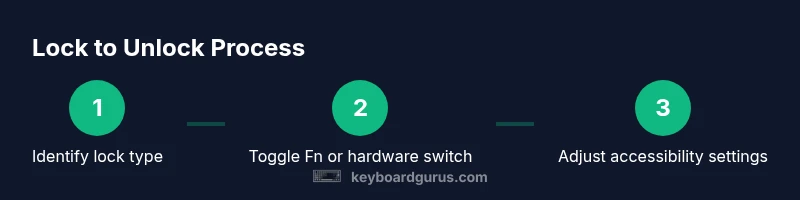
Observe indicators (LEDs, lock icons) and confirm whether the keyboard is unresponsive system-wide or only in certain apps. Try typing in a text editor, browser search bar, and the OS login screen to differentiate. This helps determine if you’re facing a hardware fault, a Fn lock, or a software setting.
Tip: Note any visual cues and where input fails first to tailor the fix. - 2
Toggle Fn lock or hardware switch
If you have a laptop, attempt Fn+Esc or Fn with the key that shows a lock icon. Some models use a physical switch near the edge of the chassis. Toggle and test input after each attempt.
Tip: If unsure which key toggles Fn, consult the laptop manual or manufacturer site. - 3
Disable accessibility shortcuts that lock input
Open your OS keyboard settings and turn off features like Filter Keys, Slow Keys, and Sticky Keys if they’re enabled unintentionally. This is a common cause of locked inputs even without physical damage.
Tip: Apply changes one feature at a time to isolate the culprit. - 4
Update or reinstall keyboard drivers
In Windows, use Device Manager to update or uninstall and let Windows reinstall the driver on reboot. In macOS, ensure you’re on an up-to-date OS version, since driver handling is bundled with system updates.
Tip: Back up important data before driver removal to prevent accidental loss. - 5
Test with an external keyboard
Connect a USB keyboard to verify whether input works on a different device. If the external keyboard functions, the issue is likely with the built-in keyboard or its drivers.
Tip: If the external works, reserve time to diagnose hardware issues on the laptop key matrix. - 6
Reset keyboard settings to defaults
Return to default key mappings and shortcuts in your OS to clear any unintended customizations that locked input. This often resolves quirky behavior after updates or software changes.
Tip: Document your essential shortcuts before resetting in case you need to restore them later. - 7
Perform a physical inspection
Look for stuck keys, debris under the keyboard, or any visible damage. Gently clean with compressed air and a soft brush if necessary. Avoid applying liquids or excessive force.
Tip: A stuck key can masquerade as a locked keyboard; clear debris carefully. - 8
Consider a hardware service if unresolved
If input remains blocked after all software steps, the issue may be hardware-related. Contact the device manufacturer support or a qualified technician for diagnosis.
Tip: Ask about keyboard replacement options or service under warranty if applicable.
Got Questions?
What does it mean when a keyboard is 'locked'?
A keyboard is considered locked when keystrokes aren’t registered by the computer due to hardware lock, Fn lock, or software settings like accessibility features. It’s usually not a hardware failure but a toggled state that can be reversed.
A locked keyboard means the system isn’t recognizing keystrokes, often due to Fn or accessibility settings rather than hardware damage.
Is Fn lock the same as a normal lock?
Fn lock is a toggle on many laptops that switches the function keys between special actions and standard F1–F12 behavior. It’s not a security lock, but it can make keyboard input seem nonfunctional until toggled back.
Fn lock changes how the function keys behave, which can make the keyboard feel locked until you toggle it off.
Why does my keyboard work in one app but not another?
Some apps or accessibility tools may override keystrokes or install custom shortcuts, causing normal typing to fail in that app while the rest of the system works. Check app-specific settings and global keyboard shortcuts.
If it only happens in one app, check that app’s shortcuts and any installed keyboard utilities.
Can I reset keyboard settings safely?
Resetting to defaults is generally safe and can resolve persistent mapping or shortcut issues. If you’ve customized shortcuts, note them before resetting so you can restore them later.
Resetting is usually safe, but keep a note of your custom shortcuts to reapply them afterward.
When should I replace a keyboard?
If troubleshooting doesn’t restore input and there’s evidence of hardware failure (spill, physical damage, unresponsive keys that plummet across multiple devices), replacement may be necessary.
If the keyboard hardware is damaged beyond software repair, replacement is often the practical path.
Is it safe to update drivers during a lockout?
Yes, updating or reinstalling keyboard drivers is a standard, safe troubleshooting step. Ensure you use official sources and create a backup if possible.
Driver updates are safe when downloaded from official sources and can fix driver-related lockouts.
Watch Video
What to Remember
- Identify whether lock is hardware or software before acting
- Fn lock and accessibility settings fix most lockouts
- Test with external keyboard to isolate the issue
- Follow OS-specific steps for reliable results