Fix Keyboard Key Sticking: Troubleshooting Guide
Urgent, practical guide to diagnose and fix keyboard key sticking. Dust, spills, and worn switches explained with proven steps, safe cleaning tips, and preventive maintenance from Keyboard Gurus.


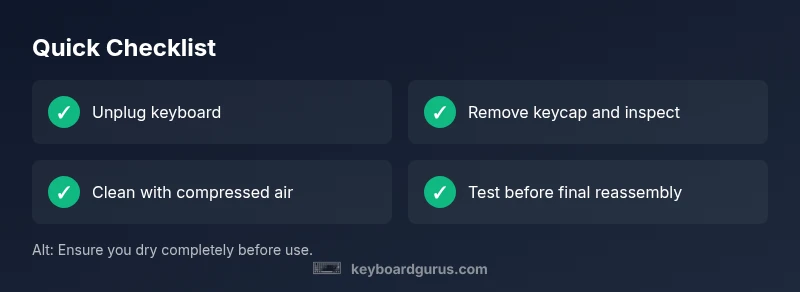
Most keyboard key sticking is caused by dust, debris, or liquid residue under the key. Unplug the keyboard, turn it upside down, and gently tap to dislodge particles. Remove the keycap and blow out debris with compressed air; if needed, wipe the area with isopropyl alcohol on a swab and reseat the key.
Why Keyboard Key Sticking Happens
Key sticking occurs when a key cannot return to its resting position smoothly. The most common culprits are dust and tiny debris lodged under the keycap or around the switch, sticky residue from spills, and wear on the switches or stabilizers. This isn't just a nuisance; it can degrade typing accuracy and speed. According to Keyboard Gurus, a methodical approach reduces risk of further damage and speeds up recovery. The Keyboard Gurus team found that in most homes and offices, stickiness starts as a minor annoyance and escalates when ignored. Even high quality keyboards can develop sticky keys after months of use in dusty environments or after a spill. The good news is that most cases are reversible with care. Start with safe, non-destructive steps before considering disassembly or replacement. In this guide, keyboard key sticking will be treated as a symptom with a practical, stepwise plan to restore normal key travel.
Common Causes of Sticky Keys
Sticky keys are rarely magical; they’re usually physical. Dust and hair accumulate in the escarpment around the switch, liquid spills leave a tacky residue that impedes travel, and wear on the switch or stabilizers can create irregular return. Environmental factors—like a dusty desk, humid air, or sweaty typing—can exacerbate the problem. Misaligned keycaps or loose stabilizers also contribute, especially on larger keys. Software debounce or firmware quirks can mimic a hardware issue but are far less common. The keyword here is contamination and wear, not magic. Keyboard Gurus emphasizes that most stickiness is mechanical in origin, not software, and a proper cleaning cycle often resolves the issue.
Quick Fixes You Can Try Now
If a key sticks, start with the simplest fixes before taking the keyboard apart. First, unplug the device and avoid pressing the sticky key while testing other keys. Then:
- Remove the keycap gently with a stabilized tool or a flat, soft instrument. Inspect for visible debris.
- Use a can of compressed air to blow around the switch and under the keycap, holding the can upright to avoid liquid discharge.
- If the area is safe for liquids, lightly wipe around the switch housing with a cotton swab moistened with isopropyl alcohol. Do not splash liquid on the PCB.
- Re-seat the keycap or swap in a known-good cap from another key if you suspect a misfit.
- Reconnect power and test the key. If it registers reliably, you’re done. If not, move to a deeper clean or consider switch replacement.
Cleaning Techniques by Keyboard Type
Different keyboard architectures require different care. A membrane keyboard with silicone domes can usually be cleaned with light air and alcohol on a swab, avoiding excess moisture. Mechanical keyboards with hot-swappable switches let you replace the entire switch for a stubborn issue, which is not always practical for laptops or non-hot-swappable boards. Laptop keyboards demand extra caution: avoid prying aggressively, as aggressive disassembly can damage the palmrest and internal cables. In all cases, ensure the keyboard is fully powered off and unplugged before cleaning. As a rule, use minimal liquid, and test after each step to avoid cascading damage. The goal is to restore smooth travel without leaving residue behind.
When to Seek Professional Help
If a key continues to stick after a thorough cleaning, the issue is likely mechanical wear or a damaged switch. Replacing the switch on a desktop mechanical keyboard is common on hot-swappable boards, but it can be daunting on non hot-swappable boards. A professional repair service can diagnose whether the stickiness is caused by a switch, stabilizer, or PCB contamination. For laptops or keyboards under warranty, contact the manufacturer’s support before attempting any disassembly that could void coverage. The key is to avoid forcing the key, which can cause further damage.
Preventive Maintenance to Stop Key Sticking
Preventive care saves time and maintains typing comfort. Regularly clean your keyboard with compressed air, particularly in dusty environments. Keep liquids away from the workspace and wipe up spills immediately. Periodically check stabilizers on larger keys and reseat keycaps that feel loose. Consider a keyboard cover if you work in a dusty or outdoor environment. Finally, educate users to avoid eating near the keyboard to minimize spill risk. Keyboard key sticking is easier to prevent than to fix, and routine maintenance pays off in reliable performance.
Steps
Estimated time: 30-60 minutes
- 1
Power down and unplug
Shut down the computer and disconnect the keyboard. This prevents short circuits while you inspect the key. Do not attempt to type during this step.
Tip: Ground yourself to reduce static. - 2
Remove the keycap
Gently pry the keycap using a stable tool or a keycap puller. Keep track of the cap and its retainer clips for reassembly.
Tip: Support the switch housing to avoid bending pins. - 3
Inspect and clean debris
Look for visible crumbs or hair around the stem or under the cap. Blow out with compressed air from multiple angles to clear stubborn particles.
Tip: Use short bursts to avoid moisture buildup. - 4
Deep-clean the area
If safe, wipe the surrounding housing with a cotton swab lightly moistened with isopropyl alcohol. Avoid dripping liquid near the PCB.
Tip: Do not saturate the area. - 5
Reseat or replace the switch
Reinstall the keycap and test the key. If it still sticks and you have a hot-swappable board, swap the switch; if not, consider professional replacement.
Tip: Label the old switch if you plan to recycle it. - 6
Test and verify
Reconnect power and type repeatedly to ensure smooth travel. If the issue persists, escalate to step-by-step replacement or professional help.
Tip: Document symptoms for the technician.
Diagnosis: Key sticks or intermittently repeats when pressed
Possible Causes
- highDust, debris, or hair under the keycap or switch
- mediumLiquid spills or moisture around the switch
- mediumWorn or damaged switch or stabilizers
- lowKeycap misalignment or loose stabilizers
- lowSoftware debounce or firmware issue
Fixes
- easyPower down, unplug, and remove the keycap; clean debris with compressed air
- easyWipe around the switch with isopropyl alcohol if safe, then reseat the keycap
- mediumReplace the switch or stabilizer if wear is evident (hot-swappable boards easier)
- easyCheck keycap alignment and stabilizers; reseat or replace as needed
- hardIf all else fails, consult a professional or replace the keyboard
Got Questions?
Why does a keyboard key stick?
Sticking is usually due to physical contamination or wear. Cleaning often resolves the issue, but persistent stickiness may indicate a worn switch or stabilizer that needs replacement.
Most stickiness comes from dirt or wear. Cleaning helps, but worn parts may need replacement.
Fix without keycap removal?
In some cases you can clean around the stem with compressed air without removing the cap, but for thorough cleaning you should remove the keycap to inspect beneath.
You can try cleaning around the stem, but removing the cap gives a safer, deeper clean.
Is isopropyl alcohol safe?
Isopropyl alcohol is generally safe for non-electrical surfaces and should be used sparingly around the switch housing. Do not pour or soak the PCB, and avoid battery areas.
Yes, but use it sparingly and avoid sensitive areas.
Spilled liquid on keyboard?
If liquid spills occur, power off immediately and disconnect. Dry thoroughly before attempting cleaning. Liquid damage may require professional assessment.
Power off fast, disconnect, dry, and seek professional help if needed.
Replace keyboard if still sticking?
If stickiness persists after thorough cleaning and switch checks, replacement may be more cost-effective than continued repairs, especially on older models.
If cleaning fails, replacement is a practical option.
Software debounce cause?
Debounce issues are uncommon but possible. Resetting firmware or updating drivers can help if hardware checks show no mechanical fault.
Sometimes it's software, but usually hardware.
Watch Video
What to Remember
- Identify root cause before disassembly
- Start with dust and debris removal
- Use safe cleaning methods and minimal liquid
- Consider switch replacement for worn hardware
- Prevent future sticking with routine maintenance