Fixing Keyboard Z and Y Switched: A Practical Troubleshooting Guide
Fast, actionable steps to fix the keyboard z and y switched issue. Learn layout checks, language settings, and safe fixes for Windows, macOS, and hardware, with a clear diagnostic flow and practical tests.


According to Keyboard Gurus, a z-y swap is almost always caused by a mismatch between your physical keyboard and the active software layout, or by language input settings. Start by checking your OS keyboard layout, then verify language and input source, and test with an external keyboard. If it persists, proceed through the step-by-step fixes below.
What the issue looks like and why it happens
The phrase keyboard z and y switched is more than a surface-level quirk. For many users, this symptom appears after a system update, a new language pack, or when a different keyboard layout is selected unintentionally. In practice, the most common root cause is a mismatch between the physical keyboard and the active layout in the operating system. German and Swiss keyboards, for example, map Z and Y differently from the US layout, and switching between layouts can create a persistent swap. Keyboard Gurus analysis shows that layout mismatches are the most frequent cause of this problem, especially when users plug in external keyboards or switch user accounts. If you notice the issue on multiple devices, it’s almost certainly related to software settings rather than a single hardware fault.
Quick checks you can do before diving deeper
Before you dive into deep system settings, do a quick pass to rule out obvious culprits. Make sure caps lock is not interfering, and test both the built-in keyboard and an external one to see if the swap persists. If the external keyboard uses the same wiring, the problem is probably software-based; if only the laptop keyboard is affected, there may be a hardware issue. Keep a note of which keys swap in which contexts (login screen vs. desktop) to guide the diagnostics. This first pass often resolves the problem without touching drivers or registry keys, fulfilling the simplest fix first and aligning with the troubleshooting principle of starting easy.
Windows: checking keyboard layout and input methods
On Windows, the simplest fix for keyboard z and y switched is to verify the active keyboard layout. Open Settings > Time & language > Language & region and inspect the “Preferred languages.” Click on the language and choose Options to see the installed keyboards. Remove any layouts that you don’t use, and add the one you want (for US English, select United States). Also review the Administrative language settings to ensure your default input method matches your physical keyboard. If you’re using an external keyboard, repeat the steps with that device as the primary input source. This block addresses the most common cause directly and quickly.
macOS: input sources and layout verification
Mac users frequently encounter Z and Y swaps when the active input source doesn’t match the keyboard’s hardware. Go to System Settings > Keyboard > Input Sources and confirm the correct layout is enabled (e.g., U.S. or German). Deselect any unfamiliar layouts. If you use the emoji picker or accessibility features, temporarily disable conflicting options that might alter key mappings. After updating input sources, restart the app you’re typing in to confirm the change propagates. This section mirrors how macOS handles keyboard mapping in a predictable, user-friendly way.
Linux and other environments: X11, Wayland, and desktop field tests
Linux environments vary by desktop, and keyboard layouts can be configured per session. Check your current layout with localectl or setxkbmap, depending on your distribution. Ensure you’re not in a different layout for the console vs. the graphical session. If you’re using Wayland, test with a simple Xorg session as a baseline. Remember that some distributions ship with multiple layouts installed; removing unused ones minimizes accidental switches. This section emphasizes consistency across sessions, a crucial factor when dealing with persistent z-y swaps.
Hardware considerations: firmware, USB controllers, and faulty keys
If software checks don’t solve the problem, hardware factors may be at play. A faulty keyboard matrix or worn switches can cause misreads that mimic layout issues. Update firmware if your keyboard supports it, and try a different USB port or cable to rule out connection problems. If you’re using a Bluetooth keyboard, re-pair it to reset the mapping. A failing keyboard driver can also manifest as persisting mappings; consider reinstalling or updating the driver in device manager (Windows) or equivalent on other OSes. When hardware fault is suspected, testing with a known-good keyboard is essential.
Testing with an external keyboard or on-screen keyboard
Testing with an external keyboard helps you isolate the issue quickly. If the external keyboard works correctly, the problem is likely limited to the original device’s hardware or its internal wiring. If the on-screen keyboard maps Z and Y correctly while the physical keyboard does not, you’re dealing with a hardware problem or an internal mapping in the keyboard firmware. For a thorough test, connect and test multiple keyboards and document which keys swap across devices. This reduces uncertainty and guides the next steps precisely.
Language and regional settings: aligning your system with your locale
Language settings often drive keyboard behavior, especially when switching between locales. Ensure your system language matches your keyboard layout. On Windows, check language packs; on macOS, review Region & Language preferences; on Linux, review input method frameworks (IBus, Fcitx). If you frequently switch between locales, consider creating a dedicated profile for each task (work vs. personal) to minimize confusion. Keeping locale and layout aligned is a practical habit that prevents recurring z-y swapped issues.
Remapping and mapping conflicts: when to avoid manual fixes
If you must remap keys, proceed with caution. Manual remaps can cause unintended side effects, particularly if you map Z to Y and Y to Z globally. Always back up registry entries (Windows) or configuration files before making changes. Prefer in-app remapping tools from the keyboard vendor or OS-provided remapping utilities and avoid third-party tools with poor reputations. After any remapping, reboot and test across multiple apps to confirm stability. This approach minimizes surprises and protects your workflow.
When to replace or service a keyboard
Sometimes the swap is a symptom of a failing keyboard. If you’ve exhausted software checks and remapping attempts without success, a hardware replacement or professional servicing may be warranted. Look for consistent misreads regardless of software settings, intermittent behavior, or unusual delays in key response. Replacement is often the most cost-effective remedy for a stubborn Z and Y swap, especially if it occurs on a dedicated gaming keyboard with programmable keys. In the end, hardware faults require hands-on inspection by qualified technicians.
Prevention: tips to avoid future z-y swaps
Prevention beats diagnosis. Create a simple protocol: when setting up a new device, document the intended layout and input sources; avoid enabling multiple layouts without a clear switching plan. Regularly update firmware and drivers, and back up your keyboard configurations. If you rely on multiple locales, set up per-task profiles and keep them synchronized with your preferred layout. Proactive checks reduce the chance of another keyboard z and y switched incident.
Troubleshooting flow you can follow in minutes
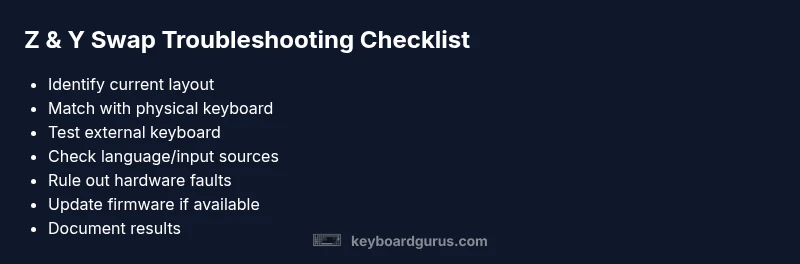
A concise flow helps you move from symptoms to solutions quickly. Start by confirming the active layout, then verify language sources, test with an external keyboard, and reseat or test cables. If the problem persists, consider firmware updates or hardware testing with a known-good keyboard. If all else fails, seek professional evaluation. Keyboard Gurus’s verdict: fix the layout and language settings first, then escalate to hardware checks if needed.
Steps
Estimated time: 20-40 minutes
- 1
Identify the problem scope
Note when the swap occurs: at login, on the desktop, or in specific apps. Confirm if the issue appears with the built-in keyboard or only with an external one. This helps distinguish software vs hardware root cause.
Tip: Write down the exact timings and apps affected for later reference. - 2
Check the active keyboard layout
Open OS settings to see which layout is active. If the layout doesn’t match your physical keyboard, switch to the correct one and test key mappings in a text document.
Tip: If you see multiple layouts, remove unneeded ones to reduce confusion. - 3
Verify language and input sources
Ensure the language pack and input source correspond to your region. Reordering or re-adding sources can resolve persistent swaps.
Tip: Restart the app or system after changing sources. - 4
Test with an external keyboard
Connect a different keyboard to determine if the issue is device-specific. If the external keyboard maps correctly, the fault is likely in the original keyboard.
Tip: Use a known-good USB port and cable for a clean test. - 5
Rule out software remaps
Review any key remapping settings in your OS or vendor software. Remove any mappings that could override standard keys Z and Y.
Tip: Back up remap configs before making changes. - 6
Check for firmware updates
If your keyboard supports firmware updates, install the latest version to fix potential mapping glitches.
Tip: Follow manufacturer instructions exactly to avoid bricking the device. - 7
Reboot and re-test
After changes, reboot and retest in several apps to ensure consistency. Document results for future reference.
Tip: A single test in a text editor is often insufficient. - 8
Decide on hardware service
If problems persist across devices or after firmware updates, consider hardware servicing or replacement.
Tip: Invest in a warranty check or technician consult if under warranty.
Diagnosis: Keyboard Z and Y swapped after system login
Possible Causes
- highIncorrect keyboard layout selected in the OS
- mediumLanguage/Input Method switching
- lowHardware mapping issue or faulty keyboard
Fixes
- easyChange the active keyboard layout to the correct one (e.g., US layout)
- easyCheck and adjust language/region settings and input sources
- easyTest with an external keyboard to rule out hardware faults
- mediumReset or re-map keys via registry or system preferences if needed
Got Questions?
Why do Z and Y swap usually happen on keyboards?
Most swaps come from a mismatch between the physical keyboard and the active software layout, or from a language/input setting that changes mapping. OS-level controls alter which keys correspond to letters. Hardware variants (like German layouts) map Z and Y differently from US layouts.
Usually it's a layout or language setting issue rather than a hardware fault.
How do I fix this on Windows 11 or Windows 10?
Open Settings > Time & language > Language & region > add or remove keyboard layouts. Choose the correct layout (e.g., United States) and remove others you don’t use. Check the input sources for your active profile and reboot if needed.
Set the right keyboard layout in Windows settings and restart apps.
What about macOS—can the issue appear there?
Go to System Settings > Keyboard > Input Sources. Ensure the correct layout is active and remove unneeded ones. Restart affected apps, then test Z and Y in several programs to confirm the mapping is consistent.
Confirm the macOS input sources match your hardware.
Can a faulty keyboard cause this even after software fixes?
Yes. If the external keyboard works but the built-in keyboard does not, a hardware mapping fault or key switch issue may be present. Consider testing with multiple keyboards.
If hardware persists across devices, seek a technician.
Is remapping safe, or should I avoid it?
Remapping can fix the issue but carries risk. Only use trusted tools, back up configurations, and revert changes if problems appear.
Back up before remapping and test thoroughly.
Will changing the language pack help in all cases?
Not always. Language packs affect input methods, but the problem is most often a layout mismatch. Review both layout and language sources to be sure.
Sometimes it helps, but layouts are usually the main culprit.
Watch Video
What to Remember
- Check layout first and align with your keyboard
- Test with an external keyboard to isolate hardware
- Verify language/input sources across OSes
- Avoid risky remappings without backups
- Keyboard Gurus verdict: start with correct layout and language settings first