What to Do If Your Keyboard Is Not Working on MacBook
Urgent, practical steps to diagnose and fix a non-responsive MacBook keyboard. Software fixes, hardware checks, safeMode, SMC/NVRAM resets, and professional help guidelines from Keyboard Gurus.


If you’re wondering what to do if keyboard is not working on macbook, this quick guide helps you diagnose quickly and safely. The first moves are simple: restart, detach peripherals, and test again. Keyboard issues are often software-related or caused by minor misconfigurations rather than a hardware fault. Keyboard Gurus analysis shows many problems resolve with resets, updates, or safe-mode testing. Use this as a fast blueprint before seeking deeper help and reports.
What to Do If Your MacBook Keyboard Stops Responding
If you’re wondering what to do if keyboard is not working on macbook, this practical guide helps you diagnose quickly and safely. The first move is to separate software from hardware: restart your Mac, unplug peripherals, and test again. Keyboard issues often stem from software conflicts, accessibility settings, or transient bugs, not always a faulty keyboard. Keyboard Gurus analysis shows a large share of keyboard problems can be resolved with simple resets and updates, especially on recent macOS versions. This section walks you through a step-by-step process to identify the root cause and save time before booking service. Stay calm, follow each step, and document any changes you observe so you can report them accurately if you need professional support.
According to Keyboard Gurus, most keyboard problems on MacBooks are software-related, not hardware faults, especially for models within the last few years. Start by ensuring your system isn’t busy with heavy tasks and that input sources aren’t hijacking keys with unusual mappings. If your keyboard is intermittently responsive or only works in certain apps, that pattern often points to software or configuration rather than a failed membrane. With a calm, methodical approach, you can usually reproduce the fault in a controlled way and decide whether you need hands-on service.
This block helps you avoid wasted time on expensive replacements. Each step is designed to isolate the problem quickly and provide a clear decision path: software fixes first, followed by hardware checks, then professional repair when necessary. If you encounter unfamiliar terminology, keep notes and proceed slowly. The goal is to restore reliable typing without risking data loss.
"## Common Causes of MacBook Keyboard Failures"
Steps
Estimated time: 60-90 minutes
- 1
Back up and restart
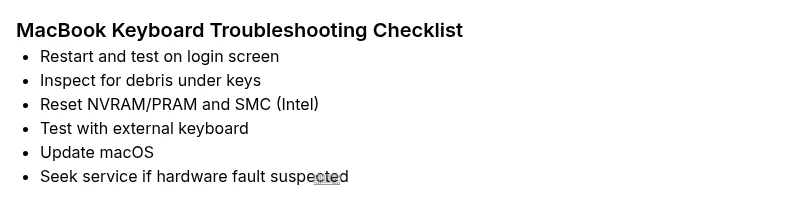
Back up recent work if possible, then perform a full restart. A simple reboot clears many software glitches that block keystrokes. After reboot, test the keyboard on the login screen and in a fresh user session to verify if the issue persists.
Tip: Make sure auto-save is enabled for critical documents before reboot. - 2
Check for debris and sticky keys
Inspect the keyboard area for crumbs, dust, or sticky residue. Use a can of compressed air at an angle to dislodge particles, then wipe the surface with a microfiber cloth. Tap each key gently to feel for sticking or resistance.
Tip: Avoid shaking the laptop vigorously; gentle air bursts are safer and more effective. - 3
Reset NVRAM/PRAM
Shut down the Mac, then power on and immediately hold Option-Command-P-R for about 20 seconds. Release and let the Mac restart. This resets some keyboard input caches that can cause issues after updates or app installs.
Tip: Don’t release too early; hold until you hear the startup chime twice in older Macs. - 4
Reset the SMC (Intel Macs)
For Intel Macs with removable batteries, unplug, disconnect power, hold the power button for 10 seconds, reconnect, and turn on. For non-removable batteries, perform the standard SMC reset sequence. This clears low-level firmware caches that can affect keyboard behavior.
Tip: If unsure about your model, check Apple’s official support for the exact steps. - 5
Boot into Safe Mode and test
Restart while holding the Shift key to boot into Safe Mode. Safe Mode disables third-party extensions that may conflict with keyboard input. Test typing in Safe Mode; if the keyboard works, a third-party app or extension is likely the culprit.
Tip: If Safe Mode fixes it, consider removing recent apps or login items. - 6
Test with an external keyboard and macOS updates
Connect a USB or Bluetooth keyboard. If it works, the issue may be the internal keyboard or its drivers. Check for macOS updates (Apple Menu > System Settings > General > Software Update) and install any available updates. If problems persist, a reinstall or repair may be necessary.
Tip: Always back up before major OS updates or reinstalls.
Diagnosis: MacBook keyboard not registering key presses or behaving erratically
Possible Causes
- highPhysical damage or debris under keys
- mediumSoftware conflict or macOS bug affecting keyboard input
- lowIncorrect keyboard layout or input source settings
Fixes
- easyPower cycle the MacBook: shut down, disconnect power, wait 30 seconds, then restart
- easyReset NVRAM/PRAM to clear input settings
- easyReset SMC (on Intel Macs) or ensure macOS is up to date
- easyTest with an external keyboard to distinguish hardware vs software
- hardIf hardware fault is suspected, consult an authorized service provider
Got Questions?
Why is my MacBook keyboard not responding after a macOS update?
Software updates can reset or reconfigure keyboard settings. Try Safe Mode, reset NVRAM/PRAM, and install any incremental updates. If the issue persists, a clean reinstall or Apple Diagnostics may identify a software conflict or compatibility problem.
Software updates can reset keyboard settings. Try Safe Mode and NVRAM reset first, then install updates or diagnose with Apple Diagnostics.
Will an external keyboard solve the problem long-term?
An external keyboard can keep you productive while you troubleshoot or repair an internal keyboard. If the external keyboard works reliably, the issue likely lies with the MacBook’s keyboard hardware or its drivers.
Yes, using an external keyboard can help you continue work while you fix the built-in keyboard.
Could spilled liquids cause keyboard issues on a MacBook?
Liquid spills can cause sticky keys or short circuits. If you suspect spill damage, seek professional assessment and avoid further attempts that could worsen the problem.
Liquids can damage keys and circuitry; get a professional check if a spill occurred.
Do I need to back up before troubleshooting?
Yes. Back up important data before performing resets, OS reinstalls, or hardware service. This protects you from data loss if the process requires reinstallation.
Back up first so your data is safe if you need to reinstall macOS or reset hardware.
When should I seek professional repair?
If basic software fixes do not restore keyboard function, or if Apple Diagnostics indicates hardware failure, contact an authorized service provider for assessment and possible keyboard replacement.
If fixes don’t help, see a pro for hardware evaluation and possible replacement.
Watch Video
What to Remember
- Prioritize software fixes before hardware work.
- Use Safe Mode to identify conflicts and minimize risk.
- External keyboard helps confirm hardware fault quickly.
- Back up data before major fixes or OS reinstalls.
- Seek authorized service for suspected hardware faults.