When Mac Keyboard Not Working: Urgent Troubleshooting Guide
A practical, urgent guide to fix a Mac keyboard not working, covering hardware checks, macOS settings, resets, and when to seek professional help.


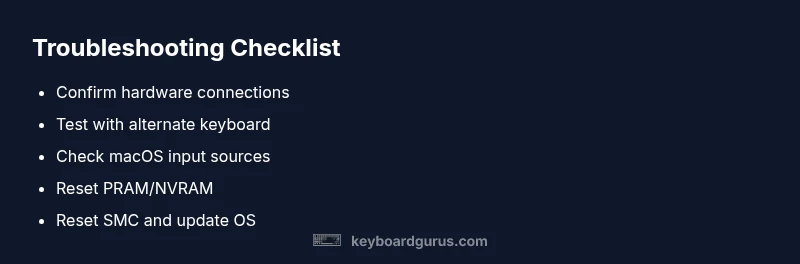
Most likely culprits for a Mac keyboard not working are a hardware fault or Bluetooth/USB interference. Start by confirming the keyboard is properly connected (USB if wired, paired if wireless), testing with another keyboard, and checking macOS keyboard settings. If the issue persists, follow the step-by-step troubleshooting below to isolate the problem and restore input quickly.
Understanding the problem: when mac keyboard not working
The moment you discover your Mac keyboard is not responding, you want fast answers. According to Keyboard Gurus, most incidents fall into a handful of categories: hardware connection problems (USB or Bluetooth), software conflicts or outdated macOS, or a failed keyboard component. Recognize the symptoms early: full keyboard blackout (no keys register), partial failure (some keys work, others don’t), backlight behaves oddly, or the built-in keyboard stops while an external one works. These patterns help you triage quickly. If the touchpad or mouse still responds, this points toward keyboard-specific issues rather than a system-wide input problem. Another clue is whether the problem occurs only after wake from sleep, after a macOS update, or only with a particular app. The more precise your observation, the faster you’ll isolate the root cause and choose the right fix. Keyboard Gurus analysis shows the majority of fixes succeed when you proceed in a structured, test-first manner.
Quick hardware sanity checks
- Confirm the keyboard is physically connected: USB cable secure or Bluetooth paired and active. Check for any visible damage to the cable or port.
- For wired keyboards, try a different USB port or a different computer to see if the issue follows the keyboard.
- For wireless keyboards, check the battery level, re-pair the device, and ensure Bluetooth is enabled on your Mac.
- Minimize interference from other wireless devices (Wi‑Fi routers, cordless headphones, or USB hubs) that could cause input lag.
- If you have access to another keyboard, test with it to determine whether the problem is hardware or system-related.
Verify macOS input sources and shortcuts
Go to System Settings > Keyboard > Input Sources and confirm the correct layout is active. Remove any odd or unfamiliar layouts you don’t need. Check Keyboard Shortcuts in System Settings to ensure a conflicting mapping isn’t stealing keys you rely on. If a third-party utility manages keyboard input, temporarily disable or uninstall it to see if behavior returns to normal. For accessibility settings, make sure Keyboard Viewer, Sticky Keys, and Slow Keys aren’t altering your typing experience unexpectedly. Keyboard-related preferences should align with how you actually type on a daily basis.
Test with an alternate keyboard to isolate the issue
If you have access to another keyboard, connect it and observe whether the new keyboard behaves normally. If the second keyboard works, the issue is almost certainly with the original keyboard or its port, not macOS. If the second keyboard also fails, focus on software, drivers, or the system configuration. This simple test helps you quickly separate hardware faults from software problems and can save a lot of trial-and-error time.
Check for software conflicts and updates
Software conflicts can disable or override keyboard input without obvious signs. Check recently installed apps, especially utilities that remap keys, manage input methods, or capture keystrokes. Review macOS updates and install any pending security or compatibility fixes. Boot into Safe Mode to disable third-party extensions temporarily and test keyboard functionality. If the keyboard works in Safe Mode but not in normal mode, a startup item or extension is the likely culprit. Regular maintenance, including clean uninstall of suspect applications, reduces reoccurrence.
Reset PRAM/NVRAM and SMC to restore keyboard behavior
PRAM/NVRAM holds key hardware settings, and resetting it can resolve keyboard quirks. To reset: shut down, power on, immediately press and hold Option-Command-P-R for about 20 seconds, release after the second startup chime. For SMC reset, procedures vary by model; in general, shut down, unplug power, hold the appropriate key combination (often Shift-Control-Option on the left side along with the power button) for ~7–10 seconds, then reconnect power and boot. After resets, reconfigure any necessary keyboard preferences. These steps resolve many low-level issues that software updates or corrupt preferences can create.
Safe Mode, and clean boot to diagnose
Booting into Safe Mode loads only essential drivers and disables third-party startup items, which helps diagnose persistent keyboard issues. To enter Safe Mode, restart and hold the Shift key until the login window appears. If the keyboard works in Safe Mode, the problem likely lies with a startup item or a recently installed app. Perform a clean boot by gradually minimizing startup items and retesting. Once you identify the offender, remove it and restart normally.
When hardware repair is needed
If none of the software fixes resolve the problem, you may be dealing with a hardware issue—port damage, a dead keyboard, or backlight failure. In this case, contact Apple Support or visit an Authorized Service Provider to obtain a professional assessment. If your Mac is under warranty or AppleCare, arrange service sooner rather than later to avoid unexpected downtime. Regular backups ensure you won’t lose data if a repair involves reinstalling components.
Prevention and maintenance to avoid future issues
Keep macOS up to date to minimize compatibility problems. Regularly inspect keyboard cables and ports for wear, clean the keyboard with approved methods, and avoid liquids near the keyboard. If you rely on Bluetooth, minimize interference and keep devices paired correctly. Periodically reset PRAM/NVRAM and SMC after major macOS updates or hardware changes. Creating a short, recurring maintenance routine can help you catch issues before they disrupt work.
Steps
Estimated time: 60-90 minutes
- 1
Confirm symptoms and reproduce
Document exactly which keys fail and whether the issue is intermittent or constant. Attempt the same actions with the built-in keyboard (if available) and an external keyboard to compare behavior. Make notes about when the problem started (after update, after waking from sleep, after plug-in events).
Tip: Record exact keys that fail and the macOS version for faster triage. - 2
Check wired keyboard connections
Unplug and reconnect the USB keyboard, try a different USB port, and test on another USB-C/USB-A adapter if using one. For USB-C hubs, connect directly to the Mac when possible to rule out hub faults. Observe if the issue follows the port.
Tip: Avoid using low-quality adapters; they can create intermittent faults. - 3
Test Bluetooth keyboard and re-pair
Turn Bluetooth off and back on, remove the keyboard from paired devices, then re-pair. Check the keyboard’s battery level or replace batteries. Ensure no other device is hijacking Bluetooth on the same channel.
Tip: Too many paired devices can cause interference; keep only essential devices connected. - 4
Reset PRAM/NVRAM
Shut down, power on, immediately press and hold Option-Command-P-R for about 20 seconds, then release after the second chime. Revisit keyboard settings and test again.
Tip: PRAM/NVRAM reset can affect time zone and display settings; reconfigure if needed. - 5
Reset SMC and update macOS
Reset the System Management Controller on supported models and check for macOS updates. After a reset, test the keyboard across apps to confirm stability.
Tip: Back up important data before resets; some SMC steps vary by model. - 6
Boot into Safe Mode and test
Restart while holding Shift to enter Safe Mode. If the keyboard works here, a startup item or extension is likely the cause. Disable or uninstall suspect software and reboot normally.
Tip: Safe Mode helps isolate software issues without removing user data.
Diagnosis: Mac keyboard not working
Possible Causes
- highPower/connection issue (unplugged wired keyboard or Bluetooth not paired)
- mediumSoftware conflict or incompatible macOS update
- lowHardware failure in the keyboard or keyboard port
Fixes
- easyCheck power and USB/Bluetooth connections
- easyTest with another keyboard to isolate the issue
- easyReset PRAM/NVRAM
- mediumReset SMC and update macOS
- mediumConsult Apple Support or authorized service if hardware issue suspected
Got Questions?
What could cause a Mac keyboard to stop responding?
Possible causes include hardware faults, Bluetooth connection problems, software conflicts, or problematic apps. Identifying symptoms helps triage and choose the correct fix.
Common causes are hardware issues, Bluetooth problems, and software conflicts.
How do I reset PRAM/NVRAM on a Mac?
To reset PRAM/NVRAM, shut down, power on, and immediately press and hold Option-Command-P-R for about 20 seconds, then release after the second chime. Reboot and test the keyboard.
Resetting PRAM/NVRAM can restore keyboard settings and other hardware preferences.
Can a Bluetooth keyboard affect the built-in keyboard?
Yes. Bluetooth issues can affect multiple input devices. Re-pair the keyboard, disconnect interference, and ensure devices are not overloaded with connections.
Bluetooth conflicts can impact keyboards; re-pair and reduce interference.
Do I need to reinstall macOS to fix keyboard issues?
Usually not. Try hardware checks, resets, and safety mode first. Reinstall macOS only if software corruption is highly suspected and other fixes fail.
Reinstalling macOS is rarely needed for keyboard issues.
What should I do if the keyboard backlight stops working?
Backlight problems can stem from power or hardware faults. Check brightness controls, energy settings, and perform resets if needed. If persistent, hardware repair may be required.
Backlights can fail due to power or hardware; test brightness and consider repair.
Is Safe Mode helpful for keyboard issues?
Safe Mode disables third-party items and extensions, helping you determine if a startup item is to blame. If it works in Safe Mode, disable the offending software and reboot normally.
Safe Mode isolates software issues affecting keyboards.
Watch Video
What to Remember
- Start with simple checks to rule out hardware faults.
- Test an alternate keyboard to isolate the issue.
- Use PRAM/NVRAM and SMC resets where appropriate.
- Seek official repair if hardware failure is suspected.