Mac Keyboard Fix: Troubleshooting and Recovery Guide
Practical, step-by-step guidance to fix common Mac keyboard issues—from cleaning to PRAM/SMC resets—backed by Keyboard Gurus expert insights.


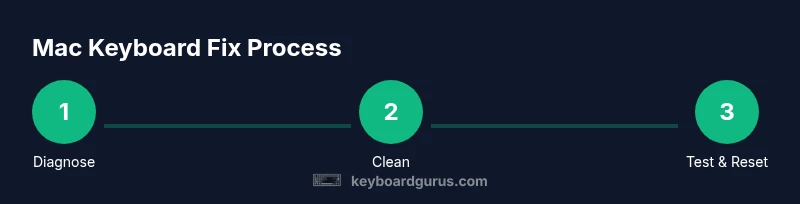
The mac keyboard fix you need starts with a quick diagnosis and a careful sequence: test with an external keyboard to separate hardware from software, clean the key area, adjust macOS keyboard settings, and perform targeted resets (PRAM/NVRAM and SMC) before considering repairs. Follow a structured plan to recover typing performance without unnecessary replacements.
Understanding the Mac Keyboard Landscape
Mac keyboards, including the Magic Keyboard and built-in laptop variants, rely on precise key matrices and macOS input handling. When keys misbehave—whether they register incorrectly, stick, or exhibit lag—the原因 usually lies in a mix of hardware dust, software quirks, or connection issues. For keyboard enthusiasts, a methodical approach helps you distinguish a simple cleaning fix from a deeper compatibility problem. According to Keyboard Gurus, starting with a clean slate—both physically and digitally—yields faster wins and reduces unnecessary parts swapping. This section sets the stage for a practical mac keyboard fix by outlining common failure modes (sticky keys, missed keystrokes, Bluetooth lag, and driver-related hiccups) and how to approach them with a consistent diagnostic mindset.
Diagnostic Signals: Hardware vs Software
Identifying whether the issue is hardware- or software-related is the first crucial step. If multiple keys malfunction, or if the problem follows a specific keyboard (built-in vs external), hardware faults become more likely. If the issue appears only in certain apps or after a macOS update, software or settings are the likely culprits. Run quick checks: boot into Safe Mode to bypass third-party extensions, try an external keyboard to see if the problem persists, and note whether the issue occurs in the macOS login screen or within apps. These signals guide your mac keyboard fix and prevent wasted effort on unrelated steps.
Cleaning and Physical Maintenance
Debris between keys is a common culprit for non-responsive or jittery keys. Start with a light cleaning pass using a soft brush and compressed air to dislodge dust in the key matrix. Wipe the key tops and surrounding surfaces with a lint-free microfiber cloth lightly dampened with 70% isopropyl alcohol. Avoid liquids directly on the keyboard or inside keycaps. If keys remain stubborn, remove only non-detached keycaps with caution, ensuring you document their positions. Regular maintenance reduces future failures and keeps your Mac keyboard functioning smoothly.
Software and Settings Triage
Software-related issues often masquerade as hardware problems. Check macOS keyboard settings: Key Repeat, Delay Until Repeat, and Text Replacement. Disable conflicting accessibility features and dictation options that could interfere with normal typing. Ensure your system is up to date, as Apple’s bug fixes frequently address input problems. Consider resetting the keyboard dictionary only if you notice unusual corrections. This triage helps you isolate whether the fix belongs to the OS layer rather than the hardware.
Resetting System Settings: PRAM/NVRAM and SMC
PRAM/NVRAM and SMC resets are classic remedies for unexplained keyboard quirks on Macs. PRAM/NVRAM stores lightweight system preferences; resetting can resolve misregistered keyboard behavior after sound, display, or USB device anomalies. SMC controls low-level hardware features, including keyboard scanning behavior on some machines. For Intel-based Macs, the sequence and timing matter; for Apple Silicon, you perform a different, simpler reset via power cycles. Always back up before resets and follow Apple’s official steps to avoid misconfiguration.
External Keyboard as a Diagnostic Tool
Testing with an external USB or Bluetooth keyboard is a reliable way to isolate root causes. If the external keyboard works reliably, the problem likely lies with the built-in Mac keyboard or its wiring. If both fail, the issue points to macOS settings, drivers, or a broader hardware fault. Use this test to decide whether you should pursue software fixes, warranty coverage, or professional repair. This mac keyboard fix step is often decisive when debugging complex input issues.
When to Seek Replacement or Professional Help
If cleaning, software resets, and OS updates do not restore reliability, you may be looking at a hardware fault that requires replacement or professional service. Check warranty coverage and AppleCare status, and consider third-party repair options if the device is out of warranty. Understand the cost-benefit: a new keyboard makes sense if the fix is invasive or unlikely to last, whereas a minor repair or part replacement may be a smarter investment for a high-value Mac setup.
Proactive Prevention: Long-Term Care
Adopt preventive practices to extend keyboard life: gentle cleaning routines, avoiding eating over the keyboard, using dust covers when possible, and keeping macOS updated. Regularly re-evaluate Bluetooth interference and maintain clean desk space to reduce debris intrusion. By embedding these habits into your routine, you reduce the frequency of mac keyboard fix emergencies and preserve typing reliability for your workflows.
Tools & Materials
- Microfiber cleaning cloth (lint-free)(soft, non-abrasive for keys and surface)
- Isopropyl alcohol 70%(dampen cloth; do not spray directly)
- Compressed air can(short bursts; hold can upright)
- Soft-bristled brush(for dust between keys)
- Plastic pry tool(non-metal to avoid scratches)
- External USB/Bluetooth keyboard for testing(to isolate hardware vs software)
- Mac with internet access(to run updates and resets)
- Small debris container(to collect loosened dust)
Steps
Estimated time: 45-90 minutes
- 1
Assess symptoms and isolate scope
Document which keys fail, when the issue occurs, and whether it affects built-in or external keyboards. This establishes whether the problem is hardware or software related and informs the rest of the mac keyboard fix sequence.
Tip: Write down patterns; patterns guide targeted fixes. - 2
Test with an external keyboard
Connect a USB or Bluetooth keyboard to see if typing behaves the same. If the external keyboard works fine, the issue is likely with the built-in keyboard or its wiring.
Tip: If Bluetooth is flaky, try a wired keyboard first. - 3
Clean the keyboard exterior and key gaps
Power off, unplug if possible, then use compressed air to clear gaps. Wipe with microfiber cloth dampened with alcohol, avoiding excess moisture. Refrain from cleaning under keycaps without proper guidance.
Tip: Never pour liquid; mist the cloth instead. - 4
Check macOS keyboard settings
Open System Preferences > Keyboard and adjust Key Repeat, Delay Until Repeat, and Text shortcuts. Disable conflicting accessibility features if any. These changes can resolve software-level misinterpretations.
Tip: Record any setting changes for rollback. - 5
Reset PRAM/NVRAM
Shut down, then power on while holding Option-Command-P-R for about 20 seconds. Release and let macOS reboot. This clears certain cache-like data that can affect keyboard behavior.
Tip: If using Apple Silicon, follow Apple’s official reset guidance for your model. - 6
Reset SMC if applicable
For Intel Macs, perform a System Management Controller reset according to Apple’s instructions. This addresses low-level hardware issues that affect input devices and power states.
Tip: Only perform SMC reset when PRAM/NVRAM does not resolve the issue. - 7
Re-test with the built-in keyboard
After resets, re-test the built-in keyboard; if issues persist, investigate hardware repair options. If the issue has disappeared, monitor for recurrence.
Tip: Document symptoms post-fix for trend tracking. - 8
Decide on repair or replacement
If persistent issues persist after software and cleaning steps, consider warranty coverage or professional service. Weigh repair costs against replacement options for long-term value.
Tip: Check warranty terms and service options before proceeding.
Got Questions?
Why is my Mac keyboard unresponsive even after cleaning?
Sometimes unresponsiveness is software-driven or due to a stuck key that cleaning couldn’t fix. Start with a safe mode test, reset PRAM/NVRAM, and verify keyboard settings before considering hardware replacement.
If cleaning doesn’t help, boot into safe mode and try resets to isolate software causes.
How do I reset PRAM/NVRAM on Intel vs Apple Silicon Macs?
On Intel Macs, shut down, then power on while holding Option-Command-P-R for about 20 seconds. On Apple Silicon, use the standard startup options and reset options as guided by Apple support.
Intel: press and hold keys during startup; Apple Silicon: use recovery options per Apple guidance.
Is an SMC reset worth performing for keyboard issues?
SMC resets address low-level hardware control issues and may help if the keyboard is misbehaving due to power or hardware states. Do this after PRAM/NVRAM if symptoms persist.
Reset the SMC if PRAM/NVRAM didn’t fix the problem.
Can Bluetooth interference affect Mac keyboard performance?
Yes, Bluetooth congestion can cause lag or missed keystrokes. Try pairing with a wired keyboard or changing the Bluetooth channel, and ensure devices aren’t sharing interference-prone spaces.
Bluetooth problems? test with a wired keyboard to confirm.
When should I consider replacing a Mac keyboard?
If tests show hardware failure after software fixes and the device remains under warranty or repair costs exceed the value, replacement becomes sensible.
If hardware damage is confirmed and repair costs are high, replacement is worth considering.
Do macOS updates fix keyboard issues?
Occasionally. Updates include bug fixes that affect input handling. Keeping macOS current is a standard part of the mac keyboard fix workflow.
Yes, keep macOS updated for potential fixes.
Watch Video
What to Remember
- Identify whether issue is hardware or software first
- Use external keyboard as a decisive test
- Follow a structured mac keyboard fix process
- Know when to replace vs repair