How to Restart Mac Keyboard: A Practical Guide
Learn how to restart your Mac keyboard with a clear, step-by-step guide. Covers reboot, NVRAM/PRAM, SMC, Bluetooth checks, and Apple Silicon tests for reliable typing.


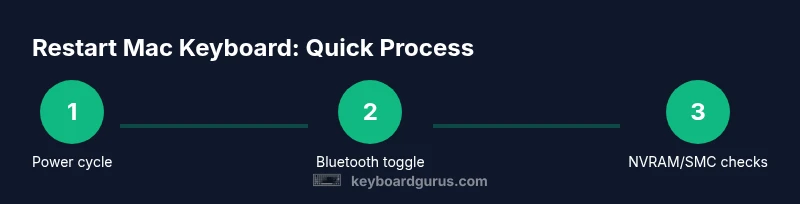
To "restart" a Mac keyboard, you don’t reset the keyboard alone—you restart or reset the host Mac and, if wired, re-seat the keyboard. Common fixes include rebooting, toggling Bluetooth, resetting NVRAM/PRAM, and resetting the SMC on Intel Macs. These steps restore keyboard detection and performance. For Apple Silicon, NVRAM and SMC behave differently; focus on NVRAM reset and Bluetooth toggling first before deeper firmware resets. If you must, try a wired keyboard to rule out Bluetooth issues and background interference.
Why Restarting Your Mac Keyboard Matters
In the realm of keyboards, a restart isn’t just a reboot of a device; it’s a comprehensive refresh of how your Mac detects input devices. When the keyboard seems unresponsive, sometimes the culprit isn’t the keys themselves but how the computer negotiates Bluetooth, drivers, or firmware states during startup. According to Keyboard Gurus, many keyboard hiccups boil down to host-system issues rather than defective hardware. The Keyboard Gurus team found that a simple sequence—restart the Mac, check Bluetooth, then reset NVRAM/PRAM or SMC where appropriate—solves the majority of problems. If you’re looking for a precise approach on how to restart mac keyboard, you’ll want to follow a method that differentiates wired and wireless paths and accounts for Apple Silicon as well as Intel-based Macs. This guide will walk you through all steps, with practical checks and safety notes to protect your data.
Quick diagnostic checks before restarting
Before diving into resets, test basic connectivity and verify that non-hardware factors aren’t at play. Check the battery level on a wireless keyboard, inspect cable connections on a wired keyboard, and ensure the Mac isn’t stuck in an application that hijacks input. Confirm that the keyboard is selected as the input source in System Settings > Keyboard > Input Sources and that Bluetooth is enabled for wireless models. Look for macOS updates that might include fixes for keyboard drivers. Close or disable apps that can cause input lag, such as accessibility utilities, screen recording software, or third-party keyboard remappers. In many cases, a clean software state resolves the issue without any hardware intervention. Keyboard Gurus Analysis, 2026, shows these steps resolve the vast majority of encounters where the keyboard doesn’t respond on wake or login.
Reboot the Mac and verify basic connectivity
Perform a standard reboot first. This is the simplest, most effective action that clears temporary system hiccups affecting input devices. After the restart, test the keyboard by typing in a document and in the login screen. If the keyboard works, recheck that the correct input source is active. For wireless keyboards, use the Bluetooth menu to re-pair the device if needed. If you notice the keyboard disappears from the Bluetooth list, that indicates a more persistent Bluetooth or firmware issue rather than a transient glitch. A wired keyboard can help you isolate whether the issue is Bluetooth-related or system-wide.
Reset NVRAM/PRAM and SMC: Intel vs Apple Silicon differences
Resetting NVRAM/PRAM and SMC is a classic fix for stubborn keyboard issues, but the exact steps differ by processor family. On Intel Macs, reset NVRAM/PRAM by restarting and holding Option-Command-P-R for about 20 seconds, then release. If you also suspect power management quirks, perform an SMC reset following your model’s guidance (desktop vs notebook, removable vs non-removable battery). For Apple Silicon Macs, there isn’t a separate NVRAM reset key sequence; the system resets NVRAM automatically on cold restarts. A full shutdown and reboot, combined with checking Bluetooth and updated firmware, usually resolves most problems. If issues persist after a cold boot, proceed to test with a wired keyboard to rule out Bluetooth interference.
Bluetooth vs wired keyboard: diagnosis and remedies
Wireless keyboards bring convenience, but Bluetooth can introduce delays or disconnects. Start by turning Bluetooth off and back on, then remove the keyboard from the device list and re-pair. Check for macOS Bluetooth issues in System Settings > Bluetooth; ensure the device is trusted, and forget-and-repair if necessary. For wired keyboards, ensure the USB port is healthy and try a different USB cable if available. Some users report interference from nearby wireless devices or USB hubs; moving the keyboard away from other transmitters and using a direct connection can help. In many cases, a fresh pair or a clean system state brings instant relief.
Firmware updates and software integrity checks
Firmware or driver updates can quietly fix keyboard recognition issues. Check for macOS updates and any keyboard firmware announcements from Apple or the keyboard manufacturer. If you’re using a third-party keyboard, visit the vendor’s site for the latest drivers and utilities and apply any recommended firmware updates. Enable System Integrity Protection or verify that security settings aren’t blocking keyboard extension drivers. Remember that updating macOS can also improve overall hardware compatibility, which helps after a restart.
Peripheral testing and troubleshooting steps
Isolate the keyboard by testing with another computer or another keyboard on the same Mac. If the issue follows the keyboard, it’s likely a hardware fault or a compatibility quirk with the specific keyboard model. If the problem remains on multiple devices, it’s more likely a systemic issue in macOS or Bluetooth settings. Document the sequence of steps and outcomes to track what fixed or didn’t fix the problem. Visual inspection for loose connectors and worn cables is also prudent; a damaged cable or USB port can produce intermittent failures that resemble a software issue.
When to escalate: hardware fault signs and next steps
If you’ve exhausted reboot, NVRAM/PRAM, SMC resets, Bluetooth juggling, and firmware checks, yet the keyboard remains unreliable, a hardware fault could be at play. Look for physical damage, non-functional keys, or inconsistent key actuation. If the keyboard is under warranty, contact customer support or a certified technician. For non-warranty devices, consider a reputable repair service or replacement. Keyboard Gurus recommends starting with vendor diagnostics and, if necessary, pursuing a replacement with trusted models known for macOS compatibility.
Tools & Materials
- Mac computer(Needed to restart and perform NVRAM/PRAM/SMC procedures)
- Wired USB keyboard (optional for testing)(Helpful to isolate Bluetooth issues)
- Access to Bluetooth settings(Useful to toggle, forget, and re-pair devices)
- Stable internet connection(Required only for firmware checks and updates)
- Official Apple support guidance(Helpful to verify model-specific reset steps)
- Patience and a backup plan(Restart sequences may require multiple attempts)
Steps
Estimated time: 30-60 minutes
- 1
Power cycle the Mac
Shut down the Mac completely, wait 15–20 seconds, and press the power button to restart. This clears transient system states that can affect keyboard detection. After startup, test typing and confirm keyboard presence.
Tip: A clean boot avoids dynamiс background tasks from interfering with startup. - 2
Check keyboard visibility in macOS
Open System Settings > Keyboard and confirm the keyboard appears in the input sources. If the keyboard isn’t listed, proceed to Bluetooth steps or try a wired keyboard for testing.
Tip: If there are multiple input sources, remove unused ones to reduce conflicts. - 3
Toggle Bluetooth and re-pair
Turn Bluetooth off, wait a few seconds, then turn it back on. Remove the keyboard from the devices list if it’s paired, then re-pair it. Test typing again after pairing.
Tip: Place the keyboard within 1–2 meters (3–6 feet) of the Mac for reliable pairing. - 4
Reset NVRAM/PRAM (Intel Macs)
Restart the Mac and immediately hold Option-Command-P-R for about 20 seconds, then release. Let the Mac boot normally and test the keyboard again.
Tip: Do not release keys until you hear the startup chime twice on older machines. - 5
Reset SMC (Intel Macs)
Follow model-specific instructions to reset the System Management Controller. This varies by desktop vs notebook, and battery type. After reset, reboot and test the keyboard.
Tip: If unsure, consult Apple’s official support page for your exact model. - 6
NVRAM reset on Apple Silicon
Apple Silicon devices refresh NVRAM automatically on cold restarts. If issues persist, perform a full shutdown and power cycle, then test again.
Tip: A full shutdown occasionally clears lingering peripheral states that a quick restart misses. - 7
Update macOS and keyboard firmware
Check for macOS updates and verify that any keyboard firmware is current. Apply updates if available and reboot.
Tip: Firmware updates can resolve obscure compatibility glitches with macOS. - 8
Test with a different keyboard
Connect another keyboard to the Mac to determine if the issue is keyboard-specific or system-wide. If the second keyboard works, your original device may require repair or replacement.
Tip: Document results to share with support if needed. - 9
Inspect for interference and hardware faults
Move potential interference sources away from the keyboard and try direct USB connections. Look for visible damage on cables and connectors.
Tip: Avoid USB hubs if possible during troubleshooting. - 10
Create a practical troubleshooting checklist
Compile a step-by-step checklist to reproduce the issue and verify fixes. This helps you recognize patterns and avoid repeating trials.
Tip: Keep this checklist handy for future keyboard hiccups.
Got Questions?
What causes a keyboard to stop responding on Mac?
Most issues stem from Bluetooth conflicts, driver glitches, or temporary system freezes. Start with a reboot, Bluetooth checks, and a logic reset like NVRAM/PRAM where applicable.
Key problems usually come from Bluetooth or quick system freezes. Try rebooting and resetting NVRAM first.
Does resetting NVRAM affect personal files?
NVRAM resets hardware-related settings and does not touch user files. Some preferences may revert to defaults after the reset.
NVRAM reset touches hardware settings, not your files.
I can type with another keyboard but not mine — what now?
If another keyboard works, your device may have a hardware fault or a compatibility issue with your model. Inspect cables, try re-pairing, and consider repair or replacement.
If a different keyboard works, it’s likely a fault in your original keyboard or its connection.
Is SMC reset safe for laptops and desktops?
SMC resets are safe when performed according to model-specific guidance. Follow Apple’s official steps to avoid unintended behavior.
Yes, follow the official steps carefully; it’s safe when done right.
Will macOS updates fix keyboard issues?
macOS updates can include fixes for keyboard drivers and Bluetooth stacks. Keep the system up to date to minimize recurring issues.
Updating macOS often resolves driver and Bluetooth glitches.
How long should I wait after a restart to retest the keyboard?
Give the Mac a minute to settle after restart before testing. If issues persist after a few seconds, proceed with the next troubleshooting step.
Wait about a minute after reboot, then test again.
Watch Video
What to Remember
- Restart the Mac to resolve keyboard issues
- Toggle Bluetooth to re-pair the keyboard
- Reset NVRAM/PRAM and SMC when appropriate
- Apple Silicon relies on automatic NVRAM refresh; test after cold restart
- Test with a wired keyboard to isolate Bluetooth problems