Why Does My Keyboard Do Random Things? A Practical Troubleshooting Guide
A comprehensive, urgent troubleshooting guide to diagnose and fix random keyboard behavior, covering software, drivers, settings, and hardware with step-by-step actions.


Most often, random keyboard behavior is caused by interference, a stuck key, or a faulty driver/profile. Start with quick checks: ensure the keyboard is properly connected, reseat USB or reconnect Bluetooth, and reset any customized keyboard shortcuts or accessibility features. If the issue persists, update drivers, test with another device, and scan for malware. This guide helps you isolate the cause and apply a safe fix.
What counts as 'random' keyboard behavior
When your keyboard starts typing unintended characters, repeating keys, or acting as if it is being touched by an invisible hand, that is what we call random behavior. Many users report letters appearing on screen without intention, wrong symbols, or programs reacting to keys they didn’t press. If you ask why does my keyboard do random things, the first step is to describe the pattern precisely. According to Keyboard Gurus, most cases cluster into software glitches, driver anomalies, and hardware distractions. By recognizing the symptom pattern, you can quickly choose the right diagnostic path.
In practice you’ll see issues like repeated letters, missed keystrokes, or characters that don’t match pressed keys. Some symptoms are transient and disappear after a reboot, while others are persistent across applications. Distinguishing between a single sticky key and a widespread input problem is the key to efficiency. The goal is to map symptoms to likely causes and then verify with safe, repeatable checks.
Here we establish a practical framework: categorize symptoms, run through quick tests, and reserve deeper fixes for established suspects. This approach minimizes guesswork and speeds up a reliable resolution. The Keyboard Gurus team emphasizes keeping a calm, methodical mindset when facing seemingly erratic input.
By laying out clear categories—hardware faults, software glitches, and user settings—you can triage without panic. Remember that most random input issues are solvable with a structured flow rather than a complete replacement. Use this guide to build confidence and restore dependable keyboard performance.
Quick checks you can do now
Before diving into software settings, run through fast checks. Ensure the keyboard is firmly connected, reseat USB cables, or reconnect Bluetooth if wireless. Try the keyboard on another device to see if the behavior follows the hardware or is tied to the computer. Disable any low power or accessibility features that could emulate keystrokes, such as sticky keys, filter keys, or key repeat settings. If you see repeats only on specific apps, that points to an app-level shortcut or input macro. And if the problem goes away after you reboot, the culprit is likely transient software. Keyboard Gurus analysis shows that many random inputs vanish after a simple restart or a clean boot, so start there and save more involved steps for later.
If you use a laptop, connect an external keyboard temporarily to compare behavior. This helps you decide whether the issue is the laptop’s keyboard or the system environment. Document your findings as you go; a short log makes escalation smoother and faster.
In some cases, the problem might be caused by a third-party keyboard remapper. Check installed software for any remapping profiles and temporarily disable them to test if inputs normalize. Finally, scan for malware or keyloggers if you notice strange patterns that don’t fit typical hardware or driver problems.
The aim of these quick checks is to rule out obvious issues with minimal risk and effort. If results are inconclusive, proceed to deeper software and hardware diagnostics with a clear trail of what you tested.
Note: remember to back up important settings before making major changes so you can revert if needed.
Software-related causes and how to spot them
Software is the quiet driver behind input. Corrupted driver files, wrong keyboard layout, or language settings can produce unexpected characters. Check Device Manager or System Preferences to see if an alternate keyboard is enabled, and ensure the correct layout is selected (US QWERTY commonly). Update or reinstall keyboard drivers, and clear any macro software that could remap keys. If you use virtualization or remote desktop, remote inputs may be mapped differently. Antimalware or security software can sometimes intercept keystrokes to filter input; temporarily disable to test if behavior changes. If the issue occurs after a driver update, roll back to a stable version. These steps help determine if the root cause is software oriented rather than hardware.
Another common software factor is accessibility features that alter input, such as sticky keys or filter keys. Ensure these options are fully disabled during troubleshooting. If you rely on language switches, confirm that switching between layouts doesn’t produce unexpected results. Misconfigured keyboard shortcuts or macros installed by other programs can trigger random input; locate and disable them to verify if the behavior stops. Finally, check for recently installed software that might be intercepting keystrokes or injecting inputs for convenience features.
If the symptoms begin after installing a specific app or driver, that program is a prime suspect. Uninstall or disable the program temporarily to test. If the issue resolves, consider alternative software or contact the vendor for a fix. Diagnosing software issues is often a matter of elimination and careful observation of when the problem occurs.
When software is the culprit, you’ll often see consistent patterns tied to particular apps, driver versions, or update cycles. Document the timing of issues relative to software changes for precise troubleshooting and easier communication with support.
Hardware-related culprits to inspect
Physical factors often drive random keyboard actions. Dust, hair, or crumbs under keys can cause false presses, as can a stuck key or a partially set switch. Use a can of compressed air to clean between keys, gently shake the keyboard to see if any key returns to normal. If you use a USB hub or extension, remove it to test direct connection. Wireless keyboards can exhibit input drift if the battery is low or the connection is unstable; replace batteries or re-pair. If you have macro-enabled hardware, reset profiles to default to see if behavior persists. Inspect cable frays and connector wear, which can create intermittent connections that resemble random input.
A hardware fault often reveals itself when behavior persists across different operating systems or after driver updates. In the worst case, a noisy PCB or failing switch can cause random keystrokes regardless of software. Regular cleaning and careful inspection can prevent most hardware-induced issues, but some faults require professional repair or replacement.
Finally, if you notice physical damage or a loose internal connection after dropping or heavy use, don’t attempt risky repairs. Hardware problems can escalate quickly if you try to force repairs without the right tools and expertise. In these cases, relying on professional service is the safest path to restore reliability.
Diagnostics you can run on Windows and macOS
Operating system level tests help rule out device hardware. On Windows, boot into Safe Mode and test with a generic keyboard; on macOS, create a new user profile and test there. Use built-in keyboard viewers to verify what the system sends; compare against what appears on screen. Check event logs for unusual input-related errors. If the problem persists across multiple OS users and in Safe Mode, you may be facing hardware issues. Running OS-level tests helps you isolate whether the fault lies in drivers, user profiles, or the keyboard itself.
In Safe Mode, disable startup programs to ensure nothing in the background is remapping keys or injecting inputs. On macOS, the equivalent test is to use a clean user account to see if the issue is profile-specific. If the keyboard behaves normally in Safe Mode or a clean profile, the next step is to selectively re-enable services to pinpoint the offending program. If the issue persists in both OS environments, move to hardware-focused diagnostics.
For Windows users, use the built-in Keyboard Troubleshooter to check for known issues and automatically apply fixes. For macOS users, check the Input Sources and Keyboard Shortcuts menus for unexpected mappings. These OS-level checks can dramatically shorten the path to a stable configuration.
How to isolate the most likely cause (isolation flow)
Begin with the simplest explanation: hardware vs software. Swap to a known-good keyboard and test for a period; if the issue follows the keyboard, hardware fault is likely (switch, PCB, or connector). If it stays with the machine, software or drivers are to blame. Keep a test log noting date, app, action, and outcome. This discipline helps you converge quickly on the root cause. If the problem only occurs in certain apps, focus on per-app settings and any installed extensions or plugins.
As you test, create a small matrix: Keyboard A on Computer 1 shows issue in App X; Keyboard B on Computer 1 works fine; Keyboard A on Computer 2 shows same issue; Keyboard B on Computer 2 works. When patterns repeat across devices with Keyboard A, you know the keyboard is at fault. If the problem disappears with Keyboard A on a different OS or user profile, the issue is software-related. This flow saves time by forcing concrete comparisons and reduces guesswork.
Step-by-step fix for the most common cause (ghost keystrokes or driver glitch)
- Power cycle all devices: unplug keyboard, reboot the computer, then reconnect. 2) Clean the keyboard thoroughly and reseat any detachable cables. 3) Update or reinstall the keyboard driver: remove old drivers, install the latest from the manufacturer. 4) Disable conflicting macros or hotkeys in any third party software. 5) Test in a clean user profile or different OS user. 6) If wireless, re-pair and replace batteries. Tip: perform fixes one at a time to identify what works. 7) If the issue persists, test with a second known-good keyboard to confirm hardware fault. 8) If all else fails, consult the manufacturer support or arrange a warranty repair.
Estimated total time: 60-90 minutes.
When to seek professional help or replace the keyboard
If after exhaustive testing you still see random inputs that travel with the device, the issue may be a failing switch, a damaged PCB, or interference in the internal firmware. A service technician or the manufacturer's support line can run diagnostics and replace components. If the keyboard is under warranty, contact support before opening the case. In many cases, a new keyboard with similar features offers better reliability and value. Early professional input can save time and prevent further damage to the device or connected systems.
Prevention: habits to minimize future random behavior
Keep software updated, use reputable macro software, and maintain a clean environment. Regularly check for firmware updates if your keyboard supports them. Avoid long USB extension chains, replace batteries early, and use a dedicated dongle or 2.4 GHz connection if interference is common in your space. Periodically reset profiles to default to avoid drift. These practices reduce the odds of random inputs returning.
Final notes and quick actions you can take now
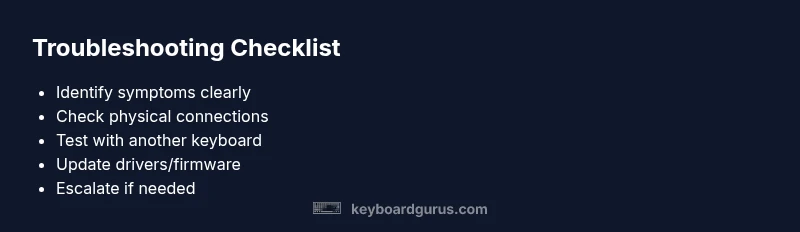
Summarizing, most random keyboard behavior stems from simple causes that are easy to address with a structured approach. Start with connectivity checks, then software and driver updates, and finally hardware tests. Keeping a short troubleshooting checklist on hand helps you respond quickly next time you notice unexpected keystrokes. For ongoing reliability, pair clear habits with regular maintenance.
Steps
Estimated time: 60-90 minutes
- 1
Identify symptoms and replicate
Record what happens, when it happens, and which apps or games show the behavior. Try to replicate with a known-good keyboard for comparison. This helps confirm whether the issue is device-specific or system-wide.
Tip: Keep a simple log of times, apps, and actions to reference later. - 2
Isolate hardware vs software
Test with a different keyboard on the same device and test the suspect keyboard on a different device. If the issue follows the keyboard, it’s hardware-related; if it disappears with a different keyboard, software is the culprit.
Tip: Use a baseline keyboard you know is working well. - 3
Update drivers and firmware
Uninstall old drivers, install the latest from the manufacturer, and reboot. Check for firmware updates if your keyboard supports them and re-test.
Tip: Always reboot after updates to ensure changes take effect. - 4
Clean and reseat
Power off, unplug, clean between keys with compressed air, and reseat any detachable cables or modules. Reconnect and test immediately.
Tip: Handle connectors with care to avoid damage. - 5
Reset profiles and accessibility options
Disable sticky keys, filter keys, and any macros. Reset keyboard layouts to the standard setting to rule out misconfiguration.
Tip: Document any settings you revert for future reference. - 6
Test in safe environments
Create a new user profile or use Safe Mode to test. If the issue disappears, it’s likely software-related and tied to specific user settings.
Tip: A clean environment helps isolate the cause quickly.
Diagnosis: Keyboard randomly inputs characters or acts without input
Possible Causes
- highWireless interference or Bluetooth drift
- highStuck keys, debris, or mechanical fault
- mediumDriver, firmware, or profile corruption
- lowSoftware shortcuts or accessibility features causing auto-repeat
Fixes
- easyCheck connections, reseat USB or re-pair wireless keyboard
- easyClean keyboard and reseat all cables; test with another device
- mediumUpdate, reinstall, or roll back keyboard drivers/firmware
- easyReset keyboard layouts, language settings, and accessibility options
Got Questions?
What causes a keyboard to randomly type characters?
Random typing is usually hardware interference, driver glitches, or misconfigured software. Start with connectivity checks and move to drivers or layouts as needed.
Most often, hardware, drivers, or software glitches cause random typing. Start with simple checks and then move to drivers or settings.
Should I replace my keyboard if updates don’t fix it?
If updates and cleaning don’t solve the issue and you notice wear, replacing the keyboard is often more cost-effective than repairs.
If updates don’t help and the keyboard looks worn, replacement is usually the best option.
Can software shortcuts cause random keystrokes?
Yes, apps or macro software can remap keys or trigger repeats. Disable or reconfigure such shortcuts to test.
Yes, software shortcuts can cause random keystrokes; turning them off helps diagnose.
What OS steps help diagnose keyboard issues?
Boot into Safe Mode or use a new user profile to see if the behavior persists. If not, the cause is likely software-related.
Safe Mode or a new user profile can reveal software causes.
Is a wireless keyboard more prone to random inputs?
Wireless keyboards can drift if the battery is low or the connection is unstable. Replace batteries or re-pair the device.
Battery or pairing issues can cause random input. Replace batteries or re-pair to test.
When should I contact professional support?
If the issue persists across devices or after firmware resets, contact the manufacturer or a service technician, especially under warranty.
If it keeps happening after basic fixes, seek professional help.
Watch Video
What to Remember
- Test hardware first; rule out software quickly
- Update drivers and firmware before hardware swaps
- Use a clean user profile to isolate software issues
- Test with a known-good keyboard to confirm hardware fault
- Escalate under warranty when hardware failure is suspected