Why Don't Keyboard Shortcuts Work on Mac? A Practical Troubleshooting Guide
Struggling with why don't keyboard shortcuts work on mac? This urgent guide from Keyboard Gurus walks you through a clear diagnostic flow, practical tests, and safe fixes to restore reliable shortcuts.


Most often, mac shortcut failures come from system conflicts or misconfigured shortcuts. Quick fix: open System Settings > Keyboard > Shortcuts and verify mappings are enabled, then reset to defaults if needed. If the issue persists, test in Safe Mode, and try a new user account to rule out profile-specific problems. See the full guide for deeper steps.
Why shortcuts fail on Mac (and the Keyboard Gurus view)
According to Keyboard Gurus, why don't keyboard shortcuts work on mac often boils down to conflicts between system-wide shortcuts, app-specific mappings, and input sources. When you press Cmd+C and nothing happens, the cause is rarely one single fault. More often, macOS and app developers assign overlapping shortcuts, or a change in the keyboard layout resets mappings after an update. You’ll often see conflicts if you use two keyboards or third-party input managers. In practice, the fastest path to resolution is systematic checks: confirm the right shortcuts are enabled, verify that the active app hasn’t overridden them, and test whether the issue persists when you switch users or boot into Safe Mode. The Keyboard Gurus team emphasizes that most issues are user-level or configuration-based rather than hardware failures. This guide walks you through a diagnostic flow that starts with the easiest checks and progresses to targeted fixes, so you can reclaim efficient, consistent shortcuts across your Mac setup. For keyboard enthusiasts and professionals, the distinction between global shortcuts and app-specific mappings is often the key insight you need.
Quick checks you can do in minutes
Before diving into settings, run a fast triage to see whether the issue is pervasive or app-specific. Check that Modifier keys (Cmd, Option, Control) register correctly in other apps. Test with a fresh document and a different shortcut that should work, like Cmd+N. If some shortcuts still function while others don't, you’re probably dealing with app-level overrides. Also verify that your current input source matches your real keyboard layout, as a mismatch can make familiar shortcuts seem broken. Keep a small note of which shortcuts fail and in which apps; pattern spotting saves time during deeper diagnostics.
Checking macOS Keyboard settings
Open System Settings (or System Preferences on older macOS) and navigate to Keyboard > Shortcuts. Ensure global shortcuts are enabled and that there are no conflicting mappings. Turn on Full Keyboard Access to All controls if you frequently use keyboard navigation in apps. Check the toggle for “Use F1, F2 as standard function keys” if you rely on the standard function keys rather than device-specific features. Some macOS updates reset shortcuts to defaults; re-enable them or restore defaults and re-test. If your shortcuts work in one user account but not another, the issue is profile-specific and likely caused by a conflicting preference file.
App-specific conflicts and isolating them
Apps can override global shortcuts or implement their own custom mappings. Start by testing the same shortcut in multiple apps (e.g., TextEdit vs a browser) to see if the behavior changes. If a single app behaves oddly, check its preferences for Shortcut or Keyboard settings and look for an “Reset to defaults” option. Disable any third-party plugin or utility that hooks into keyboard events (such as hotkey managers) and re-test. If the issue disappears in Safe Mode or a new user, you’ve pinpointed a software conflict in your primary environment.
Input sources, keyboard layout, and language settings
A mismatch between the active input source and the physical keyboard layout can make familiar shortcuts appear broken. Go to System Settings > Keyboard > Input Sources and ensure the correct layout is selected (for example, U.S. QWERTY). Remove extraneous layouts that you don’t use. If you use multiple languages, switch to a single layout temporarily to test shortcuts, then reintroduce layouts gradually. Some users report success after restarting input source services or toggling automatic switching off and on.
External keyboards and hardware considerations
If you rely on an external or wireless keyboard, try connecting a wired keyboard to isolate hardware issues. Check battery level, Bluetooth signal quality, and driver compatibility for wired or USB-C keyboards. Re-pair Bluetooth devices if needed and test shortcuts with the built-in keyboard if available. If an external keyboard uses a nonstandard layout or has custom macro keys, disable those features or re-map them to avoid conflicts with macOS shortcuts. Hardware quirks are less common but can mirror software problems.
Safe mode, new user, and advanced checks
Boot into Safe Mode to disable third-party extensions and launch-only apps that might block shortcuts. If shortcuts work in Safe Mode, the culprit is likely a launch agent, login item, or third-party extension. Create a temporary new user account and test shortcuts there; if it works, migrate settings gradually to identify the conflicting item. Flushing caches or resetting NVRAM/PRAM can clear stubborn mapping issues. As a last resort, consider updating macOS or performing a clean install—back up first and ensure you have a recovery plan. These steps reduce risk and help confirm whether the problem is systemic or isolated to your primary user environment.
Preventive habits to keep shortcuts reliable
Document your essential shortcuts and create a simple usage guide for your most-used apps. Regularly review app-specific shortcuts and maintain consistency across environments (work, home, school). Keep macOS up to date to benefit from bug fixes and improved keyboard handling. If you rely on external keyboards, establish a standard layout and preferred test phrases to quickly verify shortcuts after changes. Routine checks, backed by a clear diagnostic flow, prevent future problems from creeping in.
Steps
Estimated time: 15-25 minutes
- 1
Reproduce and scope the issue
Attempt a few known shortcuts (e.g., Cmd+C, Cmd+N) in two apps to determine if it's system-wide or app-specific. Note which keys or modifiers fail and when the behavior changes (after update, after plugging in an external keyboard, etc.).
Tip: Keep a short log of affected shortcuts attached to the article for quick reference. - 2
Check macOS Shortcuts
Open System Settings > Keyboard > Shortcuts. Confirm global mappings are enabled and nothing clashes with your favorite shortcuts. If needed, restore defaults and retest.
Tip: When restoring defaults, test gradually to catch post-reset conflicts early. - 3
Test with a different input setup
Switch to a single keyboard layout and test shortcuts. If you use multiple input sources, temporarily remove extras and verify that the keyboard layout matches the physical keys.
Tip: If layout mismatch is found, standardize before reintroducing additional layouts. - 4
Isolate app-specific conflicts
Try the same shortcuts in another app. If they work there but not in the target app, check the app’s preferences for shortcuts and disable any conflicting mappings or hotkeys.
Tip: Disable any third-party hotkey utilities during testing. - 5
Test with external hardware
Connect a wired keyboard and re-test. If the wired keyboard works, suspect Bluetooth or wireless interference with the original device.
Tip: Replace batteries or re-pair the device to clear stale connections. - 6
Try Safe Mode and a new user
Boot in Safe Mode to disable non-essential software. If shortcuts work in Safe Mode, a startup item or extension is at fault. Create a new user and test there.
Tip: Use Safe Mode as a diagnostic sandbox, not a permanent workaround.
Diagnosis: Mac shortcuts stop working system-wide or within one app
Possible Causes
- highSystem shortcuts disabled or overridden
- mediumApp-specific shortcuts conflicting with global mappings
- mediumInput source or keyboard layout mismatch
- lowAccessibility or Full Keyboard Access settings causing conflicts
- lowExternal keyboard hardware or Bluetooth interference
Fixes
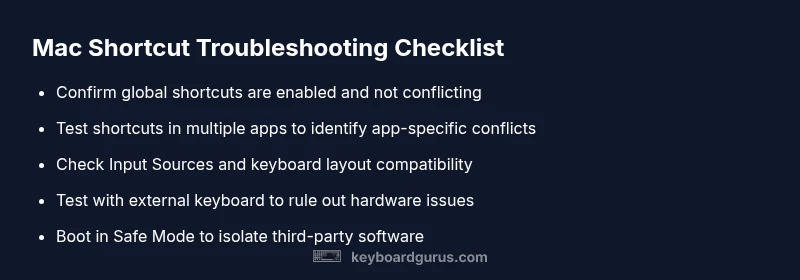
- easyCheck and re-enable global shortcuts in System Settings > Keyboard > Shortcuts; restore defaults if needed
- easyTest shortcuts in multiple apps to identify app-specific conflicts; disable conflicting extensions or plugins
- easyVerify Input Sources and keyboard layout; remove unused layouts; restart input services if necessary
- easyCheck Full Keyboard Access and Function Key preferences; adjust to All Controls and standard function keys if required
- easyTest with an external keyboard wired directly; re-pair wireless keyboards if issues persist; try Safe Mode and new user
- hardIf all else fails, consider macOS update/repair or clean installation after full data backup
Got Questions?
Why do shortcuts stop working after a macOS update?
OS updates can reset or reconfigure shortcut mappings, causing temporary conflicts. Re-enable global shortcuts and check app-specific settings after updating.
Updates can reset shortcuts; recheck global and app shortcuts to restore functionality.
Do shortcuts differ between apps?
Yes. Apps can override global shortcuts or introduce their own mappings. Always verify both global and app-level shortcuts when troubleshooting.
Some apps override global shortcuts—check both levels when you troubleshoot.
How do I reset shortcuts to default on Mac?
There isn’t a single universal reset button. Revisit System Settings > Keyboard > Shortcuts and restore defaults, then test and reconfigure as needed.
Use the reset defaults option in Shortcuts and reconfigure gradually.
Can external keyboards cause conflicts?
Yes. A nonstandard layout or stale Bluetooth pairing can create conflicts. Test a wired keyboard and re-pair any wireless device if necessary.
External keyboards can cause conflicts; try a wired one to test.
When should I seek professional help?
If shortcuts still fail across devices or hardware appears faulty, or if you suspect deeper system corruption, consult an Apple-certified technician.
If it persists across devices or hardware seems off, seek professional help.
Is Safe Mode useful for troubleshooting?</
Safe Mode helps identify conflicts by loading minimal software. If shortcuts work in Safe Mode, the issue is likely a third-party factor.
Yes, Safe Mode can reveal software conflicts affecting shortcuts.
Watch Video
What to Remember
- Identify whether the issue is system-wide or app-specific.
- Check macOS Shortcuts and input sources first.
- Test with external hardware to rule out hardware faults.
- Use Safe Mode and a new user to isolate software conflicts.