Why Is Your Keyboard Not Lighting Up? A Practical Troubleshooting Guide
Urgent troubleshooting guide to fix a keyboard backlight that won't light up. Learn power checks, software resets, firmware updates, and when to seek professional help.


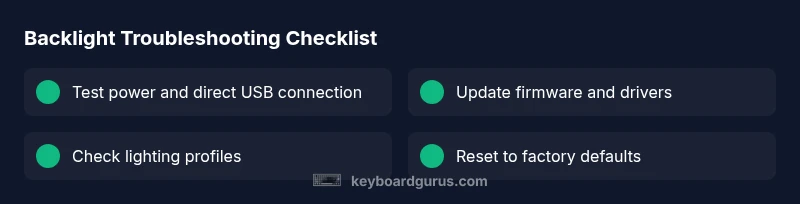
Begin with the simplest checks: confirm power and lighting mode, verify brightness, and test on a different USB port. If the backlight still won't light, refresh firmware, reinstall drivers, and reset to default lighting. Most failures stem from power or software settings, not a dead LED. Keep OS lighting options in mind and review per-key profiles.
Common causes and quick checks
The backlight on a keyboard can fail for several reasons, but most issues fall into power, software, or profile conflicts rather than a dead LED. According to Keyboard Gurus, many users overlook simple power and mode settings when backlighting stops working. Start by confirming the keyboard is properly connected to a powered USB port and that the device is recognized by the host system. Next, check if the lighting mode is set to off or a profile with zero brightness. If you have per-key lighting, ensure the correct profile is active and not overridden by a conflicting software layer. Finally, verify that the computer’s power settings aren’t throttling USB power in sleep or hibernation modes. By methodically confirming these factors, you’ll often pinpoint the root cause without tools or disassembly.
Hardware power and connection checks
Power issues are the single most common cause of a dark backlight. Begin by plugging the keyboard into a different USB port, preferably directly on the computer rather than through a hub. Try both USB-A and USB-C ports if available. Inspect the cable for visible damage, kinks, or fraying, and replace it if you suspect wear. If you use a detachable cable, reseat the connector firmly on both ends. If the keyboard is wireless or uses a charging dock, ensure the battery is charged or hardware switch is in the correct position. Finally, test the keyboard on another computer to determine whether the problem is isolated to one system.
Software and firmware: drivers and profiles
Software conflicts frequently disable lighting or misconfigure profiles. Open the manufacturer’s software (for example, the control panel for RGB keyboards) and verify that the lighting module is enabled, brightness is above zero, and the profile isn’t set to a static off state. Update or reinstall the keyboard drivers, and check for a firmware update from the manufacturer. Some models require a firmware flash to restore default lighting behavior after a driver update; follow the official instructions carefully. If multiple lighting apps are installed, try disabling or uninstalling the non-essential ones to avoid conflicts.
Understanding lighting modes and layout effects
Many keyboards offer modes such as static, breathing, wave, ripple, or reactive typing. A mode set to a dark or off state can appear as if the backlight is broken. Confirm you’re not in a mode with low brightness or a color profile that renders the LEDs invisible against your desk. Some keyboards support per-key lighting where individual keys light up independently; ensure the intended keys are part of the active profile. Remember that some keys may be controlled by one app while others are controlled by another, leading to inconsistent behavior. If the layout includes software macros, confirm that they are not turning lighting off on keypress.
Cabling, hubs, and power delivery specifics
USB hubs, especially inexpensive ones, can limit power delivery and cause backlight flicker or dimness. Remove any hubs and connect the keyboard directly to a USB port. If you must use a hub, ensure it is USB 3.0/3.1 and bus-powered or externally powered with adequate amperage. Try different cables—some cables provide power but not data, and vice versa. If you’re using a USB-C to USB-C cable or an adapter, test with a standard USB-A to USB-C cable if possible. In laptops, some ports are intentionally power-saving; turning off power-saving options may restore brightness.
Firmware and controller health: diagnosing internal issues
If the LED driver on the keyboard’s PCB or the microcontroller is failing, no software settings will restore lighting. In this case, a firmware reset or re-flash may temporarily restore function, but hardware replacement could be necessary. Check the manufacturer’s site for a dedicated recovery tool or bootloader mode, and follow exact steps to avoid bricking the device. If the backlight remains unresponsive after firmware recovery, consider professional diagnostics or warranty service. Do not attempt to disassemble electronics unless you’re prepared for potential warranty voids and safety risks.
Replacing components and warranty considerations
Persistent lighting failure after all software and power checks often points to a hardware fault such as a faulty LED, LED driver, or PCB trace damage. If under warranty, initiate an RMA to receive a replacement or repair service. Do not attempt component-level replacements yourself on a wired keyboard unless you have experience with hot-soldering and static-sensitive work; improper repairs can worsen the issue. If out of warranty, request a troubleshooting assessment from an authorized repair center. Document symptoms, timestamps, and model numbers to accelerate service.
Preventative maintenance and best practices
To minimize future backlight issues, keep firmware up to date and avoid abrupt disconnects. Use a high-quality, undamaged cable and avoid dust buildup by cleaning the keyboard’s surface and LED housing gently with compressed air. Maintain proper airflow and a cool environment to prevent thermal stress on LED drivers. Reserve a dedicated USB port for the keyboard to avoid sharing bandwidth with other devices. Regularly review lighting profiles to ensure they exist and are not silently overwritten by new software updates.
When to seek professional repairs and recourse
If you cannot restore lighting after following the steps above, seek professional repair or contact customer support. Provide model numbers, serial codes, and the firmware version you attempted to install. If you have a recent purchase, check the retailer’s return window and the manufacturer’s warranty terms. Keyboard Gurus recommends not continuing to use a device with uncertain electrical issues, as that can be a safety hazard and may worsen the damage over time.
Steps
Estimated time: 20-40 minutes
- 1
Power and connection check
Disconnect the keyboard, reconnect directly to a powered USB port, and ensure the device is recognized by your computer. If you use a detachable cable, reseat it firmly and inspect for any damage.
Tip: Keep a spare USB cable on hand for quick swaps. - 2
Verify brightness and lighting mode
Open the keyboard’s lighting software and confirm that brightness is above zero and a valid lighting profile is active. If you’re using per-key lighting, verify that the intended keys are included in the profile.
Tip: Switch to a known-good profile to isolate issues. - 3
Update firmware and drivers
Download the latest drivers and firmware from the manufacturer’s site and install following their instructions. If a recovery tool exists, run it to re-flash the controller.
Tip: Always backup settings before flashing firmware. - 4
Reset to factory defaults
Use the manufacturer’s reset method to restore default lighting behavior. This can clear misconfigured profiles that lock lighting off.
Tip: Note any special key combinations required for reset. - 5
Test on another system
Connect the keyboard to a different computer to rule out system-specific software issues. If it lights on another host, the problem may be OS-level or driver conflicts on the original device.
Tip: If it works on another system, compare software stacks and security settings. - 6
Assess hardware reliability
If there is still no light, consider hardware inspection or professional diagnostic. LED drivers and PCB traces can fail silently and require replacement.
Tip: Document symptoms and timestamps for service.
Diagnosis: Keyboard backlight does not light up
Possible Causes
- highPower issue (insufficient USB power or loose connector)
- highFirmware or driver corruption or misconfiguration
- mediumFaulty LED, LED strip, or PCB fault
- lowSoftware profile conflict or hotkey override
Fixes
- easyTest with a different USB port and cable; remove USB hubs
- easyEnsure lighting is enabled and brightness is not zero in OS and keyboard software
- easyUpdate or reinstall keyboard drivers and firmware from the manufacturer
- mediumReset keyboard to factory defaults or perform a firmware flash if available
- hardIf hardware fault is suspected, contact support or initiate warranty repair
Got Questions?
Why won't my keyboard backlight light up even when the computer is on?
Power or software misconfigurations are the most common causes. Check USB power, brightness, and lighting profiles first, then update firmware and drivers. If the issue persists, a hardware fault may be present.
Power or software issues are the usual culprit. Check power, brightness, and profiles first, then update firmware; if needed, seek hardware support.
How do I reset keyboard lighting to factory defaults?
Most keyboards have a built-in reset method described in the manual or manufacturer site. It typically involves a key combination while the keyboard is connected. After reset, reconfigure your preferred lighting profiles.
Use the manufacturer’s reset method, usually a key combo. Then set up your lighting profiles again.
Can software conflicts turn off keyboard lighting?
Yes. Multiple RGB software packages can override each other. Disable or uninstall conflicting utilities, then recheck lighting behavior after a reboot.
Software conflicts can override lighting. Disable other RGB apps and reboot to test.
Is it safe to open the keyboard to fix the backlight?
Opening the keyboard can void warranties and poses shock risk. If you’re not experienced with electronics, seek professional repair instead.
Opening it can void warranties and risks injury. Seek professional help if unsure.
Will a new USB cable fix a dead backlight?
A faulty cable can prevent power delivery. Try a different, high-quality cable and direct USB port to rule this out.
Yes, a bad cable can cause power loss; test with a new cable.
When should I replace my keyboard?
If the backlight issue persists after all fixes and the keyboard is out of warranty or cost-prohibitive to repair, replacement is a reasonable option.
If all fixes fail and repair is too costly, replacement may be best.
Watch Video
What to Remember
- Verify power and mode before deeper fixes
- Update firmware and drivers to recover lighting
- Test on another system to isolate issues
- Contact support for hardware faults or warranty