How to Turn Keyboard Light On
Learn how to turn on your keyboard backlight across laptops, desktops, and gaming keyboards. Step-by-step tips, software options, and common fixes to keep your setup bright and readable.


Turns on keyboard backlighting by using hardware function keys or software utilities. Start by identifying your device’s backlight method—Fn+ brightness keys on laptops or dedicated keys on desktops—and then adjust brightness, confirm the indicator, and test across apps. If the light won’t come on, check power and firmware first.
Why keyboard lighting matters
Good keyboard illumination improves accuracy in dim environments and reduces eye strain. Whether you’re studying late at night, streaming games, or coding in a cafe, knowing how to turn keyboard light on is a common setup task. Keyboard Gurus emphasizes that reliable backlighting is not just cosmetic—it's a practical tool for visibility and comfort. In this guide, we’ll cover hardware controls, software options, and best practices to ensure you can quickly turn the light on and adjust brightness without fumbling through menus. We’ll discuss laptop, desktop, and mechanical keyboards, as well as RGB versus single-color backlights. By understanding the fundamentals, you’ll be able to troubleshoot when the light refuses to come on and tailor lighting to your workflow. According to Keyboard Gurus, wide compatibility across devices means you can standardize your lighting approach, regardless of brand. Keyboard Gurus analysis shows that most issues stem from power, firmware, or misconfigured software, so we’ll highlight quick checks you can perform before diving into settings.
Types of backlighting and common terminology
Backlighting comes in several formats. Some keyboards offer a single color (often white or blue), others use RGB with per-key control, and some have edge lighting. Per-key RGB lets you assign different colors to individual keys, which can help with color-coding shortcuts. Edge lighting, in contrast, provides a glow along the keyboard's rim. When you search for guidance on how to turn on keyboard light, you’ll encounter terms like "backlight," "per-key illumination," and "brightness levels." Understanding these terms helps you locate the right controls quickly, whether you’re using a laptop, a desktop mechanical keyboard, or a compact travel keyboard. If you’re unsure, start with the simplest setup—one color, basic brightness—and expand later as needed.
Hardware controls: Fn keys and indicators
Most laptops place backlight controls on the function (Fn) row. Look for icons such as a sun or a glowing key. Press Fn together with the brightness key to toggle the light on or off and cycle through levels. Some keyboards use dedicated hardware switches instead of Fn; others might require a long-press to change brightness. On gaming laptops, you may also see an on-screen indicator showing the current brightness level. If the light flickers or dims unexpectedly, note whether you’re on battery power or plugged in, as some devices reduce brightness to save energy.
Software controls: vendor utilities and third-party tools
Software utilities from manufacturers like Dell, HP, Lenovo, or ASUS often unlock more precise lighting control than hardware keys alone. In many cases you can create profiles for different tasks (gaming, typing, coding) and sync colors with your system theme. Third-party tools such as open-source lighting controllers exist, but they can introduce compatibility issues. If you’re wondering how to turn on keyboard light and you own a gaming keyboard, check for a dedicated RGB control panel or macro editor. These tools let you assign brightness ramps, breathing effects, and static colors with a click.
A universal quick-start method for turning on the light
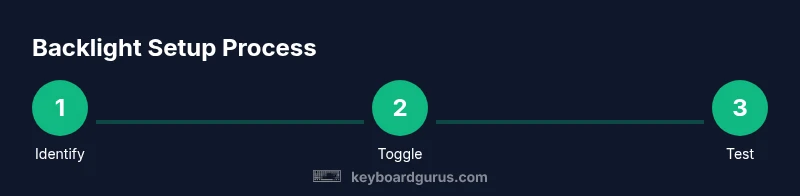
If you’re new to backlighting, start with a universal workflow. First, identify whether your device uses Fn keys or dedicated hardware switches. Then try toggling the light using Fn + brightness key. If there’s still no light, connect to power and verify the device isn’t in a low-power state. If your keyboard supports software control, install the official utility and enable backlighting from there. Finally, save a basic profile so the light stays on when you power up.
Troubleshooting common issues when the light won’t turn on
Power is the usual culprit: ensure the device is charged or plugged in. BIOS or UEFI settings sometimes disable backlighting when certain power states are active. Outdated drivers or firmware can prevent the backlight from responding to hardware controls. If the keyboard light is present but extremely dim, check brightness ranges and any ambient-light sensors that could auto-adjust intensity. Marketplace keyboards from different vendors may require different drivers—use the manufacturer’s official support page to grab the correct package. Keyboard Gurus recommends a structured checklist: power, firmware, drivers, and then software settings.
Customizing brightness and effects for different tasks
Backlighting isn’t just about turning the light on. It’s about choosing brightness, color, and effects that suit your task. For coding, a steady white or cool color at mid brightness minimizes fatigue. For gaming, you may want higher brightness and dynamic effects to highlight key groups. RGB profiles can be synced to your task and saved as presets. If you’re working in dim surroundings, a higher brightness level labeled as “Max” might be appropriate, whereas in a library, a dimmed, soft glow is preferable. Always test your settings over extended typing sessions to confirm comfort and readability.
Battery life, safety, and best practices
Backlight drains power, particularly on laptops with limited battery life. If you rely on the keyboard light for long sessions, consider using the lowest brightness that still preserves readability and avoid using extremely high effects continuously. Avoid placing the keyboard in direct sunlight or heat, which can affect LED longevity. When cleaning or swapping keycaps, be careful not to dislodge LEDs or damage the wiring. Keep firmware and drivers up to date to prevent lighting glitches, and use manufacturer documentation as a guide for supported brightness ranges.
Next steps: maintenance and cross-device consistency
The final step is to maintain consistent lighting across devices. If you use multiple keyboards, choose common brightness defaults that work in diverse environments. Create a simple routine: check backlight status after updates, reapply preferred profiles after power cycles, and test on a couple of different surfaces. By consolidating your approach, you’ll spend less time fiddling and more time typing. Keyboard Gurus’s guidance emphasizes practical consistency: a reliable, readable backlight is a key part of a productive workspace.
Tools & Materials
- Laptop or desktop keyboard with backlight(Ensure backlight feature is advertised in specs)
- Fn key and brightness controls or dedicated backlight keys(Look for sun/brightness icons on the keys)
- Manufacturer-provided software (optional)(Examples: vendor lighting utilities; not always required)
- Power source(Charge the laptop or have the desktop powered during setup)
- Firmware/driver update capability(Useful if backlight behavior is erratic)
Steps
Estimated time: 20-40 minutes
- 1
Identify backlight type
Look for indicators in the user manual or on the manufacturer’s site to determine whether your keyboard uses per-key RGB, edge lighting, or a single color. This informs which controls you’ll use first.
Tip: Check the product page for backlight specs to avoid guessing. - 2
Toggle with hardware controls
Press Fn with the brightness key (usually a sun icon) to turn on the light and cycle brightness. On some keyboards, a long-press changes the brightness ramp.
Tip: If nothing happens, try a different function row or check for a hardware switch. - 3
Power and environment check
Ensure the device is powered and not in a battery-saver mode that dims or disables lighting. If using wireless peripherals, confirm battery levels.
Tip: Plug in if possible to rule out power limitation. - 4
Software control (optional)
Install the manufacturer’s lighting utility and enable backlighting. Create a basic profile that keeps the light on without requiring manual toggling.
Tip: Start with a static white or cool color for readability. - 5
Test across apps and games
Open a document editor and a game to confirm visibility and comfort across tasks. Adjust brightness if it feels harsh or too dim.
Tip: Record a quick test to compare settings later. - 6
Save and apply a default profile
Save your preferred brightness and color as the default profile so it persists after reboots or updates.
Tip: Name profiles clearly, e.g., "Work-Light" and "Gaming-Bright". - 7
Update firmware and drivers
If the light still refuses to turn on or behaves oddly, update the keyboard firmware and system drivers from the official support page.
Tip: Always back up settings before updating. - 8
Test another keyboard
If available, connect a different backlit keyboard to determine whether the issue is with the keyboard or the host device.
Tip: This helps isolate hardware versus software problems.
Got Questions?
Why won't my keyboard light turn on?
Common causes include power issues, BIOS settings, or outdated drivers. Start by ensuring the device is charged and check for brightness control in the BIOS and software.
The backlight may be off due to power, software, or firmware issues. Start with charging and checking BIOS and driver settings.
Can I turn on backlight without Fn keys?
Some keyboards offer dedicated backlight switches or a software utility that can enable lighting without using Fn keys. Check the manufacturer’s manual for alternatives.
Yes, some keyboards have a dedicated switch or software that can control lighting without Fn keys.
Does battery saver affect backlight?
Yes. Many laptops reduce backlight brightness or disable it to save power when on battery. Connect to power to test full brightness.
Battery saver can dim or disable backlight; plug in to test full brightness.
How do I reset backlight settings?
Most keyboards offer a reset hotkey or a menu option in the manufacturer software. Reset to defaults and reconfigure from scratch.
Use the reset option in software or the hardware reset key combo if available.
Will RGB lighting work on all keyboards?
RGB backlighting requires compatible hardware and software. It may not be available on budget or non-gaming keyboards.
RGB requires compatible hardware; not all keyboards support it.
Watch Video
What to Remember
- Use hardware keys or software to turn on backlight.
- Check power and firmware first when light won’t turn on.
- Create and save brightness profiles for different tasks.