How to Stop Keyboard Lighting Up: A Practical Guide
Learn practical steps to disable keyboard backlighting across devices, using hardware toggles, software settings, and troubleshooting tips from Keyboard Gurus.


To stop keyboard lighting up, use hardware backlight controls or the manufacturer’s software to turn off lighting completely. If supported, disable per-key or zone lighting and apply an off profile for idle or battery power. If issues persist, reset lighting settings and recheck wake behavior after reboot.
Understanding backlighting and why you might want to disable it
Backlighting is a common feature on modern keyboards, designed to improve visibility in low light and add style. However, there are times when you want the keyboard to stay dark—during late-night work, in shared spaces, or when conserving battery power. According to Keyboard Gurus, most keyboards expose backlight controls either on the hardware layer (special function keys) or through dedicated software. The right approach depends on your setup: wired or wireless, gaming or productivity, and whether you prefer a global off state or selective lighting. In any case, the objective is the same: reduce glare, minimize distractions, and optimize power usage while preserving essential typing comfort.
Hardware controls: toggling backlight
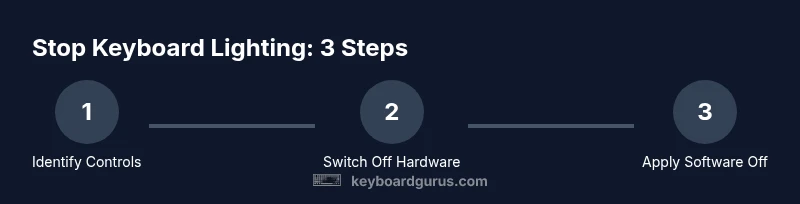
Hardware controls are the fastest way to switch off lighting. Look for a key with a sun icon or a label indicating backlight control. Some keyboards require pressing a function (Fn) key in combination with a brightness key to cycle through levels and reach the Off state. If you can’t locate a dedicated toggle, consult the manual or support page for instructions specific to your model. Keep in mind that some keyboards only offer a global off when you deactivate all lighting profiles, not individual zones.
Software controls: using manufacturer utilities
If your keyboard ships with configuration software, open the utility and navigate to the lighting section. Here you can typically choose a global off state, disable per-key lighting, and set a profile to apply automatically on startup or when running on battery. Software-based controls are often more reliable than hardware toggles when you want a persistent off state across reboots and sleep cycles. Remember to save or apply changes before exiting the program.
Managing zones and per-key lighting
Many high-end keyboards separate lighting into zones or per-key effects. If you want no glow, start by turning off all zones or choosing a global “Off” preset. If the keyboard cannot disable all zones at once, disable each zone sequentially and then ensure the global setting remains off in your profile. After you finish, test a few keystrokes to confirm that the backlight is indeed off across the board.
Profiles and power saving: idle, sleep, battery mode
Power-saving profiles often dim or turn off lighting during idle or battery mode. If available, switch to a profile designed for off-state during idle or when running on battery to maximize battery life and reduce distractions. On some models, changes apply only when the device is running on battery; always verify behavior when plugged in and when disconnected so you don’t get surprised by lights reappearing.
Resetting to default lighting and global off-state
If settings become inconsistent, restoring factory defaults can help. Use the keyboard’s reset option in hardware (a specific key combo) or a reset function in the software. After resetting, reconfigure your lighting to Off. This step often resolves stubborn lighting behavior caused by conflicting profiles or corrupted configuration files.
Troubleshooting persistent lighting and wake behavior
If the backlight returns after reboot or wake from sleep, investigate startup profiles, firmware options, and any macros that trigger lighting. Ensure there are no third-party utilities fighting with the official software. Update firmware if an update is available and re-check wake behavior after a full power cycle to confirm the lights stay off.
Eye comfort and safe practices
Even when off, consider ambient lighting and keyboard placement to minimize eye strain. If you occasionally need minimal glow for visibility, set a very low brightness level and avoid high-contrast color schemes that contribute to glare. Moderation helps protect your eyes during long sessions and improves focus during study or work.
Final checks and best practices
Before concluding, re-test the keyboard under multiple scenarios: while plugged in, on battery, during wake, and after restart. Make sure the off state persists across software updates and system reboots. Keeping a documented reference of your preferred off-state helps you quickly restore it in future updates.
Tools & Materials
- Keyboard with backlighting(Model you want to disable lighting on)
- Official keyboard software (manufacturer’s utility)(Use if your model uses software to manage lighting)
- Keyboard manual or online support page(Helpful for model-specific instructions)
Steps
Estimated time: 25-40 minutes
- 1
Identify backlight controls
Examine your keyboard for a dedicated backlight key or a sun icon. If no hardware toggle is apparent, check the user manual to locate the correct button or key combination.
Tip: If unsure, search the exact model name + 'backlight control' online. - 2
Toggle off using hardware controls
Press the identified backlight key or use Fn with the brightness key to cycle through levels until Off is reached.
Tip: Note how many presses it takes to reach Off to reuse later. - 3
Open manufacturer software
Launch the keyboard’s official software and navigate to the lighting or backlight section.
Tip: If you don’t see lighting options, ensure the software is up to date. - 4
Disable per-key/zone lighting
In the software, turn off all zones and per-key lighting, or select a global Off preset.
Tip: Save the change under a named profile for easy reuse. - 5
Apply an off idle/battery profile
If available, enable a profile that sets lighting to Off during idle or when on battery power.
Tip: Test both plugged-in and battery states to confirm persistence. - 6
Reset to factory defaults if needed
If lighting behaves oddly, reset to factory defaults via hardware or software.
Tip: After reset, re-apply the Off state to confirm stability. - 7
Test wake and reboot behavior
Reboot the computer and wake the device to verify the backlight remains off.
Tip: Perform several cycles to ensure consistency. - 8
Document final setup
Capture a quick screenshot of your Off configuration for future reference.
Tip: Keep a note of any model-specific quirks observed during testing.
Got Questions?
What should I do if the backlight keeps turning back on after reboot?
Check startup lighting profiles and any macros or third-party tools that re-enable lighting. If needed, reset to factory defaults and reconfigure to Off. Verify wake behavior after a full power cycle.
If the lights come back after reboot, reset the device and reapply the Off state in both hardware and software settings.
Can I disable lighting without affecting typing brightness or keyboard function?
Yes. Turning off backlighting is independent of key detection. You can set lighting to Off while keeping all typing functions intact.
Disabling lighting won’t change how the keys register your presses.
Is it safe to update keyboard firmware to disable lighting?
Firmware updates are optional for off-state. Use official software updates if available, but do not rely on them solely to turn lights off.
Firmware updates can fix issues, but you don’t need them just to turn off lighting.
Why does lighting behave differently on battery power?
Some keyboards adjust lighting based on power state, potentially brightening or dimming. Look for battery or power-saving profiles and disable auto-brightness if present.
Battery mode can change lighting, so check the power-saving options.
Will turning off lighting void my warranty?
Disabling lighting through standard controls generally does not affect warranty. If in doubt, review the vendor’s policy and the terms of service.
In most cases, turning off lighting won’t void your warranty, but check the policy for specifics.
What if my keyboard has no software and only hardware controls?
Rely on the hardware backlight toggle or Fn combinations as described in the manual. If the lights won’t off, use a factory reset to clear profile configurations.
If there’s no software, use hardware toggles and consider a reset if needed.
Watch Video
What to Remember
- Identify the correct toggle method for your keyboard.
- Turn lighting off globally before chasing per-key options.
- Use manufacturer software for reliable off-state.
- Verify wake behavior to ensure off state persists.
- Document your final off configuration for easy future reference.