Why Is Keyboard on MacBook Not Working? A Troubleshooting Guide
Diagnose and fix a MacBook keyboard that won't respond with practical, step-by-step software and hardware fixes, backed by Keyboard Gurus expert guidance.


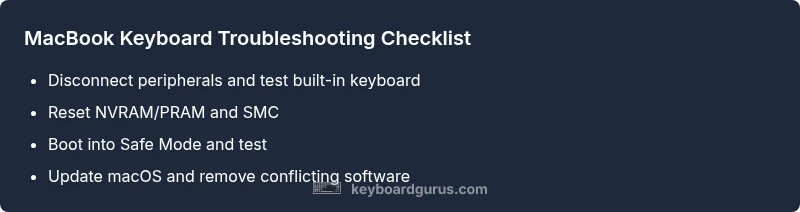
Most MacBook keyboard issues stem from software or misconfigured input sources, not a dead keyboard. Quick fixes: 1) disconnect external keyboards and restart; 2) reset NVRAM/PRAM and SMC; 3) boot in Safe Mode to test; 4) update macOS and keyboard settings. If it persists, contact Keyboard Gurus for deeper checks.
why is keyboard on macbook not working
According to Keyboard Gurus, when a MacBook keyboard stops responding, the root cause is often software or input-source misconfiguration rather than a physical failure. This guide breaks down the typical culprits and offers a safe, methodical approach to get your built-in keyboard back to work. If you notice other peripherals behaving oddly, link that observation to your troubleshooting path, because the Mac ecosystem often treats keyboard issues as a software configuration problem first. The key is to isolate variables and test in small steps to avoid unnecessary hardware interventions.
Common causes of keyboard failures on MacBooks
Keyboard issues on MacBooks most often arise from software or configuration problems rather than a broken key. Keyboard Gurus analysis shows that misconfigured input sources, language settings, or accessibility options account for a large share of user-reported failures. Other frequent culprits include Bluetooth interference from nearby devices, stubborn third-party remapping utilities, and recently installed software that conflicts with keyboard drivers. External peripherals—like USB hubs or Bluetooth keyboards—can also mask a built-in keyboard fault. Finally, physical debris or wear can cause letters to stick, but this is less common when software factors are present.
Quick checks you can do before diving deeper
Begin with quick, non-destructive checks that rule out obvious causes. Remove any external keyboards or USB devices and restart the MacBook to see if the built-in keyboard responds. Check System Preferences > Keyboard and Input Sources to ensure the correct layout is selected and no unusual language options are active. If the issue persists, try Safe Mode to load only essential drivers, then compare behavior with a standard user account. Finally, verify macOS updates are installed, as patches often fix keyboard driver instability.
Software-related fixes
Software issues are by far the most common reason why a MacBook keyboard stops working. Start by resetting NVRAM/PRAM (restart and hold Option-Command-P-R for about 20 seconds) to clear keyboard-related caches. Next, reset the System Management Controller (SMC) to restore power and hardware control logic. Update macOS to the latest version, as keyboard drivers are frequently included in system updates. If you use third-party keyboard remappers or utilities (e.g., Karabiner, BetterTouchTool), disable or remove them to rule out conflicts. If the problem continues, consider resetting the keyboard's dictionary or creating a fresh user profile to rule out profile-specific settings.
Hardware-related checks
If software fixes don’t solve the issue, inspect for physical causes. Debris under keys can impede motion—use compressed air to spray between keys from a slight angle, with the Mac powered off. Check for keys that feel physically stuck or unusually quiet; if a specific key is problematic, it may indicate a localized hardware fault. Consider having the chassis inspected by a professional if you notice irregular resistance, inconsistent presses, or the keyboard not being recognized in Recovery mode. Remember that hardware repair may involve foam or scissor-switch subassemblies that require specialized tools.
Safe usage and prevention
To reduce recurrence, keep your macOS and keyboard firmware up to date, and limit exposure to liquids near the laptop. Avoid stacking heavy peripherals on the keyboard and use a protective sleeve to prevent dust ingress. Periodic maintenance—like a light dusting and keycap care—helps prevent long-term buildup. If you rely on a particular language or layout, keep a backup input source handy and document changes you make so you can revert quickly if a new update causes issues.
Steps
Estimated time: 25-40 minutes
- 1
Isolate peripherals and test the built-in keyboard
Power off, disconnect all USB devices, dongles, and Bluetooth keyboards. Power on and test the built-in keyboard in a simple text field. If it responds, the issue may be with an external device or a driver involved with peripherals.
Tip: Keep a list of peripherals you disconnected to reproduce the problem later. - 2
Reset NVRAM/PRAM
Shut down the Mac, then power it on and immediately press and hold Option-Command-P-R for about 20 seconds. Release after the second startup sound or when the Apple logo appears again. This clears keyboard-related caches.
Tip: Don't skip this step—it's quick and often resolves mysterious input issues. - 3
Reset the SMC
Shut down the MacBook. For most models, press and hold the power button for 10 seconds, release, wait a few seconds, then turn the Mac back on. On some models, use the Shift-Control-Option keys with the power button as directed by Apple support pages.
Tip: SMC resets power and low-level hardware controls; it can fix responsiveness glitches. - 4
Test in Safe Mode
Restart while holding the Shift key to load Safe Mode. Use the built-in keyboard to test input across a few apps. If the keyboard works in Safe Mode, a third-party extension or startup item is likely the culprit.
Tip: Note any apps that don’t load or show errors in Safe Mode. - 5
Check keyboard settings and input sources
Go to System Preferences > Keyboard and Input Sources. Remove unexpected layouts, ensure your current layout is selected, and disable features like Slow Keys. Reboot and test again.
Tip: Keep your primary layout as the default to avoid layout switches while typing. - 6
Consider macOS reinstall or professional help
If all else fails, a macOS reinstall can fix driver corruption, or you may need professional service for hardware fault. Back up your data before major OS actions and seek an authorized service provider if you suspect a hardware issue.
Tip: Back up now to prevent data loss before proceeding with major changes.
Diagnosis: MacBook keyboard not working
Possible Causes
- highSoftware or input source misconfiguration (keyboard settings, language/input source, accessibility features)
- mediumExternal peripherals or Bluetooth interference
- lowHardware fault (keyboard matrix, logic board, physical damage)
Fixes
- easyDisconnect external devices and test built-in keyboard
- easyReset NVRAM/PRAM and SMC
- easyBoot into Safe Mode and test for software conflicts
- mediumUpdate macOS and keyboard-related software or reinstall if needed
- mediumInspect for debris and consider professional repair if hardware fault suspected
Got Questions?
Why is my MacBook keyboard not working after a macOS update?
Software updates can reset keyboard settings or introduce driver conflicts. Try Safe Mode, reset NVRAM/PRAM, and check input sources. If the issue persists, reinstalling the update or reverting to a previous macOS version may help, but ensure you have a current backup.
After an update, keyboard issues are often caused by driver conflicts. Start with Safe Mode and reset caches, then check input sources. If needed, reinstall the update or revert after backing up.
How can I tell if the issue is hardware or software?
Test with Safe Mode and a new user account; if the built-in keyboard works in Safe Mode but not normally, a software conflict is likely. If no mode works, or external keyboards also fail, hardware fault is more likely.
If Safe Mode fixes it, it’s usually software. If nothing works, hardware fault is more likely.
Should I reset the SMC for keyboard problems?
Resetting the SMC can resolve power and hardware interaction issues that affect keyboard responsiveness on some MacBook models. Follow model-specific instructions from Apple Support.
Resetting the SMC can help with keyboard responsiveness on some Macs.
What about cleaning debris from under keys?
Power off the MacBook, use compressed air to blow between keys, and avoid liquids. If keys still stick, professional cleaning or a hardware evaluation may be needed.
Careful cleaning can fix a stuck key, but avoid liquids and seek professional help if the issue persists.
Is it safe to reinstall macOS to fix keyboard issues?
A macOS reinstall can replace corrupted keyboard drivers while preserving data if done via proper recovery options. Back up first and follow official Apple guidance.
Reinstalling macOS can fix driver problems, but back up first.
When should I seek professional help?
If a hardware fault is suspected, if the keyboard isn’t recognized in Recovery, or if you can’t boot macOS safely, contact an authorized service provider.
If you suspect a hardware fault or can’t boot, get professional help.
Watch Video
What to Remember
- Test built-in keyboard after removing peripherals
- Reset NVRAM/PRAM and SMC to clear hardware caches
- Boot into Safe Mode to isolate software conflicts
- If hardware fault seems likely, seek professional repair