Why Is My Keyboard Typing Backwards? A Troubleshooting Guide
Struggling with a keyboard that types letters in reverse order? A practical, step-by-step guide to diagnose layout, language, and software issues causing backwards typing and how to fix them fast.


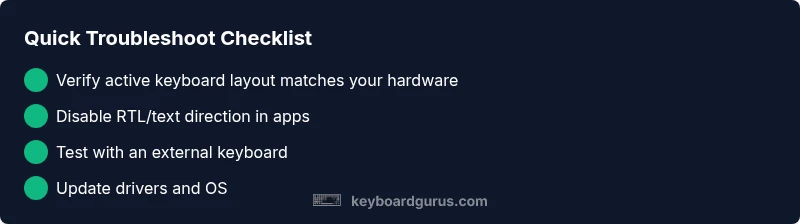
The most likely causes are a swapped keyboard layout or active RTL text direction. Start by confirming your keyboard language and layout, then toggle between layouts, remove any macro tools, and test with an external keyboard. If issues persist, update drivers and scan for software remapping. Also check accessibility options and reboot after changes to apply them cleanly.
Understanding the symptom: why is my keyboard typing backwards
If you’re seeing letters come out in reverse order, you’re not imagining things—the symptom is real. When the characters you type appear to spell words backward, the issue is almost always related to configuration rather than a dead key switch. According to Keyboard Gurus, backwards typing is most often caused by a mismatched keyboard layout, a language setting that doesn’t match your hardware, or a text-direction option accidentally enabled in the active application. By understanding what you’re seeing, you can triage quickly and avoid wasting time on hardware replacements. In this article we’ll walk through how to confirm your current layout, test across apps, and apply fixes that work on Windows, macOS, and Linux environments.
Identifying the exact symptom helps you choose the right path. In most cases, you’ll notice one of these patterns:
- Inverse letter order within a word (e.g., typing "hello" yields "olleh").
- Shifts in the output that seem to reflect a different language layout (e.g., QWERTY producing AZERTY results).
- Consistent reversal across multiple apps and text fields, suggesting a global setting rather than a single app bug.
Brand context: The Keyboard Gurus team emphasizes that reversals are rarely due to hardware faults. A quick setting check will often restore normal typing without needing a replacement keyboard. If you’re dealing with a different problem, the same troubleshooting mindset applies to isolate the root cause.
Quick checks you can do before diving deeper
Before you jump into deeper diagnostics, perform a few fast checks that can confirm or rule out common culprits:
- Verify the OS keyboard layout and language: Open Settings > Time & Language > Language, then confirm the input method matches your physical keyboard.
- Use an on-screen keyboard viewer to see what keys are mapped to what characters in real time. If the viewer shows a different mapping than you expect, you’ve found the culprit.
- Test with a second keyboard, ideally from a different model or another device. If the second keyboard behaves normally, your original hardware may be at fault.
- Check for active text direction settings in the app you’re using. Some editors and browsers allow you to set right-to-left (RTL) mode; disable RTL if it’s enabled.
- Reboot after changes to ensure new settings take effect and to reset any cached input state.
If you’re unsure where to start, follow the diagnostic flow below. This methodical approach helps you identify whether the issue is software-based, hardware-related, or a combination of both.
Common causes and how to verify them
Most backwards typing issues fall into a few broad categories. Verifying each one helps you quickly narrow the cause:
- Incorrect keyboard layout or language setting: This is the top cause. Confirm that the OS Language and Input Method match your physical keyboard. If you recently changed languages or installed a new input method, revert to your usual setup.
- RTL text direction enabled: In editors or web forms that support multiple text directions, RTL can cause characters to appear in reversed order within the word. Look for an RTL button or a paragraph direction setting and disable it.
- Macro or remapping software: Tools like keyboard remappers or macro utilities can reassign keys globally or for specific apps. Temporarily disable or quit these programs to see if the output returns to normal.
- Hardware issues: A loose USB connector, damaged cable, or faulty keyboard matrix can cause inconsistent input. If possible, test with a different USB port or keyboard to rule out a hardware fault.
- Driver or OS bugs: Outdated drivers or recent OS updates can introduce compatibility hiccups. Keeping your system up to date reduces the odds of driver-related reversals.
By systematically testing each category, you’ll usually uncover the root cause. Keyboard Gurus documentation notes that most users can resolve the problem with layout or RTL tweaks, avoiding costly hardware RMA processes. If you continue to see reversed output after checking these areas, proceed to the diagnostic flow for a structured path to a solution.
OS-specific steps you can take (Windows and macOS focus)
Windows:
- Open Settings > Time & language > Language > Preferred languages and verify the input method. If you see multiple layouts (e.g., US and UK), remove the one you don’t use.
- If you frequently switch layouts, disable the language hotkeys (English US with US-Intl) to prevent accidental toggling.
- In some apps, you can reset text direction in the paragraph formatting tools. Check the Home tab for Paragraph settings and set Text Direction to LTR.
macOS:
- Go to System Settings > Keyboard > Input Sources and remove layouts you don’t use. Ensure the correct one is active in the menu bar.
- In native macOS apps, RTL is less common, but check app-specific text direction or right-click in a text field to reveal direction options.
- If you suspect a driver issue, reset NVRAM/PRAM and SMC to refresh hardware state, then reboot.
Linux:
- The exact steps depend on the desktop environment, but you can usually add/remove keyboard layouts in Settings > Region & Language and switch between them with a top-bar shortcut.
- Verify that your input method editor (IBus/Fcitx) isn’t selecting an alternate layout for your keyboard.
If you follow these platform-specific steps and your keyboard still types backwards, you’re ready to move to the diagnostic flow for deeper analysis.
Diagnostic flow at a glance (flowchart-style overview)
A concise look at the decision tree for backwards typing:
- Symptom: Keyboard outputs reversed letters across most apps.
- Check 1: Is the layout or language incorrect? If yes, fix and test. If no, proceed.
- Check 2: Is RTL mode active in any app? If yes, disable and test. If no, proceed.
- Check 3: Are any macro/remapping tools active? If yes, disable and retest. If no, proceed.
- Check 4: Does a different keyboard resolve the issue? If yes, hardware fault; replace or service keyboard. If no, update drivers/OS and retest.
- Check 5: After updates and restarts, does the problem persist? If yes, seek professional help.
This high-level flow helps you stay organized and ensures you test the most common quick fixes first, which is how Keyboard Gurus would approach the problem. Remember, the quickest path to a solution is often changing the layout or disabling RTL mode.
Step-by-step fixes (detailed, actionable guidance)
- Confirm the current input method and switch to the default layout
- Title: Check and switch to the default layout
- Description: Open your OS’s language/keyboard settings and confirm that the active layout matches your physical keyboard. If it doesn’t, switch to the correct layout and re-test.
- Tip: Keep a screenshot of your ideal layout handy for quick reference.
- Disable RTL in apps and OS where applicable
- Title: Disable right-to-left text direction
- Description: In editors or browser fields, locate the text direction setting and switch to Left-to-Right. If the option is not obvious, check the document or app help resources.
- Tip: Some apps remember direction settings per document—reset the document to ensure the change applies universally.
- Rule out a hardware issue with a known-good keyboard
- Title: Test with a different keyboard
- Description: Connect a known-good keyboard (USB or Bluetooth) and type in the same environment. If output normalizes, your original keyboard is likely at fault.
- Tip: Try a basic keyboard test in Notepad or a plain editor to avoid software interference.
- Inspect and reset input remapping software
- Title: Disable remapping utilities
- Description: Quit any remapping or macro software you’ve installed. Then re-test. If the problem goes away, reconfigure or uninstall the tool.
- Tip: Some software runs in the background as services—check the task manager or system monitor for suspicious processes.
- Update drivers and system firmware
- Title: Update drivers/firmware
- Description: Check for the latest keyboard drivers from the device manufacturer or your OS update, and install them. A reboot often resolves lingering input issues.
- Tip: Create a restore point before major driver updates so you can revert if needed.
- Check for system-wide accessibility options
- Title: Review accessibility options
- Description: Some accessibility features alter input handling. Ensure features like Sticky Keys, Filter Keys, or similar are disabled unless intentionally used.
- Tip: If you enable accessibility features for testing, document the changes to revert later.
- Boot into Safe Mode or a clean user profile
- Title: Test in Safe Mode or a new profile
- Description: Boot into Safe Mode or create a new user profile to rule out software conflicts. If the issue disappears, user-space software is the culprit.
- Tip: Safe Mode disables third-party software, helping you isolate the cause.
- Reinstall or reset keyboard drivers
- Title: Reinstall keyboard drivers
- Description: In Device Manager (Windows) or equivalent, uninstall the keyboard driver, then reboot to reinstall. This can fix corrupted mappings.
- Tip: After reinstall, re-check the default layout to ensure it sticks across reboots.
estimatedTime":"25-40 minutes"}],
tipsList":{"tips":[{
type":"pro_tip","text":"Create a quick-access shortcut to toggle between your two most-used keyboard layouts (e.g., Windows: Win+Space) for rapid testing."},{"type":"warning","text":"Avoid physically opening the keyboard if you’re unsure about electrical safety; hardware modifications can void warranties and pose risks."},{"type":"note","text":"Some apps override global settings. Always test in multiple programs to confirm the fix is universal."},{"type":"pro_tip","text":"Document each change you make with timestamps so you can revert if needed."}]},
keyTakeaways":["Check layout and language first, then RTL settings.","Test with an external keyboard to rule out hardware.","Update drivers and OS if software blocks persist.","Disable remapping tools before deeper troubleshooting.","If in doubt, consult professional support for hardware checks."],
videoEmbed":{"videoQuery":"how to fix keyboard typing backwards tutorial"},
faqSection
Steps
Estimated time: 20-40 minutes
- 1
Confirm current input settings
Open your OS keyboard settings and verify the active layout matches your physical keyboard. If it’s different, switch to the correct layout and re-test.
Tip: Keep a reference image of your ideal layout for quick comparison. - 2
Test with an external keyboard
Connect a different keyboard and type in a plain editor to see if the issue persists. A normal output with the external keyboard points to a system/config issue rather than the device.
Tip: If the external keyboard works, you’ve isolated the fault to the original keyboard. - 3
Disable RTL or direction settings
In the active application, check for right-to-left text direction and disable it. Also verify global text direction in OS settings if available.
Tip: RTL settings are common culprits in editors and forms. - 4
Check for remapping software
Quit or uninstall any macro tools or keyboard remappers temporarily. Reboot and test again to see if the behavior returns to normal.
Tip: Some background utilities stay active; ensure they’re fully closed. - 5
Update drivers and system firmware
Install the latest keyboard drivers and any available OS updates. A restart can apply fixes and resolve cached input states.
Tip: Back up your settings before major driver updates. - 6
Try a clean boot or Safe Mode
Boot into Safe Mode or perform a clean boot to rule out third-party software conflicts. If the issue disappears, re-enable programs one-by-one to identify the culprit.
Tip: Safe Mode disables non-essential services for isolation. - 7
Reset to default settings
If nothing else works, reset keyboard preferences to default in OS and reinstall keyboard drivers. This often resolves stubborn mappings.
Tip: After reset, reconfigure only the essential layouts. - 8
Consult hardware support if needed
If the problem persists across keyboards and ports, there may be a hardware fault requiring professional service or replacement.
Tip: Preserve warranty information and seek authorized service.
Diagnosis: Keyboard types backwards across most apps
Possible Causes
- highIncorrect keyboard layout or language setting
- mediumRTL text direction enabled in the app or OS
- mediumMacro/remapping software active
- lowHardware issue with keyboard or USB controller
Fixes
- easyChange the OS keyboard layout to your expected one
- easyDisable RTL mode in affected apps and OS settings
- easyQuit or uninstall remapping utilities temporarily
- easyTest with a known-good external keyboard to isolate hardware issues
- mediumUpdate keyboard drivers and perform a system reboot
Got Questions?
Why is my keyboard typing backwards across all apps?
The most common causes are a mismatched keyboard layout, an active RTL text direction, or a remapping tool. Start by checking your layout and language, then disable RTL in the apps you use most. Hardware issues are rarer but worth testing with a second keyboard.
Typically layout or RTL settings cause backwards typing; check your keyboard language, then disable RTL and retest across apps.
How do I change the keyboard layout in Windows or macOS?
On Windows, go to Settings > Time & Language > Language > Keyboard, and add/remove layouts. On macOS, open System Settings > Keyboard > Input Sources and adjust. Choose the layout that matches your physical keyboard.
Open your language and input settings to add or switch layouts, then test typing again.
What if the issue only happens in one app?
Check the app’s text direction and language settings. Some apps override global settings. If the problem persists, try reinstalling the app or using a different editor.
If it’s just one app, look for that app’s direction or language options first.
Could a faulty keyboard cause backwards typing?
It’s possible but less common. Test with another keyboard and different USB port. If the issue follows the keyboard, you likely need a replacement or service.
A faulty keyboard can cause input issues, so testing with a different keyboard helps confirm.
How can I prevent this from happening again?
Keep layouts organized, disable RTL when not needed, and avoid installing unknown remapping tools. Regularly update drivers and perform periodic checks.
Keep your layouts tidy and updates current to prevent reoccurrence.
Watch Video
What to Remember
- Check layout first; it fixes most backwards typing issues
- Test with an external keyboard to rule out hardware faults
- Update drivers and OS to rule out software bugs
- Disable any remapping tools during diagnosis
- Document changes to revert if needed