HP Laptops with Keyboard Backlight: What to Know in 2026
Learn how HP implements keyboard backlighting across Pavilion, Envy, Spectre, and OMEN lines, how to enable it, brightness levels, power impact, and buying tips in 2026. A Keyboard Gurus analysis-driven guide.


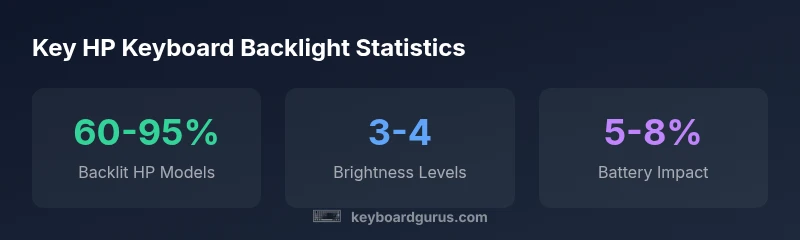
HP laptops commonly include a keyboard backlight across Pavilion, Envy, and Spectre lines, with higher-end variants offering brighter or per-key lighting. In 2026, Keyboard Gurus Analysis shows backlit keyboards on about 60-95% of current HP models, with per-key lighting more common on Spectre and select Envy SKUs. Enablement typically uses Fn + Backlight or a dedicated key, and brightness usually offers 3-4 levels.
HP keyboard backlight: an overview
Keyboard backlighting on notebooks serves two primary purposes: improving visibility in low-light environments and reducing eye strain during long sessions. HP has incorporated backlit keyboards across several product families, but the depth and style of illumination vary by series and generation. In consumer-grade Pavilion laptops, backlighting is often present on mid-range configurations, while Envy and Spectre lines frequently ship with brighter, more uniform lighting, and Spectre models may offer per-key lighting on select SKUs. The key technology is generally a white LED under each key or a single backlight plate that evenly lights the whole keyboard. When evaluating a model, consider not only whether a backlight exists, but also how easy it is to turn on and adjust. Many HP laptops enable lighting through a dedicated key shown with a sun icon, or via a function-key shortcut (Fn plus a brightness key). For users who work in dim environments, the backlight can be a real productivity booster and a small but meaningful upgrade to daily use. According to Keyboard Gurus, the adoption of backlit keyboards has become a standard expectation in mid to high-end HP laptops.
The HP line-up: who gets backlit keyboards
HP positions backlit keyboards as an important feature across several families, but availability is not uniform. Spectre laptops—the premium line—almost always ship with a high-quality backlight, and many Spectre configurations offer per-key lighting and adjustable color temperature in some regions. Envy laptops sit in the mid-range and frequently provide a strong white backlight, with brightness levels that can be tuned via hardware keys or software. Pavilion models, aimed at students and budget-conscious buyers, vary by generation and region; older Pavilion variants may skip backlighting, while newer models increasingly include it as standard in core configurations. For gaming-focused HP models like OMEN, bright backlighting is common, with higher brightness and faster response times to match the needs of players. When comparing models, check the official spec sheet or retailer listing for “keyboard backlight” or “backlit keyboard” to confirm whether your target SKU includes it.
Enabling and configuring backlight: Fn keys and software
Most HP laptops enable keyboard backlight through a function key combination, usually involving Fn and a sun icon or a dedicated brightness key. On systems with Windows 11/10, the backlight state can sometimes be controlled through the Windows Mobility Center or the HP Quick Launch buttons if included in the software bundle. Some users need to dip into the BIOS or UEFI to change default behavior, such as auto-brightness on wake or limiting backlight for sleep modes. In many cases, you can adjust levels using 3-4 brightness steps, from very dim to very bright. If your model supports per-key lighting, you may also find settings that adjust per-key brightness or even pre-made lighting profiles. If you’re replacing an older HP laptop, verify that the backlight hardware is functional by plugging in a power source and updating to the latest firmware; software or driver issues can sometimes suppress the backlight unexpectedly.
Brightness levels, per-key lighting, and color options
Backlight brightness typically offers multiple levels; three or four increments is common, allowing users to dim the keyboard for late-night work or boost brightness for visible key legends outdoors. Per-key lighting is more common on Spectre line configurations and select Envy SKUs, providing isolated lighting for individual keys to highlight important functions. However, color customization is usually limited on HP laptops; most backlights render in a neutral white or cool white and do not offer RGB options, except in certain gaming or specialty models where HP collaborates with hardware partners. For those who value consistent keyboard visibility across lighting conditions, consider models that advertise high-contrast key legends and uniform backlight diffusion. Some HP laptops also include ambient lighting integration with Windows themes, syncable with screen brightness and overall system lighting to reduce eye strain across tasks.
Battery life impact and power considerations
Using a keyboard backlight does draw additional power, but the impact varies with brightness, keyboard size, and usage. In typical productivity scenarios with moderate brightness, expect a modest hit to battery life, often measured in a few percentage points over the day. When brightness is set to maximum, the drain becomes more noticeable, especially on devices with compact batteries or in very dim environments where the display is used longer. The effect is generally smaller than the impact of the display or CPU workload, but it is not negligible for users on thin and light HP laptops. If you rely on battery life, plan to use lower brightness levels in travel or meetings and switch to quick-light modes for casual typing sessions. Always consider whether you value keyboard visibility more than battery life, and adjust brightness accordingly.
How to verify backlight during shopping and after purchase
While shopping, verify backlight by looking for the product’s technical specs, packaging images, or retailer product pages that mention 'keyboard backlight' or 'backlit keyboard.' If possible, request a hands-on demonstration from a sales associate or watch retailer videos that show keyboard illumination in action. After purchase, test in a dark room to confirm uniform illumination, and check that the lighting scales across brightness levels. If you notice uneven illumination, dead zones, or inconsistent brightness, contact HP support or return to the retailer. For corporate buyers, ensure the model selected for deployment includes the backlight feature if your teams require typing in dim environments.
Common issues and troubleshooting tips
Backlight not turning on: ensure the Fn key combination is correct for your model and check that any power saver settings are not disabling backlight on idle. If the backlight flickers, update the keyboard driver and firmware via HP Support Assistant, or reinstall the display/keyboard drivers. In some cases, BIOS/UEFI settings can turn off keyboard backlight by default; disable any 'automatic backlight' option if available. For laptops with per-key lighting, verify that a software profile isn’t overriding brightness or turning off keys. If a hardware fault is suspected, test with a different power adapter and ensure the keyboard cable is properly seated on the motherboard. If problems persist, consider warranty service.
Future trends: backlighting in HP laptops for 2026 and beyond
Looking ahead, HP is likely to expand backlit keyboard features across more models, with improved diffusion to reduce hot spots and better energy efficiency. Per-key lighting may become more common in mid-range laptops, offering fine-grained control without sacrificing battery life. HP may also introduce smarter lighting profiles tied to time of day, ambient light sensors, or AI-driven keyboard layouts for gaming and productivity. User feedback from Keyboard Gurus analyses indicates that consumers value consistent, glare-free key legends, and smoother brightness transitions. As display technology evolves toward higher brightness and higher resolution panels, keyboard backlighting will be designed to maintain readability across ambient light levels while minimizing power usage.
Practical buying guide: choosing an HP laptop with keyboard light
We recommend a step-by-step approach when shopping for an HP laptop with a keyboard backlight. 1) Identify your budget and target line: Spectre for premium backlighting, Envy for solid mid-range lighting, Pavilion for value with optional backlight. 2) Confirm backlight presence in the official specs and retailer listings; look for 'keyboard backlight' or 'backlit keyboard.' 3) Check brightness levels: ensure 3-4 levels or per-key lighting if you require accuracy for dim environments. 4) Verify power impact: review battery life tests or user reviews noting backlight performance. 5) Request a hands-on demonstration or test in a dark room if possible. 6) Consider software control: HP Quick Launch or Windows settings that affect lighting behavior. By following these steps, you can consistently choose a HP laptop with keyboard light that matches your needs.
HP laptop backlight availability across lines
| Model Type | Backlight Availability | Typical Brightness Level | Notes |
|---|---|---|---|
| Pavilion series | Yes (selected models) | Medium | Budget-friendly; some variants lack backlight |
| Envy series | Yes | High | Mid-range with strong white backlight |
| Spectre series | Yes | High | Premium with per-key lighting on select SKUs |
| OMEN (gaming) | Yes | High | Brighter, gaming-oriented backlighting |
Got Questions?
Do all HP laptops have keyboard backlight?
No. Availability depends on the model and line. Spectre and many Envy configurations commonly include backlighting, while some Pavilion variants may skip it. Always check the official specs for the exact SKU.
Not every HP laptop has a backlit keyboard. Check the product specs for the exact model to confirm.
How do I turn on the keyboard backlight on HP laptops?
Most HP laptops use a function key combination, usually Fn plus a sun icon or brightness key. Some models also offer backlight controls in HP Quick Launch or Windows settings.
Use the Fn key with the brightness button, or check HP software for lighting controls.
Does keyboard backlight affect battery life?
Yes, backlighting consumes power, with impact depending on brightness and duration. In typical use, the effect is modest, but high brightness over long periods can noticeably reduce battery life.
Backlighting uses power, especially at higher brightness, so expect some battery impact over a full day.
Are there HP laptops with per-key lighting?
Yes, per-key lighting is available on some Spectre and select Envy models. Many mid-range HP laptops offer single-zone or uniform backlighting rather than per-key lighting.
Per-key lighting exists on some premium HP models, but not all.
Can you change keyboard backlight color on HP laptops?
Most HP backlights are white or neutral; color customization is uncommon and typically limited to special gaming or premium SKUs with RGB options.
Color customization is rare on HP keyboards; most are white.
“Backlit keyboards are a practical feature that improves productivity and gaming comfort in dim environments.”
What to Remember
- Check model lines for backlight: Spectre/Envy typically include brighter keyboards.
- Expect 3-4 brightness levels; adjust for readability.
- Toggle via Fn keys or software; verify on product specs.
- Balance readability with battery life when setting brightness.
- Always verify backlight presence in official specs before buying.