Keyboard Emojis Copy and Paste: Quick Guide for All Platforms
Learn how to copy and paste keyboard emojis across Windows, macOS, iOS, and Android with practical steps, tips, and best practices from Keyboard Gurus.


Copying and pasting keyboard emojis is easy once you know the right paths: use an OS emoji picker, rely on clipboard shortcuts, or copy from dedicated emoji keyboards. This guide covers Windows, macOS, iOS, and Android workflows, plus tips for testing rendering in chats, docs, and code. Master these methods to speed up communication across platforms.
Why Emoji Copy-Paste Matters for Keyboard Enthusiasts
According to Keyboard Gurus, emoji copy-paste is a practical skill that speeds communication on keyboards. In everyday notes, chat, and documentation, a well-chosen emoji can convey tone and intent far faster than words alone. The Keyboard Gurus team found that many keyboard enthusiasts underestimate the value of reliable emoji workflows, especially when collaborating across apps and devices. Mastering emoji copy-paste reduces back-and-forth, helps with shorthand communication, and keeps your setup efficient across platforms. Whether you are coding, gaming, or taking class notes, consistent emoji usage can improve readability and reduce misinterpretation. This guide explains core methods, platform quirks, and best practices to copy and paste keyboard emojis with confidence. It also covers accessibility considerations so your emoji use remains inclusive and easy to understand.
Beyond personal use, smooth emoji workflows improve collaboration in teams and study groups. By standardizing how you assemble emoji strings, you reduce friction when sharing snippets, notes, and code comments. Keyboard Gurus’s approach centers on clear steps, platform-specific tips, and practical examples that you can apply immediately.
Quickly Copying Emojis: Core Methods
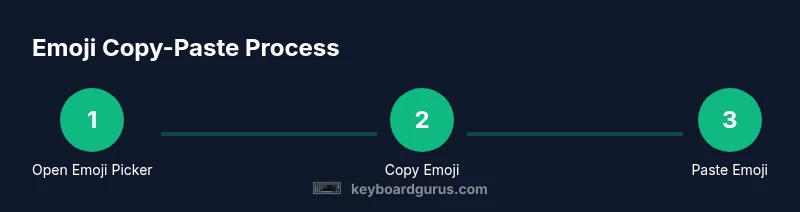
There are three reliable paths to copy and paste keyboard emojis: (1) OS emoji pickers for one-off selections, (2) copying from websites or apps that provide emoji palettes, and (3) dedicated emoji keyboards or character maps for large sets. On every platform, a basic copy-and-paste action remains the same, but where you access the emoji varies. Start with the simplest route—an OS emoji picker—and only move to other methods if you need multiple emojis in a row or you require a broader palette. Keyboard Gurus emphasizes testing across apps because some tools render differently depending on the destination.
Practical takeaway: establish a default method for quick-use emojis (like a favorite set), and have a fallback for apps that block paste operations. This keeps your workflow smooth and predictable across environments.
Emoji Palettes: OS-Level Emoji Pickers
OS-level emoji pickers are the fastest way to grab emojis without leaving your current task. Windows users press Windows key + . (period) to open the emoji panel; Mac users press Command + Control + Space to reveal the emoji viewer; iOS and Android devices provide emoji keyboards accessible via the globe or smiley icons. Each picker supports search by keyword, recent selections, and categories like faces, symbols, and objects. Knowing these pickers well reduces the time to locate your desired emoji and minimizes copy-paste errors.
Tip: if an app doesn’t support clipboard pasting, you can still use the emoji picker to insert characters via drag-and-drop or by long-pressing the emoji in the picker and choosing copy from the pop-up menu.
Copy and Paste in Different Apps: Notes, Chat, and Code
Different apps handle pasted emoji in slightly different ways. In chat apps, emojis often render with platform-specific styles, which means the same emoji may look slightly different to recipients on iOS vs Android. In notes and docs, emoji can act as visual bullets or thematic markers. In code editors, emoji support depends on the font and terminal, so testing rendering is essential. If you’re embedding emojis in Markdown, ensure the target renderer supports the characters. Keyboard Gurus recommends keeping a short list of emoji that render consistently across your most-used apps and testing them in both light and dark modes to ensure legibility.
Consistency matters: use a stable emoji set for team communications and documentation to avoid misinterpretation or misrendering.
Unicode and Variation Selectors: What You Need to Know
Emoji rendering relies on Unicode and platform-specific fonts. Some emojis have skin-tone modifiers or can be displayed in different presentation styles (text vs emoji). Variation selectors alter appearance, so be mindful when combining multiple emojis or using skin-tone variants. If cross-platform consistency is critical (for example, in shared docs or dashboards), prefer base-face emojis without modifiers when possible, and test how your content looks on target devices. Keyboard Gurus emphasizes understanding the general rules rather than memorizing every codepoint, so you can adapt to new updates from major OS providers.
Knowing these basics helps you choose emojis that render predictably, reducing surprises for readers and teammates.
Practical Examples: Quick Sets You’ll Use Daily
Having a ready-made palette saves time. Here are practical emoji sequences you can copy and paste in daily tasks:
- Quick signals: 👍 💡 ✅ 🔥
- Conversation tone: 😊 🙏 🙌 🎯
- Task status: ⏳ ✔️ 📌 🗹
- Collaboration: 🤝 📎 📝 💬
- Focus blocks: 🚀 🧭 🧠 📈
Tip: keep a short “emoji cheat sheet” in a note app or a document, and copy from a single source rather than mixing sources. This helps ensure consistent appearance across platforms.
Pro tip: use a single emoji for frequent intents (like a sword for “attack” in gaming chats) to avoid context confusion.
Unicode and Keyboard Shortcuts: Advanced Tips
If you frequently copy emojis for code or technical notes, consider keeping a local reference file with the exact emoji strings you use most. Some editors allow you to insert emojis with snippets—define your own shortcuts to insert common emojis with a few keystrokes. This approach minimizes the need to switch to a picker during focused work. Keyboard Gurus recommends aligning your emoji usage with your team’s communication norms and avoiding overly long sequences that can clutter messages.
For developers, testing emoji rendering across fonts (Monospace vs UI fonts) can prevent misalignment in monospaced environments.
Note: Always validate that the emoji appears as intended in the final medium (document, chat, or code) before sharing widely.
Troubleshooting Clipboard Issues and Font Compatibility
Clipboard behavior can vary by platform and app. If an emoji copies but pastes as a square or placeholder, try a different app or use a plain text editor as an intermediary to normalize encoding. Font availability also matters; some fonts don’t include every emoji, which can lead to missing glyphs. If you routinely share content with emoji, ensure the receiver uses a font that supports those glyphs. In terminal apps, ensure the terminal font supports color emoji and is configured to render them properly. Keyboard Gurus also suggests keeping a fallback emoji set that renders reliably in most environments.
When in doubt, test with a simple two-emoji message before sending in a high-stakes channel (like a project update or technical doc).
Accessibility Considerations and Localization
Emoji use should be inclusive. Screen readers may read emoji differently than intended, so provide textual equivalents when appropriate, or include alt text descriptions for images that include emoji. In multilingual teams, select emojis that convey universal meaning and avoid culturally ambiguous icons. Localizing emoji use means choosing symbols that are familiar across the team’s languages and regions. Keyboard Gurus recommends documenting emoji usage guidelines in your team’s style guide to maintain consistency.
Best Practices for Consistent Emoji Use
Establish a small, standardized emoji set for common intents (success, warning, information). Keep a personal emoji palette for fast access, but share a team-approved palette to ensure consistency. Always test across your most-used apps and devices, and document any platform-specific differences you encounter. Finally, review emoji usage periodically to ensure they still align with evolving design standards and user expectations. The Keyboard Gurus team recommends building a lightweight emoji kit that travels with your workflow, not just your device.
Tools & Materials
- Web browser(Any modern browser (Chrome, Edge, Firefox, Safari) for web emoji palettes or copy-paste utilities)
- Operating system with emoji support(Windows 10+/macOS 10.13+/iOS/Android)
- Emoji picker / Character Map tool(OS-level picker or a dedicated emoji keyboard app)
- Clipboard access (Ctrl+C/Ctrl+V or Cmd+C/Cmd+V)(Basic copy-paste capabilities across apps)
- Text editor or chat app for testing(Test that emoji render correctly before sharing with others)
Steps
Estimated time: 12-18 minutes
- 1
Open your emoji picker
Invoke the OS emoji picker so you have a wide palette ready. This is your gateway to quick emoji insertion. On Windows, press Windows key + . to open the panel; on macOS, press Command + Control + Space.
Tip: If the picker doesn’t appear, enable emoji input in system preferences or settings. - 2
Search or browse for the emoji you want
Use keywords or browse categories to locate the emoji that best fits your message. This reduces time spent scrolling and helps you find consistent icons.
Tip: Memorize a few common searches (e.g., 'smile', 'thumb', 'check'). - 3
Copy the chosen emoji
Click or select the emoji and copy it to the clipboard. If the picker doesn’t support copy, you can select the emoji and use a system-wide copy shortcut.
Tip: Verify the clipboard content by pasting into a temporary text field first. - 4
Switch to your target app
Open the app or document where you want to insert the emoji. Click into the text field or cursor location to prepare for paste.
Tip: If you’re switching between apps, keep the target ready for a quick paste to minimize context switching. - 5
Paste the emoji
Use the standard paste shortcut to insert the emoji. Some apps may require a right-click paste menu.
Tip: If paste is blocked, try pasting into a plain text editor first, then copy again into the final destination. - 6
Test rendering in the destination
Ensure the emoji displays correctly in the target app and font. Some environments render emojis differently due to fonts.
Tip: Switch between light and dark mode to confirm legibility. - 7
Repeat for multiple emojis
If you need several emojis, repeat steps 1–6 for each or prepare a short string in a text editor and copy once.
Tip: Maintain consistency by using a small shared palette for frequent intents. - 8
Create a quick-access sheet
Document your go-to emoji sequences for fast reuse in messages, notes, or code comments.
Tip: Store this sheet in a place you can quickly access during work. - 9
Regularly review cross-platform rendering
Periodically test your emoji in your most-used apps on all devices to catch drift in appearance.
Tip: Note any emoji that consistently render differently and adjust usage accordingly.
Got Questions?
What is the easiest way to copy emoji on Windows?
Open the emoji panel with Windows key + . (period), select an emoji, then copy and paste it into your destination. This method works quickly for chat and docs.
Open the Windows emoji panel with Windows key and period, pick your emoji, copy, and paste.
How can I copy multiple emojis at once?
Windows and macOS can store only one clipboard item at a time. For multiple emojis, paste into a temporary document, then copy the full string, or use a clipboard manager that supports multiple items.
Paste each emoji into a temporary document, then copy the full sequence to paste elsewhere.
Do emojis render the same on every platform?
Not always. Emoji appearance depends on OS fonts and apps. Some emoji look different on iOS, Android, Windows, and macOS.
Emoji appearance varies by OS and app; test across platforms for consistency.
Can I copy emoji from a website?
Yes. Highlight the emoji from a palette or page, copy it, and paste it into your document. Ensure the target app supports the emoji font.
Yes—copy from a palette or page and paste into your app.
Are there accessibility considerations for emoji?
Yes. Always provide textual descriptions or alt text when embedding emoji in images or documents, and consider screen reader users when using emojis.
Provide text alternatives for emoji and be mindful of screen readers.
Watch Video
What to Remember
- Master OS emoji pickers for speed.
- Test emoji rendering across apps and devices.
- Create a quick emoji cheat sheet for daily tasks.
- Document guidelines to ensure consistency.