How to Type Ñ for Keyboard: A Practical, Complete Guide
Master typing the character Ñ across Windows, macOS, Linux, and mobile. Learn layouts, shortcuts, Unicode input, and troubleshooting to type Ñ confidently in Spanish, programming, and daily tasks.


This guide shows you how to type the character ñ on any keyboard, across Windows, macOS, Linux, and mobile devices. You’ll learn key layouts, shortcuts, and fallback methods like Unicode input and copy-paste. By the end, you’ll type ñ confidently in Spanish texts, emails, and programming tasks.
The ñ for keyboard: why it matters and where you’ll use it
The character ñ (lowercase n with tilde) is essential in Spanish, Filipino, and many loanwords. For multilingual writers and developers, being able to type ñ quickly reduces friction in emails, documents, and code comments. According to Keyboard Gurus, recognizing when you should switch to a dedicated Spanish layout versus a dead-key approach helps you stay accurate and efficient across apps. In this section we explore practical contexts where ñ matters—from school notes to open-source projects—and outline a simple framework for choosing your preferred input method.
Keyboard layouts and access methods
There isn’t a single universal key for ñ on every keyboard, because layouts vary by region. A Spanish layout often places ñ on a dedicated key, while US-International or Latin American layouts use dead keys or graphic combinations. The option to switch layouts quickly is a productivity win for anyone who alternates between languages. Start by identifying which layout best matches your daily tasks, and keep at least one backup method for moments when a shortcut fails in a multiplayer game or a shared document.
Windows: typing ñ with common methods
Windows users have several reliable options. One quick path is the Alt code approach: press and hold the numeric keypad, then type 164 for ñ or 0241 for ñ in some code pages. Another universal method is the Unicode input sequence: press and release Ctrl+Shift+U, then type 00F1 and press Enter. If you rely on layouts, enable either the Spanish keyboard or US-International. The choice depends on whether you prioritize direct access (Spanish) or dead-key flexibility (US-International).
macOS and Linux: efficient ñ input techniques
On macOS, the classic method is Option+N to create a tilde dead key, then press N to produce ñ. This gives you lowercase and uppercase forms without changing layouts. Linux users often use Unicode input: Ctrl+Shift+U followed by 00F1 and Enter, or enable a Spanish/Latin layout for direct access. If you frequently switch languages, consider keeping multiple input sources and use a quick switch shortcut so you never hunt for the ñ key.
Typing ñ on mobile devices
Smartphones make it easy to insert ñ with a long-press on the letter N on virtual keyboards. On iOS and Android, adding a Spanish or Latin American keyboard or enabling bilingual input increases accuracy and speed. If you compose content on mobile, pin this method as your default for quick text messages, social posts, and mobile coding notes.
Troubleshooting and best practices
If you don’t see ñ in a document, check that the font supports the glyph. Some fonts treat ñ as a style alternative or omit it entirely, causing a box or question mark. In those cases, switch to a font that includes extended Latin characters. For heavy bilingual work, assign a personal shortcut or hotkey so you don’t rely on slower mechanisms. Finally, test across common apps (word processors, IDEs, chat apps) to ensure consistent rendering.
Tools & Materials
- Keyboard layout (Spanish or US-International)(Install and enable in OS settings; enables direct access or dead-key sequences)
- Supported operating system(Windows, macOS, Linux, or mobile OS with accessible input methods)
- Font with ñ glyph support(Some fonts omit the glyph; choose a robust font for bilingual work)
- Clipboard manager (optional)(For quick paste of ñ when you don’t want to switch layouts)
- Internet connection (optional)(Useful for looking up Unicode codes or reference charts)
Steps
Estimated time: 20-30 minutes
- 1
Choose your Ñ input method
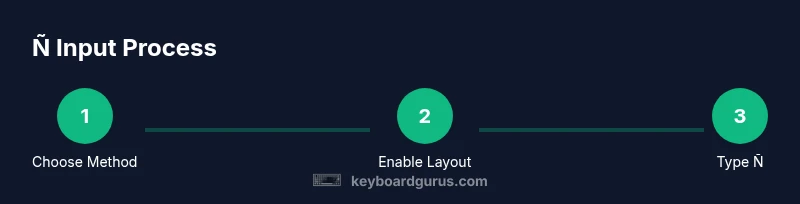
Decide whether you’ll rely on a dedicated Spanish layout or a dead-key approach (e.g., US-International). This sets the foundation for consistent typing and reduces hesitation when you need to insert ñ.
Tip: Pick one primary method, and add a secondary fallback for edge cases. - 2
Enable the chosen keyboard layout
Open your OS settings and add the selected keyboard layout (Spanish or US-International). Ensure it’s listed as a primary option or easily accessible via a shortcut.
Tip: Label the layout clearly to avoid accidental switches during tasks. - 3
Set up a quick switch shortcut
Configure a fast keyboard shortcut (like Alt+Shift or a system-wide input switch) to jump between layouts without touching on-screen menus.
Tip: Test the shortcut in common apps to avoid misfires. - 4
Type ñ with Windows Alt code
On Windows, use the numeric keypad to enter 164 for ñ (or 0241 on some configurations) while holding Alt. Release to insert the character.
Tip: If Num Lock is off, turn it on or use an alternative method. - 5
Type ñ on macOS with Option+N
Press Option+N to create a tilde dead key, then press n to produce ñ. For Ñ, press Shift+Option+N or press N after the tilde.
Tip: Use this even when keyboard layouts don’t include ñ directly. - 6
Type ñ on Linux with Unicode input
In many distributions, press Ctrl+Shift+U, release, type 00F1, then Enter. This inserts the Unicode code point for ñ.
Tip: If you prefer a layout, map a shortcut to the Unicode input method. - 7
Type ñ on mobile devices
Long-press the N key on the mobile keyboard and select the ñ glyph, or enable a Spanish keyboard for direct access.
Tip: Add a second keyboard to quickly switch when composing in different languages. - 8
Verify glyph rendering
Check the character appears correctly in document previews and across apps. If it shows as a box, switch fonts or update the font cache.
Tip: Keep a fallback font installed for persistent rendering. - 9
Optional: create a personal shortcut
If you type Ñ often, assign a custom shortcut (e.g., a combo that expands to ñ) to speed up frequent usage.
Tip: Document your shortcut so teammates can reproduce it.
Got Questions?
What is the easiest way to type ñ on Windows?
Windows users can type ñ using a dedicated Spanish layout for direct access or by using Alt codes (e.g., Alt+164). Unicode input (Ctrl+Shift+U 00F1 Enter) is another universal method.
Windows offers a direct Spanish layout or an Alt code method to type ñ.
Can I type Ñ without changing my keyboard layout?
Yes. Use dead-key sequences like the US-International approach or OS-level Unicode input to produce Ñ after the tilde key; this avoids switching layouts.
You can type Ñ without changing your layout using dead keys or Unicode.
What if my font doesn’t show the glyph?
Switch to a font that supports extended Latin characters, then test in the apps you use most; font fallback is common across platforms.
If the glyph doesn’t show, change fonts or adjust font fallback settings.
Is there a shortcut for uppercase Ñ?
Uppercase Ñ is typically produced by using the same shortcut with Shift or the uppercase variant of the chosen input method; for example, use Shift+Option+N on macOS.
Use the uppercase variant of the same shortcut used for ñ.
Can I type ñ on mobile keyboards quickly?
Yes. Long-press the N key on the mobile keyboard and select the ñ glyph, or add a Spanish keyboard to type it directly in one tap.
On mobile, long-press or switch keyboards to type ñ quickly.
Why does ñ sometimes render as a box in apps?
This happens when the font lacks the glyph or the app uses a fallback font that doesn’t support it; switching fonts usually fixes it.
If Ñ renders as a box, switch to a font that supports it.
Are there other accented letters I should know for keyboards?
Yes. Many layouts include á, é, í, ó, ú and other diacritics; consider a multilingual layout for seamless access.
Yes—many other accented letters are available via layouts and shortcuts.
Watch Video
What to Remember
- Choose a primary ñ input method and stick with it.
- Enable a layout that gives direct access or reliable dead-keys.
- Know at least two methods per platform for reliability.
- Font support determines whether ñ renders correctly.
- Test across apps to ensure consistent rendering.