How to Type Spanish Letters on Keyboard
Learn reliable methods to type Spanish letters on any keyboard—from layouts and dead keys to Unicode and Alt codes—across Windows, macOS, Linux, and mobile.


You’ll learn reliable methods to type Spanish letters on a keyboard. This guide covers three core approaches—Spanish keyboard layouts, dead keys/composing sequences, and Unicode/Alt codes—across Windows, macOS, Linux, and mobile devices. You’ll get practical steps to insert accented vowels (á, é, í, ó, ú), the tilde on ñ, inverted question marks, and other common symbols.
Why Spanish Letters Matter
In Spanish, letters like á, é, í, ó, ú, ñ, ü, ¿ and ¡ aren't just decorative—they change meaning and pronunciation. Getting these right matters for academic work, professional emails, and casual chats alike. According to Keyboard Gurus, the fastest and most reliable way to input Spanish letters is to standardize on a method you actually use, rather than juggling multiple hacks. This reduces errors and speeds up your typing across documents, chats, and code comments. Whether you're learning Spanish or a bilingual professional, a comfortable, repeatable input method pays off. Accented vowels determine meaning (for example tu vs tú), tilde on n, and inverted punctuation for questions and exclamations. In programming contexts, incorrect accents can affect search queries or data processing. For students writing essays in Spanish or developers leaving comments, correct characters help readability and accuracy. The method you choose also depends on your device ecosystem—desktop, laptop, or mobile. Now let's explore the core methods.
To set expectations, this section emphasizes practical, device-agnostic methods that work across Windows, macOS, Linux, iOS, and Android. Develop a consistent approach and you’ll notice fewer interruptions in your workflow. The goal is to help you type naturally and accurately, not to force you into a single rigid setup. Over time, you’ll refine your technique based on the apps you use most and the languages you frequently type.
Key Methods for Typing Spanish Letters
Spanish Keyboard Layout
Many devices ship with a Spanish layout option that makes accented characters and punctuation straightforward to enter. On Windows, you can add the Spanish input method via Settings > Time & Language > Language > Add a language. On macOS, go to System Settings > Keyboard > Input Sources and add a Spanish keyboard. A dedicated layout reduces reliance on sequences and codes, which is especially helpful for long documents or when you switch between languages regularly. If you type in Spanish daily, this is often the most efficient path. Keyboard Gurus analysis shows that users who adopt a native Spanish layout report improved accuracy and faster typing when dealing with frequent accent marks and punctuation.
Dead Keys and Compose Sequences
If you prefer not to switch layouts, dead keys let you type accents by first pressing a combining key and then the target letter. For example, pressing the acute-accent dead key and then a vowel yields á, é, í, ó, or ú. Tilde and quotation mark dead keys enable ñ and ü respectively, and inverted punctuation marks can be accessed with dedicated sequences on some layouts. This method keeps your current keyboard but requires a short learning curve for the most common combinations. It’s particularly useful for multilingual workspaces where you don’t want to change system-wide settings.
Unicode and Alt Codes
Unicode input or Windows Alt codes provide a precise route to any character, not limited by keyboard layout. In practice, you would use a Unicode input for a given character, or an Alt code via the numeric keypad for Windows. While this method is powerful, it’s less ergonomic for fast typing and is best reserved for occasional insertions or when you’re using software that doesn’t support dead keys or layout switching. Keep a small reference sheet handy until you memorize your most-used codes.
Choosing the Right Method for Your Workflow
The best method depends on your device mix and daily tasks. If you work mostly on a single computer, a Spanish layout is usually the simplest and most efficient. If you toggle between languages, dead keys or quick Unicode access can keep you agile without changing your primary layout. In practice, many users adopt a hybrid approach: primary on a dedicated layout, with dead keys as a fallback for occasional needs, and Unicode codes for rare characters.
Keyboard Shortcuts and Productivity Tips
As you get comfortable, build a few shortcuts for the most frequent letters and symbols. On Windows, you can assign hotkeys to insert commonly used characters through third-party tools, while macOS users can create text replacements or use the built-in shortcuts. For mobile devices, enable a Spanish keyboard and explore long-press options to access accented letters quickly. Consistency matters—choose methods you can reliably reproduce under pressure (writing exams, coding, or customer support chats) and practice until you’re fluent.
Real-World Scenarios and Examples
Typing in Spanish for emails, documents, or chat often requires accented vowels, enyes and inverted punctuation. A typical sentence like ¿Cómo estás? uses ¿, é, and question punctuation that can slow you down if you’re not prepared. With the right method, you’ll see your accuracy climb and your writing speed improve. The key is to practice with real phrases you use frequently, so the input method becomes almost automatic.
Working Across Devices: Windows, macOS, Linux, iOS, Android
Device ecosystems influence the specific steps, but the underlying concepts remain the same. On Windows, enable Spanish input sources and control+space lets you switch quickly. macOS users can toggle inputs from the menu bar or assign a keyboard shortcut. Linux distributions offer similar options through the GNOME or KDE settings, often with more granular keyboard customization. For mobile, iOS and Android provide Spanish layouts that are accessible via the globe key or long-press on letters, making it easy to insert accents on the go. When testing across devices, verify that your most-used words render correctly in your primary apps—word processors, emails, chat apps, and code editors alike. If a particular app ignores a shortcut, switch to an alternative method (dead keys or Unicode) for that app.
Step-by-Step Setup Overview
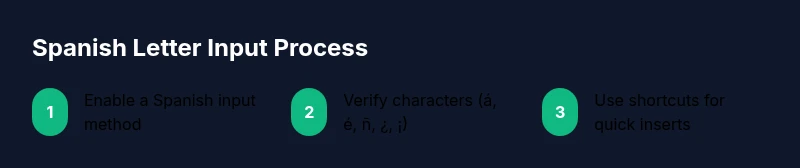
This section accompanies the detailed steps in the dedicated STEP-BY-STEP block. It outlines a practical path to configure your environment for consistent Spanish letter input across devices. Start by selecting your preferred method (layout, dead keys, or Unicode), then enable it at the system level, and finally tailor shortcuts for common letters and phrases. Regularly test your setup with representative text to confirm accuracy and speed. The goal is to create a predictable workflow that minimizes friction and maximizes legibility when typing in Spanish.
To get the most out of this guide, commit to a single primary method while keeping a reliable fallback for edge cases. That approach reduces cognitive load and helps you type Spanish letters more naturally in any context.
Common Pitfalls and Tips
Mistakes often happen when switching layouts mid-task, or when relying on a single method that doesn’t cover all characters you need. Keep a short reference of the most-used sequences and codes and practice daily. Also consider font rendering—the visual clarity of accents can vary between fonts, so choose one that clearly renders diacritics. If you’re collaborating with others, ensure that the recipients’ systems handle the same input methods; otherwise, you may see mismatched characters. Keyboard Gurus emphasizes practical, repeatable steps you can perform in minutes, not months, to optimize your Spanish input routine.
Quick Comparisons: Layouts vs Shortcuts
- Spanish keyboard layout: Fastest for frequent Spanish text; best for long writing sessions.
- Dead keys: Great for bilingual work; keeps your current layout but requires memory of sequences.
- Unicode/Alt codes: Most versatile; ideal for rare characters but slower for daily use.
- Mobile keyboards: Excellent reachability; rely on long-press options and quick switching between languages.
Which should you pick? Start with a primary method (layout if you type Spanish daily) and add a dead-key or Unicode fallback for characters you don’t use often. The right blend depends on your apps, devices, and the frequency of accent usage.
Beyond Spanish: Other Accented Languages
If you work with Portuguese, French, or Italian as well, many of these input strategies transfer well. French, for example, uses similar acute and grave accents, while Portuguese relies on tilde and cedilla. Building a flexible input setup now will pay off when you encounter other languages in school, work, or travel. Consider labeling your shortcuts and notes for cross-language consistency so you can reuse them with minimal confusion.
Building a Personal Keyboard Setup Plan
Create a simple plan that describes your preferred method, the devices you use, and the typical contexts in which you type Spanish letters. List your top 5 accented characters and the shortcuts or codes you’ll use for them. Schedule a weekly 10-minute practice session to reinforce muscle memory, then adjust your plan based on your experience across apps and environments. By framing your learning as a small, repeatable routine, you’ll steadily improve your accuracy and speed when typing Spanish letters on the keyboard.
Tools & Materials
- Windows PC with language pack support(Add Spanish keyboard layout via Settings -> Time & Language -> Language)
- Mac computer(Add Spanish input source in System Settings -> Keyboard -> Input Sources)
- Mobile device (iOS/Android)(Enable Spanish keyboard or install a 3rd-party keyboard with accented character access)
- Reference sheet or cheat sheet(Printable or digital quick-access list of common letters)
- Unicode reference table(Helpful for Unicode/Alt code typing as a fallback)
- Reliable font(Choose a font that renders accents clearly)
Steps
Estimated time: 45-60 minutes
- 1
Choose your input method
Decide between enabling a Spanish keyboard layout, using dead keys, or leveraging Unicode/Alt codes. The choice should align with your daily tasks and devices.
Tip: If you type Spanish often, a dedicated layout is typically fastest. - 2
Enable Spanish layout on your OS
Add the Spanish keyboard input source in your operating system's language settings, then switch to it when typing.
Tip: Restart apps after adding a new input source for reliability. - 3
Learn dead-key sequences
Familiarize yourself with dead-key methods such as pressing an accent key then the letter to produce accented characters.
Tip: Create a small practice sheet to recall common sequences. - 4
Use Unicode or Alt codes as a fallback
When a shortcut isn’t available, insert characters using Unicode input or Windows Alt codes via the numeric keypad.
Tip: Keep a reference table handy until you memorize the codes. - 5
Create shortcuts for frequent letters
Set up custom shortcuts for the most-used letters or symbols in Spanish to speed up typing.
Tip: Document your shortcuts for consistency across apps. - 6
Test and refine
Type sample Spanish text and verify all accents, punctuation, and symbols render correctly in your apps.
Tip: Adjust your method if some apps ignore certain inputs.
Got Questions?
What is the easiest way to type Spanish letters on a US keyboard?
Enable the Spanish keyboard layout or use dead-key sequences for accented vowels and ñ. This avoids memorizing many separate codes.
The easiest approach is to enable a Spanish keyboard layout or use dead-key sequences.
Can I type ñ without changing my keyboard layout?
Yes. You can use a dead-key sequence or Unicode/Alt codes, depending on your device.
Yes. You can use dead keys or Unicode methods without changing layouts.
Are Spanish letters supported on mobile keyboards?
Most mobile keyboards offer built-in Spanish layouts and easy access to accented characters.
Yes, most mobile keyboards support Spanish letters with dedicated keys.
How do I type inverted punctuation ¿ and ¡?
Switch to a Spanish input layout or use long-press options on touch keyboards.
Switch to a Spanish layout or use long-press options to access ¿ and ¡.
Will changing layouts affect other languages I type?
Switching layouts should not affect installed language packs; you can toggle as needed.
Normally you can toggle layouts as needed without losing other language support.
Watch Video
What to Remember
- Choose a primary method to reduce confusion.
- Learn at least one dead-key sequence and one Unicode shortcut.
- Test input across devices to ensure consistency.
- Create quick-access shortcuts for common letters.