How to Put a Keyboard on Screen: A Practical Guide
Learn how to enable and use an on-screen keyboard across Windows, macOS, Linux, and mobile devices. This Keyboard Gurus guide covers setup, shortcuts, accessibility tips, and troubleshooting to help you type anywhere.


With this guide you will enable an on-screen keyboard on your device and start typing without a physical keyboard. Whether you’re on Windows, macOS, Linux, or iOS/Android, you’ll learn quick access methods, essential shortcuts, and best practices to ensure reliable input. Keyboard Gurus confirms these steps work across major platforms.
Why an on-screen keyboard matters
If you’re wondering how to put keyboard on screen, an on-screen keyboard offers a flexible alternative for typing when a physical keyboard isn’t available or convenient. It’s especially useful on touch devices, during hardware maintenance, or when accessibility requirements limit hand movement. According to Keyboard Gurus, on-screen input tools reduce friction in everyday computing and help you stay productive even when your main keyboard is unavailable. Beyond convenience, an on-screen keyboard supports learners, travelers, and users with mobility challenges by providing a large, adjustable interface and customizable layouts. In this section, we’ll explore why you would enable an on-screen keyboard, what to expect on different platforms, and how it fits into a modern workflow.
How to put keyboard on screen: quick platform overview
There isn’t a single universal button for every device, but the core idea is the same: you’re turning a software keyboard into a usable input surface that appears on your screen. Windows, macOS, Linux, and mobile systems all offer built-in solutions, plus third-party apps if you need extra features. The steps below highlight where to find these tools, common terminology (On-Screen Keyboard, Keyboard Viewer, Accessibility Keyboard), and how to position the keyboard for comfortable typing. Plan to spend 5–10 minutes to become proficient on your primary device, then adapt for others.
Windows: enabling the On-Screen Keyboard (OSK)
Windows includes an On-Screen Keyboard (OSK) you can summon from Settings or the Run dialog. Start by opening Settings -> Accessibility -> Keyboard, and switch the On-Screen Keyboard toggle to On. You can also press the Start button or Windows key, type On-Screen Keyboard, and press Enter to launch it quickly. Once visible, drag the keyboard to a convenient edge of the screen, resize it if needed, and keep it docked for easy access. Optional: pin OSK to the taskbar for one-click access, or run osk.exe from the Run box for a direct start. Typical wait time to appear is a few seconds.
macOS: enabling the Keyboard Viewer
macOS users access the Keyboard Viewer via the system menu bar. Open System Settings -> Keyboard (or System Preferences in older macOS), enable “Show keyboard and emoji viewers in menu bar,” then click the new keyboard icon in the menu bar and select Keyboard Viewer. The viewer appears as a floating keyboard that you can reposition and resize. It’s especially handy if you’re using a trackpad or external input device and want to see key labels. You can also learn keyboard shortcuts to bring it up quickly, such as pressing Command-Option-Space in some configurations. Allow a moment for the viewer to render when you first enable it.
Linux and open-source on-screen keyboard options
Linux distributions vary, but you have several reliable choices, including Onboard, Caribou, or matchbox-keyboard, depending on your desktop. First, install a keyboard app: for Debian/Ubuntu, run sudo apt install onboard, then start Onboard from the application menu or a terminal. If you prefer GNOME, Caribou is a lightweight option; for KDE you might use Kvkbd or KHotKeys. After installation, launch the app, then position and resize the keyboard as needed. Some environments support automatic startup on login, which keeps the on-screen keyboard ready for you when you boot. Note that performance and features depend on your hardware and GPU acceleration.
iOS and Android: built-in support and accessibility features
Both iOS and Android include on-screen keyboards by default, with additional accessibility options. iOS focuses on the standard keyboard plus VoiceOver and Zoom for visibility; enabling the on-screen keyboard is automatic when you tap a text field, but you can customize the keyboard layout in Settings -> General -> Keyboard on iOS. Android similarly exposes a default keyboard with options for one-handed mode, larger keys, and alternative layouts. You can enable additional accessibility features like TalkBack (Android) or VoiceOver (iOS) to enhance interaction. If you’re troubleshooting touch responsiveness, try disabling third-party keyboards temporarily to confirm input is coming from the system keyboard.
Troubleshooting common issues
Sometimes the on-screen keyboard won’t appear, or it stays hidden behind another window. Check that accessibility features are turned on, and restart the device if necessary. If the keys don’t display accurately, adjust the scale, layout, and font size in the keyboard settings. On Linux, ensure the app has permission to draw on the screen and isn’t blocked by a compositor. If you’re typing passwords, remember that some apps disable input from on-screen keyboards for security; use the OS’s built-in feature rather than third-party software. If the issue persists across apps, try a different on-screen keyboard or reboot into safe mode to test hardware acceleration conflicts.
Security, privacy, and etiquette
On-screen keyboards are convenient, but they don’t guarantee malware-free input. Use official, built-in keyboards whenever possible, and avoid unfamiliar third-party apps that request broad permissions. When entering sensitive data, ensure you’re on trusted networks and consider using a hardware keyboard for critical tasks. Privacy-wise, on-screen keyboards can be affected by screen capture or spoofing; turn off screen recording when not necessary and be mindful of app permissions. Keyboard Gurus’s guidelines emphasize using accessible tools as part of a broader productivity setup, not as a sole security control.
Practice scenarios and best practices
Try common scenarios: typing in a document, filling forms in a browser, entering passwords at login (where allowed). Use the keyboard’s features to match your task: adjust size for visibility, enable one-handed mode on mobile, or toggle the keyboard to appear only when needed. When learning how to put keyboard on screen, create a short habit: summon OSK, perform 5 keystrokes, then hide it. Practicing with a timer helps build muscle memory; keep your keyboard layout consistent across apps to reduce confusion.
Authority sources
To verify or deepen your understanding, see these authoritative references:
• https://support.apple.com/guide/mac-help/use-the-keyboard-viewer-on-your-mac-mh35860/mac
• https://help.gnome.org/users/gnome-help/stable/keyboard-setup.html.en
• https://support.microsoft.com/windows
Tools & Materials
- Device with a supported OS (Windows, macOS, Linux, iOS, or Android)(Choose the OS you will enable the on-screen keyboard on)
- Access to system settings or accessibility panel(Necessary to enable built-in on-screen keyboards)
- External mouse or trackpad (optional)(Helps with positioning and resizing)
- Internet connection (optional)(Needed for downloading third-party keyboards or updates)
- Third-party on-screen keyboard app (optional)(Use only if built-in options do not meet needs)
Steps
Estimated time: Total time: 15-25 minutes
- 1
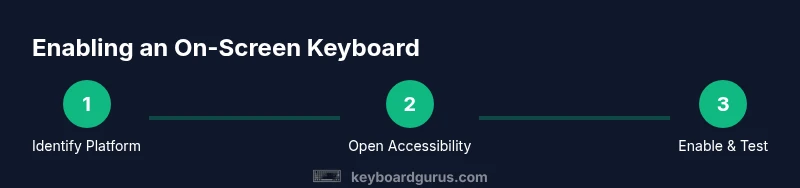
Identify your platform
Determine whether you’re on Windows, macOS, Linux, iOS, or Android so you follow the correct path to enable an on-screen keyboard. This upfront check saves time and prevents confusion later.
Tip: Write down the exact OS version (e.g., Windows 11, macOS Ventura) for quick reference. - 2
Open accessibility or keyboard settings
Navigate to the accessibility or keyboard settings panel on your device. Look for terms like On-Screen Keyboard, Keyboard Viewer, Accessibility Keyboard, or on-screen input. This is the central place to enable the tool.
Tip: If you can’t find it, use the search feature in Settings or Preferences and type keywords like keyboard or accessibility. - 3
Enable Windows On-Screen Keyboard (OSK)
In Windows, toggle On-Screen Keyboard to On via Settings > Accessibility > Keyboard, or search for “On-Screen Keyboard” and launch it. To speed this up, you can press Windows key + R, type osk, and press Enter.
Tip: Pin OSK to the taskbar for one-click access and quick visibility during tasks. - 4
Enable macOS Keyboard Viewer
On macOS, enable the Keyboard Viewer through System Settings > Keyboard (or System Preferences), then show the keyboard viewer in the menu bar and select it when needed. Position the viewer for easy reach and readability.
Tip: Use Command-Option-Space as a quick shortcut to pull up the Viewer when you’re in a text field. - 5
Set up on-screen keyboard on Linux
Install a lightweight option like Onboard (sudo apt install onboard), or try Caribou if you prefer GNOME. Launch the app and position it on screen. Enable startup with your session if you want it ready on login.
Tip: If your distro uses Wayland, some keyboards may need compatibility tweaks or compositor adjustments. - 6
Test and adjust the UI
Open a text field in a document or form and test typing. Move the keyboard to a comfortable edge, resize if needed, and experiment with key size and spacing for accuracy.
Tip: Toggle visibility with a simple shortcut or icon so you only see it when needed. - 7
Explore accessibility features
On mobile and desktop, explore one-handed modes, larger keys, or different layouts to reduce strain. Enable screen reader support if it improves your workflow.
Tip: Try a few layouts (QWERTY, AZERTY) to find the one that minimizes finger travel. - 8
Practice security-aware usage
Avoid relying on on-screen keyboards for highly sensitive credentials on unknown machines. Prefer trusted devices and built-in OS features for critical tasks.
Tip: Always verify the source of any third-party keyboard app before installing.
Got Questions?
How do I enable the on-screen keyboard on Windows?
Open Settings, go to Accessibility, then Keyboard, and turn on the On-Screen Keyboard. You can also search for On-Screen Keyboard in the Start menu and launch it directly. Pin it for quick access if you’ll use it often.
Open Windows Settings, enable On-Screen Keyboard in Accessibility, or search for it in the Start menu and launch it.
Can I customize the on-screen keyboard layout or size?
Yes. Most on-screen keyboards let you resize, reposition, and adjust key sizes. Some platforms also offer different layouts or themes to improve readability or match your typing style.
You can resize and reposition the on-screen keyboard and often choose different layouts or themes.
Is using an on-screen keyboard secure for sensitive data?
On-screen keyboards are convenient but do not guarantee complete security. Use built-in OS tools on trusted devices and avoid third-party keyboards for sensitive credentials on public systems.
Be cautious: use built-in keyboards on trusted devices for sensitive data.
What should I do if the on-screen keyboard doesn’t appear?
Verify that accessibility options are enabled, check for conflicts with active accessibility software, and consider rebooting your device. On Linux, ensure the app has screen drawing permissions and isn’t blocked by the compositor.
Check settings, reboot if needed, and verify permissions on Linux.
Is there an on-screen keyboard for Linux?
Yes. Popular options include Onboard and Caribou. Install via your package manager, launch, and adjust size and position as needed.
Linux has Onboard and Caribou; install and configure as you would on other platforms.
How do I disable the on-screen keyboard after use?
Close the on-screen keyboard window or toggle it off in the same settings panel where you enabled it.
Close it or switch it off in settings.
Watch Video
What to Remember
- Identify your platform before starting
- Enable built-in OSK tools for reliability
- Position, resize, and test for comfort
- Use accessibility features to improve visibility
- Practice with real tasks to build fluency