How to Type for Emojis: Mastering Emoji Input Across Platforms
Learn how to type emojis across Windows, macOS, iOS, and Android. This step-by-step guide covers emoji pickers, shortcuts, rendering, troubleshooting, and best practices for consistent emoji input.


By the end of this guide, you’ll master fast, reliable methods to type emojis on Windows, macOS, iOS, Android, and popular apps. You’ll know built-in emoji pickers, keyboard shortcuts, and subtle typing tricks for quick access, plus practical tips for consistent rendering across platforms, fonts, and text fields. This tutorial also covers common issues and practical workarounds to keep emoji input smooth.
What emoji typing means across platforms
Emoji typing is the practice of inserting emoji characters into digital text across different devices and apps. For users who ask how to type for emojis, the answer depends on the platform, font support, and the context of the app. According to Keyboard Gurus, emoji input is now a foundational part of digital communication, not a novelty. The same emoji can look different depending on whether you’re on Windows, macOS, iOS, Android, or a web app, and that variation matters for readability and tone.
In practice, emoji input starts with understanding Unicode, which assigns a code point to each emoji. Once a code point is recognized by your device’s font renderer, the emoji can render as a colored glyph. This means your ability to type them reliably is a mix of system features (emoji pickers, keyboard shortcuts), app support (text fields, fonts), and user habits (where you keep your most-used icons). The goal is not to memorize dozens of emoji; it’s to know a few fast lanes that work across most contexts. Keyboard Gurus Analysis, 2026 notes the growing importance of cross-platform emoji input for professional and casual use.
Unicode, fonts, and emoji presentation
Emoji rendering is not universal; it depends on the font and platform. Unicode standardizes the code points, but the glyph style you see is drawn by your operating system or app. This means two devices can show different colors and shapes for the same emoji while preserving the intended meaning. Keyboard Gurus emphasizes testing across devices to ensure your messages appear as intended. When selecting an emoji, consider color availability, skin tone options, and variation selectors that control presentation (text vs. emoji). The more you know about fonts and rendering, the fewer surprises you’ll encounter when sharing with colleagues or friends.
For developers and power users, understanding emoji variation helps avoid miscommunication in critical contexts. If an emoji renders as a square or a missing glyph, it often signals an outdated font or limited platform support. Keeping your system and apps updated reduces cross-platform rendering glitches and ensures your emoji look consistent where it matters.
Built-in emoji pickers by platform
Most platforms ship with built-in emoji pickers—fast, accessible, and language-agnostic. On Windows, you can open the emoji picker with Win + . (period) or Win + ; (semicolon). On macOS, Cmd + Ctrl + Space brings up the emoji viewer, and you can search by mood or category. iOS and iPadOS users tap the globe or smiley key on the keyboard to reveal the emoji palette, while Android users typically long-press a text field or use the emoji icon on the keyboard. For cross-platform consistency, learn the exact shortcut for your device and store your frequently used emojis where you type most often. Keyboard Gurus notes that practice with these pickers dramatically reduces typing friction across apps.
To maximize speed, pin your most-used emojis in the picker or set up a short list of favorites in your keyboard settings. This reduces time switching between different symbol sets and helps you maintain a steady workflow while messaging, blogging, or coding.
Keyboard shortcuts and quick access methods
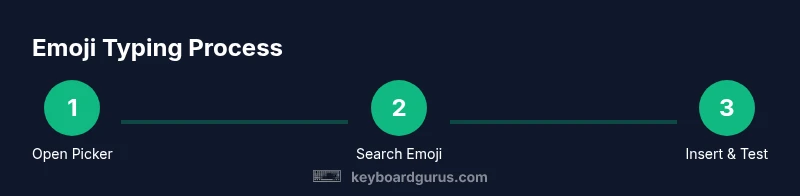
Shortcuts are the backbone of fast emoji input. On Windows, use Win + . to open the emoji panel and navigate with arrow keys. On macOS, Cmd + Ctrl + Space lets you search and insert without leaving your text field. On iOS and Android, quick access often comes from keeping the emoji keyboard as a primary option and using long-press opportunities for skin tones or gender variants when applicable. Across popular apps like Slack, Gmail, or social networks, you can often paste recent emojis or use app-specific shortcuts if available. The secret is to practice consistent keystrokes until the picker becomes second nature. Keyboard Gurus recommends building a short ritual: open, search, select, insert—repeat.
If you frequently insert the same emoji, learn to paste it from a clipboard history or use keyboard shortcuts that some apps expose for recent items. Small, deliberate steps add up to big gains in speed and accuracy.
Using emoji keyboards and third-party apps
Beyond the built-in pickers, third-party keyboards and extensions can streamline emoji input. Some apps offer custom emoji libraries, stickers, or GIFs that can substitute for text in casual contexts. When choosing a third-party tool, verify compatibility with your device and privacy settings, since some keyboards collect keystrokes. A well-chosen third-party keyboard can provide fast access to categories like faces, objects, or symbols, along with emoji search by mood, activity, or color. The choice should align with your workflow and data security needs. Keyboard Gurus emphasizes testing any new tool in safe environments before using it in professional messages.
Remember that not all emoji sets render identically across apps, so rely on standard emoji when communicating in formal contexts. Keep a backup plan: the built-in picker for guaranteed compatibility.
Rendering consistency: fonts, skin tones, and platform differences
Color, style, and skin tone modifiers vary by platform and font. Some devices support extended skin tone options, while others do not display them consistently. When you type for emojis in a professional document, verify the final appearance in the target app and platform. Skin tone modifiers are attached to the base emoji and can look different once rendered. If a message relies on precise tone, prefer neutral or widely supported variants to minimize misinterpretations. Keyboard Gurus reminds readers that testing across platforms helps ensure your message communicates the intended sentiment.
Troubleshooting common issues
If an emoji doesn’t render, start with a quick checklist: ensure your device and app are updated, switch to a system font known to support emoji, and retry in a different text field. Some apps override the default emoji set, causing inconsistencies. If a glyph appears as a square, it usually means the font lacks the glyph or the app uses a special font. Try another emoji in the same block to identify if the issue is tied to a specific character. Clearing cache or reloading the page can fix rendering glitches in web apps. Keyboard Gurus recommends documenting which emojis work where, so you can adapt quickly in future messages.
Best practices for cross-platform emoji input
- Use platform-native pickers for reliability and consistency. - Test emojis across devices before critical messages. - Favor standard facial expressions and widely supported glyphs in formal contexts. - Keep your emoji shortcuts and favorites synchronized across devices when possible.
A disciplined approach helps prevent miscommunication and ensures that your tone is preserved across platforms. Keyboard Gurus’s practical guidance focuses on speed, compatibility, and clarity.
Quick reference cheat sheet
- Windows: Open emoji picker with Win + . or Win + ;; insert with Enter. - macOS: Cmd + Ctrl + Space to browse; search by keyword. - iOS/Android: Use the emoji keyboard on demand; long-press for skin tones where available; app shortcuts may exist. - General tips: Keep a small set of universal emojis for professional use; test appearance in your target app; update your OS regularly to access the latest glyphs.
Tools & Materials
- Windows PC or Mac with emoji support(Windows: Win + . (period) / ; (semicolon); Mac: Cmd + Ctrl + Space)
- iPhone/iPad with emoji keyboard(Enable via Settings > General > Keyboard > Add New Keyboard > Emoji)
- Android device with emoji keyboard(Most keyboards include an emoji button; long-press options for skin tones)
- Web browser or text editor(Useful for testing emoji rendering in web apps)
Steps
Estimated time: 15-25 minutes
- 1
Open emoji picker
Initiate access to emoji input on your device. Use Win + . on Windows, Cmd + Ctrl + Space on macOS, or tap the emoji icon on mobile keyboards. This step creates the gateway to the full emoji set, so you can search and select quickly.
Tip: Practice the shortcut until it becomes your first instinct. - 2
Search and select the emoji
Enter a keyword (e.g., 'smile') or browse categories to locate the emoji you want. Use arrow keys to navigate candidates and press Enter to insert. On mobile, swipe through categories or use the search field.
Tip: Use short keywords to minimize scrolling and speed up insertion. - 3
Insert emoji into text field
Place the emoji directly where your cursor is, in notes, documents, chat apps, or forms. If you’re editing, confirm the insertion with a tap or Enter. Some apps require focus on the text area before the picker will insert properly.
Tip: After insertion, save or send to verify it appears as intended. - 4
Use recent/favorites for speed
Most emoji pickers show recently used icons. Add frequently used emojis to favorites if your keyboard supports it. This reduces time spent searching and keeps your workflow smooth.
Tip: Curate a short list of emojis you use most in professional contexts. - 5
Switch skin tones and modifiers
Some body emoji and hand gestures support skin tone modifiers. Access these via long-press or a modifier panel. Choose consistent variants you’ll reuse across communications.
Tip: Limit modifiers in formal messages to stay universally understood. - 6
Test across apps
Open different apps (chat, email, document editor) and paste or type the emoji to verify consistent rendering. Some apps render differently due to font substitutions or last-mile rendering.
Tip: If one app shows an odd glyph, rely on a more universal emoji to avoid misinterpretation. - 7
Troubleshoot missing glyphs
If an emoji shows as a square or question mark, update the OS or font set, switch to a different font, or choose a simpler emoji. Re-test after updates.
Tip: Keep a quick reference of alternatives for critical messages.
Got Questions?
How do I type emoji on Windows 10 or 11?
Open the emoji panel with Win + . or Win + ; and choose an emoji to insert. This works across most Windows apps and browsers. If an emoji doesn’t insert, ensure the focus is inside the text field and that the app supports emoji input.
Windows users can press Win plus the period key to open the emoji panel and insert emoji right away.
Can I use emoji in any app?
Most modern apps support emoji input, but rendering can vary by platform and font. If an emoji doesn’t render correctly in a specific app, try the built-in picker for that app or switch to a more universal glyph.
Yes, most apps support emoji input, but appearance depends on the app and device.
Do emoji look different on different platforms?
Yes. Emoji glyphs are rendered by each platform’s font set, so the same emoji can appear in multiple styles. Consider this when sending messages across devices to avoid misinterpretation.
Yes, the same emoji can look different depending on the platform.
What should I do if an emoji doesn’t render?
Update your OS and apps, try a different emoji, or switch to a universal glyph. If needed, test in another text field or app to confirm the issue is not local to one app.
If an emoji doesn’t render, update first, then test with another emoji.
Is there a universal shortcut for emoji across all devices?
There isn’t a single universal shortcut. Each platform has its own method (Windows, macOS, iOS, Android). Learn the primary shortcut for your device and rely on the emoji picker for cross-platform use.
No universal shortcut; use your device’s built-in picker.
Watch Video
What to Remember
- Master platform-specific emoji pickers for speed.
- Test emoji rendering across devices to ensure consistency.
- Keep a short set of universal emojis for professional use.
- Use skin-tone modifiers sparingly in formal contexts.