How to Type for Mac: The Complete Step-by-Step Guide
Learn to type efficiently on macOS with built-in shortcuts, input sources, and ergonomic tips. This Keyboard Gurus guide covers layouts, accessibility, and productivity tricks.


By the end of this guide, you’ll type quickly and accurately on a Mac by using macOS keyboard features, input sources, and productivity shortcuts. You’ll learn how to adjust keyboard settings, switch layouts (ABC and U.S. International), create custom shortcuts, and optimize your workspace for long typing sessions on macOS.
Why typing effectively on macOS matters
Typing on a Mac isn't just about pressing keys; it's about speed, accuracy, and comfort across apps like Mail, Notes, and IDEs. A fluent workflow reduces cognitive load and helps you complete tasks faster. When you learn to type efficiently on macOS, you can switch between typing, navigation, and keyboard shortcuts without lifting your hands from the home row.
According to Keyboard Gurus, mastering macOS keyboard behavior starts with understanding layout, input sources, and how to access features like Key Repeat, Sticky Keys, and shortcuts. The Keyboard Gurus team found that users who customize shortcuts report higher productivity and frictionless app switching. If you’re wondering how to type for mac, the best approach blends hardware setup with macOS preferences, creating a typing environment tailored to your body and workflow.
The goal of this guide is to give you a practical, repeatable path. You’ll learn which settings to tweak first, how to manage input sources for multilingual use, and how to assemble a small set of shortcuts that cover your day-to-day tasks. By the end, you’ll have a Mac typing setup that supports long sessions and minimizes fatigue.
Getting the right setup: hardware and software prerequisites
Before you dive into keystroke optimization, confirm your hardware is comfortable and reliable. A laptop keyboard with decent travel can feel faster and more precise than a glassy laptop keyboard if you prefer tactile feedback. If you frequently type for long sessions, consider an external keyboard with ergonomic tilt and a wrist rest. A connected mouse or trackpad can complement the workflow, reducing cursor micro-motions that interrupt typing rhythm.
Ensure your Mac is up to date and configured for typing workflows. Open System Settings > Keyboard to verify Key Repeat speed and Delay Until Repeat; adjust until you can type a line without unintended repeats. Add input sources under System Settings > Keyboard > Input Sources. At minimum, add ABC (US) for English and, if you type in other languages, US-International or a language-specific layout. If you routinely switch languages, enable the shortcut to toggle between inputs (for example, Control-Space or Command-Space depending on your setup) and test it.
Core Mac typing concepts: layouts, input sources, and shortcuts
Mac keyboards use the Command key to execute most commands, acting like the Control key on Windows. The Option key adds diacritics and alternate characters when combined with other keys. Understanding these keys will reduce mis-typing and speed things up.
Input sources: ABC (US) is the standard English layout; US-International allows typing accented characters directly, which speeds up multilingual writing. To switch, use the input source toggle. Practice typing a sentence with diacritics such as café, résumé, and naïve to become comfortable.
Shortcuts: many Mac shortcuts are global and work in any app. Common ones include Command-C to copy, Command-V to paste, Command-S to save, Command-Z to undo, and Command-Tab to switch apps. Spotlight search opens with Command-Space, enabling fast launching of apps and files.
Essential shortcuts that save time
- Copy, cut, paste: Command-C, Command-X, Command-V
- Select all and manage documents: Command-A, Command-S, Command-P (print)
- Undo/redo and navigation: Command-Z, Command-Shift-Z, Command-Tab
- Window management: Command-M minimize, Command-W close; Mission Control shortcuts like Control-Arrow Keys
- Quick app search: Command-Space
- F-keys and function toggles: Hold the Fn key to access standard function keys when needed
These shortcuts work across most apps, so investing a few minutes to train your fingers pays off in almost every task.
Advanced techniques: custom shortcuts and automation
macOS supports creating custom shortcuts for menu commands through System Settings > Keyboard > Shortcuts. You can assign a single keystroke to repeatedly used actions, such as toggling input sources, launching apps, or performing files operations. Text replacement (System Settings > Keyboard > Text) lets you expand short phrases into longer ones automatically, saving time on repetitive typing. The Shortcuts app (and Automator) lets you build simple automations, like launching a workflow that copies a template into a new document. Practicing with these features accelerates routine typing tasks while reducing repetitive strain.
Keyboard Gurus recommends combining shortcuts with input sources for multilingual work—switch inputs with a single keystroke, then insert accented characters via diacritics keyboard options to maintain flow.
Ergonomics and troubleshooting: bridge to comfort and efficiency
Typing fatigue often arises from poor posture, awkward hand position, or overly aggressive keystrokes. Use a chair with good lumbar support, keep wrists straight, and position the keyboard at elbow height. If you notice discomfort, try a split or ergonomic keyboard, adjust monitor height, and take regular micro-breaks. When macOS keyboard features don’t behave as expected—like delayed key repeat or missing shortcuts—reset the preferences, ensure you’re on a supported macOS version, and re-check the input sources. The Keyboard Gurus team emphasizes consistent practice and sensible customization to avoid overwhelming configurations.
The Keyboard Gurus team’s conclusion: start with a core, stable setup and gradually add shortcuts and input methods. This measured approach helps you build muscle memory and reduces the risk of frustration during complex tasks.
Tools & Materials
- Mac computer running macOS(Keep macOS up to date (prefer the latest stable release).)
- External keyboard (optional)(Ergonomic options recommended for long sessions.)
- Comfortable desk setup(Wrist rest, proper chair height, and monitor alignment.)
- Input sources ready (ABC, US-International)(Configure in System Settings > Keyboard > Input Sources.)
- Software access to Shortcuts/Text Replacement(Includes System Settings > Keyboard sections and, if needed, Shortcuts app.)
- Optional: screen/monitor with good contrast(Helps reduce eye strain during long typing sessions.)
Steps
Estimated time: 45-60 minutes
- 1
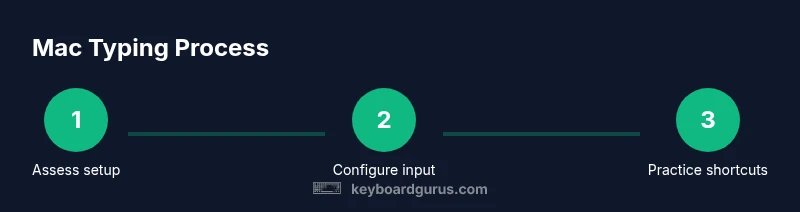
Assess your current setup
Inspect your current keyboard, posture, and desk layout. Note any frequent discomfort, typos, or hand strain. This baseline will guide which changes will matter most for your workflow.
Tip: Record a 60-second typing sample to track improvements later. - 2
Enable and tune key repeat
Open System Settings > Keyboard and adjust Key Repeat speed and Delay Until Repeat until you can type smoothly without accidental repeats. Test by typing several lines of prose and adjust as needed.
Tip: Aim for a comfortable speed where your fingers don’t have to pause mid-word. - 3
Add and manage input sources
Add ABC (US) and US-International (or your language layout). Learn the toggle method (e.g., Control-Space or Command-Space) and practice switching without looking at the menu.
Tip: Practice spelling a few sentences in each input source to build flow. - 4
Create one or two essential shortcuts
In System Settings > Keyboard > Shortcuts, assign quick access to frequently used actions (e.g., launch a writing app, start a template, toggle input source).
Tip: Limit to 2–3 core shortcuts to avoid confusion. - 5
Set up Text Replacement
Under System Settings > Keyboard > Text, add high-frequency phrases you type often. Use short triggers (e.g., 'addr' → your full address).
Tip: Start with 5–10 replacements and expand as you go. - 6
Explore automation for repetitive tasks
Experiment with the Shortcuts app or Automator to build a simple workflow that runs when you open a document template or start a project.
Tip: A single shortcut can automate repetitive formatting or insertion tasks. - 7
Practice daily typing drills
Use a consistent 10–15 minute routine every day. Focus on hitting key shortcuts smoothly while maintaining posture.
Tip: Track your speed and accuracy to observe progress over 2–4 weeks. - 8
Review ergonomics and adjust
Check chair height, monitor alignment, and keyboard tilt. Make minor adjustments to reduce strain and improve rhythm.
Tip: Take micro-breaks every 20–30 minutes to reset posture.
Got Questions?
What is the best input source for English typing on a Mac?
For English typing, ABC (US) is the standard layout. If you occasionally type accented words, add US-International to access diacritics directly. Switch between them with the chosen toggle shortcut.
ABC US is the default, and you can add US-International for accents. Use your toggle shortcut to switch quickly.
How do I customize keyboard shortcuts on macOS?
Open System Settings > Keyboard > Shortcuts. Choose a category, then assign a new keystroke to a menu item or action you use often. Test the shortcut to ensure it doesn’t conflict with existing ones.
Go to Settings, find Shortcuts, set your preferred keystroke, and test it in a few apps.
Can I switch layouts quickly without using the menu bar?
Yes. Set a keyboard shortcut to toggle input sources (for example, Control-Space). Practicing will make the switch feel instant.
Enable a quick toggle again and practice switching a couple of times to build muscle memory.
How can I improve typing speed on Mac without sacrificing accuracy?
Combine regular practice with a stable keyboard setup and minimal shortcut clutter. Start with a few core shortcuts, slowly expand as you gain confidence.
Practice daily with a few key shortcuts and focus on accuracy first, then speed.
Is text replacement safe to use for sensitive data?
Text replacements are stored on your device. Use unique triggers and avoid exposing sensitive data in templates.
Yes, replacements stay on your Mac; avoid mixing personal data into generic phrases.
Do I need an external keyboard for Mac typing?
Not strictly required, but many users find external keyboards more comfortable for long sessions and faster rhythm.
An external keyboard isn’t mandatory, but it often improves comfort and speed for frequent typists.
Watch Video
What to Remember
- Master macOS shortcuts to boost productivity
- Configure and toggle input sources efficiently
- Use text replacement to speed up routine writing
- Customize a small set of shortcuts for consistency
- Prioritize ergonomics to sustain long typing sessions