Where to Find Keyboard on Screen: A Practical Guide
Learn where to find the on-screen keyboard across Windows, macOS, iOS, Android, Chrome OS, and Linux. Step-by-step enablement, tips, and accessibility considerations for users and enthusiasts.


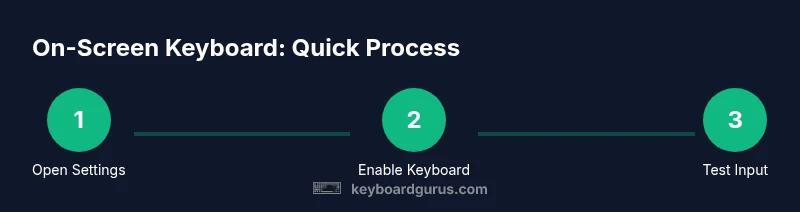
To find and enable the on-screen keyboard, use your device’s accessibility settings. Across Windows, macOS, iOS, Android, Chrome OS, and Linux, open the input or accessibility options and toggle the on-screen keyboard. Once enabled, you can summon it from the system menu or a shortcut. According to Keyboard Gurus, this feature improves accessibility and typing flexibility on many devices.
What is the on-screen keyboard and when to use it
The on-screen keyboard is a software keyboard that appears on your screen, allowing you to type with a mouse, trackpad, or finger on touch devices. It is essential when a physical keyboard is unavailable, your device is shared, or you need accessibility improvements such as reduced finger movements. The on-screen keyboard also serves as a convenient option for testing new input layouts or shortcuts without changing your hardware setup. According to Keyboard Gurus, understanding where to find and how to enable this tool helps users maintain productivity across Windows, macOS, iOS, Android, Chrome OS, and Linux. The Keyboard Gurus Team notes that the on-screen keyboard is a core accessibility feature that complements assistive technology and can be customized to suit different input needs. When used well, it enables you to type faster with fewer mistakes and can be invaluable for users with motor control challenges. Next, we’ll map out how to locate and enable the feature on the major platforms you rely on daily.
Quick platform snapshot: Windows, macOS, iOS, Android, Chrome OS, Linux
Across modern operating systems, the on-screen keyboard is generally available under accessibility or input settings. Windows stores the toggle in Ease of Access or the quick-keys panel; macOS presents a Keyboard Viewer that you can enable from the menu bar; iOS and Android expose on-screen typing through accessibility shortcuts and language settings; Chrome OS places a toggle in the Accessibility section; Linux desktop environments like GNOME offer an on-screen keyboard as a separate app. While the exact name and location vary, the pattern is the same: find accessibility or input options, enable the feature, and optionally set a convenient shortcut. Keyboard Gurus analysis shows broad cross-platform support, with most devices allowing quick access from a system tray or menu bar. If you are new to this, start by locating the settings icon and searching for “keyboard” or “on-screen keyboard” to accelerate discovery. Additionally, consider testing the keyboard in a text field to confirm it appears reliably before relying on it for critical tasks.
Windows: how to locate and enable the on-screen keyboard
Windows 10 and Windows 11 provide a robust on-screen keyboard that is easy to enable and customize. Start by opening Settings > Ease of Access > Keyboard, then switch on the On-Screen Keyboard toggle. For convenience, you can press Windows key + Ctrl + O to toggle it on or off, and you may see a keyboard icon in the taskbar where you can adjust size and layout. On tablets or hybrid devices, tapping a text field often triggers the keyboard automatically. After enabling, experiment with different sizes, layouts, and language packs to match your workflow. Keyboard Gurus highlights that mastering the shortcut saves time when you need to type quickly in public or shared environments.
macOS: locate and enable Keyboard Viewer
macOS ships with a dedicated Keyboard Viewer that can act as the on-screen keyboard for most tasks. To enable it, open System Settings (or System Preferences in older macOS) > Keyboard, and check the box for “Show keyboard and emoji viewers in menu bar.” From the menu bar, click the input icon and choose “Show Keyboard Viewer.” You can leave the viewer open for quick access or trigger it as needed with a shortcut. The viewer supports multi-language layouts and can be resized for readability. If you pair the on-screen keyboard with VoiceOver or other accessibility tools, you’ll gain a powerful combination for inclusive computing.
iOS and iPadOS: enabling the on-screen keyboard for accessibility
On iPhone and iPad, the on-screen keyboard is the primary input method when you tap a text field. If you need enhanced accessibility, explore Settings > Accessibility and review options under Keyboards and Interaction. Ensure you have a keyboard available in the app you’re using and consider enabling features like larger keys or a one-handed layout when typing with a larger device. While iOS doesn’t require a separate toggle for the basic on-screen keyboard, you can customize keyboards, enable third-party layouts, and test typing in Messages or Notes to confirm behavior.
Android: enabling the on-screen keyboard (Gboard and system keyboard)
Android devices vary by vendor, but most ships with a system or third-party keyboard (like Gboard) that can be enabled from Settings > System > Languages & input > On-screen keyboard (or Virtual keyboard). Select the active keyboard and customize the layout, theme, and input language. If you don’t see your keyboard, install it from the Google Play Store and enable it in the same menu. For tablets, you may also adjust the keyboard height and one-handed mode to improve comfort while typing.
Chrome OS and Linux: finding the on-screen keyboard in settings
Chrome OS provides a straightforward route: Settings > Accessibility > On-screen keyboard to toggle the feature on. The keyboard can be summoned from the shelf or used in any text field. Linux users on GNOME or KDE can install an on-screen keyboard app like Onboard or Floris, then enable it from your accessibility or productivity tools. If you use a minimal window manager, ensure the chosen on-screen keyboard has focus and can draw above other windows. Keyboard Gurus emphasizes testing across apps to ensure the keyboard remains responsive in your most-used software.
Tips to use the on-screen keyboard efficiently
- Always test typing in a safe document to verify that focus and input are behaving as expected.
- Customize the keyboard size or layout to reduce hand strain and improve accuracy.
- Learn and use any built-in shortcuts to summon or hide the keyboard quickly.
- Pair the on-screen keyboard with accessibility features like dictation or voice input for hybrid workflows.
Accessibility customization: size, layout, and shortcuts
Beyond basic enablement, the on-screen keyboard can be tailored for accessibility. Adjust key size, spacing, and contrast for readability. Some platforms offer split or compact layouts for one-handed typing, as well as language packs to support bilingual or multilingual tasks. Shortcuts and quick-launch options—such as a dedicated key or system menu entry—can speed up access during long sessions or when assisting others with device-sharing needs.
Tools & Materials
- Device with a compatible OS(Windows 10/11, macOS, iOS, Android, Chrome OS, or Linux, with administrative access if needed)
- Mouse, trackpad, or touch input(Used to interact with the on-screen keyboard)
- Internet connection (optional)(Useful for downloading keyboard apps or updates, not strictly required for built-in options)
- Updated OS(Keeping the OS version current helps ensure compatibility and reliability)
Steps
Estimated time: 15-25 minutes
- 1
Identify your operating system
Confirm whether you’re on Windows, macOS, iOS, Android, Chrome OS, or Linux. This determines where to look in settings and which shortcuts are available.
Tip: If unsure, check Settings or System Information to confirm the OS version. - 2
Open the correct settings panel
Navigate to the accessibility or input settings for your OS. On Windows, look in Ease of Access; on macOS, use Keyboard preferences; on mobile, check Accessibility or Language & Input options.
Tip: Use the built-in search in Settings by typing 'keyboard' to reach the right panel quickly. - 3
Enable the on-screen keyboard
Toggle the On-Screen Keyboard (Windows), Keyboard Viewer (macOS), or the equivalent on mobile and Linux. Ensure the feature remains enabled for reuse.
Tip: If you don’t see it, try restarting the device or checking for a parent-protection setting that hides on-screen input. - 4
Configure basic options
Adjust size, layout, language, and theme if available. This helps you tailor the keyboard to your hand size and typing style.
Tip: Test in a text field and switch layouts (e.g., QWERTY vs. DVORAK) to find the most comfortable setup. - 5
Set a quick-launch shortcut
Add or memorize a shortcut to summon the keyboard (e.g., Windows key + Ctrl + O). Shortcuts speed up access when you’re multitasking.
Tip: Label the shortcut in your notes or a quick-reference card for easy recall. - 6
Test typing in a live app
Open a messaging app or document editor and type a short paragraph to verify responsiveness and accuracy.
Tip: If you notice key lag, close and reopen the keyboard or update the OS/app. - 7
Troubleshoot appearance issues
If the keyboard doesn’t appear, check app focus, full-screen modes, or privacy screens that might block overlays.
Tip: Try toggling the feature off and on again or testing in a different app to isolate the issue. - 8
Explore apps for extended features
On Linux or Android, you can install alternative on-screen keyboards with extra layouts or theming. Experiment to find the best fit.
Tip: Keep a backup keyboard installed in case you want to switch for specific tasks. - 9
Document your preferred setup
Save your settings and shortcuts in a small guide so you can replicate the configuration on other devices or share with teammates.
Tip: Create a one-page cheat sheet with device-specific steps.
Got Questions?
What is the on-screen keyboard and why would I use it?
The on-screen keyboard is a software keyboard that appears on screen to type with a mouse, touch, or stylus. People use it when a hardware keyboard isn’t available, during accessibility testing, or when sharing devices. It complements other assistive tools.
The on-screen keyboard is a software keyboard you can use with a mouse or touch, handy when hardware typing isn’t possible. It’s a useful accessibility option and pairs well with other assistive tools.
Which operating systems support an on-screen keyboard?
All major modern platforms—Windows, macOS, iOS, Android, Chrome OS, and Linux—include some form of on-screen keyboard, accessible via settings or system menus.
Windows, macOS, iOS, Android, Chrome OS, and Linux all offer an on-screen keyboard accessible through settings.
How do I quickly summon the Windows on-screen keyboard?
On Windows, you can toggle the on-screen keyboard via Settings > Ease of Access > Keyboard, or press Windows key + Ctrl + O for a quick toggle.
Use Windows key + Ctrl + O or toggle it in Settings under Ease of Access.
Can I customize the on-screen keyboard’s size or layout?
Yes. Most platforms let you adjust key size, spacing, language, and layout inside the keyboard’s settings. Try different layouts to match your typing style.
You can adjust size, layout, and language in the keyboard settings to fit your typing style.
What should I do if the on-screen keyboard won’t appear?
Verify the correct settings panel, ensure the app has focus, and check for full-screen or privacy screen blockers. Restart the keyboard or device if needed.
Make sure you’re in a text field, check focus and full-screen modes, then reboot the keyboard or device if it still won’t appear.
Is the on-screen keyboard secure for public-device use?
On-screen keyboards are generally as secure as the device they run on, but be aware of screen peeking on shared devices and consider using private input methods where possible.
It’s usually secure on the device, but be cautious of prying eyes on shared screens and use privacy features when available.
Watch Video
What to Remember
- Identify your OS to locate the right settings
- Enable and customize the keyboard for your needs
- Use shortcuts to speed up access
- Test in real apps to ensure reliability
- Leverage accessibility features for inclusive use