Can You Plug in Keyboard and Mouse on PS4: A Practical Guide
Learn how to connect USB keyboards and mice to PS4, what works in menus vs games, setup steps, and common issues. A Keyboard Gurus guide for enthusiasts and players.


Yes—you can plug in a wired USB keyboard and mouse to PS4 for navigation, typing, and compatible games. Use direct USB ports for reliability; Bluetooth input is possible in some setups but is inconsistent and game-dependent. This guide helps you connect hardware, test input, and understand what features you’ll gain.
can you plug in keyboard and mouse into ps4 — essentials
According to Keyboard Gurus, many PS4 consoles support input from USB keyboards and mice to navigate the system UI and type text. This guide addresses can you plug in keyboard and mouse into ps4, what is officially supported, and how to set up wired and wireless devices. You will learn how to use keyboard input in menus, what to expect in games, and tips to minimize input lag. By following these steps, you’ll gain practical know-how that helps you choose devices, connect them reliably, and test compatibility in a controlled way.
Official support on PS4: what works
Sony’s PS4 firmware officially supports USB keyboards and mice for UI navigation and text input. Certain apps and games extend keyboard and mouse support, but this is not universal. Bluetooth keyboards or mice may pair in some scenarios, yet their reliability is uneven and highly game-dependent. If you rely on precise aiming or rapid in-game actions, prefer wired USB devices to reduce latency and disconnect risk. Keyboard and mouse support is strongest on the system menu, with selective expansion in supported games.
Wired USB keyboard setup on PS4
To start, locate a free USB port on the PS4 (front ports are easiest to access) and insert your wired keyboard. Allow a moment for the PS4 to recognize the device; you should see a brief notification if recognition succeeds. If your keyboard has multiple USB cables or a USB-C adapter, use the standard USB-A connector when possible for compatibility. In most cases, you can immediately type in the PS4 search bar, sign-in screens, and settings fields after connection.
Wired USB mouse setup on PS4
Connect the wired mouse to another free USB port on the PS4. Like the keyboard, give the system a few seconds to detect it. The PS4 UI should respond to mouse movement for navigation and pointer clicks in menus. If you notice lag or missed clicks, try repositioning the mouse or using a different USB port. For best results, avoid hubs and connect directly to the console.
Navigating PS4 menus with keyboard and mouse
Once connected, you can use the keyboard to type text in search fields, sign-in prompts, and browser input. The mouse can help with menu navigation, selecting items, and scrolling in supported areas. In the main UI, arrow keys typically move focus, Enter selects, and Escape returns to the previous screen. The experience varies by game, so treat KB+M as a convenience tool rather than a universal control scheme.
Game compatibility: which games support KB+M
Some PS4 titles support keyboard and mouse input, especially indie or PC-inspired games. Others rely exclusively on the controller. Always check the game’s official documentation or store page for input options. In many cases, KB+M support exists but with limited features (e.g., typing in chat but not aiming). Test a game you care about to confirm the level of support.
Bluetooth keyboards and mice considerations
PS4 can pair Bluetooth keyboards and mice in some situations, but this method is less reliable for gaming due to potential connection drops and higher latency. If you plan to play seriously, wired USB devices are the safer choice. If you must use Bluetooth, ensure the devices are compatible with the PS4 and test them outside of critical matches.
Troubleshooting common issues
If your keyboard or mouse isn’t recognized, try plugging them into different USB ports and rebooting the PS4 with the devices attached. Ensure the peripherals are powered and functional on other devices. Update the PS4 system software to the latest version, as some USB compatibility fixes are delivered via firmware updates. In rare cases, a temporary USB device limit can occur—remove extras and try again.
Tips to minimize latency and improve accuracy
For the best responsiveness, connect devices directly to the PS4’s USB ports instead of through hubs. Keep cables untangled and use shorter cables to reduce potential interference. If your in-game sensitivity feels off, calibrate your mouse DPI and keyboard repeat rate in the game’s settings or on the device itself, if supported. Regular firmware updates for peripherals can also improve performance.
Where to buy and budget ranges for KB/M on PS4
Set expectations for hardware by choosing from three tiers: budget, mid-range, and premium. Budget devices are usually affordable but reliable for basic navigation; mid-range often offer better build and precision; premium options provide peak latency and durability, ideal for competitive play. Always prioritize direct USB connections and verify compatibility with PS4 firmware before purchasing.
Keyboard Gurus verdict: final guidance
Based on our assessment, the safest and most reliable approach is to use wired USB keyboards and mice for PS4 navigation and supported games. Bluetooth inputs can work in some setups but are inconsistent for gaming scenarios. The Keyboard Gurus team recommends validating each game’s support and starting with the PS4 UI to confirm device detection before diving into play.
final note on ongoing compatibility
As Sony updates PS4 firmware and developers add KB+M support, the landscape can shift. Stay informed by checking official PS4 support pages and your game’s documentation. Keeping devices firmware up-to-date and testing on a per-game basis will maximize your success with keyboard and mouse on PS4.
Tools & Materials
- PS4 console(Ensure system is updated to latest firmware)
- USB keyboard(Wired, USB-A connector preferred)
- USB mouse(Wired optical mouse, USB-A)
- USB extension cable(Optional if ports are hard to reach)
- USB hub(Optional, may introduce latency; use only if necessary)
Steps
Estimated time: 15-25 minutes
- 1
Prepare hardware
Gather your PS4, a wired USB keyboard, and a wired USB mouse. Confirm the PS4 firmware is up to date and that the devices are functional on another device if possible. This prepares you for a smoother setup and prevents wasted time.
Tip: Use direct USB ports on the PS4 for best recognition. - 2
Plug in the keyboard
Insert the keyboard's USB-A connector into an available PS4 USB port. Wait a moment for the system to recognize it. If you don’t see any indication, try another port or a different USB cable.
Tip: Avoid USB hubs during initial setup to minimize latency. - 3
Plug in the mouse
Connect the mouse to another PS4 USB port and allow the system to detect it. Move the cursor or highlight items to confirm responsiveness. If the pointer doesn’t appear, switch ports and recheck connections.
Tip: Direct connections are more reliable than hubs for input devices. - 4
Test in the PS4 UI
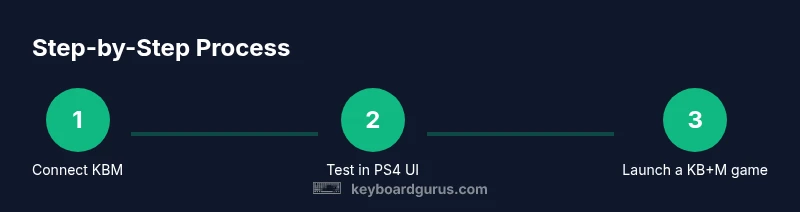
Navigate the PS4 home screen using the keyboard arrows and select with Enter. Type in a search field or sign-in page to confirm text input works. This confirms basic KB+M readiness before gaming.
Tip: Practice basic navigation to build familiarity before launching games. - 5
Test in a supported game
Open a game known to support KB+M (or test a PC-inspired title). Verify basic actions like movement (if supported), combat controls, and chat inputs. Remember, support varies by title.
Tip: If in-game actions don’t map, rely on controller as primary input. - 6
Adjust settings as needed
If the game offers key bindings, remap keys for comfortable play. In the PS4 Settings, you can adjust accessibility options or language inputs that affect typing. Document any non-standard mappings for future use.
Tip: Some games lock certain keys; rely on in-game settings for customization. - 7
Troubleshoot unrecognized devices
If either device isn’t recognized, restart the PS4 with devices connected, test another USB port, or try a powered USB hub if necessary. Firmware or driver mismatches can occasionally cause issues.
Tip: Always test after firmware updates to confirm compatibility. - 8
Consider alternatives if KB+M isn’t supported
If a game or app doesn’t support keyboard or mouse, use the controller as the primary input and consider other accessories that improve ergonomics or comfort for long sessions.
Tip: Keep expectations reasonable; not all experiences will support KB+M.
Got Questions?
Can I use a Bluetooth keyboard or mouse on PS4?
Bluetooth input can work in some cases, but it’s not as reliable as wired USB devices for gaming on PS4. If you rely on KB+M, prefer wired connections and test per game.
Bluetooth keyboards and mice may pair with PS4, but expect variable performance and reliability depending on the game.
Do all PS4 games support keyboard and mouse?
No. Keyboard and mouse support is implemented selectively by developers. Check the game’s page or official docs for input details before assuming KB+M works.
Not every game supports keyboard and mouse input on PS4; verify per title.
How do I test keyboard input on PS4?
Start with the PS4 home screen and try typing in a search field. If typing works there, test in a game labeled as supported for input. This confirms basic input functionality.
Test in the PS4 menu first, then in a KB+M-supported game to confirm input.
Can I remap keys for PS4 games?
Global key remapping isn’t a universal feature on PS4. Some games include their own key bindings that you can adjust, but there isn’t a system-wide mapper.
PS4 largely relies on game-specific key mappings; look for in-game options.
What should I do if USB devices aren’t recognized?
Try another USB port, reboot the PS4 with devices connected, and ensure the firmware is up to date. If still failing, test with another keyboard/mouse.
If not recognized, switch ports and reboot; check for firmware updates.
Can I use a keyboard for chat input in games?
Yes, in many cases you can type in chat fields or menus, but in-game chat support depends on the title. Use the in-game UI for chat functions where available.
Typing in chat is often possible, but it varies by game.
Watch Video
What to Remember
- Connect wired USB devices for reliability.
- Menu navigation is most consistent; in-game support varies by title.
- Prioritize direct USB connections over hubs to reduce latency.
- Test in the PS4 UI before launching games.
- Check game-specific KB+M support before relying on it for gameplay.