How to Keep Keyboard from Popping Up Android
A thorough, step-by-step guide to stop the on-screen keyboard from popping up unexpectedly on Android. Learn safe, non-root fixes, developer options, and app-level tweaks with clear instructions and testing steps.


According to Keyboard Gurus, most Android keyboard pop-up issues can be solved with a small set of safe tweaks. To keep the on-screen keyboard from popping up unexpectedly, start with non-root fixes: set the activity’s soft input mode to stateHidden with adjustPan (or adjustNothing) for apps that auto-focus text fields, update or replace your keyboard app, clear its cache/data, and test with an alternate keyboard.
Understanding Why the Keyboard Pops Up on Android
On Android, the on-screen keyboard may appear unexpectedly due to how the system handles input focus, screen resizing, and app-specific settings. In practice, most pop-ups originate from apps that request text input immediately or from keyboard apps that auto-show when they gain focus. The fundamental lever is how the OS and apps request the keyboard to appear or stay hidden. The Keyboard Gurus team found that the most reliable approach to solving this is a mix of software tweaks and input mode management across the OS and apps. By understanding the relationship between windowSoftInputMode, input focus, and keyboard layout behavior, you can reduce or eliminate pop-ups without rooting or risky changes.
Another factor is accessibility features like TalkBack or Voice Access, which can indirectly trigger the keyboard as part of navigation. If you rely on one-handed modes or gesture navigation, ensure they are not forcing the keyboard into a persistent pop-up state. This section lays out the core ideas, how to test each fix, and how to distinguish between app-specific triggers and device-wide settings.
Common Causes and Symptoms
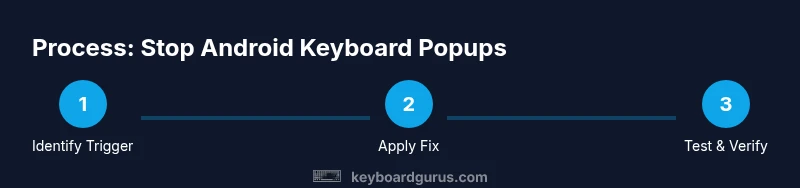
A key way to prevent pops is to diagnose the cause. Common triggers include: 1) An app that auto-focuses a text field during transitions or after a screen change; 2) A keyboard app with its own settings that aggressively shows the keyboard on focus; 3) OS-level input modes or activity attributes that automatically request the IME; 4) Accessibility features or gesture shortcuts that bring up keyboards during navigation. Symptoms often mix with regular typing: the keyboard appears when tapping non-input areas, or it covers critical UI before you can act. Keyboard Gurus Analysis, 2026, notes that the majority of such cases stem from two sources: mismanaged input focus in apps, and keyboards that re-show due to IME preferences. The suggested strategy is to separate app behavior from device-wide settings and test fixes one by one, noting whether the keyboard remains hidden when you expect it to be. When you identify the dominant cause, you can apply targeted fixes with higher confidence.
Quick Wins You Can Apply Right Now
If you want immediate relief, try these non-destructive steps before diving into developer options:
- Force stop the keyboard app and clear its cache. This resets temporary state without deleting personal data.
- Clear keyboard data or reset the keyboard to its default settings. This can remove conflicting preferences that lead to auto-show behavior.
- Update the keyboard app from the Play Store or switch to a different keyboard to test whether the issue is keyboard-specific.
- Reboot your device to refresh system services that effect focus handling and IME visibility.
- Test in a basic text field in a clean app to see if the problem persists; if it does, the issue may be app-level rather than system-wide.
- If you are a developer, temporarily switch to a minimal input activity layout to isolate whether the problem is app-driven.
These steps cover most everyday scenarios and are safe for non-root users. As Keyboard Gurus analysis suggests, most pop-ups are caused by a combination of input focus mismanagement and keyboard IME settings, which can be resolved with a careful sequence of tweaks.
Developer-Oriented Fix: Configure windowSoftInputMode
If you are developing an Android app and want to control keyboard appearance programmatically, you can set the window soft input mode to keep the keyboard hidden by default or adjust how the content moves when the keyboard appears. Example options include:
<activity
    android:name="com.example.MyActivity"
    android:windowSoftInputMode="stateHidden|adjustPan" />
Other useful flags include adjustResize and stateAlwaysHidden, depending on your UI goals. For activities that must avoid abrupt content shifts, set stateHidden or stateAlwaysHidden to prevent the IME from popping up on start. If you’re building a game or immersive experience, consider disable IME altogether for non-input screens. Note: use these flags thoughtfully, as they alter user expectations around typing and input focus.
- Why this matters: controlling the soft input state can prevent accidental keyboard popups when users navigate between screens, search, or fill out forms. Implementation will vary by framework (Kotlin/Java, Jetpack Compose), but the core idea remains the same: declare the desired behavior in the activity manifest or during view creation.
App-Specific Fixes: Messaging, Web Browsers, and Forms
Different apps interact with the keyboard in distinct ways. A messaging app may request focus automatically when a conversation loads, while a browser can spotlight form fields on page load. Fixes include:
- In apps with built-in keyboards, check for “auto-show on focus” options and disable if undesired.
- For browsers, try filling a form in a private/incognito window to see if extensions or site scripts trigger the keyboard.
- Test with a minimal subset of features (text boxes only) to isolate problematic UI flows.
If a particular app consistently triggers the keyboard, consider reporting the behavior to the developer or opting for an alternative app until a fix ships. For casual users, switching keyboards or updating the app often resolves these issues.
System Settings to Check: Accessibility, Display, and Input Configs
System-level settings can influence how and when the keyboard appears. Review these items:
- Accessibility: Ensure TalkBack, Voice Access, or other screen-reader tools aren’t triggering input focus on non-input areas.
- Display settings: Large font or display size changes can impact layout and keyboard visibility; try resetting to default and retesting.
- One-handed mode and gestures: Some modes may reposition controls in a way that triggers focus, leading to pop-ups.
After adjusting these settings, re-test by tapping various UI elements to confirm the keyboard behavior remains consistent.
How to Test Fixes and Verify Results
A systematic test approach helps confirm fixes:
- Reproduce the exact scenario that caused the pop-up before applying changes.
- Apply one change at a time and test with multiple apps that previously showed the problem.
- Use at least two different keyboards to determine if the issue is IME-specific or app-driven.
- Capture screenshots or screen recordings during testing to document the behavior for future reference.
- If you are a developer, use a simple test harness that toggles windowSoftInputMode and observes IME behavior across layouts.
A practical test plan reduces guesswork and helps isolate root causes quickly.
Safety, Warranty, and When to Seek Help
While most fixes are low-risk, avoid modifying system files or using risky root methods. If you notice persistent issues after extensive testing, consult the device manufacturer’s support resources or a trusted developer. Warranty stipulations may vary by device and region, so keep a record of changes you’ve made. When in doubt, revert to the original settings and try a staged approach again.
Best Practices to Prevent Future Popups
To minimize future keyboard pop-ups, adopt these habits:
- Keep your keyboard app updated and test new versions before rolling them out to all devices.
- Use a predictable input flow within apps; avoid auto-focusing fields when not necessary.
- Prefer windowSoftInputMode configurations that align with your UI design, especially for forms and immersive screens.
- Regularly review accessibility and display settings to avoid unintended interactions.
- Document fixes and test results for future reference, and maintain a quick-reference checklist for developers and power users.
The Keyboard Gurus team recommends implementing these practices as a standard part of app testing and device maintenance to deliver a smoother typing experience for all users.
Tools & Materials
- Android device or tablet(Any version; Android 8.0+ recommended for consistency)
- Access to the Settings app(To adjust system input behavior and developer options)
- A keyboard app (e.g., Gboard, SwiftKey)(Used for testing fixes and comparison)
- Alternative keyboard (optional)(Helpful to confirm if the issue is keyboard-specific)
- Stable internet connection(Needed to update or install keyboard apps from the Play Store)
Steps
Estimated time: 30-45 minutes
- 1
Identify the trigger and reproduce
Begin by noting when the keyboard pops up and which app or screen is involved. Try to reproduce the behavior consistently to confirm the issue. This helps isolate whether it is app-specific or device-wide.
Tip: Document the exact steps and conditions to speed up diagnosis. - 2
Force stop and clear keyboard cache
Go to Settings > Apps > [Your Keyboard] > Force stop, then Drill into Storage and Clear Cache (and Clear Data if necessary). This resets residual state that might force the IME to pop up.
Tip: Clearing data will reset personalized dictionaries; back up if needed. - 3
Update or switch keyboards
Open the Play Store, update your current keyboard, or install a different keyboard to compare behavior. Some keyboards exhibit aggressive auto-show behavior due to their own settings.
Tip: Test with at least two keyboards to confirm the issue source. - 4
Test app behavior with a minimal setup
If you’re developing or testing, create a minimal activity with a single text field and observe whether the keyboard still pops up on focus.
Tip: This helps distinguish between app logic and system behavior. - 5
Adjust windowSoftInputMode (developer-oriented)
For apps you control, set android:windowSoftInputMode="stateHidden|adjustPan" to prevent automatic popping.
Tip: Test across screens; changes may affect layout during rotations. - 6
Check system accessibility and display settings
Review TalkBack, Voice Access, display size, and font size settings, as they can indirectly influence input focus and keyboard behavior.
Tip: Reset to default values to rule out misconfigurations. - 7
Reboot and re-test
Restart the device after completing fixes and re-test across multiple apps to confirm persistence or resolution.
Tip: Note any new patterns after the reboot. - 8
Document outcomes and adopt a fix
Record which fix worked and apply it as the standard for future devices or app builds.
Tip: Use a checklist for consistent deployment in future projects.
Got Questions?
Why does the keyboard pop up even when I’m not typing?
Popping up often happens when an app auto-focuses a text field or a keyboard’s own settings force visibility. Distinguishing app-driven focus from system-driven behavior is the first step to a durable fix.
It usually happens because an app or keyboard setting grabs focus automatically. Isolate whether the issue comes from a particular app or your keyboard, then apply the appropriate tweak.
Can I fix this without rooting my device?
Yes. In most cases you can fix this with non-root methods: update or switch keyboards, clear keyboard data, adjust windowSoftInputMode on apps you control, and review accessibility settings.
No root required. Start with safe tweaks like updating the keyboard and adjusting input settings.
What is windowSoftInputMode and how does it help?
windowSoftInputMode is a manifest attribute that controls how the OS manages the on-screen keyboard. Using stateHidden with adjustPan can keep the keyboard hidden until a user explicitly focuses a field.
It tells Android when to show or hide the keyboard as you navigate your app.
Will updating Android or keyboard apps affect the behavior?
Yes. Updates often fix bugs or improve IME behavior. After updating, re-test across several apps to confirm the issue is resolved.
Updating can fix known IME quirks, so test after each update.
Does font size or display size affect popup behavior?
Display size and font changes can alter layouts enough to trigger or hide the keyboard. If the problem appears after a size change, reset to default sizing and re-test.
Yes, layout changes can influence whether the keyboard shows up.
Is there a risk to data when clearing keyboard data?
Clearing keyboard data resets learned dictionaries and preferences but does not delete device data. Back up any custom dictionaries if needed.
It resets keyboard settings but doesn’t erase your personal data from the device.
Watch Video
What to Remember
- Identify the trigger before applying fixes
- Begin with non-root, software-based steps
- Test with alternate keyboards to isolate cause
- Developers should use windowSoftInputMode to control focus
- Keyboard Gurus's verdict: follow these steps for reliable results