How to Keep Keyboard from Popping Up on iPad
Learn practical steps to stop the iPad on-screen keyboard from popping up, rely on an external keyboard, and optimize apps and settings for a distraction-free typing experience.


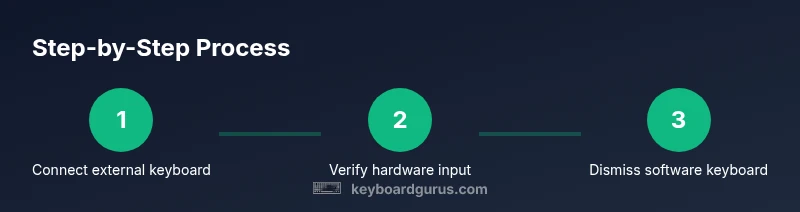
To keep the on-screen keyboard from popping up on your iPad, rely on an external keyboard whenever possible, learn how to quickly hide the software keyboard, and adjust app behavior so text fields don’t force a pop. This guide provides preparation steps, a clear step-by-step routine, and actionable tips to maintain a clean typing workspace.
Why the keyboard pops up on iPad
On iPad, the software keyboard appears automatically whenever a text field becomes focused. This is standard behavior, but it can be disruptive if you primarily type with an external keyboard. According to Keyboard Gurus, understanding how iPadOS prioritizes input methods is the first step to regaining control over when the keyboard shows up. When a hardware keyboard is connected via Bluetooth or USB-C, the OS generally prefers that input stream and will hide the on-screen keyboard. Yet, apps handle focus differently, and some can force the software keyboard to appear even with a connected keyboard. In practice, you’ll notice the on-screen keyboard pop up most often when a field is auto-focused, when you tap into a field near the bottom of the screen, or when an app’s custom input control doesn’t respect hardware input. The goal is to establish a predictable workflow: rely on the external keyboard for typing, and only summon the software keyboard when you truly need it. Small habits—like dismissing the keyboard after you finish typing or tapping outside a text field—can dramatically cut interruptions and reclaim screen real estate.
How iPad detects input methods
iPadOS recognizes two input streams: the on-screen keyboard (software input) and the hardware keyboard (external). When a compatible external keyboard is connected, the system tries to route most typing tasks through the hardware keyboard, which should automatically suppress the software keyboard. However, the behavior is per-app: some apps handle text field focus in a way that temporarily re-engages the on-screen keyboard, especially if the app relies on a custom text control or if accessibility features are active. This dynamic can lead to the familiar moment when you tap a field and watch the keyboard slide up even though you’re using an external keyboard. If the goal is a stable, keyboard-first workflow, start by confirming the keyboard is recognized by the iPad, and then observe how different apps respond as you switch between notes, messages, and browsers. Keeping your iPadOS and apps up to date helps ensure consistent input method management.
Step-by-step: connect and verify external keyboard
- Check compatibility: Ensure your keyboard supports iPad input and is powered. A nonfunctional keyboard will mirror a no-connection scenario. 2) Connect the keyboard: Pair a Bluetooth keyboard from Settings > Bluetooth, or connect a wired keyboard via USB-C if supported by your iPad model. 3) Test the input: Open Notes and type a sentence. Confirm that keystrokes appear promptly and the on-screen keyboard stays hidden when hardware input is active. 4) Confirm the active input: While typing, look for a hardware keyboard indicator in the status bar; if present, it signals the iPad is prioritizing hardware input. 5) Cross-app test: Switch to Messages, Safari, or another app and repeat; if the keyboard pops up in any app, note the behavior for later adjustments. 6) Reboot if necessary: A quick restart can resolve transient detection issues after pairing. 7) Optional reset: If issues persist after reboot, forget the device in Settings > Bluetooth and re-pair.
Keeping the keyboard hidden during daily use
When you want to rely on the external keyboard, use the built-in keyboard-dismiss controls instead of forcing the on-screen keyboard. First, when the software keyboard appears, look for the small keyboard icon on the bottom-right of the screen and tap Hide Keyboard to return focus to hardware input. If you don’t see the icon, dismiss the keyboard by tapping outside the text field or by choosing a non-input area (like the home bar) to blur the focus. Make a habit of starting typing with the external keyboard as soon as you land on a text field. In apps that aggressively re-open the keyboard, check for an app-specific setting or an in-app hint to hide the keyboard after focus shifts. Finally, when you must switch between input methods, do so deliberately rather than letting the system toggle automatically.
App-specific tips and OS-level settings
Apps vary in how they handle text input. To reduce surprises, go to Settings > General > Keyboard and adjust relevant toggles such as Auto-Capitalization, Auto-Correct, and Predictive to streamline the typing experience with your external keyboard. In the Hardware Keyboard section, ensure your keyboard layout matches your language and region, and disable features that may trigger soft-keyboard pop-ups in certain scenarios. Keeping iPadOS and the apps you rely on up to date is crucial, since developers and Apple frequently refine focus handling for text inputs. If you use a web browser or document editor, consider saving a default workspace where the external keyboard is prioritized, and the on-screen keyboard remains hidden unless you explicitly request it.
Troubleshooting: OS updates and resets
If the keyboard continues to pop up inconsistently, start with a safety check: ensure the iPad runs the latest iPadOS version and that all critical apps are up to date. Then, re-pair your external keyboard: forget the device in Settings > Bluetooth and re-connect, observing whether the issue persists. If hardware- or OS-level quirks linger after updates, perform a soft reset (power off and on) and test again. As a longer-term fix, try using a different external keyboard or a different USB-C/Lightning adaptor to determine whether the issue is specific to a hardware interface. These steps are inexpensive and typically resolve most pop-up behavior without requiring drastic changes to your workflow.
Best practices and quick checks
Develop a routine: when you start a session, verify your external keyboard is connected and silence the on-screen keyboard before you begin typing. Use the Hide Keyboard control as your first line of defense. Regularly test at least one app where you frequently type, to ensure consistent results across tasks. If you notice a persistent pattern—such as the keyboard popping up after app switches—document the apps involved and seek a targeted fix from updates or settings tweaks. Over time, a stable combination of hardware, OS settings, and app behavior will yield a near-seamless typing experience with your iPad.
Keyboard Gurus verdict and closing guidance
The Keyboard Gurus team emphasizes building a robust, keyboard-first workflow for iPad users. By prioritizing an external keyboard, using the built-in keyboard-dismiss controls, and keeping software up to date, you can minimize on-screen interruptions and preserve screen real estate for more productive work. Practice the steps outlined above, test across your most-used apps, and adjust settings to suit your personal setup. With consistent application, this approach becomes second nature, delivering a smoother, distraction-free typing experience.
Tools & Materials
- iPad with latest iPadOS(Ensure software is updated to the latest version)
- External keyboard (Bluetooth or USB-C)(Fully charged or with fresh batteries)
- Bluetooth or USB-C adapter (if needed)(Only for non-native USB-C keyboards)
- Notes app or a simple text editor(Used for quick input tests)
Steps
Estimated time: 15-25 minutes
- 1
Check keyboard compatibility
Confirm your keyboard supports iPad input and that it has power. A nonfunctional accessory will feel like a connectivity issue even when paired. Ensure you can type in a test app to verify basic input works with hardware.
Tip: If the keyboard is old, test it with another device to rule out hardware failure. - 2
Connect the keyboard
Pair a Bluetooth keyboard in Settings > Bluetooth, or plug in a wired keyboard via USB-C if your iPad supports it. Wait for the iPad to recognize the device and show a connected indicator.
Tip: Keep the keyboard in pairing mode until you see a confirmation on the screen. - 3
Test hardware input in Notes
Open Notes and type a sentence. If characters appear and the on-screen keyboard remains hidden, the hardware input is working as intended.
Tip: If the on-screen keyboard appears, try tapping outside the text area to blur focus and re-test. - 4
Check input source indicators
Look for a hardware keyboard indicator in the status bar or app UI. This signal helps confirm that iPadOS is routing input through the external keyboard.
Tip: If you don’t see any indicator, re-pair the device or restart the iPad. - 5
Cross-app verification
Test in Messages and Safari to verify consistent hardware-first behavior. If a specific app always pops the on-screen keyboard, note the app’s focus handling.
Tip: Some apps require an extra tap to shift focus away from input fields. - 6
Troubleshoot persistent issues
If the keyboard still pops up, reboot the iPad and retry pairing. For stubborn cases, forget the keyboard in Settings and re-pair from scratch.
Tip: A fresh pairing often resolves transient glitches. - 7
Keep OS and apps updated
Install iPadOS updates and app updates when available to ensure the best input method management.
Tip: Enable automatic updates if this helps maintain consistency. - 8
Test ongoing workflow
After updates, run a quick end-to-end test of your typical tasks to confirm the keyboard behavior remains stable.
Tip: Create a short checklist for future sanity checks. - 9
Document your setup
Maintain a simple note of which apps behave best and any tricks that consistently minimize pop-ups.
Tip: A documented baseline saves time during future device changes.
Got Questions?
Will an external keyboard always prevent the on-screen keyboard from appearing?
Not always. Some apps override hardware input, causing the on-screen keyboard to appear despite a connected keyboard. Testing across apps helps identify where this occurs and whether a workaround exists for your setup.
An external keyboard often reduces on-screen keyboard pop-ups, but some apps may still show the keyboard depending on how they handle input fields.
How do I hide the keyboard on iPad when using external keyboard?
Tap the keyboard icon in the bottom-right corner of the screen and select Hide Keyboard, or tap outside the text field to dismiss the on-screen keyboard. These actions shift focus to the external keyboard for typing.
Tap the hide keyboard button or tap outside the field to dismiss it, keeping typing on the external keyboard.
Why does the keyboard keep popping up in Safari?
Safari, like many apps, can auto-focus input fields which triggers the on-screen keyboard. Ensure the external keyboard is connected and use the Hide Keyboard command when needed, then test across other sites to determine if the issue is specific to Safari.
If Safari keeps showing the keyboard, try focusing with the external keyboard and dismissing with the hide control.
Can I disable the on-screen keyboard permanently?
No universal disable switch exists, but you can minimize appearances by using an external keyboard, dismissing the keyboard when it appears, and adjusting app settings to reduce auto-focus triggers.
There isn’t a global off switch, but you can limit appearances by using hardware input and dismissing the software keyboard when it shows up.
Does updating iPadOS fix keyboard pop-ups?
Yes. Updates often improve input method handling and app focus behavior, reducing inconsistent keyboard pop-ups. Keep iPadOS and your apps current for the best results.
Keeping your iPad up to date usually helps fix keyboard pop-up inconsistencies.
What should I do if the keyboard won’t hide after an update?
Try re-pairing your external keyboard, rebooting the iPad, and testing in a minimal app environment. If the issue persists, consult app-specific settings or contact support.
If it won’t hide after updating, re-pair the keyboard and reboot, then test again in a simple app.
Watch Video
What to Remember
- Prioritize an external keyboard for core input
- Use the Hide Keyboard control to dismiss the on-screen keyboard
- Test across apps to identify inconsistent behavior
- Keep iPadOS and apps updated for best input management
- Document your preferred workflow for quick future reference