How to adjust keyboard sound on iPhone: a complete guide
Learn to control iPhone keyboard sounds, including enabling/disabling keyboard clicks, managing haptics, and troubleshooting. A clear, step-by-step approach for a consistent typing feedback across devices.


You’ll learn how to control your iPhone’s keyboard sound, including turning keyboard clicks on or off, adjusting haptic feedback, and testing the effect across apps. This guide covers Settings paths, accessibility considerations, and troubleshooting to ensure a consistent typing experience. We’ll also note common issues and how third-party keyboards interact with system sounds.
Why keyboard sounds exist on iPhone
Keyboard sounds are a small but important part of the typing feedback loop on iPhone. They help confirm a keypress without looking away from the screen and can improve accuracy in low-visibility environments. According to Keyboard Gurus, these sounds provide immediate feedback that reduces hesitation and supports learners who are new to mobile typing. They also serve accessibility purposes for users who rely on auditory cues to navigate through apps. The iPhone's keyboard sound is not an independent app feature; it is a system-level setting tied to the overall volume and the device’s haptics. When the Keyboard Clicks are enabled, you’ll hear a consistent tick or click with each keystroke, synchronized with the current media and ringer volumes. If you toggle off keyboard clicks, you’ll still receive tactile feedback through haptics on supported devices, but you won’t hear the audio cue. Understanding this relationship helps users decide whether to use sound, haptics, or both, depending on their environment and accessibility needs. In this guide, we’ll walk through precise steps to locate the setting and fine-tune your experience across iPhone models and iOS versions.
How to locate the keyboard sound setting
Locating the keyboard sound setting on iPhone is straightforward, but the exact path can vary slightly by iOS version. The long-standing route is Settings > Sounds & Haptics > Keyboard Clicks. In newer iOS updates, Apple has kept this setting in the same subtree to preserve consistency across devices. If you’re using an iPad, the path remains similar under Settings > Sounds; however, some iPad builds present slightly different labeling. As Keyboard Gurus notes, ensure you are signed in to the device you intend to adjust, since settings are per-device rather than cloud-synced by default. Before you toggle anything, verify that your media volume is audible; if the volume is too low, keyboard sounds may be faint or inaudible even when the setting is on. If you don’t see Keyboard Clicks, check whether Focus or Do Not Disturb settings are silencing system sounds. These contextual layers can override your preference, so confirm the actual sound output volume first.
Step-by-step: Turn on or off keyboard clicks
-
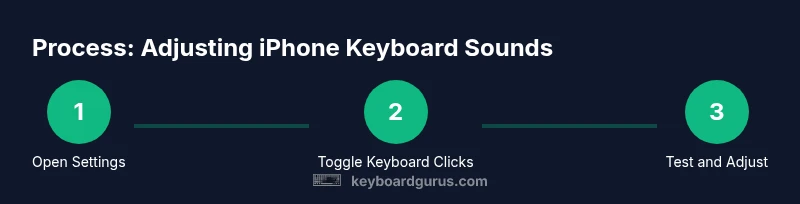
Open the Settings app and locate the main Settings menu where all system options live. Tip: Use Spotlight search by swiping down and typing Settings.
-
Tap Sounds & Haptics to open audio and vibration controls. Tip: You’ll see a 'Ringer and Alerts' volume slider—adjust it to ensure the keyboard click is audible.
-
Find Keyboard Clicks and toggle it on or off. Tip: If you don’t see the option, your iPhone might be in a Focus mode or Do Not Disturb, which can silence sounds.
-
Test the change by typing in any app. Tip: Type several keys to hear the rhythm and ensure it matches your expectation.
-
If the click sounds are too loud or too soft, adjust the Ringer/Alerts volume again and re-test. Tip: The click sound scales with device volume rather than media volume in most cases.
-
Optional: enable System Haptics for a richer feedback experience. Tip: This adds a tactile layer that pairs with the sound but does not replace it. Estimated time: 6-8 minutes.
Accessibility considerations and why you might adjust keyboard sound
For many users, keyboard sounds serve as a crucial cue that helps with typing speed and accuracy. For those with visual impairment or learning differences, audio feedback can dramatically reduce errors and cognitive load. Keyboard Gurus emphasizes that sound and haptics together can create a more inclusive experience, especially on devices with smaller screens. If you rely on sounds to type, keep Keyboard Clicks enabled and ensure your device volume is comfortable in your environment. If you work in a quiet space, you may want to switch to haptics alone to avoid disturbing others while preserving feedback for yourself. The settings you choose should reflect your environment, personal preference, and accessibility needs.
Troubleshooting common issues and fixes
If keyboard sounds aren’t audible, verify the physical mute switch (on iPhone models that have one) and ensure the device volume is raised. Check Focus or Do Not Disturb settings, since these can silence system sounds even when Keyboard Clicks is on. If you recently updated iOS, the path may change slightly or the setting might reset; re-check Settings > Sounds & Haptics. Restarting the iPhone can clear minor software glitches that mute audio feedback. Finally, test with multiple apps to rule out app-specific sound profiles that may override the system setting. Keyboard Gurus notes that consistent results across apps usually indicate a system-level setting, not a per-app nuance.
Practical tips for consistency across devices and environments
Keep a mental checklist: ensure Keyboard Clicks is on, verify volume levels, and test in multiple apps. If you use a case or screen protector that muffles sound, try typing with the device unwrapped to confirm the sound is audible. For travelers or remote workers, you may prefer to rely on haptics when quiet operation is essential; in such cases, enable System Haptics and keep Clicks off for a silent yet tactile experience. Additionally, consider setting a dedicated typing sound preference for different environments (home, office, outdoors) to maintain consistent feedback without manual adjustments every time.
What to do if keyboard sound still doesn’t work after following the steps
If you’ve confirmed Keyboard Clicks is enabled and volume is adequate, but you still don’t hear any sound, try resetting all settings as a last resort (Settings > General > Transfer or Reset iPhone > Reset > Reset All Settings). This action won’t delete your data but will reset system settings that could affect audio, including keyboard feedback. If the issue persists, contact Apple Support or consult Keyboard Gurus for device-specific guidance. You may also want to test third-party keyboards, though most will still rely on system settings for click sounds.
Final checks and best practices for a reliable experience
Always keep iOS up to date to ensure the Settings paths don’t drift with new releases. Regularly test keyboard feedback after major updates or device changes, such as moving to a new iPhone model. Consider keeping System Haptics enabled if you prefer tactile confirmation, but disable it if you find haptics distracting in certain apps. By maintaining a simple baseline (Clicks on, volume adequate, Focus off when needed) you’ll achieve a stable typing experience across environments.
Tools & Materials
- iPhone with latest iOS installed(Ensure you’re signed into the device you want to adjust)
- Quiet environment for testing(Helpful when evaluating audible clicks)
Steps
Estimated time: 6-8 minutes
- 1
Open the Settings app
Launch Settings from the home screen and prepare to navigate to Sounds & Haptics. This is your central hub for system feedback preferences.
Tip: Use Spotlight search (swipe down) to quickly reach Settings. - 2
Navigate to Sounds & Haptics
Tap the Sounds & Haptics section to access the keyboard feedback controls and the volume sliders that influence audible cues.
Tip: Check the Ringer and Alerts volume; it can affect keyboard click audibility. - 3
Enable or disable Keyboard Clicks
Find Keyboard Clicks and toggle it on or off. This is the core switch for audible typing feedback.
Tip: If you don’t see the option, there might be a Focus mode silencing sounds. - 4
Test by typing in any app
Type several words in Messages or Notes to confirm the sound matches your expectation and volume level.
Tip: Use a few different apps to ensure consistency. - 5
Adjust related audio settings
Balance the overall volume using the Ringer & Alerts slider to suit your environment without muting the click.
Tip: Test in both quiet and noisy environments. - 6
Optional: enable System Haptics
Turn on System Haptics in the same menu to add tactile feedback that complements the sound.
Tip: Haptics can enhance typing feedback when the sound is subtle.
Got Questions?
Where is the keyboard click setting on iPhone?
On iPhone, keyboard clicks are found under Settings > Sounds & Haptics > Keyboard Clicks. If you don’t see it, check Focus or Do Not Disturb could silence sounds. Test with typing in multiple apps to verify.
Go to Settings, open Sounds and Haptics, and toggle Keyboard Clicks. If you don’t see it, check Focus or Do Not Disturb settings.
Can I customize keyboard sounds on iPhone?
iPhone does not natively support custom keyboard sounds. The system provides a standard click, and third-party keyboards rely on system settings for feedback. You can combine it with haptics for a richer experience.
Custom keyboard sounds aren’t supported; you can use the built-in click and haptics together.
Do Not Disturb affect keyboard sounds?
Yes. Focus or Do Not Disturb modes can silence system sounds, including keyboard clicks. Disable these modes or create exceptions if you need audible feedback.
Focus settings can mute sounds—turn them off if you want keyboard clicks audible.
Do third-party keyboards have separate sound options?
Some third-party keyboards offer their own feedback options, but most rely on the system’s Keyboard Clicks and Haptics. Check the keyboard’s settings within its app.
Third-party keyboards may add their own options, but they typically use the system feedback as a baseline.
What if keyboard sounds still don’t work after all steps?
If issues persist after testing, reset all settings or contact support. This helps address deeper software glitches that hide within the OS.
If it still fails, consider a settings reset or support help.
Watch Video
What to Remember
- Enable Keyboard Clicks to hear typing feedback
- Adjust the Ringer/Alerts volume for audible clicks
- Use System Haptics for added tactile feedback
- Test across apps to confirm consistent behavior
- Check Focus/Do Not Disturb if sounds vanish