How to Put Keyboard Back to Normal: A Step-by-Step Guide
A comprehensive, step-by-step guide to restore your keyboard to its default language, layout, and behavior across Windows, macOS, and Linux. Includes troubleshooting, safety tips, and expert guidance from Keyboard Gurus.


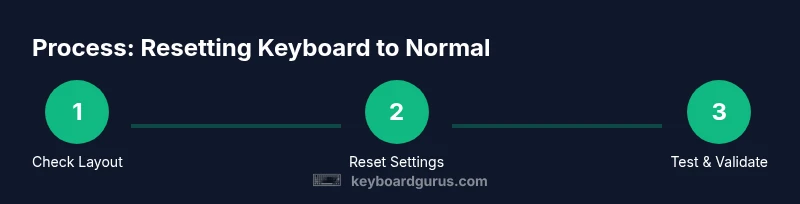
Restore your keyboard to normal by returning language and input to the default, resetting keyboard layout, and re-checking accessibility settings. Start with the language bar, then remove any custom mappings, and test in a safe environment. If needed, update drivers or OS, and perform a clean restart. Keyboard Gurus recommends starting with Windows, macOS, then Linux guidelines.
Why resetting the keyboard to normal matters
A keyboard that feels
broken
Common causes of a keyboard behaving oddly
When a keyboard stops behaving like your own, the culprit is often a mix of software misconfigurations, language/layout changes, or accessibility settings. The Keyboard Gurus team has seen thousands of cases where a simple reset fixed the issue without hardware replacement. Keyboard Gurus Analysis, 2026, confirms that most misbehavior stems from language/region toggles, sticky keys, or driver glitches rather than a faulty keyboard itself. Understanding the root cause helps you pick the right fix and avoid unnecessary steps.
Quick checks you can perform before deeper troubleshooting
Before you dive into platform-specific steps, make a quick triage pass:
- Look at the language/input indicator on your taskbar or menu bar and note the active layout (e.g., EN-US, FR).
- Try typing in a basic text editor to see if only certain keys or symbols are affected.
- Check for sticky keys or accessibility features that could alter typing behavior.
- Reboot your machine to clear transient software states.
These checks often reveal the simplest fix and save time on more complex procedures.
Windows reset guide: language, layout, and input
Windows keeps language and keyboard layout in Settings under Time & language > Language and under Keyboard options. Start by ensuring English (United States) or your preferred default is active, then remove any extra layouts. Disable temporary accessibility features like Sticky Keys if they’re enabled by mistake. If problems persist, open Device Manager, expand Keyboards, and update or reinstall drivers. A restart after changes ensures settings propagate cleanly.
macOS reset guide: restore defaults and input sources
macOS stores keyboard input sources under System Settings > Keyboard > Input Sources. Add your standard layout (e.g., U.S. English) and remove any unfamiliar ones. If the keyboard behaves oddly in some apps, check app-specific shortcuts that might override global behavior. A safe approach is to reset the NVRAM/PRAM if you notice hardware-like inconsistencies; this often resolves layout and symbol issues.
Linux reset guide: language, layout, and console checks
Linux configurations vary by distribution, but the core idea is the same: pick a default layout and ensure it’s the system-wide one. Use regional settings tools or terminal commands like setxkbmap to assign a standard layout, then reboot. If you use multiple desktops, make sure all sessions share the same default input source. Hardware key mappings can be overridden by desktop environment utilities—reset those to defaults.
Fixes for keyboard remapping and accessibility features
If you or an app remapped keys, revert to factory defaults. Disable Sticky Keys, Filter Keys, and other modifiers that alter keystroke behavior. Review any third-party remapping software you installed, and remove it if it interferes with normal typing. After adjustments, test in a few apps to confirm consistency across environments.
Hardware troubleshooting: when to suspect a physical issue
A non-responsive set of keys or inconsistent characters can still be hardware-related. Inspect the keyboard for debris or liquid spills, and gently clean the keycaps if safe for your model. If you use an external keyboard, try it on another device to rule out port or controller problems. If the problem persists across devices, consider professional inspection.
When to seek professional help or service
If you’ve exhausted software fixes and the issue recurs after updates or resets, it may be time to consult a technician. Persistent hardware faults could indicate a defective keyboard or motherboard input controller. Keyboard Gurus recommends documenting your steps and issues for the technician, so they can reproduce the problem quickly.
Final validation: test and verify across apps
After applying fixes, test typing in a variety of programs—word processing, browsers, code editors, and chat apps. Confirm that the default layout works consistently and that shortcuts behave as expected. Keep the system clean by periodically revisiting language settings and removing unused layouts.
Tools & Materials
- Keyboard (built-in or external)(Any type you normally use)
- Computer with admin access(Windows, macOS, or Linux depending on your setup)
- Internet connection(Needed for driver or OS updates)
- Backup point or restore point(Optional safety net before major changes)
- Screwdriver or cleaning kit (if hardware cleaning is needed)(Only for hardware inspection by experienced users)
Steps
Estimated time: 40-60 minutes
- 1
Open language and input settings
Access your system settings to review the current keyboard layout and input language. On Windows, navigate to Settings > Time & language > Language. On macOS, go to System Settings > Keyboard > Input Sources. On Linux, use your distribution’s language/keyboard tool.
Tip: Take a screenshot of the active layout for reference. - 2
Switch to your default layout
Choose your primary keyboard layout (e.g., English US QWERTY) and set it as the default. Remove any secondary layouts that you don’t use to avoid accidental switches.
Tip: Disable the toggle key for quick layout changes if you don’t need it. - 3
Remove custom mappings
If you or software created remappings, revert them to the system defaults. Check any mapping apps or keyboard utilities and reset to factory settings.
Tip: Document any mappings you remove in case you need to re-add them later. - 4
Check accessibility features
Inspect Sticky Keys, Filter Keys, and other accessibility options that modify keystrokes. Disable them if they’re not required for your workflow.
Tip: Even briefly enabling these features can alter typing feel and response. - 5
Update or reinstall keyboard drivers (Windows)
Open Device Manager, expand Keyboards, right-click your keyboard, and choose Update driver. If issues persist, uninstall and restart to reinstall automatically.
Tip: Keep a backup of your important settings before uninstalling. - 6
Check for OS updates or firmware
Install the latest OS updates and, if available, firmware updates for your keyboard or USB controller. Updates often fix compatibility issues that affect layouts and mappings.
Tip: Restart after updates to ensure changes take effect. - 7
Test with a different user profile
Log into another user account to determine if the issue is profile-specific. If the keyboard behaves normally there, the problem likely resides in your user settings.
Tip: If the problem persists in all profiles, focus on system-wide settings. - 8
Boot into Safe Mode (troubleshooting)
Restart into Safe Mode to rule out third-party software conflicts. In Safe Mode, only essential drivers load, helping isolate the issue.
Tip: If the keyboard works in Safe Mode, consider auditing startup software. - 9
Reset and re-test on all platforms
Apply the Windows and macOS steps to each platform you use, verifying that the default layout works consistently. Linux users should set a standard layout and reboot.
Tip: Keep notes of any platform-specific differences observed. - 10
Final verification and maintenance
After changes, type in multiple apps to confirm consistency. Periodically review language settings and clean the keyboard to prevent future mischief.
Tip: Schedule a monthly quick check of language settings.
Got Questions?
What should I try first if my keyboard suddenly types wrong characters?
Start by checking the active keyboard layout and language. If a layout switch occurred, switch back to your default and remove unused layouts. Then check accessibility features like Sticky Keys.
Check your language layout first; switch back to default and review accessibility options to rule out quick fixes.
How do I know if the problem is hardware or software?
Test the keyboard on another device or use a different keyboard with the same device. If it still misbehaves, the issue is likely hardware or port-related. If it works on another device, the problem is software or settings.
If a second keyboard works, the issue is likely software; if not, hardware or ports might be the culprit.
Can I reset keyboard settings without losing data?
Most reset steps affect settings but not personal data. Back up important preferences, and proceed with default layouts and mappings to minimize risk.
Resetting layout usually doesn’t erase files, but it’s smart to back up settings first.
What if the issue appears only in one app?
Check app shortcuts, input methods, and whether the app overrides global keyboard settings. Reinstalling the app or resetting its preferences can help.
If only one app is affected, look at that app's shortcuts and preferences.
Should I update drivers for a simple keyboard problem?
Driver updates can resolve layout detection issues. Only update drivers via official sources and restart after install.
Driver updates can fix layout detection; restart after updating.
When should I replace the keyboard?
If the keys are physically stuck, unresponsive, or show inconsistent behavior after software fixes, hardware replacement might be necessary.
Consider replacement if hardware failure is evident after troubleshooting.
Watch Video
What to Remember
- Identify whether the issue is software or hardware related.
- Reset language and layout first before deep troubleshooting.
- Test across platforms to isolate platform-specific issues.
- Document changes and verify by testing in multiple apps.